A messy After Effects project quietly kills your time, previews, and creativity. A clean, predictable structure does the opposite: it speeds you up, reduces mistakes, and makes client revisions painless. Below is a practical, editor-minded system to keep your AE workflow organized on every job, solo or with a team.Explore subscription plans
📋 Table of Contents
Why organized After Effects workflows matter
What is an organized After Effects workflow
An organized After Effects workflow is a repeatable way of setting up your projects, comps, assets, and renders so you always know where things are, how they connect, and how to hand them off. It covers everything from folder structures and naming to precomps, color systems, and render pipelines.
Why this matters for editors and motion designers
When you skip structure, your project becomes a maze: duplicated layers, mystery precomps, missing assets, and broken renders. An organized workflow gives you:
- Speed – find shots, graphics, and precomps instantly.
- Confidence – you understand what is driving each animation.
- Flexibility – client changes are quick, not painful.
- Collaboration – teammates can open the project and understand it fast.
Who benefits most
These after effects workflow organization tips help:
- Freelance editors and motion designers juggling many clients.
- Agency teams that share project files across multiple artists.
- Content creators pushing frequent YouTube, Shorts, or social ads.
- In-house designers building a library of reuseable brand assets.
Core principles of a clean workflow
Across all styles and project scales, a solid workflow is built on three ideas:
- Clarity – intuitive names, labels, and comp hierarchy.
- Consistency – same structure on every project so you build muscle memory.
- Containment – each comp or precomp has a clear purpose and limited responsibilities.
Once you accept that project organization is part of the creative process, not an optional chore, you can design a clean AE project structure that fits every job you touch.
Building a clean AE project structure that scales
What a clean AE project structure looks like
A clean ae project structure is predictable. When you open the Project panel, you know exactly where to look for:
- 01_ASSETS – logos, footage, audio, images.
- 02_PRECOMPS – reusable animation systems, effects, and elements.
- 03_SCENES – main story beats or sections of your video.
- 04_GLOBAL – controls for color, typography, and brand elements.
- 05_EXPORTS – final comps for renders and aspect-ratio versions.
Adopt a simple numbering system (01, 02, 03…) so folders stay sorted even as projects grow.
Folder and comp naming conventions
Use names that describe both purpose and context:
- SCN_01_Intro_1080p
- PRE_LowerThird_Main
- CTRL_Global_Colors
- EXPT_Story_Vertical_9x16
Consistent prefixes like SCN_, PRE_, CTRL_, and EXPT_ help you filter comps quickly in the search bar.
Adapting structure for different content types
If you work on different formats, you can keep the same logic and just adjust content folders:
- Social packs – add folders like SCN_Reels, SCN_Shorts, SCN_Stories.
- Widget/UI animations – keep UI elements in a dedicated PRE_UI folder to reuse interactive elements like a map-style widget animation.
- Lyric or music videos – separate PRE_Lyrics, PRE_Backgrounds, and PRE_Overlays to keep complex timing under control.
When to create separate project files
For ongoing series or recurring assets, create one master project per show or brand instead of cramming everything into one file:
- Brand toolkit – logos, transitions, lower thirds, reusable text animations.
- Series template – openers, bumpers, and overlays for recurring episodes.
- Special packs – for seasonal or themed graphics, like a holiday opener similar in spirit to a stylized festive tree composition.
A disciplined structure makes it easier to browse collections, whether you are building your own library or pulling ideas from curated motion resources such as the video template library.
Common workflow mistakes that slow AE projects down
Typical organization errors
Many After Effects users are fast at animating but slow at managing the project. These are the most common mistakes:
- No folder structure – all comps and assets dumped in the root of the Project panel.
- Vague names – comps named Comp 1, Precomp 3, or Final_Final_v7.
- Untracked versions – overwriting main comps instead of iterating versions (v1, v2, v3).
- Random labels – no color label logic for layers or comps.
Technical workflow issues
Even with some structure, technical habits can hurt performance and clarity:
- Over-nesting precomps – deep chains where adjusting one property means diving five levels down.
- Heavy effects everywhere – blurs, glows, and particle systems on full-res layers instead of pre-rendered elements.
- Unoptimized footage – massive 4K or 6K files dropped directly into a 1080p timeline.
- Default project settings – mismatched frame rates and color settings across comps.
Animation and timing pitfalls
Messy timing and curves can be just as damaging as messy folders:
- No spacing control – ignoring the Graph Editor leads to robotic motion.
- Keyframes scattered everywhere – motion spread across dozens of layers with no clear control layer.
- Motion blur misuse – turning it on for every layer, even static elements, killing preview speed.
Checklist to spot trouble early
Before projects get out of hand, do a quick check:
- Can you explain the comp hierarchy in one sentence?
- Can a new artist understand your naming without asking questions?
- Can you locate all assets used in the main edit within 30 seconds?
- Do preview times stay reasonable when working at half resolution?
If the answer to any of these is no, your workflow organization likely needs to be tightened before adding more animation complexity.
Choosing the right workflow for each type of edit
Match structure to the project goal
The best after effects workflow organization tips are only useful if you adapt them to your project type. Structure a 6-second social bumper differently than a 3-minute brand video, even if your folder logic stays the same.
Short-form social content
For Reels, Shorts, and TikTok-style edits:
- Keep SCN_ comps minimal; one per key message or hook.
- Store reusable hooks and end screens as PRE_ comps.
- Use a global CTRL_Social_Styles comp to manage fonts and colors.
Ads and product promos
For performance-driven campaigns:
- Break the story into SCN_01_Hook, SCN_02_Feature, SCN_03_Proof, SCN_04_CTA.
- Separate product UI or widgets into dedicated precomps, similar to how a payment widget animation might be reused across multiple ads.
- Keep a single global control comp for brand colors, CTA styles, and legal text sizing.
YouTube and long-form edits
For episodic videos or tutorials:
- Create a SCN_Intro, SCN_LowerThirds, SCN_ChapterCards, and SCN_Endscreen structure.
- Place recurring elements like subscribe widgets or timeline overlays into PRE_ comps, much like you would treat modular YouTube HUD graphics.
- Use a master typography and color comp shared across episodes for consistency.
Using templates as workflow accelerators
Templates are not just about style; they are workflow decisions baked into a file. A well-made template gives you:
- A proven folder and comp hierarchy.
- Preset controllers for brand colors, typography, and layout.
- Safe animation systems that play well across resolutions and durations.
Studying these structures, adjusting them to your own needs, and saving your own versions gradually builds a personal library of systems. When you want to explore built-for-speed structures or learn new setups, it is worth checking both curated resources and official documentation on Adobe help pages for compatibility and best practices.
When a subscription makes sense
If you handle frequent edits across multiple brands and formats, an Unlimited After Effects Templates Subscription can function as your extended toolkit: a collection of ready-made projects with consistent organization, controllers, and animation systems that you adapt and refine to match each client rather than building from scratch every time.
Practical template and workflow checklist for clean projects
Start with the right project settings
Before importing anything, set your project up correctly:
- Frame rate – match the delivery spec (23.976, 25, or 30 fps are common). Do not mix frame rates across main comps.
- Resolution – decide primary resolution (e.g., 1920×1080) and create separate master comps for vertical (1080×1920) or square versions.
- Color space – set working color and bit depth according to your pipeline, especially if you are sending shots to grading.
Import and organize assets
Use a consistent import structure:
- Under 01_ASSETS, add Footage, Images, Audio, Logos, UI.
- Rename key clips descriptively: Host_Closeup_CamA, Product_Packshot_4K.
- For UI-heavy animations, separate interface elements so they can be reused, as you would for reusable finance UI like a digital card animation scene.
Keyframe organization and precomps
Do not let every layer animate independently. Instead:
- Use nulls or dedicated control layers to drive motion (position, scale, rotation).
- Precomp sets of layers that logically belong together (a lower third, a UI panel, a lyric line).
- Name precomps by role, e.g., PRE_L3RD_HostName, PRE_UI_Panel_Left.
- Keep keyframes aligned around meaningful beats: on music hits, cut points, or voiceover phrases.
Labeling and color coding
Labels are a fast visual map of your comp:
- Assign one color for controls (nulls, controllers), another for text, another for backgrounds.
- Use the same label colors across projects so your eye instantly knows what can be safely adjusted.
Performance and preview speed
To keep AE responsive:
- Preview at Half or Third resolution during heavy sections.
- Use Region of Interest for isolated areas.
- Pre-render heavy sequences and re-import as footage, especially if you use intense effects like glows or particle systems.
- Consider proxies for large 4K clips; this is critical when working with multiple simultaneous comps.
Plugin dependencies and safety
Templates often rely on plugins. To stay safe:
- Check which plugins are required before committing to a workflow.
- Prefer setups that offer native-only alternatives when possible.
- Document plugin usage in a small DOC_ReadMe comp or text layer so collaborators know requirements.
Customization workflow
When working from a template or your own master project, follow a repeatable process:
- Step 1 – Open the CTRL_ comp to set global colors, fonts, stroke widths, and drop shadow styles.
- Step 2 – Replace logos and assets in the dedicated LOGO and ASSET precomps.
- Step 3 – Adjust timing by sliding entire precomps on the main timeline instead of rebuilding animations.
- Step 4 – Iterate versions as separate master comps (v1, v2, v3) instead of overwriting.
Use-case examples
Apply the same checklist to different content types:
- Reels and Shorts – Short runtime, big impact. Use tightly focused scenes and bold text systems, like compact UI callouts similar to a video chat status widget layout.
- Product or app demos – Emphasize clear UI animation; precomp interface states and use simple transitions between them.
- Cinematic titles – Work in layers: background, light passes, title, and overlays. Keep each role in its own precomp so you can quickly re-style for new projects.
Final pre-render and export checks
Before sending to render:
- Solo your EXPT_ comps and confirm durations and resolution.
- Turn off unused adjustment layers or disabled precomps.
- Check for missing fonts or assets, especially when collaborating.
- Queue test renders for the heaviest sections to confirm playback quality.
A well-structured template plus this workflow checklist means a new edit starts from a stable foundation, not from a blank composition every single time.
Advanced workflow systems for long-term efficiency
Design for consistency across entire edits
Once basics are under control, think about consistency from episode to episode or campaign to campaign. Create a master style project with:
- CTRL_Brand_Colors – all key color swatches as one set of controls.
- CTRL_Typography – main, secondary, and accent text styles.
- PRE_Transitions – modular transitions that work between any two scenes.
Reusable animation systems
Build systems instead of one-off animations:
- Precomp lower thirds that accept dynamic text inputs.
- Set up camera rigs reused across scenes for subtle parallax moves.
- Create multi-purpose HUD or stat overlays, like a flexible metrics layout inspired by a financial UI such as the crypto rate widget design.
Styleframes and visual checkpoints
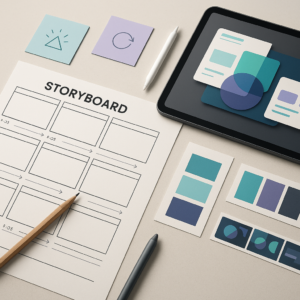
Before animating a full sequence, prepare a small comp with key styleframes:
- Intro frame with logo and primary colors.
- Standard text frame with lower third and supporting typography.
- End frame with CTA region and logo lockup.
Locking visual direction early reduces revisions and rework across a project.
Quality control passes
Schedule time for focused QC:
- Timing pass – scrub and watch with sound to catch awkward pacing.
- Design pass – check alignment, safe areas, and brand consistency.
- Technical pass – check resolution, frame rate, and essential graphics readability.
Export and render workflow basics
Keep rendering manageable:
- Use EXPT_ comps for each delivery format (16×9 master, 9×16, 1×1).
- Batch them in the Render Queue or Media Encoder with named presets.
- Verify bitrates and codecs match platform requirements (YouTube, ads platforms, broadcast).
Dynamic Link and project weight
When working with other apps:
- Use Dynamic Link sparingly; heavy compositions linked from an edit system can become slow.
- For stable sections, render intermediates (ProRes or DNx) and replace live comps.
- Archive finished jobs with trimmed project files, collecting only used assets.
These habits make your After Effects projects lighter, more predictable, and easier to revisit months later when a client suddenly asks for a new cut, language version, or updated brand lockup.
Search-based workflow tips motion designers often look for
How do I organize After Effects projects for clients
Use a client-based folder naming system on disk (ClientName_Project_YYYYMM) and mirror that logic inside AE with numbered folders. Keep a DOC_ReadMe comp listing fonts, plugins, color specs, and version notes.
What is the best way to manage multiple aspect ratios
Create one master 16×9 comp and nest it inside 9×16 and 1×1 framing comps. Use precomposed “safe area” guides so core content stays visible across formats, then adjust only when essential elements are being cropped.
How do I keep my timeline clean in complex animations
Group related layers, precomp them, and use guide layers and nulls to centralize motion. Use consistent label colors and shy layers you rarely touch. Keep a single master camera where possible in 3D scenes.
How can I reuse animations across projects
Create a dedicated Library project with transitions, lower thirds, and titles. Open it alongside your working project and import needed comps. Version the library occasionally so you keep improvements without breaking older jobs.
How do templates fit into a clean AE structure
Study each template you use: adopt the parts of its structure that work for you and modify the rest. Over time, merge the best ideas into your own unified system, so every new project starts from a known, organized baseline instead of random layouts.
How do I avoid performance issues in large AE projects
Stick to clear precomp hierarchies, pre-render heavy effects, keep project bit depth appropriate to the job, and archive unused assets periodically. Set preview resolution and skip frames smartly to keep interaction smooth during the design phase.
Bringing it all together for faster, cleaner AE work
A disciplined approach to after effects workflow organization tips and a clean ae project structure means less time hunting through comps and more time refining motion. With clear folders, smart precomps, predictable controllers, and reusable systems, revisions become simple, collaboration gets easier, and every new edit begins from a known, stable foundation instead of chaos.
Whether you are building your own library or leaning on an Unlimited After Effects Templates Subscription to speed up everyday edits, the real value comes from consistent structure and habits. Apply the folder conventions, checklists, and quality passes outlined here to your next project and refine them until they feel natural. The payoff is smoother timelines, cleaner renders, and reliable delivery for clients worldwide.
Conclusions
A clean After Effects workflow is an asset you reuse on every single project. Once your folders, comps, and controllers follow a consistent logic, templates and custom systems work together instead of fighting you. Use the structures and checklists above as a starting point, refine them to fit your style, and let organization support your creativity instead of slowing it down.
FAQ
How should I name my After Effects comps for clarity
Combine role and context in each name. For example, use prefixes like SCN_ for scenes, PRE_ for precomps, CTRL_ for controllers, and EXPT_ for export comps, followed by a descriptive label and version number.
How do I keep After Effects projects fast when they get big
Use pre-renders for heavy sections, keep footage at the required resolution, preview at half or third quality, avoid unnecessary motion blur, and precompose complex groups of layers to simplify the main timeline.
What is a good folder structure for AE projects
A simple structure is 01_ASSETS, 02_PRECOMPS, 03_SCENES, 04_GLOBAL_CONTROLS, and 05_EXPORTS. Inside assets, split footage, images, audio, and logos. This scales well for solo work and teams.
How can I reuse After Effects templates without making projects messy
Import only the comps you need, rename them to match your project, and place them into your standard folder structure. Keep global controls centralized and avoid copying multiple overlapping control systems into one project.
How do I handle different formats like vertical and square videos
Build a 16×9 master comp first, then nest it in 9×16 and 1×1 comps. Use guides or framing overlays to keep the main subject and text inside the safe area and adjust only when important content is cut off.
When should I create a new AE project instead of reusing one
Start a new project when the client, brand system, or series changes significantly, or when the existing file is bloated. Keep separate master projects for evergreen toolkits, recurring series, and one-off campaigns.