2D character animation inside After Effects is no longer just for studios. With the right workflow, you can animate expressive characters for social videos, ads, explainers, and YouTube content directly in your timeline-friendly tool. This guide walks through practical rigging, animation, and template-based systems that fit real-world post-production workflows.Explore animation templates
📋 Table of Contents
Understanding 2D character animation in After Effects
What 2D character animation means in After Effects
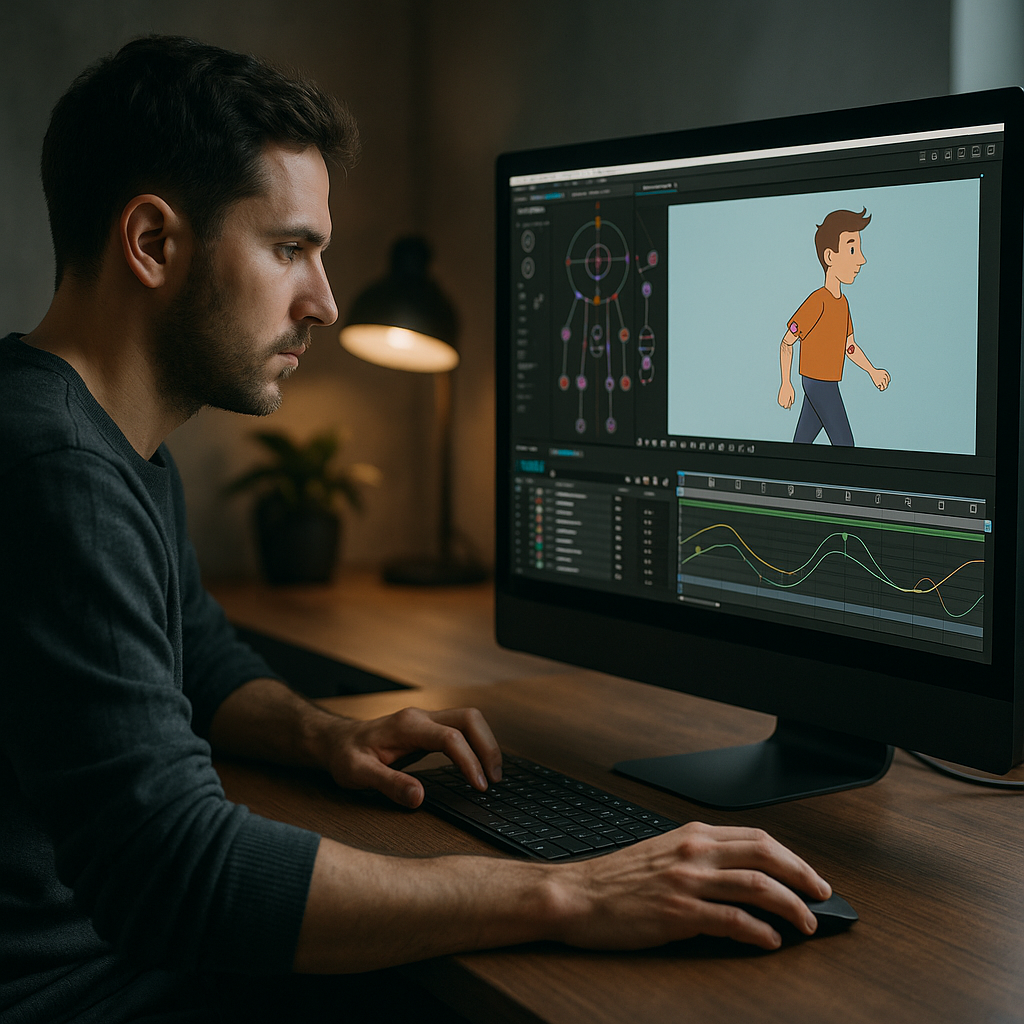
When people talk about how to create 2D character animation in After Effects, they usually mean building and animating flat characters made from shapes, Illustrator layers, or PSD files. Instead of frame-by-frame drawing, you animate rigs: a system of linked layers that behave like a puppet.
Why it matters for editors and motion designers
For editors and motion designers, 2D characters are a flexible way to add storytelling and emotion without jumping into full 3D or traditional hand-drawn pipelines. You can keep everything in one environment, sync timing to your edit, and update scenes quickly when feedback arrives.
Typical use cases
- Explainer videos where a simple mascot guides the story
- Social ads featuring characters interacting with UI or products
- YouTube channels using avatars instead of on-camera talent
- Corporate training and onboarding animations
How it fits into a real workflow
Unlike character animation in dedicated tools, After Effects is already part of many editors’ pipelines. You can keep your character animation inside the same ecosystem you use for titles, graphics, and transitions. That makes it easier to reuse assets, version projects, and maintain consistency across a full campaign.
Core building blocks you will use
- Shape layers and imported vector art (AI/SVG converted to shapes)
- Parenting and nulls to connect limbs and body parts
- Character rigging After Effects techniques using controllers and expressions
- Keyframes for pose-to-pose animation
- Graph Editor, motion blur, and easing for polished motion
Who this workflow is for
This approach works well if you are:
- An editor who wants simple character beats inside edits without leaving After Effects
- A motion designer building reusable character systems for clients
- A creator producing recurring content (series, channels, branded shows) where consistent characters matter
Once you understand these basics, the next step is learning how rigging works in After Effects and which methods fit your style and deadlines.
Character rigging approaches in After Effects
What character rigging in After Effects actually is
Character rigging After Effects workflows turn static artwork into something you can pose and animate. Instead of directly keyframing every limb individually, you create a control system: hands, feet, hips, head, and facial controllers that drive the character.
Main rigging approaches
- Simple parenting rigs – Use parenting and rotation on separate layers (upper arm, forearm, hand). Fast for basic characters; ideal for explainer-style animation.
- Null controller rigs – Place nulls at joints and parent limbs to them. You animate the nulls, not the artwork. Makes editing poses easier and keeps keyframes organized.
- IK (Inverse Kinematics) rigs – Use expressions or scripts to make feet stay planted while the body moves. Great for walks and physical actions, slightly more complex to set up.
- Template-based rigs – Start from premade character projects where the rig is already built. You swap artwork and adjust proportions instead of building from scratch.
When to use which rig
- Explainery, flat scenes – Parenting or null rigs are usually enough.
- Walk cycles and physical gags – IK rigs save time and give more believable motion.
- Series and recurring content – A template rig with clean controllers and precomps is easiest to maintain.
Linking rigs to your design source files
You can build characters directly with shape layers or import designs from illustration tools. For more UI-inspired or branded content, many creators mix characters with motion graphics like UI widgets, for example combining a mascot with an animated map and location widget inside a scene.
Examples of rig complexity levels
- Minimal rig – Head, torso, arms, and legs with simple rotations; good for background characters.
- Standard rig – Add hand, foot, and hip controllers; bendy arms; plus head turn poses.
- Advanced rig – Switchable hands, facial rigs, multiple outfits, and IK/FK switching for complex action.
Why rigging quality affects animation speed
Spending time on a clean rig upfront lets you animate new shots much faster. A well-built rig means you:
- Change poses with fewer keyframes
- Keep arcs and spacing consistent between shots
- Fix proportion or design tweaks without rebuilding everything
Next, you will see the typical mistakes that slow down rigging and animation in After Effects, and how to avoid them.
Common mistakes and pain points in 2D character workflows
Overcomplicating the rig too early
Many artists try to build a feature-film-level rig for a simple explainer. The result is a slow, fragile setup that is hard to debug. Start simple and only add complexity if the storyboard demands it.
Typical rigging mistakes
- Building joints in the wrong place, causing unnatural rotations
- Naming layers poorly so you cannot find arms, legs, or controllers
- Parenting limbs inconsistently, which breaks poses when you move the body
- Mixing artwork and controllers on the same layer, making it hard to select what you need
Messy compositions and precomps
When characters, backgrounds, and UI all live in one comp, projects quickly become unmanageable. A messy structure makes it difficult to:
- Swap characters for different languages or regions
- Adjust timing for different aspect ratios
- Hand off the project to another editor or motion designer
Checklist: clean comp structure
- One precomp per character (body)
- Separate precomps for facial animation if needed
- Master “scene” comp where you place characters, camera, and text
- Logical naming like CHAR_01_BODY, CHAR_01_FACE, BG_CITY
Poor timing and spacing
Even with a good rig, animation can look stiff if spacing and easing are off. Common issues:
- Linear keyframes everywhere – characters move like robots
- No anticipation or follow-through – actions feel weightless
- Not using overshoot or settle – poses stop abruptly
Graph Editor and motion blur misuse
Editors new to animation often skip the Graph Editor and rely on default Easy Ease, which can make moves feel generic. At the same time, enabling motion blur on every layer in heavy comps can destroy preview performance.
- Use the Graph Editor for key character actions (jumps, turns, gestures)
- Toggle motion blur only when you need it or right before final renders
Heavy plugins and slow previews
Layer-heavy rigs, multiple effects, and 4K comps stack quickly. If you add complex third-party effects on top, your viewport becomes unresponsive. This leads to animating “blind”, which usually produces sloppy motion.
How to avoid constant rework
Revisions hit hardest when character rigs are inconsistent across scenes. If each shot uses a slightly different setup, editing timing becomes a nightmare. A unified rig per character, used across the project, reduces re-rigging and keeps animation notes actionable.
Once you know these traps, you can make better decisions about how detailed your rig should be and when to rely on templates or existing systems.
Choosing the right 2D character approach for each project
Start from your deliverable, not from the rig
Before deciding how to create 2D character animation for a project, clarify where the video will live and how often it will be updated. A weekly YouTube show needs a different strategy than a one-off product teaser.
For social reels and shorts
Reels, TikToks, and Shorts prioritize speed and volume. Your best approach is:
- Simple rigs with clear silhouettes
- Short loops (idle, nod, pointing, walking) that you can reuse
- Vertical compositions and safe zones for UI elements
For ads and performance creatives
Paid ads must be on-brand, quickly testable, and easy to localize. Consider:
- Character rigs that match brand colors and typography systems
- Prebuilt scenes (office, phone UI, product close-ups)
- Modular animation blocks so editors can rearrange beats without reanimating
For YouTube and educational content
Recurring channels benefit from a stable rig and style that viewers recognize. Reusable animation systems, like a standing host character plus UI overlays, can be combined with ready-made elements such as an animated channel stats widget or lower-thirds.
For cinematic or corporate explainers
Longer-form explainers or corporate videos demand polish and consistency over many scenes. That often means:
- One or two hero characters with higher-detail rigs
- Scene packs with matching camera moves and transitions
- Carefully controlled color palettes and lighting-style choices
Where templates and subscriptions fit in
Instead of authoring every rig from scratch, many teams use an Unlimited After Effects Templates Subscription to maintain a library of character setups, transitions, and scene layouts. You keep your look consistent across campaigns by reusing core systems while still customizing details for each client or episode.
Learning and maintaining skills
When you adopt a character workflow inside After Effects, it is worth keeping up with updates and best practices. Resources like the official After Effects training and support help you understand new tools, performance improvements, and useful shortcuts that directly affect animation speed.
Decision checklist before you rig
- Where will this video live (social, web, internal, broadcast)?
- How many videos will reuse this character?
- Do you need complex actions (runs, jumps) or mostly gestures and poses?
- Is there an existing template or rig that already solves 80 percent of your needs?
With a clear decision framework, you can now move into a more detailed, step-by-step workflow for building and animating 2D characters efficiently in After Effects.Compare subscription options
Practical workflow for 2D character templates and animation
Step 1 – Plan your character system
Before you open After Effects, define what your character must do. Note core actions: walk, wave, point, react, sit, or hold a phone. For each action, decide whether it is a one-off shot or a reusable loop. This prevents you from over-rigging for behaviors you will never animate.
Step 2 – Prepare artwork correctly
Design characters in a vector tool or as layered PSDs. Separate layers by function:
- Head, hair, neck
- Torso, hips
- Upper/lower arms and legs
- Hands and feet (with optional shape variations)
- Eyes, brows, mouth if doing facial animation
Keep pivot points in mind when drawing limbs and joints. Place elbows, knees, and shoulders where natural rotations should occur.
Step 3 – Import to After Effects and set project settings
Create a new project and set your default composition settings to match your primary output:
- Resolution: 1920×1080 for landscape or 1080×1920 for vertical
- Frame rate: 25/30 fps, or match your edit sequence
- Duration: make your character master comps a bit longer than needed
Import your artwork as a composition with editable layer styles, then convert vector layers to shape layers when needed. Consistency here prevents mismatch between animation timing and the edit.
Step 4 – Organize precomps and naming
Clean naming is crucial when you reuse rigs:
- Name layers with prefixes like CTL_ for controllers, ART_ for artwork, and NULL_ for helper objects.
- One master precomp per character: CHAR_A_MASTER.
- Inside, separate precomps for body and face if animation is complex.
Clear organization is what makes a character template shareable across teams and easy to update later.
Step 5 – Build the rig using parenting and controllers
For a standard biped:
- Parent hands to forearms, forearms to upper arms, upper arms to torso.
- Parent feet to lower legs, lower legs to upper legs, upper legs to hips.
- Use nulls placed at joints (ankle, knee, wrist, elbow) and parent artwork layers to them.
- Create larger controller nulls for CTL_ROOT, CTL_HIP, CTL_HEAD, CTL_HAND_L/R, CTL_FOOT_L/R.
This setup makes your animation keyframes live mostly on controllers, not artwork layers, keeping timelines cleaner.
Step 6 – Add IK and helper expressions where useful
If your project needs walking or grounded actions, implement IK on the legs or arms. Use expression-based solutions or scripts, but keep them documented. Store any custom sliders (for stretch or hand poses) on a dedicated CTL_PANEL layer to reduce confusion.
Step 7 – Performance tips for smoother previews
Character rigs become heavy quickly. To stay responsive:
- Work at half or third resolution while blocking animation.
- Disable motion blur and some effects until polishing.
- Use region of interest or soloed layers during intense work.
- Set the preview to skip frames when blocking out motion.
For very complex scenes, consider pre-rendering background loops to lightweight formats and re-importing them.
Step 8 – Keyframe organization, timing, and easing
Block your animation pose to pose: key the main storytelling positions first, then refine.
- Keep keyframes aligned on controllers per pose to ease revisions.
- Use the Graph Editor for arcs on hips, head, and hands.
- Apply overlapping action by offsetting keys on secondary parts like hair or accessories.
Use color labels to identify controllers and important layers, making it easier to navigate the timeline.
Step 9 – Plugin dependencies and safe alternatives
Many rigs rely on scripts or plugins. When your project needs to be shareable worldwide or across teams:
- Favor expression-only setups when possible.
- Document any required plugins in a text layer inside the comp.
- Provide a simplified version of the rig that does not require extra tools.
Step 10 – Customization workflow
Once you have a stable rig, turn it into a reusable template:
- Expose key color controls on an adjustment layer or controller layer.
- Centralize typography controls for on-screen text interacting with the character.
- Use prebuilt transitions between scenes so you can reuse them across videos.
For example, you might combine a character with an animated payment UI like the digital payment widget template inside a single product story. The character gestures while the UI animates, both using consistent timing and easing.
Step 11 – Use-case-specific setups
Different deliverables benefit from different template structures:
- Reels and shorts – Short character loops and bold poses that read on small screens.
- Ads and promos – Characters inside product environments with transitions that match brand energy.
- Product explainers – Characters interacting with widgets, dashboards, or maps, supporting the narrative visually.
- Cinematic intros – Slower pacing, subtle camera moves, and more detailed lighting or shading passes.
With this system in place, you can reuse your rig and scenes as a scalable template instead of treating each project like a fresh build.
Advanced rigging systems and long term workflow optimization
Build reusable animation systems, not single shots
Once your basic rig works, think in terms of systems. A system is a set of reusable rigs, scenes, and transitions that can produce many videos with consistent quality.
Consistency across full edits
For a series or campaign, define:
- A master character rig per main persona
- Shared timing curves for camera moves and transitions
- A limited palette and stroke style for all characters and graphics
Keep these in a dedicated library project. When starting a new episode or ad, import from that library instead of re-rigging.
Modular transitions and scenes
Create scene templates where the character enters, interacts, and exits. Each block should begin and end in a neutral pose so editors can stitch scenes together seamlessly. You can combine these with motion design elements like an animated liquid-style background to keep visual variety without redesigning from scratch.
Styleframes and approval workflow
Before animating full sequences, build styleframes: static compositions of key moments showing characters, backgrounds, and text hierarchy. This reduces revisions later because stakeholders sign off on design and composition before you commit to detailed animation.
Quality control passes
For each scene, perform focused checks:
- Rig integrity – No broken joints or misaligned limbs at extreme poses.
- Easing consistency – Similar actions share similar motion curves.
- Silhouette clarity – Poses read even without internal detail.
- Collision checks – Hands not intersecting body or props unnaturally.
Export and render considerations
Character-heavy comps can be slow to render. To stay efficient:
- Pre-render complex character segments with alpha channels when they are final.
- Use the Render Queue or a dedicated encoder for batch renders.
- Set up output presets (H.264, ProRes, etc.) for different clients or platforms.
Dynamic Link and cross-app pitfalls
If you send character comps from After Effects to an NLE via Dynamic Link, keep in mind:
- Heavier rigs mean slower timelines on the editing side.
- Version mismatches between apps can cause relink headaches.
- For stable client deliveries, pre-render hero character shots instead of linking them live.
Keeping projects lightweight over time
For teams producing content worldwide, projects evolve for months or years. To keep them manageable:
- Archive older versions with trimmed project files.
- Remove unused precomps or artwork periodically.
- Store shared rigs and scene templates in a separate, clean library project.
Advanced planning like this keeps 2D character animation sustainable over many deliverables, not just a single campaign.
SEO driven questions about 2D character animation and rigging
Common search intents around 2D character animation
People exploring how to create 2D character animation tend to ask similar practical questions. Here are some of the most searched topics, answered briefly.
- Can I create 2D character animation using only shape layers?
Yes. Shape-layer-only rigs are lightweight and scalable. Just be disciplined with naming, parenting, and keeping controllers separate from artwork. - What is the easiest way to start character rigging After Effects workflows?
Begin with a simple parenting rig and a few controllers. Once you are comfortable, introduce IK for legs or arms where you need grounded actions. - How do I make a simple walk cycle?
Create a looping comp where your character completes one step cycle. Pose four key positions (contact, down, passing, up), then refine spacing and add arm swings and head motion. - Do I need plugins for 2D character animation?
No, you can build rigs with built-in tools and expressions. Plugins and scripts speed things up, but are not mandatory. - How do I sync character animation to voiceover?
Roughly mark beats in the timeline with layer markers, then block character poses at those beats before adding secondary motion. For lip sync, use simplified mouth shapes timed to syllables. - Can I reuse the same rig with different outfits or brands?
Yes. Design variations with shared proportions and swap artwork inside the rig precomps. Maintain identical controllers so existing animation still works. - How many controllers are too many?
If you struggle to remember what a controller does without labels or notes, you probably have too many. Focus on the controllers you touch every time you animate: hips, feet, hands, head, and maybe chest. - How do I keep render times manageable?
Disable unnecessary effects, pre-render heavy segments, and avoid ultra-high resolutions unless required. Optimize by using reasonable motion blur samples and clean rigs.
Keeping these common questions in mind helps you design rigs and templates that match real user needs and everyday production scenarios.
Bringing it all together for efficient 2D character animation
From basics to reliable systems
You started with the fundamentals of what 2D character animation is inside After Effects, then moved through rigging methods, common pitfalls, and a detailed, template-ready workflow. With a clean rig, organized precomps, and thoughtful timing, your characters will feel alive while still being easy to manage in real-world edits.
Main takeaways for your workflow
- Plan characters around actual deliverables and reuse needs.
- Keep rigs simple and well-labeled, focusing on the controllers you animate most.
- Rely on modular scenes and precomps to keep projects maintainable.
- Use performance tricks and pre-renders to stay responsive and hit deadlines.
Next steps in your own projects
Start with one character, one rig, and one short sequence. Turn that into a reusable template, then build a small system of loops, scenes, and transitions. Over time, this library becomes your go-to resource for fast, consistent 2D character animation in After Effects.Start building faster now
Conclusions
2D character animation in After Effects becomes manageable when you treat rigs and scenes as reusable systems, not one-off shots. With clean structure, focused controllers, and smart performance habits, you can deliver expressive characters that match your edit and brand, while keeping timelines fast and revisions under control.
FAQ
Do I need drawing skills to create 2D character animation in After Effects?
Strong drawing skills help, but they are not required. You can start with simple geometric characters, purchased artwork, or premade templates and focus on rigging and timing.
Which After Effects version is best for 2D character animation?
Use a recent stable release that your team shares. Newer versions improve performance and expressions, but prioritize consistency across all machines in your workflow.
How long does it take to rig a basic 2D character?
A simple, controller-based biped can take 1–3 hours once you know the process. Complex facial rigs, outfits, and IK setups add more time, so plan accordingly.
Can I animate multiple characters in the same scene?
Yes, but keep each character in its own precomp and use proxies or pre-renders when performance drops. This keeps rigs manageable and easier to debug.
What is the best way to back up character rigs?
Maintain a dedicated library project with your rigs and scene templates. Use versioned saves, consolidated project files, and clear folder structures for artwork and renders.
How do I adapt a horizontal character animation to vertical formats?
Set up alternate aspect ratio comps that reference the same character precomps. Reframe camera moves, adjust text layout, and ensure important actions stay within safe zones.