Advanced 2D motion in After Effects is about more than keyframes and presets. It blends timing, spacing, design and editorial thinking into one repeatable workflow. This guide walks editors and motion designers from core concepts to actionable systems that scale across client work, social content and larger productions.Explore pro motion assets
📋 Table of Contents
Understanding Advanced 2D Motion in After Effects
What advanced 2D motion really means
Advanced 2D motion techniques describe how you control movement, timing and visual rhythm beyond basic position and opacity keyframes. You are not just moving layers; you are sculpting motion that feels intentional, polished and aligned with story and brand.
From basic moves to motion design decisions
Most editors start with simple transforms: scale in, fade out, slide left. Advanced 2D motion goes further, asking questions like:
- What is the visual hierarchy of this scene?
- Which element leads the eye first, second, third?
- How should easing feel based on mood: playful, sharp, or cinematic?
- Where should the viewer rest between bursts of animation?
Who advanced 2D motion is for
These techniques matter if you:
- Edit branded content, ads, explainers, UI demos or YouTube channels in After Effects.
- Build reusable graphics systems such as lower thirds, titles and lyric videos.
- Need consistent motion language across campaigns, series or seasons.
- Want your edits to feel like high-end motion design, not patched-together transitions.
Why it matters for real projects
Good 2D motion is invisible when it needs to be and expressive when it should stand out. It improves clarity (people understand the story faster), retention (they keep watching) and perceived production value (your work feels expensive even on tight deadlines).
Key building blocks you will refine
Throughout this guide you will keep circling a few core blocks:
- Timing and spacing in and between key moments.
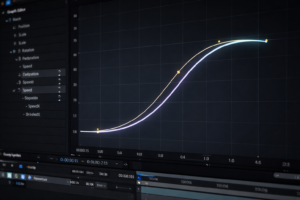
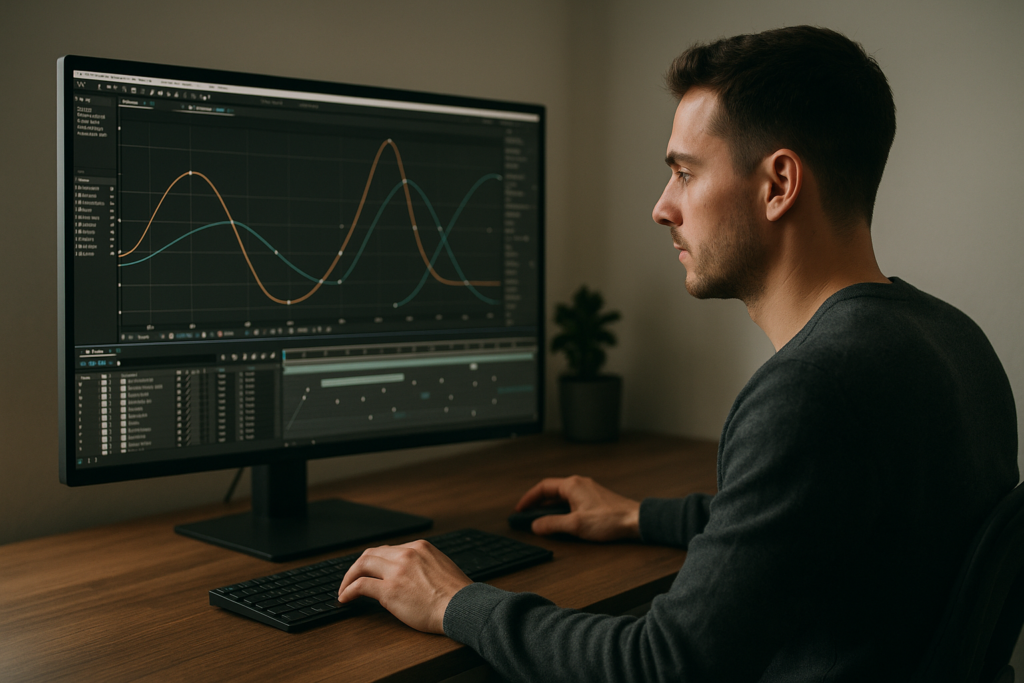
- Easing and motion curves, especially in the Graph Editor.
- Layer hierarchy and how objects interact on screen.
- Consistency: using the same motion rules across an entire edit.
- Efficient workflows using templates, modular comps and smart precomps.
Once you see 2D motion as a system instead of a bag of one-off tricks, it becomes much easier to push quality up while keeping iteration time low.
2D Animation Mastery and Styles for Different Projects
Defining 2D animation mastery in After Effects
2D animation mastery is about predictable, repeatable control. You can look at a storyboard, a static design or a UI mockup and know exactly how to animate it, how long it will take and which techniques will give it the best feel within the given constraints.
Core styles of advanced 2D motion
Most advanced 2D work you see online is a blend of a few recognizable styles:
- UI and widget animation – app-style panels, notifications and dashboards sliding, scaling and fading with subtle overshoot and micro-interactions. For instance, a project like the Google Maps widget animation type of layout uses clean, functional motion.
- Typography and lyrics – kinetic type, lyric videos and subtitles that react to rhythm, voiceover or sound effects while remaining easily readable.
- Brand and promo graphics – logo stings, callouts, product highlights and social overlays where motion supports identity and tone.
- Data and dashboards – loading bars, charts, counters and progress meters that need accurate timing and clear visual feedback.
Matching technique to intent
2D animation mastery means you know when each style fits:
- Explainer videos need legible, slower easing and generous spacing.
- Music-driven edits benefit from rhythmic pops, bounces and fast transitions.
- Corporate openers prefer restrained, smooth shift-based motion and minimal overshoot.
- Short-form social content can be punchy, playful and slightly exaggerated.
Templates as learning references
Reverse-engineering high-quality templates is one of the fastest ways to learn. Open a complex UI or lyrics project and inspect:
- How comps are organized and named.
- Where precomps split scenes into manageable blocks.
- How expressions connect controls (e.g., sliders driving multiple properties).
- Which easing patterns repeat across the entire edit.
Studying complete projects, like an animated music widget similar to a TV-like lyric concept, gives you context you do not get from isolated YouTube tutorials.
Comparing approaches by audience
For 2D animation mastery across client types, consider:
- Agencies – expect reusable systems, style guides and consistent motion rules.
- Solo creators – need fast-to-adapt setups they can update weekly.
- In-house teams – care about scalability, version control and clear project structure.
Align your techniques and level of complexity with how often assets will be reused, who will open the project after you and how quickly they must be able to understand and tweak it.
Common After Effects Mistakes That Kill 2D Motion Quality
Messy timing and off-beat animation
Poor timing is the biggest giveaway that a project is not at an advanced level. Common issues:
- Keyframes not aligned with music accents or voiceover beats.
- Animations that start and end at similar speeds, with no sense of impact.
- Transitions overlapping too much, creating a blurred timeline of motion.
Fix it checklist
- Use markers on both comp and layer level to lock down beats.
- Preview short segments looped to fine-tune start and end frames.
- Leave micro-pauses between major movements for breathing room.
Ignoring the Graph Editor
Staying on default linear keyframes makes even great design look mechanical. Common mistakes:
- Relying only on Easy Ease without customizing curves.
- Using random influence values on each layer so nothing feels unified.
- Not linking motion curves across related elements.
Fix it checklist
- Create a small library of preferred curves (e.g., snappy in, soft out).
- Copy-paste curves between similar elements for consistency.
- Use value vs. speed graphs intentionally; do not mix them at random.
Overusing or misusing motion blur
Motion blur hides some sins but introduces others:
- Enabling motion blur on everything, even static graphics.
- Using high shutter angles so details smudge and text becomes harder to read.
- Relying on motion blur instead of solid timing and spacing.
Fix it checklist
- Turn blur off while blocking; enable only on final polishing pass.
- Reduce shutter angle for text and UI elements.
- Use blur to support fast accents, not to disguise sloppy animation.
Chaotic comps, precomps and naming
Disorganized projects slow you down and make collaboration painful:
- Layers named “Shape Layer 27” across the entire sequence.
- Huge master comps with dozens of unrelated scenes.
- Precomps nested four or five levels deep without consistent naming.
Fix it checklist
- Adopt a simple naming convention: SC01_UI_Main, SC01_Type, etc.
- Group related animation in logical precomps (background, UI, titles).
- Color-label layers by role: text, BG, icons, controllers.
Heavy plugins and slow previews
Overloading a project with effects and plugins:
- Makes previews laggy and discourages iterative refinement.
- Causes compatibility issues when you share projects.
- Increases render times unpredictably.
Fix it checklist
- Use native effects whenever they produce similar results.
- Pre-render heavy sections as image sequences or ProRes.
- Keep a “no plugins” version when possible for portability.
Under-planning the motion story
Jumping straight into keyframes without a motion plan leads to:
- Scenes that look busy but communicate poorly.
- Repeated experiments that waste time across multiple comps.
- Inconsistent style between early and late parts of the edit.
Fix it checklist
- Sketch motion beats using simple solids before designing.
- Set basic rules: speed ranges, easing types and interaction style.
- Lock the motion narrative first, then add detail and polish.
Choosing the Right 2D Motion Approach for Each Edit
Thinking like an editor first
Every piece of motion is serving an edit: a reel, an ad, a tutorial, a product demo. Before picking techniques, answer:
- What is the main job of the animation: clarify, excite, or decorate?
- What is the playback context: small mobile screen, full-size monitor or TV?
- How often will I reuse this style?
Approaches by content type
- Reels and shorts – Need tight loops, punchy cuts and fast legible graphics. Use bold transitions, clear text and minimal on-screen time per element.
- Brand and product ads – Require a coherent motion language: consistent easing, alignment and use of space. Subtle parallax and UI-style moves work well.
- YouTube and long-form edits – Benefit from a library of prebuilt title cards, chapter screens and lower thirds that can be reused across episodes.
- Corporate explainers – Call for controlled, smooth, slower pacing so audiences can follow along easily.
Templates and systems versus building from scratch
There are two main ways to work:
- System-first – Build or adapt a reusable set of comps (titles, widgets, transitions) and apply them across projects. This keeps brand motion consistent and cuts setup time.
- Custom-first – Design motion uniquely per project. This offers maximum creative flexibility but takes longer and can be harder to maintain.
Most professionals mix both: start from a robust system, then customize where it matters most visually.
Using official resources wisely
The official Adobe After Effects help center is worth bookmarking for technical details on effects, expressions and performance features you incorporate into your systems. You do not need to memorize everything; use it as a reference when you design reusable setups.
When a template-based workflow shines
For recurring content like weekly social shows, tutorials or client status updates, prebuilt systems save hours:
- You keep pacing and title behavior consistent episode to episode.
- Assistants and collaborators can quickly update text and assets.
- Brand-specific color and type settings are centralized in one place.
Advanced 2D motion techniques apply equally to custom builds and template-based workflows; the difference is mainly how much you automate and standardize.
Building a Pro-Level Template and 2D Motion Workflow
Start with a clear project blueprint
Before dropping assets into After Effects, define your structure:
- How many recurring elements will you have – titles, widgets, counters, overlays?
- Which parts should be editable by others (text, colors, logos)?
- What is fixed (timing to music, scene transitions, brand pacing)?
Sketch this on paper or in a note so you can map comps and precomps logically.
After Effects version and project settings
For reliable template use and collaboration, lock down technical settings early:
- Version compatibility – Decide the lowest After Effects version you want to support. Avoid effects or features that do not exist in that version, or offer fallback setups.
- Frame rate – Stick to common fps values like 23.976, 25 or 30. Avoid mixing frame rates in the same project except for special cases.
- Resolution and aspect ratio – Set up master comps for vertical, square and horizontal formats if you deliver to multiple channels.
Organizing precomps, naming and hierarchy
Treat your project as if someone else will open it tomorrow:
- Use prefixes: MAIN_ for final outputs, SC_ for scenes, CTRL_ for controllers, EL_ for elements.
- Group similar motion in dedicated comps: for example, put all loading animations in one place similar to how a battery-style loading sequence might be built as a modular block.
- Color-code controllers, typography, and background elements.
Keyframe organization and layering logic
Advanced 2D motion is easier to manage when you:
- Keep major beats on visible, well-named layers at the top of your timeline.
- Use guide layers and markers to align motion with audio or VO.
- Separate base motion (position, scale) from detail motion (wiggle, flicker, accents).
Performance tips for smoother previews
Optimized performance keeps your iteration loop fast:
- Set preview resolution to Half or Third for complex comps.
- Use region of interest for small areas you are refining.
- Pre-render heavy background animations as intermediate files.
- Keep a lightweight version of the project without heavy effects for editing timing.
Managing plugin dependencies
Plugins are powerful but risky for shared templates:
- Only use plugins if they add clear value beyond native tools.
- Document plugin requirements in a simple text layer or notes comp.
- Whenever possible, build a native-only alternative, even if it is less fancy, so the project remains usable without installations.
Creating user-friendly customization controls
Think like an editor who will use your system quickly:
- Use null layers or adjustment layers as control hubs.
- Add expression controls (sliders, color pickers, checkboxes) and connect them clearly.
- Group controls logically: colors together, timing sliders together, toggles together.
Color, typography and spacing systems
Strong 2D motion systems rely on design consistency:
- Use global color controllers instead of manually changing fills everywhere.
- Predefine font choices and sizes for headings, body, captions and labels.
- Set standard margins and safe areas that work across resolutions.
Timing presets for common moves
Instead of guessing every time, define a small library of reusable timings:
- Fast UI pop: 6–8 frames in, 4–6 frames ease out.
- Soft title entrance: 12–18 frames in, hold, 12–18 frames out.
- Looping micro-animation: 12–24 frames, seamless repeat.
Apply these rules across all screens to create a signature motion feel.
Use cases and tailoring your system
For common project types, adjust your template philosophy:
- Reels and shorts – Create short, modular scenes you can rearrange, each with its own in/out animations.
- Ads and product promos – Focus on hero moments: product reveals, feature callouts, price tags. Make these super easy to update.
- Cinematic edits – Use more subtle typography, slower transitions, and filmic overlays. Motion should support narrative, not overpower it.
- Music or lyrics visuals – Emphasize sync controls so you can quickly retime text, shapes and backgrounds to new tracks.
Checklist for a ready-to-use 2D motion template
- ✔ Project and comps named and organized logically.
- ✔ Global control layers documented and easy to find.
- ✔ Motion rules (easing, timing, spacing) consistent across scenes.
- ✔ Tested performance at final resolution with expected asset load.
- ✔ Clear instructions or guide layer for other editors using the system.
Advanced Systems and Long-Term 2D Motion Workflow Optimization
Designing a reusable motion language
To scale 2D projects across months or multiple series, you need a motion language: repeatable rules for how things move. Define, document and reuse:
- Entrance and exit behaviors for titles, lower thirds and icons.
- Standard speeds for UI elements versus background elements.
- How elements react when a new scene begins or a section changes.
Building styleframes that think about motion
Styleframes are not just pretty stills; they should anticipate animation:
- Leave room on screen for objects to move in and out.
- Group elements visually in ways that make layered movement intuitive.
- Decide which parts are static anchors and which will be animated.
Modular transitions and motion bridges
Rather than designing custom transitions for every cut, build a small library of modular bridges:
- Shape wipes or masked panels that reappear between scenes.
- Text-based transitions where titles slide out as the next scene slides in.
- UI-mimicking transitions like menus or cards that cover and reveal content.
Once built, these modules can be dropped into different edits with light retiming.
Maintaining consistency across long edits
For series, playlists or corporate content, consistency is critical:
- Keep a parent control comp holding global timing, branding and motion rules.
- Reuse the same motion curves in the Graph Editor across episodes.
- Document “do” and “do not” examples so collaborators stay aligned.
Quality control passes
Advanced 2D motion looks polished because it goes through specific QC passes:
- Readability pass – Check if text is legible at 50 percent scale and on a simulated phone view.
- Rhythm pass – Mute visuals mentally and follow changes only with your eyes to see if the motion rhythm feels intentional.
- Edge and crop pass – Confirm safe areas for vertical, square and horizontal exports.
Export and render considerations
A professional workflow does not end in the timeline:
- Use intermediate masters (e.g., high-quality mezzanine files) from After Effects before platform-specific compression.
- Use the Render Queue or Media Encoder with preset templates for your recurring deliverables.
- Organize output folders by platform and ratio so you always know where final files live.
Dynamic link and project weight
Dynamic link with editing software is powerful but can become heavy:
- Use it mainly while refining timing and structure, not for final render of very complex comps.
- For long timelines, consider rendering sections and replacing dynamic links with baked files.
- Archive older versions and clear unused precomps and assets regularly to keep the project lean.
Continuous improvement loop
Finally, treat each finished project as data:
- Note which templates, motion systems or comps you reused most.
- Save high-performing setups into a “core library” project.
- Refine these systems periodically based on what clients and audiences respond to best.
A strong long-term workflow means you spend less time rebuilding basic systems and more time on nuanced motion decisions that make your work stand out.
Search Intent and Advanced 2D Motion Topics You Should Know
Understanding what editors actually search for
When people look for advanced 2D motion techniques and 2D animation mastery, they are usually trying to solve specific problems or upgrade their daily workflows. You can use these intents as a roadmap for what to practice next.
Common search intents and quick answers
- “How do I make my motion smoother in After Effects?” – Focus on easing curves in the Graph Editor, consistent timing rules and layering subtle overshoot or follow-through instead of relying solely on motion blur.
- “Best 2D animation settings for social media” – Use standard resolutions (1080×1920, 1080×1080, 1920×1080), keep fps between 25–30, and design with readability and pacing for mobile viewers.
- “How to organize After Effects projects for clients” – Use clear naming, color labels, control comps and documentation layers so others can update text, logos and colors without breaking animations.
- “Advanced text animation techniques” – Combine per-character animation, expression-driven controllers and layered text passes (background blur, highlights, shadows) rather than relying on one built-in preset.
- “Fixing laggy previews in After Effects” – Lower preview resolution, enable disk cache, use proxies for heavy footage, and pre-render complex segments you rarely change.
- “Creating consistent motion for a YouTube channel” – Build a modular kit of intros, lower thirds, subscribe prompts and transitions that share colors, typography, easing and timing.
- “How to loop 2D animations perfectly” – Ensure the first and last frames match, use ping-pong keyframes or seamless offsets, and test longer loops to confirm there are no jumps.
- “Best way to animate UI and app screens” – Treat UI panels as layered cards, use small parallax, micro-delays between elements and restrained easing to keep it feeling modern and functional.
Using these topics as a practice roadmap
Pick the search intent that matches your current bottleneck, build a small, focused exercise around it and save the best result as part of your internal motion library. Over time, this practice habit compounds into true advanced 2D motion capability.
Bringing It All Together for Confident Advanced 2D Motion
From scattered tricks to a reliable system
Advanced 2D motion techniques become powerful when they form a system you can trust: clear project organization, consistent easing rules, reusable templates and a well-defined motion language. Instead of guessing each time, you work from tested setups and refine details.
Key takeaways
- Think like an editor: every motion choice should serve clarity, pacing and story.
- Use the Graph Editor deliberately and reuse curves rather than improvising on every layer.
- Keep projects clean so you and others can update them quickly without breaking motion.
- Develop modular scenes, transitions and widgets that can be repurposed across platforms and campaigns.
- Run dedicated quality passes for readability, rhythm and export settings before delivery.
Next steps in your 2D motion mastery
Pick one upcoming project and apply a more systematic approach: plan your motion language, organize comps from the start, and refine a small set of curves and timings you will use throughout. As you repeat this on client work and personal experiments, your motion will look cleaner, render faster and stay more consistent across an entire body of work.
Conclusions
Advanced 2D motion is about repeatable control, not one-off tricks. With clean project structure, consistent easing and reusable systems, your After Effects work becomes faster to build, easier to maintain and more visually confident. Keep refining your templates and motion language with each project to steadily unlock true 2D animation mastery.
FAQ
What are the most important advanced 2D motion skills to learn first?
Start with timing and spacing, Graph Editor control, clean project organization and building small reusable systems for titles, transitions and overlays.
How do I make my 2D animations feel more professional in After Effects?
Unify your easing curves, add subtle overlaps and delays between elements, keep typography highly readable and avoid cluttered scenes or inconsistent timing.
How many keyframes should I use for advanced 2D motion?
Use as few keyframes as needed for clarity. Focus on well-shaped curves and strategic timing rather than adding many keyframes that are hard to manage.
Are templates useful if I want to develop 2D animation mastery?
Yes. Studying and customizing high quality templates lets you reverse engineer timing, structure and controls, then apply those insights in your own projects.
What frame rate is best for advanced 2D motion projects?
For most online work 25 or 30 fps is ideal. Pick one frame rate per project, stick to it everywhere and design your timing rules around that choice.
How do I keep long projects organized when animating many scenes?
Use clear naming, color labels, scene-based precomps and dedicated control layers. Group related motion and document controls so others can tweak safely.