Lower thirds for YouTube do far more than show a name. When they are designed and used well, they guide attention, reinforce your branding, and make your edits feel professional. This guide walks through practical, After Effects based workflows for building, choosing, and using lower thirds efficiently in real projects.Browse editing templates
📋 Table of Contents
Understanding lower thirds for YouTube
What lower thirds are
Lower thirds are informational graphics that sit in the lower area of your frame, usually showing a name, title, handle, or short message. For YouTube, they often introduce the host, present a callout like “Subscribe,” or highlight key info without interrupting the main content.
Why lower thirds matter for YouTube
On YouTube, viewer attention is limited. Clean lower thirds:
- Deliver context quickly (who is talking, what the segment is about).
- Keep the focus on your subject while adding information.
- Make your channel look consistent and intentional.
- Help new viewers instantly understand your brand and style.
Who should care about lower thirds
They are essential for:
- Editors working on recurring formats like interviews, tutorials, reviews, and podcasts.
- Motion designers building YouTube graphics packages for clients.
- Creators who want a repeatable, fast way to add polish to videos.
How After Effects fits in
Adobe After Effects is ideal for building reusable lower third systems because you can:
- Design layouts and animations with precise control.
- Use precomps and expressions to turn one design into a flexible system.
- Export templates that your team can quickly customize for each video.
This foundation makes it easier to understand why a structured approach to lower thirds for YouTube saves time and keeps your channel visually coherent.
Exploring YouTube lower thirds packs
What a YouTube lower thirds pack is
A youtube lower thirds pack is a collection of prebuilt lower third animations that share a unified style. Instead of designing each one from scratch, you choose a variation that fits the context (host intro, guest name, topic label, social handle) and customize text, colors, and sometimes layout.
Types of lower thirds for YouTube
- Creator identity – host names, recurring guests, channel name slates.
- Segment labels – “Tip 1,” “Q&A,” “News Update,” chapter markers.
- Social and CTA tags – short banners with your handle or subscribe prompt.
- Data and stats bars – percentages, scores, progress bars under product shots.
Matching packs to content style
Different niches need different vibes:
- Tech and product channels benefit from minimal, UI inspired packs that align with other on screen graphics like an embedded style YouTube widget graphic.
- Music or lyrics content might lean into more expressive packs, similar in feel to dynamic overlays seen in a lyrics style widget layout.
- Corporate and educational channels usually prefer subtle, low contrast designs that do not compete with slides or B roll.
Pack variations and user intent
When evaluating any youtube lower thirds pack, look for variations that match how you edit:
- Short, fast in and out animations for YouTube Shorts and Reels.
- Longer, calmer animations for talking head explainers.
- Options with and without icons or profile photos.
- Vertical and horizontal safe zone layouts.
Pack vs single template
If you do one off edits, a single lower third might be fine. But once you have series, seasons, or a backlog of recurring videos, a pack is more efficient because:
- You can assign different variants to different segment types.
- You can maintain consistency without visual repetition fatigue.
- You can prepare a mini style guide so any editor on your team knows which lower third to use where.
Choosing the right pack upfront keeps your After Effects projects organized and makes it easier to build out a complete on screen graphics system later.
Common lower third mistakes in After Effects
Overcomplicated animations
One of the biggest problems editors face is making lower thirds more complex than they need to be. Overly long or flashy intros slow down pacing and distract from the story.
- Keep total in animation under 12–16 frames for punchy edits.
- Avoid stacking multiple competing motions (slide, bounce, rotation) unless the style really demands it.
- Check readability at normal playback speed, not just frame by frame.
Poor timing and rhythm
Lower thirds that pop up at random times break flow. Common issues:
- Appearing mid sentence instead of on a natural pause.
- Staying on screen long after the lower third info is needed.
- Animating in or out on a beat that conflicts with music cuts.
To fix this, align lower thirds to:
- Breath pauses or phrase breaks in dialogue.
- Music beats or transitions, especially for fast edits.
- Cut points where a new idea or segment starts.
Messy compositions and precomps
In After Effects, it is easy for lower third setups to become chaotic:
- Multiple similar comps with unclear naming.
- Unused layers and adjustment layers left visible.
- Expressions or controls scattered across layers.
Adopt a naming structure like LT_HostName_MAIN, LT_HostName_CTRL, and LT_HostName_PREVIEW. Use dedicated control layers so editors changing texts and colors never touch animation layers.
Ignoring safe areas and platforms
With YouTube consumed on TVs, phones, and embedded players, lower thirds that sit too low or too wide can get cut off. Avoid:
- Text touching the very edge of 16:9 footage.
- Critical information outside 90% width and height.
- Designs that break when cropped for Shorts or Reels.
Heavy plugins and performance issues
Relying on too many high impact effects (glows, blurs, 3D lights) can slow previews. This often leads editors to avoid using lower thirds because they “take too long” to render. Aim for:
- Simple shape layers and masks for core design.
- Subtle, pre baked looks instead of live heavy effects.
- Minimal plugin dependence so projects open cleanly on any machine.
No style or brand consistency
Mixing random fonts and colors from video to video kills cohesion. Keep:
- A primary and secondary font locked in.
- Two or three brand colors max for lower thirds.
- Standardized margins, corner radius, and opacity for all variations.
Avoiding these mistakes lets your lower thirds support the story instead of fighting it.
Choosing the right approach for your channel
Start with your YouTube format
Your lower thirds should map directly to your content structure. Ask:
- Is this primarily a talking head channel, or B roll driven?
- Do I use chapters and recurring segments?
- Do guests appear often, or mostly just the main host?
For a solo creator with tutorials, you can survive with one or two lower third styles (host name and segment label). A channel with interviews, sponsors, and recurring rubrics will benefit from a broader YouTube lower thirds pack.
Different formats, different needs
- Social reels and Shorts – prioritize bold, fast moving titles, minimal text, and big type that reads on phones.
- Ads and sponsorship spots – use cleaner, more brand aligned bars that do not feel like generic meme graphics.
- Cinematic or travel edits – lean into minimal motion and subtle typography, letting footage speak first.
- Corporate or educational – align your lower thirds with other graphics like a subtle meeting notification style element for consistency.
Templates and subscription workflows
Once you establish a visual direction, templates become the backbone of your pipeline. Using a reusable lower third system in After Effects means:
- You update fonts or colors once and push changes across the entire pack.
- New editors can onboard quickly by reusing existing comps.
- You can maintain consistent branding across hundreds of uploads.
An Unlimited After Effects Templates Subscription can be particularly helpful for channels iterating on their visual style over time, because you can test different lower third aesthetics without redoing everything from zero.
Considering YouTube best practices
It also helps to understand how creators structure content overall. Resources like YouTube Creators explain how pacing, hooks, and retention work. Your lower thirds should support this: fast, readable, and timed around key moments.
Decision checklist
Before committing to a specific lower thirds system, review:
- Does the design match your channel voice and audience?
- Can it adapt to future series or formats?
- Is it easy to localize to other languages if needed (for worldwide audiences)?
- Can your team apply it quickly in Premiere or After Effects?
Having clear answers here sets up the technical workflow you will build in the next steps.Get lower third options
Building an efficient lower third workflow in After Effects
Project setup and compatibility
Before importing any lower thirds for YouTube, confirm:
- After Effects version – ensure the template or pack matches the version you use, or is saved back a version or two.
- Frame rate – align your comp FPS with your edit (typically 23.976, 24, 25, or 30). Mismatched frame rates cause timing drift.
- Resolution – most YouTube content is 1920×1080 or 3840×2160. Design at your delivery resolution or a consistent master (often 4K) then scale down in the NLE.
Organizing comps and precomps
Treat your lower thirds system like a mini project inside your main project.
- Create a folder structure such as 01_Lower_Thirds, with subfolders for MAIN, PRECOMPS, CONTROLS, and RENDERS.
- Use dedicated control comps for text, color, and logo changes.
- Precomp complex elements (like animated icons or looping backgrounds) so they are easy to reuse.
Studying other modular UI style animations, for example the layered motion in a payment widget interface animation, can give you ideas on how to structure layered precomps cleanly.
Naming conventions that scale
Consistent naming is key, especially if you are building a youtube lower thirds pack for a whole team.
- Prefix all comps with LT_ (for Lower Third).
- Use suffixes like _IN, _OUT, _LOOP when you split segments.
- Mirror naming between After Effects and your Premiere Pro bins.
Keyframes, easing, and motion blur
Clean motion is what separates amateur lower thirds from professional ones.
- Use simple position and opacity keyframes for the base animation.
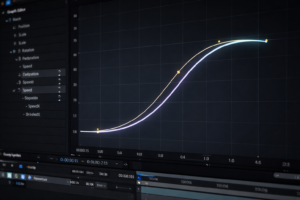
- Apply Easy Ease and refine with the Graph Editor so motion starts and stops naturally.
- Use motion blur sparingly – just enough to soften movement, not so much that text smears.
Performance and preview tips
To keep your lower thirds responsive:
- Turn off heavy effects while designing; enable them for final checks.
- Lower preview resolution to half or quarter when working on animation timing.
- Use region of interest or solo layers to focus on the lower third area.
- Cache RAM previews for frequently used comps.
Plugin dependencies and safe setups
When you design templates that travel between machines or clients:
- Minimize use of third party plugins unless absolutely necessary.
- If you must use plugins, clearly label which comps require them.
- Whenever possible, build looks with native shape layers, gradients, and simple glows.
Customization workflow
Think like the editor who will use your lower thirds.
- Create one Control layer with Expression Controls for global colors, stroke widths, and corner radius.
- Expose only text and logo layers that need to be changed per video.
- Lock all background and animation layers to prevent accidental edits.
For dynamic channels that use many on screen elements, you can use similar logic to multi element widgets such as a compact editing style widget where all customization is centralized.
Use cases and adaptation
Lower thirds can be repurposed if you design them flexibly:
- Reels and Shorts – use a vertical friendly version with bigger text and thicker bars.
- Ads and product promos – adapt your lower third into a product tag with price or feature callout.
- Cinematic edits – reduce background opacity and soften motion for a more subtle feel.
- Livestream highlights – a more energetic style, similar in feel to animated overlays like a dynamic widget stack, can work if used sparingly.
Exporting for editing apps
Decide how your lower thirds will be used in the broader workflow:
- Render out transparent MOV/PNG sequences for simple drag and drop use.
- Or, set them up as editable templates that can be changed directly in the NLE.
- Keep versions for 1080p and 4K to avoid scaling issues.
By thinking through each of these steps once, you avoid redoing work on every project and give yourself a reliable system for any future YouTube video.
Advanced consistency and optimization strategies
Building a reusable animation system
Instead of creating new animations each time, structure your lower thirds for reuse:
- Use master comps that feed into variant comps for each segment type.
- Drive multiple layers with the same expression controls so timing always matches.
- Create time remap markers where in and out points are standardized.
Styleframes and documentation
For channels that work with multiple editors or motion designers, simple documentation saves hours:
- Create a single frame reference for each lower third style: background, bar only, text only, with logo.
- Annotate safe areas, font sizes, and color codes.
- Save a small reference MP4 showing in and out animations.
Keeping projects lightweight
Large YouTube projects can become heavy quickly.
- Pre render complex animated backgrounds if they repeat often.
- Delete unused test comps and layers before archiving.
- Relink and consolidate media so your project is portable.
Export and render considerations
For clean, flexible lower thirds:
- Render with alpha (transparent background) when exporting for general reuse.
- Use a visually lossless codec to avoid banding in gradients.
- Test your export on different screens (monitor, phone, TV) to ensure text readability.
Dynamic Link and NLE workflows
If you integrate After Effects directly with your NLE through dynamic linking:
- Keep lower thirds in dedicated comps; avoid linking huge, complex timelines.
- Cache often and keep your project path simple.
- Consider pre rendering very complex lower thirds instead of linking them live.
Channel wide visual consistency
Think beyond a single video. Plan how your lower thirds tie into other visual elements:
- Match color themes and motion curves with other channel graphics like intro cards or widgets similar to an on screen app style frame.
- Use consistent spacing relative to subtitles and captions.
- Align your lower thirds style with thumbnails and banner art.
Quality control checklist
Before finalizing any video with lower thirds for YouTube, run a quick QC pass:
- Check that names and titles are spelled correctly.
- Confirm timing aligns with when each person or topic appears.
- Ensure no lower third clashes with YouTube UI elements like subtitles or chapter markers.
- Verify consistency in font weight, size, and color across all videos in the series.
These advanced habits make your lower thirds feel like part of a larger design system instead of one off animations.
Search based ideas and quick answers about YouTube lower thirds
Common search intents around lower thirds for YouTube
- “How do I add lower thirds in YouTube videos?” – You build or customize them in an editor like After Effects or Premiere, then export your video with the graphics already embedded.
- “What is the best size for YouTube lower thirds?” – Design inside a 1920×1080 or 3840×2160 comp, keeping text within roughly the central 80–90% width and above the absolute bottom edge to avoid cropping.
- “How long should a lower third stay on screen?” – For most talking head content, 3–5 seconds is enough for a name and title; slightly longer for complex information.
- “Can I reuse the same lower thirds on multiple channels?” – Yes, but adjust fonts and colors to reflect each channel’s brand so they do not look generic or mismatched.
- “Do I need motion graphics skills to use a youtube lower thirds pack?” – Not necessarily. Many packs are designed so editors can swap text and colors without touching the underlying animations.
- “Are animated lower thirds better than static ones?” – Subtle animation usually feels more polished and modern, as long as the motion is quick and does not distract from the speaker.
- “Can lower thirds hurt retention?” – They can if they cover important visuals or contain too much text. Keep them minimal, responsive to the content, and avoid stacking multiple banners at once.
- “How do I localize lower thirds for global audiences?” – Use flexible text boxes, allow for longer names or titles, and avoid extremely narrow fonts that break with longer translated text.
Using template based workflows long term
Many editors eventually prefer a template driven workflow with options such as an Unlimited After Effects Templates Subscription so they can quickly adapt to new series, styles, and platforms without redesigning every element for each project. This keeps your production scalable while maintaining consistency across your entire publishing schedule.
Wrapping up and moving into action
Key takeaways
Lower thirds for YouTube work best when they are simple, readable, and built as part of a clear system. Understanding the fundamentals, choosing a youtube lower thirds pack that matches your channel, and organizing your After Effects workflow around reusable comps lets you move faster while maintaining a consistent style.
Practical next steps
Define the core use cases for your channel (host names, guests, segments, CTAs), decide on fonts and colors, then set up a small but robust lower third system in After Effects. As you iterate, you can expand this into a complete graphics toolkit that supports any new series or format you launch.
Once your workflow is in place, you will spend less time rebuilding graphics and more time shaping story, pacing, and sound design so every upload feels cohesive and professional.
Conclusions
Effective lower thirds for YouTube are about clarity, timing, and consistency. When you treat them as a reusable After Effects system instead of one off graphics, you can move faster, keep every video on brand, and free up more energy for storytelling and content quality across your entire channel.
FAQ
What is a lower third in YouTube videos?
A lower third is a graphic in the lower part of the frame that shows information like a name, title, or short message without interrupting the main content.
How long should a YouTube lower third stay on screen?
For most content, 3–5 seconds is enough for a name and title. Complex info like job roles or social handles can stay slightly longer, up to around 7 seconds.
Which font size works best for lower thirds on YouTube?
There is no fixed size, but design for 1920×1080 or 4K and test readability on a phone and a TV. Prioritize clear, medium weight fonts and sufficient contrast.
Can I use one lower third design across different YouTube series?
Yes, as long as the design fits each series tone. You can keep the core style but tweak color accents or icons so each series feels related yet distinct.
Do I need plugins to create good lower thirds in After Effects?
No. You can build professional lower thirds using only shape layers, text layers, masks, and basic effects. Plugins are optional and mainly for specific looks.
How do I avoid lower thirds covering important parts of the video?
Respect safe areas, keep banners slim, and adjust placement based on framing. When in doubt, raise the lower third slightly and test with subtitles enabled.