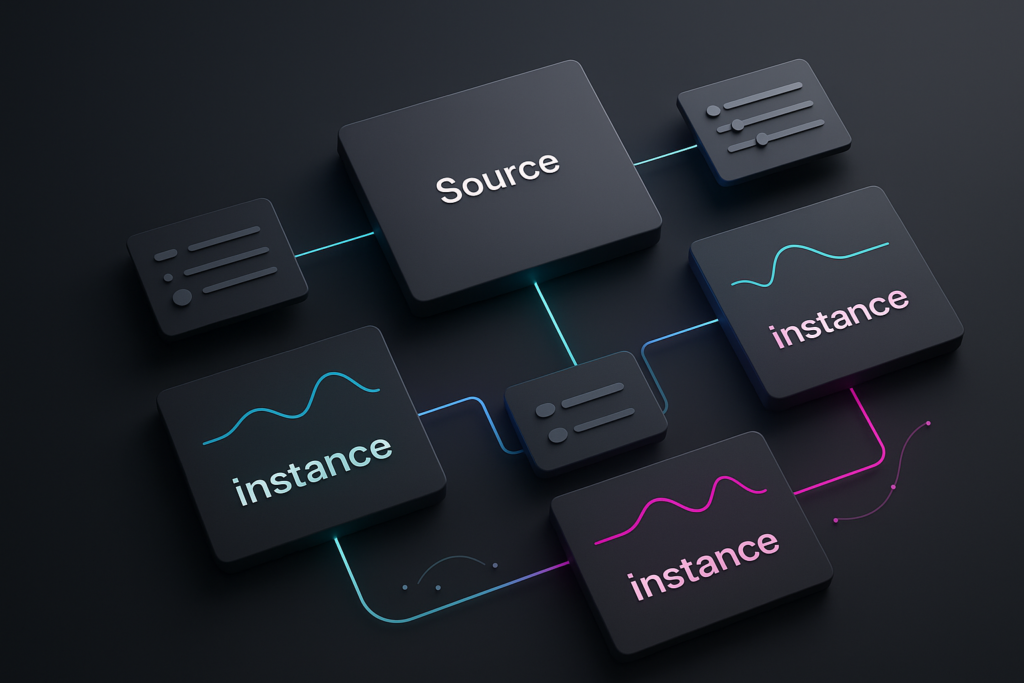
Essential Properties in Adobe After Effects are a way to expose the most important controls of a “source” composition (a precomp) so you can adjust them directly from the parent comp-without diving inside every time. In practice, they let one animation behave like many: you can reuse the same precomp in multiple places, then override values (and even keyframes) per instance while the original source composition stays intact.
If that sounds like a small convenience, it isn’t. Essential Properties are one of those features that quietly reshape how you build projects: they encourage modular design, make revisions less painful, and create a tidy handoff story when multiple people touch the same After Effects file. They’re also closely related to the Essential Graphics panel and the mindset behind Motion Graphics templates-except you can benefit even if you never export a template.
Watch After Effects UI/widget animation examples
📋 Table of Contents
What are essential properties in After Effects?
Definition of essential properties
Essential Properties are “primary controls” you can publish from a composition so that, when that composition is nested inside another, those controls appear on the precomp layer. Instead of opening the precomp, hunting for the right layer, then twirling down a stack of properties, you adjust the exposed controls right where you’re working.
Adobe’s own phrasing gets to the point: Essential Properties “work as primary controls allowing you to access layer and effect properties of a composition when nested in another composition.” The key idea is nested. Essential Properties are most useful when a comp becomes a building block-like a title card, a lower third, a logo reveal, a button animation, or a data-driven callout-that you’ll reuse as instances across a larger edit.
And here’s the twist that makes them more than just shortcuts: Essential Properties can override original values and keyframes. That means two copies of the same precomp can look and behave differently-different text, different colors, different timing-while both still point to the same source comp. You get variation without duplication, which is the kind of efficiency that doesn’t just save minutes; it saves entire versions of a project from spiraling into chaos.
Difference between essential and regular properties
Regular properties live where they were born: a layer’s Transform group, an effect’s parameters, a shape’s path controls, and so on. If you want to change them, you generally go to the layer and edit them there. When the layer is inside a precomp, that means opening the precomp, finding the layer, then editing the property. It’s not hard-until you do it fifty times a day.
Essential Properties are promoted properties. You take a property that already exists (say, a text layer’s Source Text, a shape layer’s Fill Color, or an effect’s Slider Control value) and add it to an Essential Properties set. Once your comp is nested, the parent Timeline shows an Essential Properties group on that precomp layer. That group becomes your “remote control.”
Another difference is behavioral: Essential Properties can be linked or unlinked. When you first nest a primary composition, its Essential Properties are linked to the source properties. If you tweak an Essential Property in the parent comp, it becomes unlinked-meaning that instance now carries its own override. If you later change the source comp, linked instances update; unlinked ones keep their custom settings. This is exactly what you want for reusable components: shared DNA, optional individuality.
Finally, Essential Properties are curated. Regular properties are the entire control room-every knob, every switch, every blinking light. Essential Properties are the handful of buttons you actually want someone to touch without accidentally turning off life support.
Why essential properties matter in animation workflows
After Effects projects often fail for boring reasons: not because the animation is hard, but because the file becomes unmanageable. A lower third exists in twelve versions. The client asks for a global font change, and you discover half the titles were duplicated and half were precomped differently. Someone “fixed” a color by changing it in one place, and now you have a patchwork of almost-the-same.
Essential Properties push you toward a healthier architecture: build a strong source comp once, then reuse it as many times as needed. As Adobe notes, “The source composition remains the same, and your edits only create instances you can render after editing your comp.” That’s the heart of the workflow: the source stays stable; the instances do the adapting.
They also matter because they align with how real teams work. One person might design the base animation, another might localize text, and another might assemble a master comp. Essential Properties create a friendly interface between those roles. They reduce the need for “please don’t touch anything inside this precomp” messages-which, as we all know, are magnets for disaster.
How to identify and add essential properties in compositions
Locating essential properties in precompositions
When a composition has Essential Properties defined and you use it as a layer in another comp, the parent Timeline reveals an Essential Properties group on that precomp layer. This is the most obvious sign you’re dealing with a published set of controls. Twirl it open and you’ll see the curated list-each item typically labeled with a friendly name (or at least a name that seemed friendly at 2 a.m.).
If you don’t see the group, it usually means one of three things: (1) the source comp hasn’t had any properties added as Essential Properties, (2) you’re not looking at a nested instance (you’re inside the comp itself), or (3) you’re using a layer type/property that isn’t supported for publishing in the Essential Graphics workflow. Adobe’s guidance is blunt and useful here: “Check property types supported by the Essential Graphics panel.” If it can’t be added there, it typically can’t become an Essential Property either.
It’s also worth remembering that Essential Properties are most visible from the outside. Inside the source comp, the properties are still just normal properties. The “essential” part is about how they’re exposed when the comp is nested.
Steps to add properties to the Essential Properties panel
The core workflow is deliberately similar to building controls for a Motion Graphics template. Adobe even says it outright: “The core workflow to create Essential Properties is similar to creating controls for a Motion Graphics template.” If you’ve ever prepped a MOGRT, you’ll feel at home.
At a high level, you do this:
- Open the source composition (the precomp you want to reuse).
- Decide what should be adjustable from the outside: text, color, scale, timing, effect parameters, etc.
- Add those properties to the Essential Graphics panel (or the relevant “publish” workflow in your AE version) so they become Essential Properties.
- Nest the composition into a parent comp (or nest it after publishing).
- Adjust the instance from the parent Timeline under the Essential Properties group.
Adobe’s documentation highlights two valid orders of operation: “To create Essential Properties, add properties from a nested composition in the Essential Graphics panel, or nest the composition (Layer > Precompose) after you add the properties.” In other words, you can publish first and nest later, or nest and then publish from the nested context-both roads lead to the same destination.
Once nested, you’ll see the confirmation in the Timeline: “Once you nest the composition, the Timeline panel displays the Essential Properties group of the precomposition layer.” That group is the entire point-your precomp is now a reusable module with a control surface.
One practical tip: name your published controls like you’re writing labels for a rented car. “Color 1” and “Color 2” might make sense today, but “Accent Color (Outline)” and “Background Gradient Top” will save your future self from interpretive dance.
Best practices for selecting essential properties
The temptation is to publish everything. Resist it. Essential Properties shine when they are essential: the handful of controls you want to adjust per instance, per deliverable, or per client request-without opening the source comp.
Good candidates include:
- Text content (Source Text), especially for titles, labels, and lower thirds.
- Brand colors (Fill/Stroke colors, gradient stops) and toggles for themes.
- Timing knobs (like a Slider Control driving animation speed or delay).
- Layout controls (padding, safe-area offsets, corner radius).
- Opacity/scale/intensity parameters that you genuinely vary per instance.
Less ideal candidates are properties that invite accidental breakage: complex expressions that depend on layer order, deeply nested shape paths that shouldn’t be touched, or anything that will cause inconsistent results when overridden. Publish the “what” (text, color, size) more than the “how” (the mechanics of your rig).
Also consider the human factor. If someone else will use your comp, publish controls that match how they think. A producer thinks in “headline” and “subhead,” not “Text Layer 03.” A brand designer thinks in “primary” and “secondary” colors, not “Fill 1.”
Working with the Essential Properties panel in After Effects
Using pull and push buttons to manage properties
Once you start overriding Essential Properties, you’ll eventually face the question: “Is this change just for this instance-or should it become the new default for everyone?” That’s where Pull and Push come in, and they’re more powerful than they look.
Think of an Essential Property as a leash between the instance and the source. At first, it’s linked. If you modify the Essential Property in the parent comp, it becomes unlinked-your instance now has a custom override. Later, you can decide what to do with that override:
- Pull: throw away the override and return to the source. Adobe’s wording is precise: “Pull discards the modified value, keyframes, and expression of an essential property.” It’s a reset button with teeth.
- Push: promote the override back into the source. “Push applies the modified value, keyframes, and expression of an essential property to the source property.” If other instances are still linked, they’ll update too. Adobe notes: “When you push a modified essential property back to source property, all instances of the same primary composition are updated.”
Pull is your “I got experimental and regret it” tool. Push is your “Actually, this is better-make it the standard” tool. The trick is to use them intentionally. If you Push casually, you can accidentally change dozens of instances across a project. If you Pull too quickly, you can lose a carefully tuned override (including keyframes) in one click.
There’s also a workflow for relinking multiple properties. Adobe describes it clearly: to relink multiple Essential Properties, select the specific ones and use Pull or Push; to relink all, deselect everything and use Pull/Push on the Essential Properties group. This is surprisingly handy when you’ve been iterating and want to clean up a comp before handoff.
Modifying source text and shape layer essential properties
Text is one of the most common reasons people adopt Essential Properties, because text changes are constant-and because opening precomps just to swap a name feels like paying a toll to drive down your own street.
For Source Text Essential Properties, you can often edit the value directly. Adobe specifically points out a reliable method: “Right-click the Source Text essential property and select Edit Value.” That context menu option is a lifesaver when the interface doesn’t make it obvious that the text is editable from the outside.
If you prefer expressions (or you’re building a system that auto-populates text), you can also drive Source Text with an expression. Adobe’s note is the kind of detail you only learn after one frustrating error: “Ensure to include double quotes around the new string.” In other words, "Hello", not Hello. If you’re pulling text from another layer, you’ll still end up returning a string, and the quotes matter when you’re setting a literal.
Shape layers are the other big winner. Publishing Fill Color, Stroke Width, Round Corners radius, Trim Paths End, or a custom Slider Control that drives multiple shape attributes can turn a rigid graphic into a flexible component. The best shape-based Essential Properties feel like a product configurator: same object, many looks.
One caution: shape hierarchies can get complicated fast. If you publish properties buried deep inside groups, make sure the labels clearly identify what they affect (e.g., “Outline > Stroke Width” rather than “Stroke Width”). Otherwise, your Essential Properties list becomes a mystery novel.
Relinking essential properties to their source layers
Relinking is less about a single button and more about keeping your project logically consistent. Over time, instances accumulate overrides-some intentional, some accidental. Maybe you changed a color on one instance for a pitch deck, then forgot about it. Months later, the brand color updates, and that one instance stubbornly stays old because it’s unlinked.
This is where Pull becomes a maintenance tool. Pulling an Essential Property discards the override and restores the source value, keyframes, and expressions. Used strategically, Pull can “clean” a comp, bringing it back into alignment with the source design system.
Push is the opposite maintenance tool: it’s how you standardize improvements. Suppose you refine the easing of an animation by adjusting keyframes on an Essential Property in one instance. If you decide that easing should be the default everywhere, Push sends the modified keyframes back to the source. Linked instances update, and your project becomes more consistent rather than less.
For bulk operations, follow Adobe’s guidance: select multiple Essential Properties and Pull/Push to relink those; or deselect all and use Pull/Push on the group to relink everything. That “deselect all” trick is unintuitive, but it’s the kind of thing that makes you look like a wizard in front of a teammate.
Using properties panel for different layer types with essential properties
Text layers and essential properties
Text layers pair naturally with Essential Properties because they’re high-variance: the same animation might carry different names, dates, locations, or product specs. Publishing Source Text is the obvious move, but it’s rarely the only one.
Consider publishing:
- Source Text for headline and subhead.
- Text style controls if your workflow supports them (font size, tracking, leading), but only if you truly want them editable per instance.
- Text box dimensions via a Slider/Point Control that drives layout expressions (padding, line breaks, or background sizing).
- Animation intensity (e.g., a “Wiggle Amount” slider) so the same template can feel calm or energetic depending on the deliverable.
Text also benefits from “guardrails.” If you publish too many typographic controls, you invite inconsistency: one instance ends up at 92% scale, another at 103%, and suddenly your design system looks like it was assembled from different planets. A good strategy is to publish content and a small number of layout controls, while keeping typography locked unless there’s a real use case.
When you do need to change text quickly, remember the practical method from Adobe: right-click the Source Text Essential Property and choose Edit Value. It’s faster than diving into the precomp, and it keeps you in the flow of assembling the master comp.
Shape layers and essential properties
Shape layers are where Essential Properties can feel like you’re building a mini UI toolkit inside After Effects. A single precomp can represent a badge, a pill-shaped label, a progress bar, a callout line, or a logo container-then instances can be recolored, resized, and timed without duplicating anything.
Useful shape properties to publish include:
- Fill and Stroke colors (especially for brand theming).
- Stroke width for adapting to different backgrounds.
- Roundness (Round Corners) for switching between sharp and friendly styles.
- Trim Paths End/Start for adjustable “draw-on” animations.
- Repeater count/offset for pattern-based graphics.
Shape rigs often rely on expressions and parenting. If you publish a property that is expression-driven, it can still be a great Essential Property-but make sure you understand what you’re exposing. A slider that drives ten internal relationships is ideal. A raw internal property that breaks when changed is not.
Another best practice: publish controls at the level of intent. Instead of publishing “Path 1 > Points,” publish “Corner Radius” or “Badge Width.” Use expression controls (Slider/Angle/Point/Checkbox) as your interface layer, then publish those. Your Essential Properties list becomes clean, readable, and hard to misuse.
Camera and light layers considerations
Cameras and lights are a bit different. You can publish properties related to them (where supported), but the value of doing so depends on how modular your 3D setup is. If your precomp is a self-contained 3D scene-say, a rotating product pedestal-publishing camera distance, depth of field focus distance, or light intensity can make sense. It lets you reuse the scene while adapting it to different shots.
However, cameras and lights are also context-sensitive. A camera move that looks perfect inside the source comp might feel wrong when the precomp is scaled, time-stretched, or combined with other 3D layers in the parent comp. Before publishing camera/light controls, test them as instances in realistic parent comps. If the controls create unpredictable results, keep them internal and instead publish a simpler “shot selector” (e.g., a dropdown-like system driven by a slider and expressions) that switches between predefined camera setups.
In team workflows, camera and light Essential Properties can be risky because they invite non-technical users to alter the physics of the scene. If you must publish them, label them clearly and consider adding ranges or clamping in expressions so values can’t go wildly out of bounds.
Adjusting anchor points via the Properties panel
Anchor points are the silent troublemakers of motion design. When an element scales from the wrong place or rotates like it’s attached to an invisible hinge, the anchor point is usually the culprit. Being able to adjust anchor-related behavior at the instance level can be valuable-especially for reusable title cards where text length changes the visual center.
Rather than publishing the raw Anchor Point (which can become confusing fast), a more robust approach is to publish a Point Control (or a pair of sliders) that acts as an “anchor offset” and is added to the internal anchor via expressions. This gives you a safe, understandable control: “Anchor Offset X/Y” or “Pivot Adjust.” Then you publish that control as an Essential Property.
For text-based precomps, you can also publish controls that affect how the background shape sizes and positions relative to the text. When done well, you rarely need to touch anchor points at all-your system self-centers. But when you do need manual override, an Essential Property-based offset is far more user-friendly than exposing the raw mechanics.
Master properties: enhancing use of essential properties
What are master properties in After Effects?
You’ll often hear “Master Properties” used interchangeably with Essential Properties, especially by long-time After Effects users. Historically, Adobe introduced the concept under the “Master Properties” name, and later the interface and documentation leaned into “Essential Properties” as the clearer description of what you’re doing: choosing the essential controls and exposing them.
Conceptually, Master Properties are the same idea: properties in a source comp that can be adjusted per instance when the comp is nested. Whether your version of After Effects labels the workflow one way or the other, the mental model is consistent: you are creating a reusable component with instance-level overrides.
In day-to-day conversation, it’s useful to treat “Master Properties” as the broader concept (instance overrides for precomps) and “Essential Properties” as the curated set of published controls you actually touch.
How master properties improve repetitive compositions
Repetition is where After Effects either becomes a joy or a grind. If you’re building one hero animation, you can brute-force your way through. If you’re building 30 deliverables-different names, different product shots, different languages-brute force becomes a career choice you didn’t mean to make.
Master/Essential Properties improve repetitive compositions by letting you:
- Reuse one source comp as the single point of truth for animation style.
- Create many instances with different text, colors, and timings.
- Update globally by editing the source, letting linked instances follow along.
- Preserve exceptions by keeping certain instances intentionally unlinked.
This is the sweet spot: consistency without sameness. The animation language stays unified, but the content adapts. It’s also a powerful antidote to version sprawl. Instead of “LowerThird_v12_FINAL_REALFINAL,” you have “LowerThird_Source” and a clean set of instances.
It also changes how you think about experimentation. You can try a new timing curve on one instance, see it in context, and then decide whether to Push it back to the source. That iterative loop is faster and safer than editing the source blindly and hoping it doesn’t break other comps.
See a reusable YouTube-style widget animation in After Effects
Techniques for pushing and pulling master properties
Push and Pull are simple, but you can use them with strategy.
Technique 1: Prototype on an instance, then Push. When you’re unsure about a change-say, a new color palette or a revised easing-modify the Essential Property on a single instance in a “sandbox” comp. If it works, Push it to the source so linked instances update. This keeps your main source comp stable until you’re confident.
Technique 2: Use Pull to enforce standards before delivery. Before handing off a project, you might want to ensure all instances are aligned with the latest brand settings. Deselect all Essential Properties on a precomp layer, then Pull on the Essential Properties group to relink everything (per Adobe’s guidance). This is a quick way to remove accidental overrides.
Technique 3: Push only what you mean to standardize. If you’ve overridden multiple properties, don’t automatically Push the whole group. Select only the properties you want to become the new default and Push those. This avoids turning a one-off customization into a global change.
Technique 4: Treat keyframes as first-class overrides. Because Push/Pull can include keyframes and expressions, you can standardize animation improvements across a system. If you refine a bounce or delay pattern on one instance and it’s truly better, Push it. If it’s just better for that one context, keep it unlinked.
Common questions about essential properties in After Effects
Should you use essential properties in all projects?
No-and that’s a healthy answer. Essential Properties are most valuable when you’re building reusable modules or when you anticipate iteration and variation. If you’re animating a one-off shot with no nested comps, you may never feel the benefit.
Use them when:
- You have repeating elements (titles, badges, callouts, UI pieces).
- You expect multiple versions (languages, aspect ratios, client variants).
- You’re collaborating and want a safer interface for edits.
- You’re building a template-like system inside AE.
Skip them when the overhead outweighs the payoff-like tiny projects with one comp, or when the animation is so bespoke that reuse is unlikely. The goal isn’t to publish controls for the sake of it; the goal is to reduce friction where friction is expensive.
What are risks of overusing essential properties?
Overuse creates a different kind of mess: a control panel with too many buttons. When everything is “essential,” nothing is. The biggest risks are:
- Confusion: users can’t tell which control does what, especially if names are unclear.
- Inconsistency: too many editable typography/layout controls can lead to off-brand instances.
- Fragility: publishing internal, expression-dependent properties can invite accidental breakage.
- Maintenance debt: more published controls means more things to test when the source comp changes.
There’s also the subtle risk of “override amnesia.” Instances accumulate unlinked tweaks, and months later nobody remembers why one instance behaves differently. This is where a disciplined Pull/Push workflow helps-plus documentation, naming conventions, and occasional cleanup passes.
A good rule: publish controls that represent creative intent (headline text, theme color, padding, speed), not controls that represent implementation details (the 14th keyframe on a hidden helper layer).
Can essential properties speed up animation workflows?
Yes-often dramatically-because they reduce context switching. Instead of bouncing in and out of precomps, you adjust instances in place. That alone speeds up layout and timing decisions because you’re making them while looking at the full scene.
They also speed up iteration at scale. Since Essential Properties can override original values and keyframes, you can create multiple versions from one source comp without duplicating it. That’s a big deal: duplication is not just extra files; it’s extra places to forget to update later.
Finally, they speed up collaboration. When the person assembling the master comp can safely adjust published controls, the person who built the source animation gets fewer “can you change this tiny thing” pings-and can focus on improving the system rather than performing repetitive edits.
Additional resources and support for essential properties
Where to find tutorials and courses on essential properties
The fastest learning path is to search specifically for Essential Properties alongside related terms like Master Properties, Essential Graphics panel, and Motion Graphics templates. Because the workflow overlaps with MOGRT creation, many courses that teach Essential Graphics publishing also cover the same skills you need here: choosing controls, naming them well, and building expression-driven “interface” sliders.
Good places to look include:
- Adobe’s official documentation and help articles (often the most accurate for Pull/Push behavior).
- Adobe’s own tutorial hub and Learn panels inside Creative Cloud apps.
- Well-regarded motion design educators who teach modular rigging and template workflows.
- Courses focused on expressions and rigging-because the best Essential Properties are often powered by smart expression controls.
When evaluating a tutorial, check whether it covers real production concerns: linked vs unlinked behavior, how overrides propagate, and how to avoid publishing fragile properties. A flashy demo is fun; a maintainable workflow is money.
Community forums and Adobe support
When something behaves oddly-an Essential Property won’t update, or an instance seems “stuck”-community forums can be as valuable as official docs. After Effects has a long tail of edge cases: version differences, team project quirks, expression dependencies, and the occasional “it’s cached somewhere weird” mystery.
Useful support channels include:
- Adobe Community forums for After Effects (good for version-specific answers).
- Professional motion design communities where people share template-building practices.
- Post-production subforums that discuss pipeline and collaboration issues.
When asking for help, include: your AE version, whether the property is linked/unlinked, whether you used Push/Pull, and whether the property is expression-driven. Those details often determine the answer.
Troubleshooting common problems with essential properties
Problem: I don’t see the Essential Properties group on my precomp layer.
- Confirm the source comp actually has published Essential Properties.
- Make sure you’re looking at the nested instance in a parent comp, not inside the source comp.
- Verify the property type is supported for publishing (Adobe’s reminder to “check property types supported by the Essential Graphics panel” applies here).
Problem: My instance doesn’t update when I change the source comp.
- The Essential Property may be unlinked because you modified it on that instance.
- Use Pull to discard the override and restore the source value (remember: Pull discards modified value, keyframes, and expressions).
Problem: I changed an instance and now I want that change everywhere.
- Use Push to apply the modified value/keyframes/expression back to the source. Linked instances should update accordingly.
- If only some instances should change, Push selectively-only the properties you intend to standardize.
Problem: I need to relink many properties at once.
- Select the specific Essential Properties and use Pull/Push to relink them.
- To relink all, deselect everything and use Pull/Push on the Essential Properties group (per Adobe’s documented behavior).
Problem: Editing Source Text doesn’t work the way I expect.
- Try the direct method: right-click the Source Text Essential Property and choose Edit Value.
- If using expressions, ensure strings are wrapped in double quotes when setting a literal value.
Problem: My Essential Properties list is messy and hard to use.
- Rename controls with intent-based labels.
- Unpublish non-essential items and replace them with higher-level expression controls (sliders, checkboxes) that are safer to adjust.
- Group related controls by naming conventions (e.g., “Text – Headline,” “Text – Subhead,” “Style – Accent Color”).
Conclusion
One of the underrated benefits of Essential Properties is how they change your relationship with “templates.” You don’t have to formally build a Motion Graphics template, export it, version it, and distribute it to get template-like advantages. You can build a small internal library of precomps-each with a clean set of Essential Properties-and suddenly your After Effects project behaves more like a design system than a pile of scenes.
And once you start thinking that way, you can go further: create naming standards for published controls, decide which properties are allowed to be overridden, and even add lightweight “usage notes” in layer comments or a dedicated guide comp. Essential Properties then become more than a feature; they become a quiet contract between you and everyone else who touches the file: here are the knobs you may turn, and here is the animation you can trust.