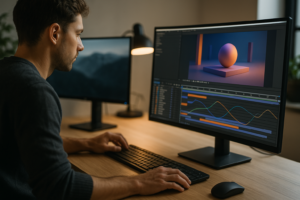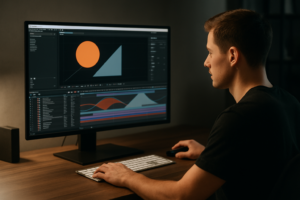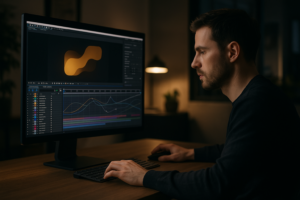
Animation easing explained clearly is often the missing link between stiff motion and sequences that feel polished and intentional. Whether you edit daily in After Effects or occasionally refine templates, understanding easing and smooth motion principles helps every keyframe you set feel deliberate, readable, and professional.Explore template plans
What Animation Easing Means in After Effects
What is animation easing
Easing is the way a value accelerates and decelerates between two keyframes. Instead of moving at a constant speed, easing lets motion start slowly, speed up, then slow down again. In After Effects, this is controlled by interpolation and the way your keyframes are influenced in the Graph Editor.
Why easing matters
Without easing, movement feels robotic and mechanical. Easing adds:
- Weight – objects feel heavy or light depending on how they speed up or slow down.
- Focus – elements stop where the eye expects, so viewers can actually read your message.
- Personality – UI, logos, and titles feel slick, playful, or serious just through timing.
Who needs to understand easing
Easing is essential for:
- Editors adding motion to titles, lower thirds, or transitions.
- Motion designers building brand systems, logo animations, or explainers.
- Template users tweaking pre-made After Effects projects so they feel custom and on-brand.
How easing works technically
In After Effects, every animated property follows a curve between keyframes. Linear keyframes use a straight line: the value changes at a constant rate. Easy Ease and custom Bezier handles create curved paths, telling your animation where to accelerate and where to slow down. The steeper the curve, the faster the motion at that point in time.
Keyframe types to know
- Linear – constant speed, useful for some mechanical moves or time-based wipes.
- Easy Ease – After Effects automatic smooth in and out, a starting point for better curves.
- Custom Bezier – fully manual influence on speed and timing via the Graph Editor.
Once these fundamentals are clear, you can shape motion intentionally instead of relying on default settings and hoping the animation will “feel right”.
Smooth Motion Principles for Modern Animations
What smooth motion really means
Smooth motion is not just about slapping Easy Ease on keyframes. It is about predictability, clarity, and rhythm. Smooth animation respects how viewers track movement with their eyes and how real objects behave in the physical world.
Core smooth motion principles
- Anticipation – subtle pre-moves that prepare the viewer for what comes next.
- Follow-through – elements do not stop on a dime; parts catch up or overshoot slightly.
- Consistency – similar elements share similar timing, easing, and spacing.
- Hierarchy – only the most important action moves strongest, everything else supports it.
Applying smooth motion across formats
Different projects call for different easing and motion styles:
- Social clips and reels – punchy, quick ease-ins and sharper overshoots, especially for text and UI reveals.
- Brand explainers – smoother, more controlled curves; slower ease-outs so messages are readable.
- Cinematic intros – long, gentle ramps, subtle camera moves, and delayed follow-through.
Using templates without losing smoothness
Many professional packs, like a polished editing-friendly animation layout, are built around consistent easing systems. When you reuse these systems, you keep that same fluidity across multiple videos, which is especially helpful for series-based content and recurring shows.
Relating easing curves to real motion
Think of your animation curve as the story of how something moves:
- A gentle S-curve feels organic and calm.
- A sharp peak in the middle suggests a quick burst of speed.
- A long, flat tail near the end indicates a slow, deliberate finish.
By comparing your curves to how real objects speed up and slow down, smooth motion becomes less guesswork and more a deliberate design choice.
Common Easing Mistakes and Pain Points in After Effects
Over-relying on Easy Ease
Many editors select all keyframes, hit Easy Ease, and stop there. This often leads to:
- Identical motion across completely different scenes.
- Drifty endings where text hangs too long on screen.
- Unintentional “floaty” feel that weakens impact.
Ignoring the Graph Editor
Sticking only to the timeline view is a common pain point. Without seeing curves, you cannot:
- Spot sudden speed changes that look like glitches.
- Align speed peaks with music beats or sound effects.
- Match the motion style across multiple layers.
Checklist: Graph Editor basics to stop avoiding
- Switch between Value Graph and Speed Graph and know which one your property needs.
- Use Auto Bezier as a starting point, then adjust handles manually.
- Turn on Show Reference Graph when comparing multiple properties.
Messy comps and timing chaos
Even good easing will not help if your comp is disorganized. Typical issues:
- Dozens of layers with unlabelled keyframes.
- Offset timing handled with random keyframe drags instead of layer start times.
- Nested precomps with different frame rates and resolutions.
Motion blur misuse
Switching on motion blur everywhere can make easing feel wrong:
- Very short moves can blur into smears, hiding your carefully tuned timing.
- High shutter angles can exaggerate even minor pops in the curve.
- Per-layer blur might not match your virtual camera’s movement.
Heavy plugins and preview frustration
Complex plugins and effects slow down previews, making it harder to judge easing accurately. When the viewport lags, you start guessing at curves instead of responding to real motion.
How these problems show up for clients and viewers
- Titles feel “off” even if they are technically centered and legible.
- Logo animations feel amateurish compared to modern references.
- Revision notes like “Can you make it snappier but not too fast?” become endless back-and-forth.
Recognizing these patterns is the first step to building a more intentional, reliable easing workflow.
Choosing the Right Easing for Each Type of Edit
Think format-first, not keyframe-first
Before touching the Graph Editor, decide what kind of piece you are animating. A TikTok-style cut, a product ad, and a corporate open each demand different easing choices.
Short-form social and reels
- Use fast ease-ins and short overshoots so graphics land quickly on beat.
- Allow little time between moves; stack transitions tightly.
- Support jump cuts with snapping pop-ins, not slow glides.
Product and app promos
Here, clarity matters more than raw speed. For UI and feature shots, study snappy sequences like those in a sleek interface-style interaction demo to see how precise easing keeps motion readable.
- Use ease-outs that slow slightly before key information appears.
- Keep transitions consistent between similar scenes.
- Match speed with user actions like taps, swipes, or clicks.
YouTube intros and on-screen graphics
For channels with recurring segments, consistency beats experimentation each episode:
- Create a timing bible – note common durations (e.g., 8-frame ease-in, 12-frame ease-out).
- Reuse easing presets for lower thirds, subscribe widgets, and chapter cards.
- Align animation peaks with music hits used in every episode.
Corporate and educational content
These projects often require restraint:
- Favor subtle S-curves with minimal overshoot.
- Allow more time at rest positions for charts and text-heavy screens.
- Limit simultaneous movement so viewers are not overwhelmed.
When templates make sense
Instead of rebuilding easing systems for every job, you can rely on well-structured After Effects templates that already include tuned curves, layer hierarchies, and timing systems. For more technical details, the official Adobe support and help center is a good reference alongside your template workflow.
Decision checklist before you start animating
- What is the primary message on screen?
- Where should the viewer’s eye travel first?
- What emotion do you want the motion to carry (energetic, calm, premium, playful)?
- How long will this element be on screen, and how often will it repeat across the project?
Answering these upfront gives you a clear easing strategy instead of treating every keyframe as an isolated guess.Get consistent motion fast
Practical Template and Workflow Guide for Easing
Start with project compatibility
When you open a new After Effects template, easing quality depends on a technically clean setup.
- After Effects version – confirm the project was built for your version or earlier to avoid expression errors affecting motion.
- Frame rate – match the template fps to your final delivery (24, 25, 30, or 60). Changing fps alters spacing and the feel of easing.
- Resolution – if you switch from 1080p to 4K, verify that camera moves, parallax, and ease distances still feel right.
Organize keyframes from the start
Before editing content, scan the timeline:
- Solo key motion layers like controls, cameras, and main text.
- Use label colors for groups (intros, transitions, lower thirds).
- Toggle between Value and Speed Graph to see how the original creator shaped motion.
Opening a reference-heavy project like a lyric-driven sequence in dynamic text animation can be a good exercise in reading someone else’s easing choices.
Precomps and naming conventions
Clean naming directly impacts how easily you maintain easing across scenes:
- Name precomps by function (e.g., “Intro_Title_Rig” instead of “Comp 5”).
- Keep main timing controls inside top-level comps so you do not dig several levels deep to tweak easing.
- Use adjustment layers for global timing shifts rather than manually editing every keyframe.
Performance and preview tips
Smooth motion is impossible to judge on choppy previews. To keep playback responsive:
- Use Half or Quarter resolution for work previews.
- Set Preview to skip frames only when necessary; skipping too many frames hides easing issues.
- Enable Disk Cache and regularly empty it when comps change heavily.
- Use proxies for heavy footage, especially 4K+ plates behind UI animations.
Plugin dependencies and safe alternatives
Templates may rely on plugins for advanced motion:
- Look for a Read Me or notes layer listing plugins.
- If a plugin is missing, consider whether you can replicate its effect with built-in tools or expressions.
- For purely easing-based motion (position, scale, rotation), most curves can be recreated without external plugins.
Customization workflow for easing
Approach template customization systematically instead of randomly adjusting keyframes.
Step 1 – Replace content only
Swap logos, colors, and text while leaving easing and timing untouched. Preview the full piece to see if curves already suit your brand tone.
Step 2 – Adjust timing blocks, not individual keys
Use layer start/end times and time-stretch to nudge whole sections before touching curves. This keeps the original easing shape intact while adapting to new voiceover or music.
Step 3 – Refine key curves on hero elements
Once global timing feels right, fine-tune easing on:
- Main titles and section headers.
- Key product shots or hero scenes.
- Intro and outro animations that repeat across episodes.
Step 4 – Style polish
Align easing with visual design:
- Bold typography often works well with snappier ease-ins.
- Soft gradients or minimal layouts pair nicely with longer ease-outs.
- For kinetic type, sync easing shifts with syllables or beats.
Use cases and easing strategies
- Reels and shorts – prioritize speed; use aggressive ease-ins and minimal hang time on static poses.
- Ads and promos – give products time to rest on screen while easing in buttons and CTAs with gentle curves.
- Cinematic edits – rely on camera and parallax easing more than text; keep type subtle and supportive.
Checklist for every template session
- Confirm fps and resolution.
- Identify control layers that drive timing.
- Preview key transition moments at full frame rate.
- Lock down music edit, then sync peaks in easing to audio hits.
- Render a short segment test before committing to a full export.
Over time, this structured process turns any template into a flexible system rather than a rigid, one-off design.
Advanced Easing Tips and Long Term Workflow Optimization
Build reusable animation systems
Instead of crafting easing from scratch each time, build libraries:
- Create animation presets that store keyframe interpolation for common moves.
- Use expression-driven controllers for ease strength and duration.
- Document systems so other editors on your team can maintain consistency.
Styleframes and motion tests first
Settle on easing before animating full sequences:
- Design 2–3 key scenes as styleframes with simple text and shapes.
- Animate short motion tests focusing only on easing and camera moves.
- Approve these tests with stakeholders so you avoid redoing full timelines later.
Modular transitions
Make transitions that can drop between any scenes:
- Keep transition comps self-contained with clear in/out markers.
- Drive easing from a single null or control layer for quick global tweaks.
- Test them on different footage types (talking head, UI, product b-roll) to ensure they feel natural.
Quality control for easing
Develop a review routine:
- Do sound-off passes focusing purely on visual rhythm and spacing.
- Scrub frame-by-frame through landing points to check for pops or micro-jumps.
- Toggle motion blur off and on; easing should feel solid in both cases.
Export and render considerations
Final delivery can affect how easing feels:
- Very low bitrates may smear fast motion; adjust curves or slow certain moves slightly.
- For 60 fps export from 30 fps comps, verify that the interpolation method does not introduce ghosting.
- Use the Render Queue or encoder presets to match platform specs without altering comp fps.
Dynamic Link and project weight
Heavy setups can slow iteration:
- Use Dynamic Link sparingly for complex sections; bake out intermediates when timing is locked.
- Pre-render sections with locked easing so your master comp stays light.
- Periodically clean unused solids, precomps, and footage to keep the project manageable.
Scaling easing across a series
If you are producing recurring content like weekly episodes or a branded series worldwide:
- Maintain a master motion guide with example comps, easing curves, and timing notes.
- Rebuild new episodes from this guide rather than copying old timelines full of one-off fixes.
- Audit old episodes occasionally to ensure motion style has not drifted too far.
These advanced habits turn easing from a sequence-by-sequence concern into a long-term, maintainable part of your studio or personal workflow.
Search Driven Easing Questions and Quick Answers
Common intents around animation easing explained
Editors and motion designers often search for short, targeted answers. Here are frequent intents and concise responses:
- “Best easing for text in After Effects?” – Start with Easy Ease, then increase the influence on the exit keyframe so it arrives quickly and eases gently into place.
- “How to make smooth motion without plugins?” – Use the Graph Editor, fine-tune Bezier handles, enable motion blur selectively, and preview at real-time fps.
- “Why does my animation feel choppy?” – Check comp fps, preview resolution, skipped frames, and whether your curves have sudden spikes or flat segments.
- “How to copy easing between layers?” – Select keyframes with good easing, copy and paste them onto other layers at the same timeline position, or save them as presets.
- “Linear vs Easy Ease for UI motion?” – Use linear for fixed-duration wipes or progress bars, and Easy Ease or custom curves for any object that should feel physical and responsive.
- “How do I match easing to music beats?” – Mark beat locations with layer markers, then align speed peaks in your curves with those markers instead of relying on intuition.
- “How much overshoot is too much?” – For professional UI and brand work, keep overshoot subtle: usually 5–10 percent of the travel distance feels controlled.
- “Smooth motion principles for logo animation?” – Keep the move-in fast and confident, add a slight ease-out as the logo settles, and let secondary details follow with delayed, softer easing.
By thinking in terms of these specific questions, you can diagnose issues quickly and choose the right easing approach without trial-and-error on every shot.
Bringing It All Together for Better Motion and Faster Workflows
Recap of the essentials
Once you have animation easing explained in clear terms, the path to smooth motion is straightforward: understand how curves control speed, choose easing that fits your project type, and refine those curves with the Graph Editor instead of relying on defaults.
From individual shots to complete edits
The real power of easing appears when every shot in a sequence feels like it belongs together. Consistent easing makes your work look intentional, even when mixing formats such as social clips, ads, and longer videos powered by flexible templates or series packages.
Practical next steps
- Audit one existing project and fix only easing issues.
- Create a small library of your favorite curves.
- Use a solid template baseline for timing and structure, then customize easing for your brand or client.
By treating easing as a design decision, not an afterthought, you will ship projects with cleaner motion, faster iteration, and more consistent results across every platform you deliver to worldwide.
Conclusions
Clean easing and smooth motion principles turn ordinary keyframes into professional, reliable animations. With a structured workflow, tuned curves, and consistent timing choices, you can adapt any template or sequence to match your style while saving time and delivering polished results on every project.
FAQ
What does animation easing mean in simple terms?
Easing controls how fast or slow an animation moves between keyframes, letting motion start and stop smoothly instead of at a constant, robotic speed.
Should I always use Easy Ease in After Effects?
Easy Ease is a good starting point, but for professional motion you should adjust curves manually in the Graph Editor to match each project’s pacing and style.
Is smooth motion only about keyframes?
No. Smooth motion combines well-shaped easing, consistent timing, appropriate motion blur, and clean comp organization so every element supports clear visual rhythm.
How can I learn to read easing graphs better?
Practice by studying existing projects, toggling between Value and Speed graphs, and comparing how changes in the curve affect perceived weight and timing.
Do I need plugins to get professional easing?
Plugins are optional. Well-crafted Bezier curves, smart keyframe placement, and a solid preview workflow are enough to produce professional-quality easing in most cases.
How do templates help with easing consistency?
Good templates embed proven easing systems across titles, transitions, and elements, so you start from a consistent motion base and only refine where needed.