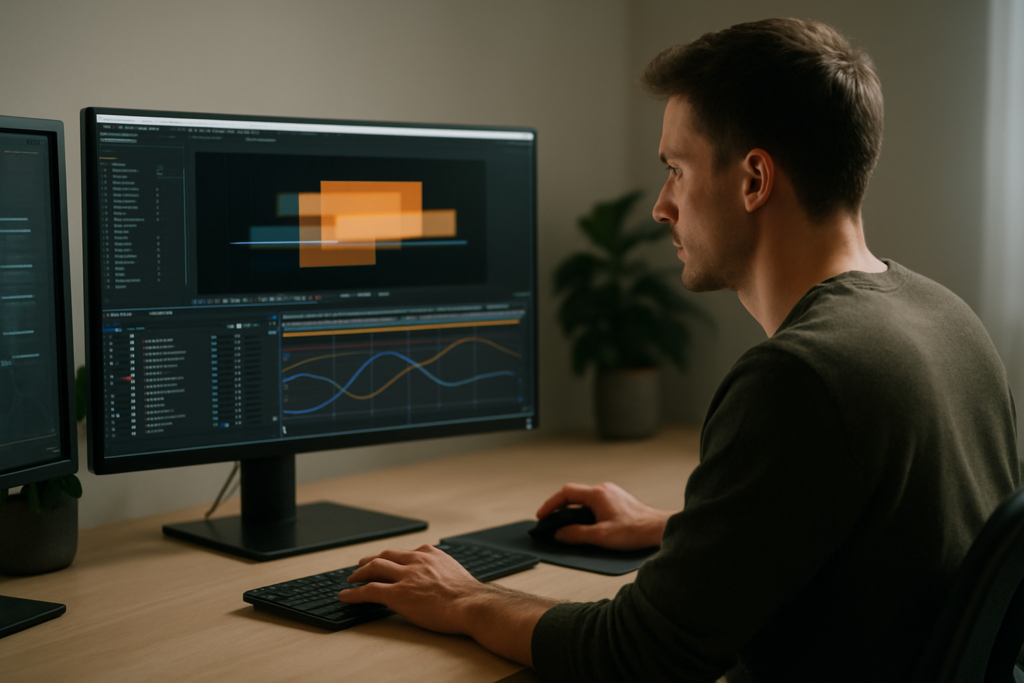
Motion design can feel overwhelming when you first open After Effects: layers everywhere, keyframes, graphs, and endless settings. A clear, realistic roadmap helps you skip trial and error, focus on what actually moves the needle, and start creating solid animations faster instead of getting stuck in technical details.Explore motion templates
Understanding what motion design really is
What motion design means in practice
Motion design is the craft of animating graphics, text, and UI elements to communicate ideas, stories, or information. Instead of filming actors or physical scenes, you animate shapes, titles, interfaces, logos, and illustrations to create videos for brands, YouTube channels, apps, and social media.
Why motion design matters for modern content
Every digital platform now competes for attention. Clean, readable, well-timed motion helps:
- Guide the viewer’s eye to the most important information.
- Make complex topics easier to understand with visual hierarchy.
- Give brands a recognizable identity through animation style.
- Improve retention on ads, intros, explainers, and product videos.
Where After Effects fits in
Adobe After Effects is the main tool many motion designers use to build animations, composites, and motion graphics. It is built around layers, keyframes, and compositions (comps) that let you structure your project like a stack of animated design elements.
Who motion design is for
You do not need to be a traditional illustrator or 3D artist to start motion design. It is ideal if you are:
- A video editor who wants better titles, lower thirds, and transitions.
- A designer who wants to bring static layouts to life.
- A content creator who needs eye-catching intros, overlays, and end screens.
- A marketer who wants to make ads, product promos, or UI demos that feel polished.
The mindset for beginners
Learning how to start motion design is less about mastering every After Effects feature and more about understanding a few core ideas deeply:
- Timing and spacing of movement.
- Basic keyframing and easing.
- Layer order, precomps, and organization.
- Using templates or systems instead of reinventing everything.
Once you think of motion design as a practical combination of design, timing, and structure, the rest of the roadmap starts to feel manageable instead of chaotic.
Building a motion design beginner roadmap
Why you need a roadmap
Without a plan, you jump between random tutorials and rarely finish complete pieces. A clear motion design beginner roadmap keeps you focused on small, repeatable projects that build real skills and a portfolio.
Stage 1: Learn the interface and core concepts
Spend a focused week understanding the essentials:
- Compositions: frame size, duration, frame rate.
- Layers: shape layers, text layers, solids, adjustment layers.
- Keyframes: position, scale, rotation, opacity.
- Basic tools: selection tool, anchor point tool, mask tool.
Use short practice pieces like a 5-second logo pop-in or a simple animated title. You can even open a small UI animation template such as the YouTube-inspired widget project just to see how layers and comps are structured.
Stage 2: Study motion through small loops
Next, make very short loops where one main element moves:
- Text sliding in and out with ease.
- A progress bar filling up.
- An icon bouncing slightly on hover.
At this stage, limit yourself to 5–10 second animations. The goal is to practice timing, easing, and clean starts/ends, not complexity.
Stage 3: Build complete micro-projects
Move into self-contained projects such as:
- A 10–15 second promo for a fictional app.
- A minimal lyric-style scene inspired by projects like the dynamic lyrics layout example.
- A short UI walkthrough showing one feature of a product.
Each project should have an intro, middle, and end, so you learn how to pace sequences rather than single moves.
Stage 4: Templates and deconstruction
When you hit a ceiling with scratch-built pieces, start analyzing how professional templates are set up. For example, open a dashboard or finance-style project similar to the payment stats widget animation and study:
- How layers are grouped and named.
- How precomps separate reusable units.
- Where expressions or controllers are used.
Stage 5: Build your first consistent series
Finally, create a series of 3–5 videos that share the same style and structure, such as a set of explainer segments or lyric-style scenes reminiscent of this stacked text animation approach. This forces you to think about repeatability and brand consistency, which are crucial for client and content work.
Following this roadmap keeps your learning sequence logical: from tool basics, to loops, to sequences, to deconstructing professional work, to making a coherent series.
Avoiding beginner mistakes in After Effects
Why beginners get stuck
Most motion design beginners do not fail because of creativity; they get blocked by messy projects, confusing timelines, and bad habits. Recognizing these patterns early saves you hours later.
Common project organization mistakes
- No naming conventions: Leaving layers as default names like Shape Layer 15 makes revisions painful. Use clear names like “Title_Main” or “BG_Gradient”.
- No folders or precomps: Throwing everything into one timeline creates chaos. Group related layers into precomps (e.g., “UI Panel”, “Main Title”).
- Random composition settings: Mixing frame rates (24, 25, 30 fps) or resolutions breaks consistency, especially for series work.
Timing and easing issues
- Linear, robotic motion: Leaving keyframes linear causes stiff movement. Start learning ease in/out and basic curves to add life.
- Too fast or too slow: Beginners often cram several moves into 1 second or drag simple animations across 5 seconds. Use reference: watch polished motion frame by frame and match durations.
- Overlapping chaos: If everything moves at the same time, the viewer’s eye has no focus. Stagger movements slightly so attention flows clearly.
Misusing the graph editor and motion blur
- Extreme curves: Overly sharp speed graphs cause strange, jerky motion. Start subtle: smooth S-shaped curves, not spikes.
- Motion blur on everything: Turning motion blur on all layers at high shutter angles can slow previews and cause muddy visuals. Use it strategically on faster, larger moves.
Performance-killing habits
- Heavy effects on every layer: Glows, blurs, and noise stacked across multiple precomps quickly slow down previews.
- Working at 4K and full resolution from day one: For most practice work, 1080p and half-resolution previews are more than enough.
- Long comps for tiny changes: Animating a 60-second comp for a 3-second move wastes time and makes troubleshooting harder.
Checklist to keep your learning clean
- Name every layer and comp before it becomes confusing.
- Keep one main comp per deliverable (e.g., “YouTube_Intro_1080p_25fps”).
- Use precomps to group logically (titles, UI block, background).
- Start with basic easing before touching the graph editor.
- Preview at quarter or half resolution when polishing timing.
Getting these fundamentals right early gives you a smoother path when your animations and client projects become more complex.
Choosing the right approach for each motion project
Match your workflow to the type of content
How you approach motion design depends heavily on the target platform and goal. A cinematic title sequence, a TikTok reel, and a SaaS UI demo all want different pacing, styling, and complexity.
Social reels and short-form content
For vertical content and shorts, you want speed and clarity:
- Use bold, legible typography that can be read on small screens.
- Keep animations fast but not chaotic: 0.3–0.7 second transitions are a good baseline.
- Design with safe margins so text does not touch screen edges.
Here, starting from ready-made motion structures, like UI-style scenes similar to the map-based navigation panel animation, can help you focus on content instead of reinventing layouts.
Ads and product promos
For ads, the priority is communicating a benefit quickly:
- Hook viewers in the first 1–2 seconds with a strong motion cue.
- Use simple, repeatable transitions for consistency across variations.
- Build modular sections (intro, feature highlight, CTA scene) as separate comps.
YouTube intros and channel graphics
YouTube branding needs repeatability and flexibility:
- Design intro, lower third, subscribe pop-up, and end screen as a cohesive system.
- Keep color and typography locked to the channel identity.
- Use controllers (sliders, color controls) so you can update text and details quickly.
Cinematic and storytelling edits
For more narrative or lyric work, like stylized scenes similar to the energy and pacing of the animated lyric sequences example, timing and atmosphere matter more:
- Let some scenes breathe; not every moment needs a transition.
- Use camera moves and parallax to give depth.
- Mix subtle text animation with bolder accents on key beats.
Corporate explainers and UI walkthroughs
For B2B, SaaS, or dashboard-style videos:
- Prioritize clarity and clean layouts.
- Use simple easing and keep elements aligned to a grid.
- Reuse components like cards, tooltips, and charts across scenes.
When to lean on templates and systems
As you refine how to start motion design efficiently, templates become an important tool: they give you pre-built structures, typography systems, and transitions so you can focus on storytelling, copy, and brand adaptation. Combine this with official documentation such as the Adobe After Effects help and learning hub to understand what each feature does and how templates use it under the hood.
Decision guide for each new project
- Clarify the format: vertical, square, or horizontal.
- Define the main goal: attention, clarity, or mood.
- Decide what to build from scratch vs. what to adapt from existing systems.
- Lock technical specs early: resolution, frame rate, duration.
Approaching each piece with this decision framework prevents scope creep and helps you finish polished work faster, with fewer re-edits and surprises at export time.Get faster with AE templates
Working with templates and building a solid motion workflow
Why templates belong in a beginner roadmap
Using high-quality projects as starting points is one of the best ways to understand real-world motion design structure. Templates show you how professionals layer, precomp, time animations, and add controls. They also help you deliver usable videos quickly while you are still refining your skills.
Check version compatibility and project settings first
Whenever you open a template:
- Confirm the required After Effects version and whether it is CC-only.
- Check the main composition resolution (1080p, 4K, or custom).
- Confirm frame rate (often 23.976, 24, 25, or 30 fps).
- Match your export settings and any additional scenes to these values.
If you are adding a template intro to an existing edit, adjust your edit or the template so resolution and fps align, otherwise timing and sharpness can suffer.
Understand the structure before editing
Before changing anything:
- Locate the clearly labeled “Edit Here” or “Main Controls” comps.
- Identify which comps are render outputs (e.g., “MAIN_RENDER”).
- Open key precomps like “Titles”, “UI_Block”, or “Background” to see how layers are grouped.
You can study layered UI and widget structures in examples like the media widget-style animation project, which illustrate how to group related elements into modular comps.
Keyframe organization and naming conventions
Professional templates usually:
- Use consistent layer names across comps (e.g., “Title_Main” in every scene).
- Place key animations on as few layers as possible to keep timelines readable.
- Use color labels (e.g., red for controllers, yellow for main animation, blue for background).
Adopt these habits when you customize: rename new layers, keep related keyframes aligned vertically, and avoid scattering key moves across dozens of layers without reason.
Precomps as building blocks
Think of precomps as reusable modules:
- One precomp for the background environment.
- One for main title or primary information.
- One for secondary details such as stats or subtitles.
This modular structure is clear in many UI or finance-style animations, for example a dashboard-based layout like the card and balance animation example, where key chunks of the interface are separate comps that can be reused in new scenes.
Performance tips and preview optimization
When working with heavier templates:
- Switch preview resolution to half or quarter while adjusting timing.
- Solo relevant layers when testing specific moves.
- Temporarily disable expensive effects (glows, blurs, grain) until final polish.
- Trim your work area to just the segment you are adjusting.
If you are on a modest machine, avoid scrubbing a fully loaded 60-second comp; instead, test shorter segments with fewer layers visible.
Plugin dependencies and safe alternatives
Some templates require third-party plugins. Before committing to a project:
- Check any documentation for required plugins.
- See if there is a no-plugin version of the template.
- Consider whether you can approximate the effect using built-in tools (e.g., using native blur and glow instead of heavy custom plugins).
For a long-term workflow, favor templates that rely mostly on built-in After Effects features. That keeps projects portable and easier to share with collaborators.
Customization workflow: colors, typography, and timing
Approach customization in a consistent order:
- Step 1: Replace content – Update text, logos, and footage placeholders before touching animation.
- Step 2: Adjust colors – Use global color controls where available; keep contrast and accessibility in mind.
- Step 3: Update typography – Swap fonts while preserving hierarchy (headline vs body size, weight, and spacing).
- Step 4: Refine timing – Once design is locked, slide keyframes or comps to match your voiceover, music, or pacing.
For lyric or narrative scenes similar to the flows found in music-driven text animations, align key text hits to beats or lyric accents.
Use cases and how to adapt templates
- Reels and shorts: Use bold, fast-moving layouts and keep each scene focused on one idea.
- Ads and promos: Start from structured scenes where features or benefits are clearly separated into sections.
- Product and UI demos: Adapt clean dashboard or widget templates, like the minimal card-based UIs in data and chart widget projects, so you can show metrics clearly.
- Cinematic edits: Combine type-driven scenes with subtle background movement or light leaks, and keep transitions smoother and slower.
Practical checklist before you render
- All text updated and spell-checked.
- Brand colors and typography consistently applied.
- Transitions and cuts aligned to audio beats where relevant.
- No unused layers or comps bloating the project.
- Render settings matched to platform requirements (codec, bitrate, dimensions).
Following this structured workflow lets you use templates as a learning tool and a productivity booster, rather than a black box that you only tweak at the surface level.
Advanced motion design habits for long term growth
Designing for consistency across a series
Once you can complete a single piece, the next step in how to start motion design seriously is learning to keep a whole series visually aligned. This is what clients and channels care about most.
Define a simple style guide inside your project:
- One or two main typefaces and a clear hierarchy (H1, H2, body).
- A limited color palette with defined roles (primary, accent, background).
- Standard animation durations (e.g., 0.4–0.6 seconds for simple entrances).
Keep these in a “Guide” composition or as notes attached to a controller layer so you can replicate the style later.
Reusable animation systems
Instead of designing every scene from scratch, create modular systems:
- A precomp for a lower third you can reuse in any video.
- A generic transition precomp you can drop between scenes.
- A title animation that works with different lengths of text.
You can see this modular thinking in widget and overlay-style projects like the call interface overlay animation example, where repeated UI cards follow the same animation logic.
Using styleframes and references
Before animating a long piece, create 3–5 static frames that show key moments: intro, mid-section, and outro. These styleframes help you:
- Lock layout and color decisions before animating.
- Align with clients or collaborators early.
- Avoid redoing animation because the design changed later.
Quality control and review passes
Even small projects benefit from structured review passes:
- Pass 1: Timing – Watch at full speed without audio, then with audio, checking if your eye flows naturally.
- Pass 2: Design – Check alignments, spacing, and consistency of colors and fonts.
- Pass 3: Technical – Look for flickering edges, resolution mismatches, or awkward motion blur.
Export considerations and render basics
When your animation is ready:
- Use the Render Queue or a dedicated encoder to export to platform-appropriate formats (e.g., H.264 or HEVC for social, ProRes for mastering).
- Test a short 3–5 second section first if render times are long.
- Check file size vs quality; overly heavy files are hard to share and upload.
Keeping projects lightweight
To avoid unmanageable files:
- Regularly remove unused footage from the project panel.
- Pre-render certain heavy sequences and replace them with video files when final.
- Avoid nesting too many levels of precomps unless it serves clarity.
Collaboration and handoff readiness
Even if you work solo today, building collaboration habits now will help when you share projects with clients or other editors worldwide:
- Use clear folder names for assets (Audio, Footage, Renders, Design).
- Include a short text file or guide comp explaining controls and structure.
- Keep all assets in a single root folder so the project can be moved easily.
These advanced habits turn your motion design from one-off experiments into a sustainable, professional workflow that scales to bigger projects and recurring content.
Search focused questions about motion design and After Effects
Long tail questions beginners usually ask
When people explore how to start motion design, they tend to search for very specific, practical questions. Here are common intents and short answers to guide you.
- Is motion design hard to learn without design school?
You can learn motion design with structured practice, good references, and by studying finished projects. Focus on timing, typography, and layout basics; you do not need formal training to create professional results. - How long does it take to get client ready in motion design?
With consistent practice 5–10 hours a week, many people become ready for smaller paid projects in 4–6 months. The key is finishing complete, short pieces, not endlessly watching tutorials. - Do I need powerful hardware for After Effects?
A mid-range machine with enough RAM and SSD storage is fine for 2D motion design. Optimize previews (lower resolution, shorter work area) and favor efficient templates over heavy 3D scenes. - Should I learn video editing before motion design?
It helps but is not required. Basic editing concepts like cuts, rhythm, and audio sync will make your motion work feel more professional, especially for YouTube intros and social content. - How many projects should be in a beginner motion portfolio?
Start with 4–6 short, polished pieces that show variety: a title sequence, a simple UI animation, a short lyric or text-driven video, and a clean product or feature promo. - Can I use stock or template-based work in my reel?
Yes, if you clearly communicate your role. For practice and early-stage portfolios, focus on how you customized and combined templates, adjusted timing, and made design decisions instead of presenting them as entirely scratch-built. - What is the best way to practice easing and timing?
Pick a 5-second loop and animate a single shape or line in several variations. Compare with well-animated references frame by frame and adjust your curves until the motion feels similar. - How do I know if my motion design looks professional?
Check whether the viewer’s eye always knows where to look, text is readable at a glance, spacing is consistent, and there are no random, distracting moves. Short, clear animations usually feel more professional than busy ones.
Using these questions as prompts for small exercises will keep your learning aligned with what clients and viewers actually care about.
From roadmap to real projects and next steps
Reviewing the motion design journey
You started by understanding what motion design is and how After Effects fits into it. Then you built a motion design beginner roadmap: mastering basics, practicing short loops, assembling micro-projects, and studying professional template structure instead of randomly experimenting.
You learned to avoid common pitfalls like messy comps, poor timing, and heavy effects, and to match your approach to each platform or project type. From there, you moved into template-based workflows, version compatibility, modular precomps, and performance-conscious previews.
Finally, you explored advanced habits: consistent series, reusable systems, styleframes, review passes, and collaboration-ready projects that can slot into larger productions for clients or your own channel.
Your practical next steps
- Choose one small project type (e.g., 10-second intro or widget-style UI demo) and complete it from storyboard to export.
- Study 1–2 well-structured templates, focusing on layer naming, precomps, and controllers.
- Set up a reusable project structure with folders, color labels, and basic style guidelines.
- Build a mini-series of 3 related videos to practice consistency and iteration.
Why a template-first mindset speeds up learning
If you treat every project as a chance to refine your systems, not just make one isolated video, you will progress much faster. Leveraging an Unlimited After Effects Templates Subscription helps you work with a wide range of layouts, transitions, and UI scenes so you can focus on creative decisions and storytelling instead of rebuilding the same structures from scratch.
Over time, these workflows become second nature, and you will be able to take on more complex briefs worldwide while still keeping your projects organized, efficient, and easy to revise.Start your AE template journey
Conclusions
A clear roadmap makes learning motion design realistic: focus on timing, structure, and small finished pieces. Use solid templates, clean organization, and consistent styling so every new project feels faster, smoother, and more intentional than the last.
FAQ
Do I need drawing skills to start motion design?
No. For After Effects based motion design, it is more important to understand layout, typography, and timing than illustration. You can work with shapes, text, photos, and UI elements.
Which Adobe app should a motion design beginner learn first?
If your goal is animated titles, explainers, and UI, start with After Effects. If you focus on cutting footage, learn Premiere Pro first and then add After Effects for graphics.
How much time per week should I spend practicing motion design?
Aim for 5–10 focused hours weekly, split between learning concepts and finishing small projects. Consistency matters more than long, irregular sessions.
Are After Effects templates good for learning or only for speed?
They are good for both. Templates speed up delivery and also teach structure, naming, timing, and controller setups when you study how they are built.
What should I render my motion projects in for social media?
Export H.264 MP4 in 1080p or platform recommended resolution, with a reasonable bitrate for quality without oversized files. Test a short section before final export.
How can I make my motion design look less amateur?
Simplify layouts, reduce the number of different animations, use consistent easing, and keep text highly readable. Clean timing and hierarchy instantly feel more professional.