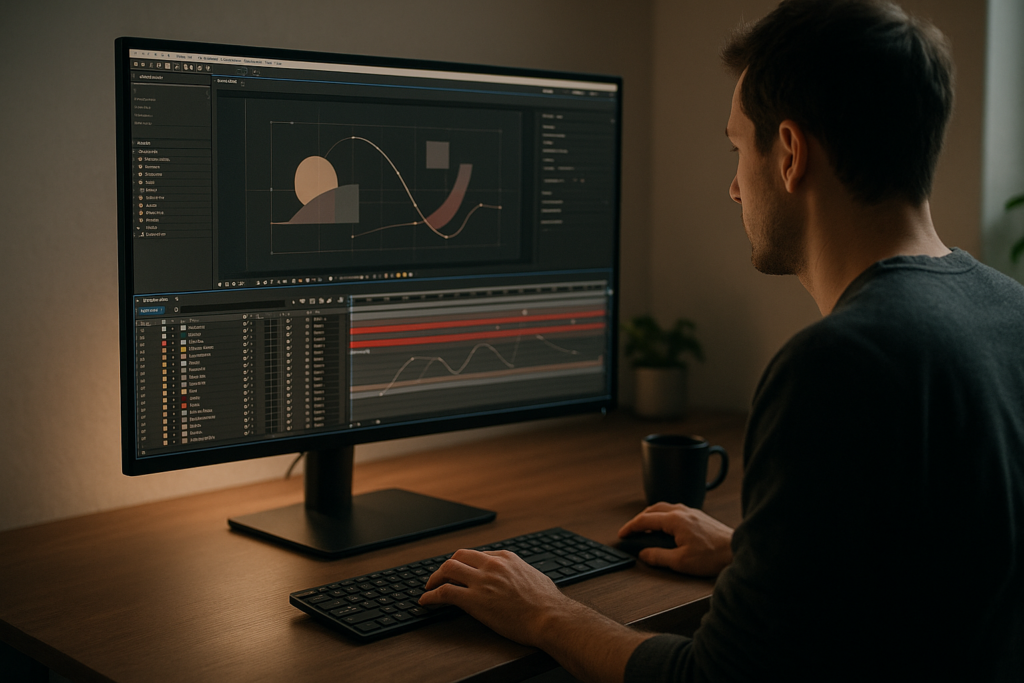
Choosing the best After Effects plugins in 2026 is less about collecting tools and more about building a reliable, fast workflow. Editors, motion designers, and content creators need plugins that save time without breaking projects. This guide walks through what to install, why it matters, and how to keep your setup lean and dependable. Explore template plans
What makes the best After Effects plugins in 2026
The phrase best After Effects plugins 2026 is not about having the biggest collection; it is about picking tools that solve real production problems. Plugins extend After Effects beyond its default capabilities: they automate repetitive tasks, add effects that would be too slow to build manually, and bring features that feel missing from the core app.
For editors and motion designers, good plugins fall into a few key categories: productivity (renaming, organizing, batch adjustments), motion and animation (easing, secondary motion, particle systems), design (text, shape, and layout helpers), and technical utilities (color management, cleanup, tracking, and export helpers).
They matter because deadlines are shorter, deliverables are more varied, and clients expect polished motion on everything from social posts to long-form explainers. The right set of plugins lets you hit quality targets without burning time on tasks that do not require hand-crafted animation.
Who benefits most
- Editors who live in Premiere or other NLEs but jump into After Effects for titles, lower thirds, and effects.
- Motion designers building explainer videos, logo animations, and product visuals on tight turnarounds.
- Content creators crafting shorts, reels, and YouTube packages who need repeatable looks.
- Studios and agencies that must keep style consistent across multiple editors and projects.
The goal is a curated toolkit: a handful of After Effects must have plugins plus reliable templates, all tested in your environment, that you know you can trust in production.
After Effects must have plugins and how they fit real projects
When people search for after effects must have plugins, they usually mean tools that pay off every week in real projects. These are not niche effects you use once a year, but staples that help on timelines, typography, transitions, and finishing.
Core categories of must have plugins
- Animation helpers that improve easing, overshoot, bounce, and secondary motion in fewer keyframes.
- Text and title systems that make it fast to build and reuse lower thirds, captions, and end screens for series or channels.
- Transition and effects packs for wipes, glitches, light leaks, and camera moves that are easily retimed.
- Utility plugins for motion blur, RGB separation, camera shake, and noise or grain that can become your default look.
Using plugins with template-driven work
A lot of editors now lean on templates for repeat formats like YouTube openers and social content. Well-built templates behave like collections of smart presets and plugins combined. For example, a reusable YouTube pack for openers, lower thirds, and subscribe animations behaves similarly to a plugin-based toolkit, but with ready-made layouts and timing.
Good plugin and template choices should match the content you create most often:
- If you focus on creators and channels, a toolkit similar to a complete YouTube visual system with animated titles and widgets is essential.
- For product explainers and SaaS videos, UI and map-based animations like those seen in a map or location widget sequence can save hours.
- For polished brand stories or showreels, cinematic transitions and overlays like sequences similar to a premium automotive feature edit are a better fit.
Plugins versus presets and templates
- Plugins add new capabilities (effects, generators, automation) to After Effects.
- Presets are saved configurations of existing features.
- Templates are pre-built projects, usually with precomps and controllers ready to customize.
The most efficient 2026 workflow blends a few core plugins with specialized templates, so you are not keyframing from zero on every project.
Common After Effects plugin mistakes and workflow traps
Adding plugins should speed you up, but it often does the opposite when things are not managed properly. Understanding common mistakes helps you avoid broken projects and missed deadlines.
Overloading your system
- Installing every plugin bundle you find “just in case.”
- Running heavy particle and 3D effects in full resolution on laptops.
- Using multiple motion blur and glow effects stacked on top of each other.
Consequences include long preview times, frequent crashes, and renders that never finish. Fix this by limiting heavy effects to adjustment layers, using pre-renders, and testing new plugins in throwaway projects first.
Messy compositions and timelines
- Not naming layers or precomps, especially when using automated tools.
- Allowing imported template comps to stay with default names like “Comp 1” or “Main 2.”
- Losing track of which plugin controls which visual element.
This makes changes painful later. Build habits like prefixing comps (e.g., “SCN_”, “PRE_”, “CTL_”) and keeping plugin-driven elements inside clearly labeled precomps.
Ignoring graph editor and timing
- Relying entirely on plugin presets for easing without tweaking curves.
- Dropping in auto-transitions without checking how they feel against music or VO.
- Letting plugins create mechanically perfect motion that feels lifeless.
Even the best After Effects plugins 2026 will not fix poor timing. Always adjust speed, overlap, and offset manually to keep animation natural.
Version and dependency issues
- Opening old projects with plugins that are no longer installed.
- Using templates that require obscure plugins on machines that do not have them.
- Updating a plugin mid-project, changing behavior unexpectedly.
Keep a simple checklist: log which plugins each major client or series depends on, avoid updating critical plugins during a delivery week, and favor templates that minimize third party dependencies.
Forgetting final output needs
- Using heavy depth of field, grain, and glow plugins for social content that will be compressed hard.
- Not checking LUT and color plugins on different devices.
- Relying on plugins that introduce flicker or aliasing when scaled.
Match your plugin choices to the final platform and resolution, not just what looks impressive on your studio monitor.
Choosing the right plugins and tools for each type of edit
Not every project needs the same toolkit. The best After Effects plugins 2026 for a cinematic opener are different from what you need for fast-turnaround social edits. Think by format and output, then match tools to the problem.
Social reels and shorts
- Focus on plugins that speed up text animation, kinetic type, and simple graphical transitions.
- Auto-resize text boxes, safe zones for vertical formats, and quick background treatments matter more than complex 3D.
- Combine these with lightweight vertical templates for titles and end cards so you are not rebuilding structures every time.
YouTube and content series
- You need consistency across episodes: matching bumpers, lower thirds, subscribe animations, and info bars.
- Plugins that automate branding (color control, typography systems) shine here, alongside title and overlay templates similar to a full channel package like a two-host show layout.
- Look for tools that let you swap footage and text while keeping timing intact.
Ads, promos, and product pieces
- Here you want high-end motion, polished transitions, and clean product reveals.
- Particle systems, camera tools, and advanced lighting or depth plugins are more useful.
- Consider reusable promo frameworks, like stylized visuals in fintech-style motion sequences, as a template baseline, then extend with your favorite plugins.
Cinematic and brand films
- Plugins for lens effects, film grain, subtle camera shake, and color finishing are key.
- Use motion design toolkits that integrate seamlessly with your editing environment, ideally with minimal plugin dependencies.
- Always test grading and finishing plugins against delivery codecs and compression.
Where specialized plugins live
Specialized tools for tracking, cleanup, or generative elements often come from dedicated marketplaces such as aescripts. Treat these as surgical tools: learn them deeply, keep them updated, and document which clients or templates rely on them so you avoid surprises when onboarding collaborators.
When you pair this plugin strategy with an Unlimited After Effects Templates Subscription, you get a base of ready-to-use structures for common deliverables, then layer your best plugins on top only where they add clear value. This keeps projects flexible, performant, and easy to hand off.
Template based workflows and plugin safe project setup
Once you know which After Effects must have plugins you rely on, the next step is building a workflow that plays nicely with templates. A smart base project makes future edits faster and safer.
Project and version compatibility
- Check which After Effects versions your templates support and match them to your team machines.
- Standardize on frame rates (often 23.976, 25, or 30 fps) and resolutions (1080×1920, 1920×1080, 4K) across projects.
- When importing downloaded projects, immediately save a new version specific to your client or series.
Keyframe organization and precomps
- Group plugin-heavy layers in precomps labeled clearly, such as “PRE_GLOW”, “PRE_SHK”, or “PRE_PARTICLES”.
- Use control layers with expression sliders and checkboxes for anything you may need to tweak regularly.
- Keep keyframes on as few layers as possible per animation beat to simplify retiming.
Naming conventions that scale
- Use prefixes like “CTL_” for control comps, “SCN_” for scenes, “ASSET_” for static elements, and “FX_” for plugin-specific layers.
- For series or channels, include episode or campaign IDs in comp names to avoid confusion.
- Document your naming logic in a simple text layer or note for collaborators.
Performance and preview tips
- Drop preview resolution to half or quarter when using heavy plugins like particle systems or complex blurs.
- Use region of interest on dense sections of the frame.
- Cache key shots before presenting work-in-progress to clients to avoid awkward waits.
- Pre-render final versions of plugin-heavy sequences and re-import as ProRes or a similar mezzanine codec.
Managing plugin dependencies
- Favor templates that use built-in effects first and only introduce third party tools where they make a big difference.
- Keep a short list of your required plugins for collaborators so they can mirror your environment.
- For deliverables likely to move between machines, build versions with and without optional plugin layers.
Efficient customization workflow
Think in passes:
- Pass 1 – Structure: Replace logos, images, and key text to confirm layout.
- Pass 2 – Timing: Sync scenes to music, VO, or edit beats; use markers and keep transitions aligned.
- Pass 3 – Look: Dial in colors, typography, and plugin-driven stylization like glow, grain, and distortions.
- Pass 4 – Detail: Secondary motion, subtle easing tweaks, and selective use of advanced effects.
Use cases by format
- Reels and shorts: Start from vertical-friendly templates with pre-built attention-grabbing intros. Limit plugins to essentials like motion blur and text helpers.
- Ads and promos: Use layered templates that support multiple scenes and callouts, then add product-specific effects.
- Product explainers: Lean on UI and info-driven layouts, similar in structure to pieces like interface walkthrough animations, and introduce plugins mainly for clarity and polish, not for spectacle.
- Cinematic edits: Start from story-based structures with room for footage, then finish with cohesive grading plugins and subtle camera motion tools.
When set up well, your core project acts like a flexible template library: swap assets, re-color, re-time, and layer plugins deliberately rather than by habit.
Advanced plugin strategies and long term workflow optimization
With the basics in place, the best After Effects plugins 2026 become part of a bigger system: reusable setups, consistent looks, and predictable renders. This is where you start thinking like a pipeline designer, even if you are a solo creator.
Reusable animation systems
- Create master comps with expression-driven controllers for spacing, offsets, and color schemes.
- Turn frequently used motions—like pop-on text, icon slides, or UI reveals—into reusable precomps and presets.
- Save plugin settings as custom presets with clear names so you can reach your favorite glow, shake, or grain setup in one click.
Styleframes and look consistency
- Before you animate, build static frames with all key elements: typography, colors, and plugin-based effects.
- Lock in your grain strength, motion blur style, and glow before animating the full timeline.
- Apply looks globally via adjustment layers, not per layer, to keep things consistent and easy to tweak.
Modular transitions and scenes
- Think of transitions as reusable modules: swipes, wipes, zooms, and camera moves that live in a dedicated “TRANSITIONS” folder.
- Design transitions that do not rely on obscure plugins unless absolutely necessary.
- Use markers and standardized durations so you can drop modules into any project quickly.
Quality control and review
- Set up a quick checklist before final renders: check edges for halos from glow plugins, verify text legibility on mobile, and watch for flicker from certain effects.
- Do a “no music” pass to confirm timing still feels strong without audio.
- Render short test segments at target bitrate to see how compression treats your plugin effects.
Export and render considerations
- Use the Render Queue for stable, repeatable outputs; reserve dynamic link workflows for lighter, simpler sequences.
- When using plugins that extend render times significantly, consider pre-rendering segments to intermediates.
- Maintain render templates for different platforms (YouTube, broadcast, social), each tuned to the compression and color needs of that platform.
Keeping projects lightweight over time
- Archive big jobs by collecting files, consolidating only used footage, and removing unused plugin-heavy comps.
- For recurring content like lyric videos similar to animated song visuals, keep one master project and branch per season instead of duplicating from scratch.
- Tag plugin-reliant comps so future you knows where extra licenses or installations are required.
Whether you deliver locally or work with clients worldwide, thinking long term about plugin management means fewer surprises and faster turnarounds on repeat work.
Search intent guide for After Effects plugins and motion design
People looking for the best After Effects plugins 2026 are usually trying to solve very specific problems. Understanding these search intents helps you focus on the tools that truly matter instead of chasing every new release.
Common plugin related questions
- “Which plugins speed up my daily edits?” Look for automation and organizational tools first: batch renamers, marker managers, and quick text animation assistants.
- “What After Effects must have plugins are best for titles?” Prioritize text animators, auto-resizing boxes, and presets built around modern typography.
- “How do I keep my projects portable?” Favor templates and setups that rely on built-in effects, and limit third party plugins to a small, well-documented list.
- “Which plugins help with YouTube branding?” Combine channel-focused templates, like animated lower thirds and in-video widgets similar to sequences in channel UI overlays, with basic motion blur and easing helpers.
- “What do I need for client-ready promos?” You need consistent motion systems, a few stylistic effects (glow, grain, camera tools), and clean template structures you can adapt quickly.
Long tail needs from editors and creators
- “Best plugins for kinetic typography in 2026” – look for tools that combine letter, word, and line animation with responsive layouts.
- “Lightweight plugins for older machines” – prioritize utilities and simple stylization effects over heavy 3D systems.
- “Plugins that work well with template subscriptions” – choose tools that modify timing, look, or organization rather than locking you into one hard-coded style.
- “How to avoid plugin breakage when collaborating” – standardize your plugin set, keep a shared requirements list, and lean on templates that degrade gracefully if certain plugins are missing.
Thinking in terms of these real-world questions keeps your shopping list honest: only bring in a plugin if you can point to where it saves time or improves consistency in your existing workflow.
Putting it all together for a reliable 2026 After Effects setup
A solid 2026 After Effects environment is a balance: a handful of carefully chosen plugins, a reliable library of templates, and habits that keep projects organized and portable. Instead of chasing every new effect, you focus on tools that help every week—better titles, cleaner transitions, faster organization, and predictable renders.
Start by defining your main formats—reels, YouTube, promos, or cinematic work—then lock in a short list of After Effects must have plugins that support those formats. Add a structured library of motion design projects, such as an Unlimited After Effects Templates Subscription, so you always have a starting point for common deliverables instead of rebuilding from a blank comp.
Finally, protect your time: standardize naming, manage dependencies, and keep performance in mind whenever you introduce a new plugin or effect. With a lean, intentional toolkit, your motion stays cleaner, your renders more reliable, and your delivery pipeline ready for clients worldwide, no matter how many edits pile up.
Conclusions
A curated plugin stack, paired with dependable templates and disciplined project structure, is the most reliable way to work faster in After Effects without sacrificing quality. Focus on must have tools that align with your real projects, document your setup, and refine it over time. The result is cleaner motion, smoother collaboration, and a workflow that holds up under real deadlines.
FAQ
How many After Effects plugins do I actually need in 2026?
Most editors and motion designers can work efficiently with 5–15 core plugins: a few for animation and text, a few utilities, and one or two for look development.
Will using too many plugins slow down After Effects?
Yes. Heavy effects like particles, complex blurs, and 3D tools can increase preview and render times. Use them selectively, pre-render, and rely on lighter templates where possible.
How do I avoid missing plugin errors when opening projects?
Standardize your plugin set, keep a simple requirements list for collaborators, and favor templates that mainly use built-in effects or a small number of widely adopted plugins.
Are templates a replacement for After Effects plugins?
No. Templates provide ready-made structures and animations, while plugins extend After Effects capabilities. The most efficient workflows combine both in a controlled way.
What should I check before buying a new After Effects plugin?
Confirm version compatibility, test performance on your hardware, check how it behaves in a small project, and make sure it supports formats and platforms you deliver to regularly.