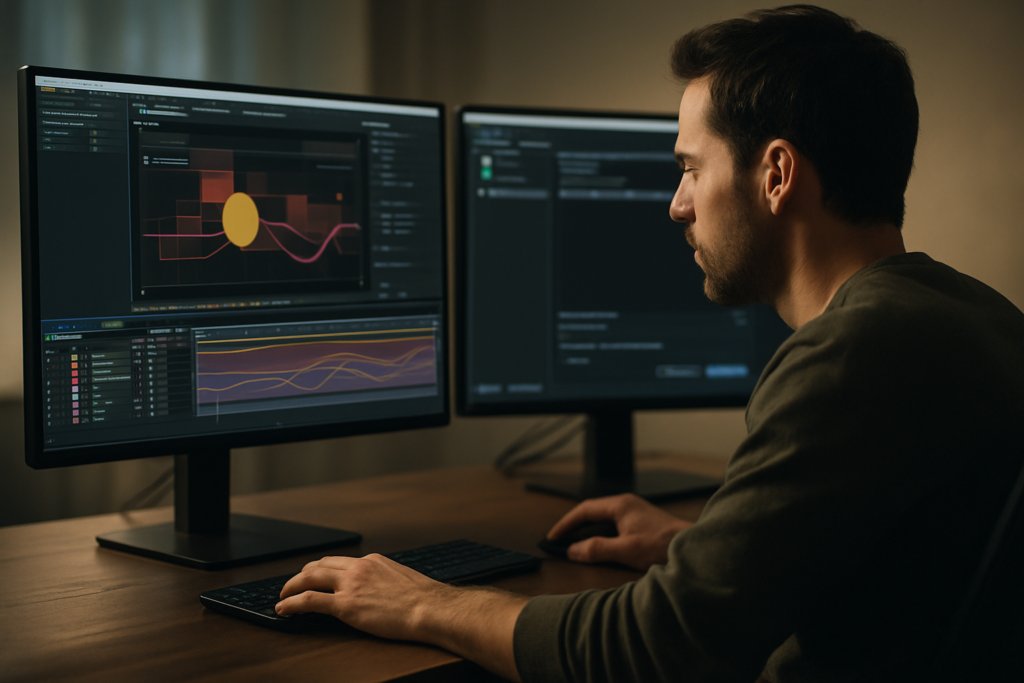
Rendering is where all your After Effects work becomes real, but it is also where performance bottlenecks show up. Understanding how to render faster in After Effects is less about buying a new machine and more about smarter settings, cleaner projects, and optimized media encoder workflows. This guide focuses on practical, technical steps editors can apply immediately.Explore faster AE workflows
Understanding what really makes After Effects renders slow
When people ask how to render faster in After Effects, they often jump straight to hardware. While CPU, GPU, and RAM matter, the biggest gains usually come from how your project is built and how frames are calculated.
After Effects renders frame by frame. For every frame, it evaluates layers, effects, masks, blending modes, expressions, motion blur, and 3D calculations. Anything that is expensive to calculate will slow renders, especially when stacked.
Why render speed matters
Render speed impacts:
- Client delivery – late exports delay revisions and approvals.
- Creative freedom – if a test render takes 40 minutes, you will experiment less.
- Collaboration – teams working on tight deadlines need predictable export times.
For editors, motion designers, and content creators, a fast render pipeline means more time animating and less time staring at progress bars.
Who needs to care about render optimization
- Freelance editors turning around social content, lower thirds, and explainers in bulk.
- Studio or agency teams managing multiple versions, localizations, and deliverables.
- YouTubers and creators publishing frequently and iterating on formats.
- Technical directors and lead motion designers who build master projects and templates others rely on.
Understanding what affects render speed at a fundamental level sets up everything else: how you structure comps, which effects you choose, and how you use the Render Queue vs. Media Encoder. The rest of this guide builds on this foundation with specific, technical workflows.
Media encoder optimization for faster and safer After Effects exports
Media encoder optimization is one of the most practical ways to speed up your delivery workflow without touching your creative decisions. Instead of rendering heavy intermediate files manually, you can offload encoding and automate multiple outputs.
Why use Adobe Media Encoder with After Effects
- Background rendering – keep After Effects available for light work while exports run.
- Multiple outputs – export different codecs, resolutions, and aspect ratios at once.
- Presets and consistency – standardized export settings across projects and teams.
Core media encoder optimization principles
- Choose the right codec – use visually lossless mezzanine codecs for master exports and efficient delivery codecs for platforms.
- Match sequence settings – align frame rate and resolution with your After Effects comp.
- Leverage hardware acceleration – enable GPU-assisted encoding where stable; test drivers regularly.
- Queue smartly – send multiple comps from one master project instead of opening separate projects for each output.
Using Media Encoder with template-driven workflows
When working across recurring content formats such as a series of YouTube video widgets or recurring show packages, standardized encoding presets are just as important as standardized design systems. Once your presets are dialed in, attaching them to queued items becomes a one-click step.
You can go deeper into the technical feature set and updates directly from Adobe at the official Media Encoder documentation, but the rest of this guide will stay focused on what matters most for motion designers and editors building efficient render pipelines.
Common mistakes that make After Effects renders painfully slow
Most render bottlenecks come from a combination of small decisions that add up. Fixing them is usually less about hero optimizations and more about avoiding patterns that quietly sabotage performance.
Checklist of slow-render culprits
- Oversized compositions – working in 4K or higher when the final delivery is 1080p, or using massive stills (8K+).
- Unnecessary 3D layers – turning on 3D for layers that only move in 2D space.
- Heavy motion blur – using pixel motion blur everywhere instead of standard motion blur where appropriate.
- Complex expressions – using slow, recursive expressions or referencing hundreds of layers.
- Messy precomps – massive precomps with unrelated elements, making it hard to cache and reuse.
- Unoptimized plugins – stacking multiple heavy third-party effects per layer without pre-rendering.
- Full-resolution previews while working – RAM previews at full quality on high-res comps during layout stages.
Timing and graph issues that hit render time
How you keyframe can directly affect performance:
- Very long comps with dense keyframes and unnecessary layers across the full timeline.
- Keyframes driving effects that are off-screen or fully obscured by other elements.
- Complex motion paths with excessive keyframe interpolation.
Export pipeline mistakes
- Rendering directly to delivery codecs (highly compressed) from the Render Queue instead of a clean master.
- Sending heavily nested comps one by one instead of batching them via Media Encoder.
- Using Dynamic Link from an editing app for complex motion design instead of rendering intermediate files.
How to avoid the worst pitfalls
- Regularly audit layers and effects; disable or remove anything not contributing to the final frame.
- Pre-render exceptionally heavy sections, especially if reused throughout the edit.
- Use region of interest and lower preview resolution while working.
- Reserve high-quality motion blur and temporal effects for final passes only.
Once these bottlenecks are under control, any further optimization—whether through Media Encoder or better templates—will have a much larger impact.
Choosing the right render strategy for each type of project
Not every project should be rendered the same way. A 6-second social bumper, a 30-second commercial, and a 12-minute breakdown video all place different demands on After Effects and Media Encoder.
Short social clips and reels
- Work at the exact delivery resolution and frame rate your platform expects.
- Use lightweight effects and pre-render reused transitions.
- Export directly to delivery codecs using task-specific presets in Media Encoder.
Ads, trailers, and broadcast pieces
- Render a high-quality mezzanine master (for example, a visually lossless codec) from After Effects or via Media Encoder.
- Generate platform-specific versions (different aspect ratios, bitrates, or color spaces) from that master file.
- Keep color management consistent between After Effects and your export presets.
YouTube and long-form content
- Separate design-heavy motion sections from assembly edits; consider pre-rendering motion sequences as standalone assets.
- Use render-friendly templates for repeating segments such as intros, lower thirds, and callouts; for instance, a reusable structure similar to the layouts seen in duo-screen edit projects.
- Batch exports overnight using Media Encoder queues, especially when multiple versions are needed.
Corporate, explainer, and UI-driven videos
- Prioritize clean design systems and modular comps; they are easier to cache and reuse.
- Keep vector and shape layers organized; avoid unnecessary rasterization unless required.
- Use templates with consistent typography and color systems to reduce one-off fixes on rerenders.
Where templates and subscriptions fit
Standardized project structures and reusable animation systems significantly reduce render-time experimentation and fixes. When you draw from an Unlimited After Effects Templates Subscription, you essentially borrow pre-optimized setups: layer hierarchies, precomp organization, and effect stacks that have already been tested across machines and export pipelines. That does not remove the need for smart Media Encoder presets, but it reduces the margin for error inside your AE projects.
Practical template and workflow blueprint for faster renders
Project setup and compatibility
Start by matching your template to your environment. Always check:
- After Effects version – opening a project made in a much newer version can trigger missing features or slower behavior.
- Frame rate – align your comp FPS with your edit (23.976, 24, 25, 29.97, etc.) to avoid unnecessary frame interpolation.
- Resolution and aspect ratio – set the master comp resolution to your main delivery and create separate comps for vertical or square versions.
Adapting templates to your workflow
When you import a template—whether for openers, lower thirds, or overlays—treat it like a system, not a one-off comp. A reusable product opener might be similar in complexity to something like the structure in high-end product widgets, but you can still tune it for speed.
Keyframe organization and naming
- Rename essential control layers clearly (e.g., “COLOR CONTROL”, “TIMING CONTROL”, “LOGO HOLDER”).
- Color-label layers by function: typography, background, footage, controls.
- Use clean, minimal keyframes; where possible, use expressions or animation presets to keep timelines readable.
Precomps that help, not hurt
- Group logically related elements into precomps (for example, all elements of a lower third), but avoid massive precomps that hold unrelated scenes.
- When a precomp is reused many times, consider pre-rendering it as a high-quality clip and replacing the precomp with the rendered file.
- Keep precomps at the resolution they need, not higher.
Performance-focused preview settings
- Use Half or Quarter resolution while building layouts.
- Limit preview duration to the active section you are working on.
- Turn off motion blur, depth of field, and high-sample effects until near-final passes.
Caching basics for sustained speed
- Allocate enough RAM to After Effects but leave some for the OS and Media Encoder.
- Set your disk cache to a fast SSD and clear it periodically if it becomes fragmented.
- Keep project files and footages on fast local storage rather than slow network drives when possible.
Plugin dependencies and safer alternatives
Templates sometimes rely on third-party plugins for glows, distortions, or particle systems. For faster renders:
- Use built-in effects where you can for simpler looks.
- Pre-render particularly heavy plugin-driven sequences.
- Maintain version consistency for plugins across your team to avoid unexpected behavior.
Customization workflow: colors, type, transitions, timing
- Centralize style changes in one or two master control comps (colors, fonts, brand elements) instead of editing per shot.
- Use expression-driven controls (sliders, checkboxes) for toggling elements on and off.
- Adjust timing by stretching precomps or using time remap, rather than moving dozens of keyframes manually.
Use cases and render-aware decisions
- Reels and shorts – emphasize lightweight motion, minimal depth of field, and pre-rendered transitions.
- Paid ads and product promos – focus on pristine text, controlled motion blur, and mezzanine masters that withstand multiple re-encodes.
- Cinematic edits – consider higher bit-depth and carefully managed grain, but only where it truly matters visually.
- UI or explainer sequences – prioritize readability, simple camera moves, and vector-based graphics to keep files small and renders predictable.
Template-driven pipelines at scale
If you are building recurring formats—tutorial series, regular product updates, weekly team videos—organize your templates as a library. This is where an Unlimited After Effects Templates Subscription becomes more than just a creative asset bank: it becomes the backbone of a consistent, predictable render pipeline that you can apply across dozens or hundreds of videos without rebuilding from scratch.
Advanced optimization and sustainable render workflows
Modular systems for consistent speed
Think of your projects as made up of reusable modules: intros, chapter openers, lower thirds, end cards, and transitions. Each module should be self-contained, easy to swap, and performance-tested on your machine.
- Keep module comps short and focused.
- Limit heavy effects to hero moments.
- Create a small library of proven, fast-to-render transitions.
Styleframes and look tests
Before animating entire sequences, build styleframes and short tests to validate the look and render cost. A quick five-frame test with full-quality effects can tell you whether an approach will scale. For example, a UI explainer similar in density to a map-style widget layout benefits from a few render tests before committing.
Export considerations and render queue basics
- Use the AE Render Queue for high-fidelity masters when you need exact control over color and bit depth.
- Send those masters to Media Encoder for platform-specific compressions.
- Save export presets and share them across your team for consistent results worldwide.
Dynamic Link and when to avoid it
Dynamic Link between After Effects and your NLE can be convenient, but it also introduces additional overhead.
- Use Dynamic Link mainly for light graphics or quick lower-thirds.
- Render heavy motion sections from AE and import the video into your NLE to avoid timeline slowdowns.
- Archive rendered intermediates alongside your project to prevent relinking headaches later.
Keeping projects lightweight long term
- Regularly consolidate and remove unused footage and precomps.
- Collect files when archiving to keep your structure tidy and portable.
- Version projects at logical milestones instead of duplicating every minor change.
Quality control without losing speed
- Set up a repeatable review checklist: typo checks, safe area, motion consistency, color consistency.
- Use low-resolution or short-segment preview renders for internal approvals.
- Reserve full-quality renders for client-ready or publish-ready outputs only.
Over time, these practices build a reliable system where new projects can be assembled from proven parts, rendered with known-good presets, and delivered on schedule without last-minute surprises.
Targeted answers to common render and Media Encoder questions
Best render settings for YouTube tutorials
- Work at 1080p unless your capture and brand demand 4K.
- Render a high-quality master, then encode a platform-appropriate MP4 in Media Encoder.
- Standardize intro and lower-third templates for every episode.
How to render multiple versions efficiently
- Create separate comps for 16:9, 9:16, and 1:1 based on the same master animations.
- Queue all versions at once in Media Encoder with dedicated presets.
- Reuse animation logic via expressions and precomps instead of rebuilding.
How to handle heavy text and lyric videos
- Use efficient text animations and reuse them with different content.
- Minimize per-character effects where possible.
- Consider pre-rendering repeating segments, similar to how dense text sections appear in projects like lyric-focused visuals.
When to upgrade hardware vs. optimize
- Optimize first: clean comps, reduce resolution where possible, pre-render heavy segments, and fine-tune Media Encoder presets.
- If you still hit limits, prioritize fast CPU, enough RAM, and SSD storage over less critical upgrades.
Using template libraries wisely
- Build a small, curated set of templates that you know render reliably on your hardware.
- Standardize colors, fonts, and transitions so revisions are faster across an entire series.
- Consider the value of an Unlimited After Effects Templates Subscription if you maintain ongoing formats, multiple brands, or deliverables for clients worldwide.
SEO-friendly motion content at scale
- Design repeatable video frameworks for tutorials, reviews, and explainers.
- Use consistent intros and end screens to shorten edit time.
- Rely on Media Encoder optimization presets to generate multiple resolutions and bitrates in one pass.
These targeted practices tie back into the core goal: reliable, predictable render times that support your content strategy instead of limiting it.
Key takeaways for faster After Effects renders and better deliveries
Faster renders in After Effects come from smarter decisions long before you hit the Render button: leaner compositions, measured use of heavy effects, and robust media encoder optimization. When your templates, presets, and export settings are aligned, you gain predictable turnaround times and more room for creative problem-solving on every project.
Standardized templates, consistent export presets, and disciplined project structures enable editors and motion designers to deliver cleaner motion, faster workflows, and more consistent results for clients and audiences worldwide. The more you treat your setup as a reusable system rather than a one-off build, the less time you spend waiting on progress bars and the more time you spend designing.
Conclusions
Render speed is not just about hardware; it is a reflection of how cleanly your After Effects projects are built and how carefully your Media Encoder presets are tuned. By combining organized templates, efficient effects, and predictable export pipelines, you can shorten feedback loops and keep your motion design work focused on quality instead of waiting on exports.
FAQ
How can I render faster in After Effects without buying new hardware?
Simplify comps, reduce unnecessary 3D and effects, use lower preview resolutions, pre-render heavy sections, and optimize your Media Encoder export presets.
Is Adobe Media Encoder faster than the After Effects Render Queue?
Media Encoder is not always faster per frame, but it is better for background rendering, multiple outputs, and standardized presets, which speeds up your overall workflow.
Which codec should I use for a high-quality master export from After Effects?
Use a visually lossless mezzanine codec with high bit depth for your master, then create web or platform-specific deliverables from that file using Media Encoder.
Why are my After Effects renders so slow with plugins?
Many plugins are computationally heavy. Limit their use, pre-render complex sections, and test alternative native effects where possible to reduce render time.
How do templates help with render speed in After Effects?
Well-built templates use organized precomps, efficient effects, and clear controls, which reduce trial and error and result in more predictable, often faster renders.
Should I render directly to MP4 from After Effects?
It is better to render a high-quality master and then encode MP4 in Media Encoder, where you can manage presets, bitrates, and multiple versions more effectively.