Satisfying motion design is that sweet spot where timing, spacing, and sound all click into a single, pleasing rhythm. For editors, animators, and content creators, it is what keeps viewers watching, sharing, and rewatching your clips. This guide breaks down how to create that feeling consistently inside Adobe After Effects, from fundamentals to pro workflows.Explore motion templates
What Satisfying Motion Design Really Means
Satisfying motion design is animation that simply feels right to watch. It is the smooth bounce of a card, the precise snap of a mask reveal, or a looping scene that you can watch ten times without getting bored. Technically, it comes from deliberate choices in timing, spacing, easing, and visual rhythm.
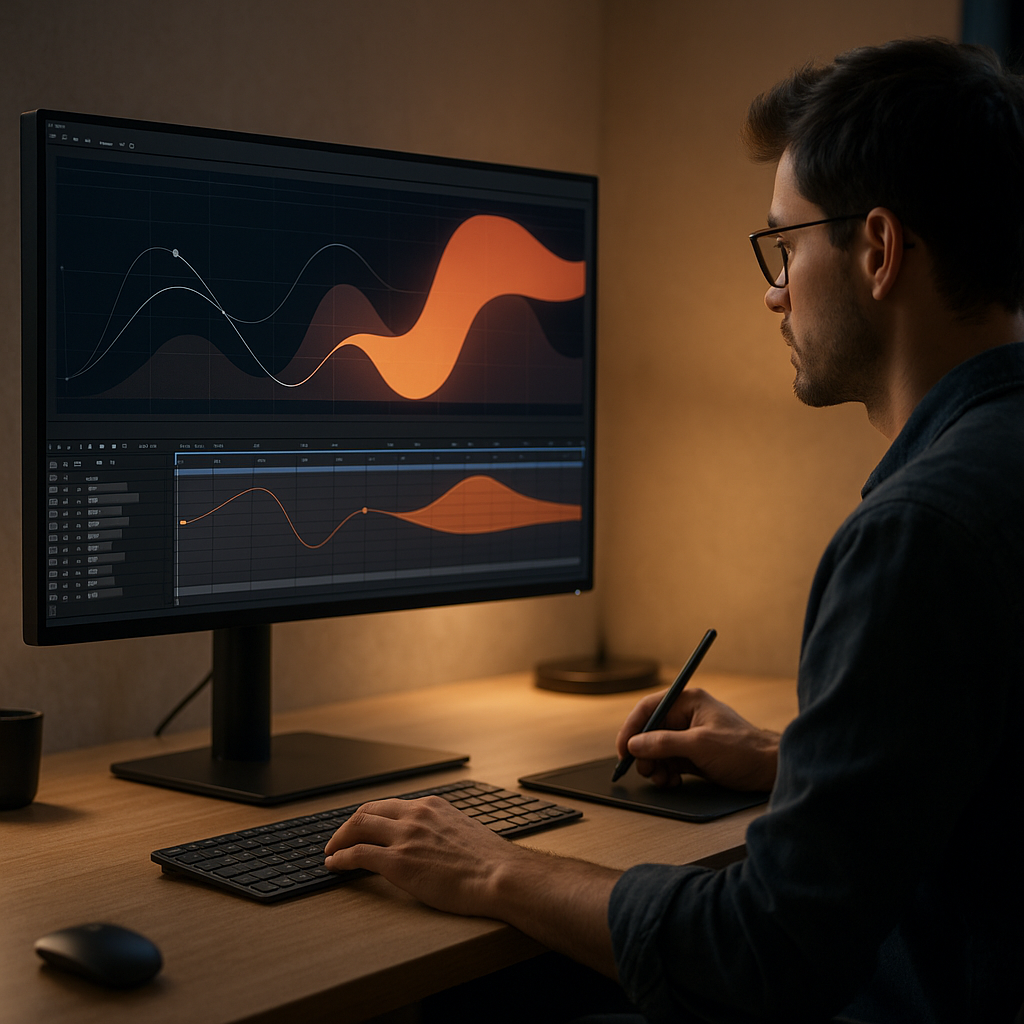
For editors and motion designers in After Effects, satisfying motion design is less about flashy effects and more about control. Each keyframe, each curve in the Graph Editor, and each cut in the timeline is tuned to create a visual beat the viewer can anticipate and enjoy.
Why it matters
When your motion is satisfying, viewers stay longer, engagement increases, and your edits feel more premium, even when the design is minimal. This is vital for:
- Social media loops that need to hook instantly.
- Brand animations that must feel polished and intentional.
- UI widgets and app mockups where clarity and smoothness build trust.
- Lyric videos and music visuals that must sync perfectly to audio.
Who it is for
Satisfying motion design is relevant whether you are:
- An editor who usually only cuts video, but wants more animated polish on titles or widgets.
- A motion designer building reusable systems for TikTok, Instagram, or YouTube graphics.
- A creator working solo who needs quick, repeatable setups for client work and personal projects.
Throughout the rest of this guide, everything will orbit around one idea: you can deliberately engineer satisfying motion in After Effects instead of hoping it just happens.
Understanding Satisfying Animation Loops
Satisfying animation loops are short sequences that play endlessly without a visible start or end. They are perfect for UI previews, music visuals, loading screens, widgets, and social posts that people watch on repeat.
Core traits of a satisfying loop
- Seamless start and end – the last frame and first frame match in motion and design.
- Predictable rhythm – the motion follows a clear beat or pattern.
- Limited but focused action – only a few elements move, but they do it with intention.
- Balanced composition – viewers know where to look, even on tiny mobile screens.
Loop types you will use often
- UI widget loops – examples include a battery charging sequence similar to a battery-style widget animation, or toggles gently sliding between states.
- Brand and fintech loops – looping charts, cards, or cards sliding like a payment widget-style animation can be very satisfying when the easing is tuned well.
- Music and lyric loops – simple text reveals or waveform-inspired movements, like in stylized lyric edits such as TV-inspired lyric visuals, rely heavily on timing to audio.
- Ambient or decorative loops – gently moving gradients, particles, or abstract shapes that stay on screen during intros, outros, or talking segments.
Optimizing loops for different platforms
Even satisfying animation loops must be tailored to where they live:
- Reels and Shorts – quick payoff within 1–3 seconds; motion needs to be bold and readable on vertical formats.
- YouTube and desktop playback – loops can be more subtle; viewers see more detail and will notice smaller easing tweaks.
- Stories and widgets – keep important action inside safe zones; ensure loops do not clash with UI overlays.
Using loops across projects
When you build a solid looping system in After Effects, you can re-use it for:
- Backgrounds behind titles and subtitles.
- Looping UI showcases for case studies and product demos.
- Endless music visuals that work over any track with minimal tweaks.
As you move into more complex workflows, these satisfying animation loops become building blocks you can drop into almost any edit.
Common Mistakes That Ruin Satisfying Motion
Even experienced After Effects users accidentally break the satisfying feel of their motion. Being aware of these issues helps you diagnose why something looks off.
Timing and spacing issues
- Uneven timing – keyframes are scattered without a clear rhythm, so movement feels jittery or random.
- Linear everything – no easing on keyframes makes motion robotic and visually tiring.
- Overlapping actions badly – many elements move at once with no delay or hierarchy.
Graph Editor misuse
- Extreme curves – harsh ease-ins and ease-outs create whiplash rather than smooth motion.
- Ignoring velocity consistency – two similar elements animate with different curve shapes, so the sequence feels mismatched.
Motion blur and detail problems
- Too much motion blur – everything is smeared, especially at low frame rates.
- No motion blur at all – fast moves look fake and stuttery.
- Over-detailed designs – too many tiny elements moving at once distract from the main action.
Messy comps and precomps
- No precomp structure – every element lives in one giant comp, making tweaks slow and risky.
- Random layer naming – when you cannot find what to adjust, you stop polishing the motion.
- Nested time issues – time remapping or loops break when you shift master comps.
Heavy plugins and performance bottlenecks
- Relying on many third-party effects – previews stutter and you avoid refining because each change is painful to preview.
- Huge comps for small outputs – working at 4K for social clips when 1080×1920 would be enough.
Checklist to debug unsatisfying motion
- Does the motion follow the beat of the audio or a clear visual rhythm?
- Are you mixing random eases instead of a small set of consistent curves?
- Is there a clear focal point, or do too many elements fight for attention?
- Are your comps and precomps organized enough to quickly test timing variants?
- Is preview performance limiting how often you refine your animation?
Fixing these issues is where satisfying motion starts to emerge. Next, you will see how to choose the right approach for each type of project.
Choosing the Right Motion Approach for Each Edit
Different edits demand different flavors of satisfying motion. A TikTok loop, a fintech widget demo, and a long-form YouTube video will not benefit from the same animation intensity or pacing.
For social reels and shorts
Vertical content needs fast, legible, high-contrast motion. Aim for:
- Strong easing with quick overshoots on key elements.
- Simple backgrounds, with motion focused on text or UI cards.
- Short loops (1–3 seconds) that can replay unnoticed.
Templates designed for widgets, like compact UI components similar to a map-style widget animation, work well as plug-and-play building blocks in this context.
For ads and product promos
Ads need controlled attention flow. Satisfying motion here means:
- Guiding the eye from feature to feature with staggered reveals.
- Using micro-interactions on buttons, cards, or toggles to show responsiveness.
- Keeping transitions clean so products remain the star.
For YouTube content and intros
Viewers tolerate and expect slightly longer motion beats. Consider:
- Intro loops that hold attention without overwhelming.
- Subtle animated lower thirds and info widgets, similar to video-style widgets, that do not distract from the footage.
- Gentle motion systems you can reuse across episodes to keep branding consistent.
For cinematic or music-driven edits
Here the audio is king. Satisfying animation loops and transitions should lock tightly to rhythm:
- Design a few repeating motion motifs that echo the track structure.
- Use accent beats for scale pops, glows, or typography hits.
- Keep color and glow effects restrained so the motion stays readable.
Templates as a strategic choice
Instead of building each motion system from scratch, many editors lean on an Unlimited After Effects Templates Subscription to:
- Test multiple motion styles quickly for one project.
- Keep visual language consistent across campaigns or episodes.
- Stay focused on keyframe timing and story, not just asset creation.
Studying reference loops from communities like Dribbble is also helpful: you can reverse-engineer their timing and easing, then recreate similar systems that fit your brand or content format.Get faster motion setups
Practical Workflow for Building Satisfying Loops with Templates
This section walks through a practical, editor-friendly workflow for using templates and custom animation systems to create satisfying motion design and satisfying animation loops efficiently in After Effects.
Project setup and compatibility
Before you animate or import a template:
- Match your comp settings to the intended platform: for vertical reels and shorts, 1080×1920 at 30 or 60 fps; for standard widescreen, 1920×1080 at 25 or 30 fps.
- Check the required After Effects version in your template. Opening a project built for a newer version can break expressions or specific effects.
- Pick a master frame rate that works for your audio. Faster tempos often benefit from 30 or 60 fps to keep motion smooth.
Organizing comps, precomps, and names
- Create top-level folders for 01_Comps, 02_Precomps, 03_Assets, and 04_Renders.
- Use descriptive naming: UI_Loop_Main, Text_Reveal_Intro, BG_Gradient_Loop.
- Keep each loop inside its own precomp so you can reuse it across multiple masters.
- If you are working with multiple widgets or cards, structure them as separate precomps for easier timing offsets.
Keyframe systems and looping logic
To build a satisfying animation loop:
- Animate the full cycle once, from frame 0 to the end frame (for example, 60 frames for a 2-second loop at 30 fps).
- Make sure the first and last frames match in position, scale, opacity, and rotation.
- Use the Graph Editor to create smooth, consistent curves. Copy-paste eases across similar elements so everything feels part of one system.
- Add loop expressions only after the base cycle feels right. Loops should be a finishing step, not the foundation.
Customization workflow
Most template-based satisfying motion design lives or dies on how you customize it:
- Colors – Use a limited palette. Establish a main accent color, a neutral background, and one highlight color for micro-interactions.
- Typography – Keep fonts clean and legible at mobile sizes. Limit the number of type styles (e.g., heading, body, caption).
- Timing – Adjust in context with audio or footage. Loop speed should feel natural against music or voiceover.
- Transitions – Use transitions sparingly. Let looping backgrounds or widgets handle most of the movement while cuts remain clean.
Performance and preview tips
- Work at half or third resolution while blocking motion; switch to full only for final checks.
- Use region of interest to preview just the area with motion.
- Convert heavy footage to proxies if your timeline starts lagging.
- Clear cache regularly so After Effects does not slow down during long sessions.
Plugin dependencies and safe alternatives
Many advanced templates use third-party plugins for glows, depth of field, or particles. When possible:
- Choose versions that have native-only variants or clearly list required plugins.
- Prepare a fallback look using built-in effects (Blur, Glow, Noise) in case a client or teammate does not own a plugin.
- Save separate versions of the project if you need to bake complex plugin-driven footage into prerendered plates.
Use cases and example flows
Reels and shorts: build a vertical composition with a looping background, then drop a card-based UI or lyric overlay on top. For instance, a music clip could pair a looping gradient background with bold text motion inspired by stylized lyric projects like lyric-focused visuals.
Ads and product demos: design a family of widget loops for different states: loading, success, error, hover. Keep them in one master comp so you can swap them quickly as you edit.
Product promos and UI breakdowns: create a modular system where each feature section has its own short loop (for example, a card sliding, a toggle flipping, a chart pulsing), then assemble them in your master timeline.
Once this structure is in place, you can slot in new colors, text, and assets while preserving the same satisfying motion system across multiple outputs.
Advanced Tips for Long-Term Motion Systems
Once you have a basic system for satisfying motion design, you can start thinking in terms of reusable motion languages instead of one-off animations.
Consistency across entire edits
- Define rules for how elements enter and exit: e.g., cards always slide from below with a soft overshoot, while tooltips fade and scale.
- Limit your motion vocabulary to a few core moves: slide, scale, rotate, opacity. Overusing complex paths can break cohesion.
- Build a small library of reusable precomps for lower thirds, chapter titles, and info popups.
Reusable animation systems
- Create master precomps that hold your core easing and timing, then use essential properties or simple controls to adjust speed, scale, and colors.
- When possible, use expressions for simple dependencies (e.g., one controller layer drives multiple positions or scales) so timing tweaks are centralized.
- Think about your loops as building blocks for future projects, not just the current one.
Styleframes and visual planning
- Before animating, create static styleframes that show where motion will occur and what should remain still.
- Mock up two or three intensity levels of motion: calm, medium, energetic.
- Use these to align with clients or stakeholders, so you spend time polishing the right style of motion.
Quality control routines
- Perform a silent pass: watch the animation with audio muted to check timing and flow on its own.
- Perform an audio-focused pass: watch only paying attention to hits on the beat, vocal accents, or key sound effects.
- Zoom out and watch from a distance to ensure the main motion reads clearly, even when details are less visible.
Export and render considerations
- Use lossless or visually lossless intermediates (for example, high-bitrate codecs) when sending animations to an editor for final assembly.
- Match your export frame rate to your composition to avoid micro stutters.
- For looping assets, render just one clean loop and let your editing software repeat it as needed.
Dynamic link and project weight
- Dynamic link between After Effects and your NLE can be powerful but heavy. Reserve it for shots that require last-minute type changes or color tweaks.
- For stable loops, render video files and import them instead of keeping dynamic links live.
- Periodically collect and save project files with only the needed assets to avoid bloated, slow-loading projects over time.
These habits keep your motion systems lean and adaptable, so you can keep building satisfying animation loops that are easy to maintain over months of client work or content production.
Long-Tail Questions About Satisfying Motion in After Effects
Editors and motion designers often search for very specific tactics around satisfying motion design and satisfying animation loops. Here are concise answers to common intents.
- How do I make a loop that hides its seam?
Design the motion so the first and last frames match perfectly. Use linear time for the main cycle, then apply easing only inside the middle part of the loop to prevent jerky seams. - What frame rate is best for smooth and satisfying motion?
For most online content, 25 or 30 fps is fine. For very snappy UI motion or music-driven animation, 50 or 60 fps can make micro-movements feel smoother and more precise. - How many keyframes should I use for satisfying easing?
In many cases, two keyframes with well-tuned Graph Editor curves beat lots of micro keyframes. Use additional keyframes only for intentional overshoots or holds. - How do I keep my comps fast when using many loops?
Pre-render heavy loops into video files, then replace the live precomps with footage. Lower preview resolution, disable motion blur while blocking, and only re-enable for final checks. - What is a quick way to make UI animations more pleasing?
Give elements a small overshoot and settle, add subtle opacity fades to entrances and exits, and ensure similar elements share the same easing curves and durations. - Can templates still look original and unique?
Yes, if you customize timing, easing, colors, typography, and content. Think of templates as motion scaffolding; your adjustments and content give them a distinct identity.
Thinking in terms of these focused questions keeps your learning practical: every new trick should directly improve the way your loops feel and how quickly you can build them.
Bringing It All Together for Satisfying Motion
Satisfying motion design is not about throwing more effects at your timeline. It is about consistent timing, clean loops, and a workflow that lets you iterate fast without losing control. When you understand what makes motion feel good, loops become reusable building blocks rather than one-off experiments.
From setting up compatible comps and organized precomps to crafting precise easing curves and optimized exports, every step contributes to how your work feels on screen. The more deliberate you are, the easier it becomes to deliver clean, engaging edits on schedule.
Whether you are animating widgets, lyric visuals, or full UI sequences, a strong motion system means smoother viewer experiences, faster turnarounds, and more reliable results across projects worldwide. With the right habits and tools, satisfying animation loops can be a standard part of your workflow instead of a rare achievement.Browse AE loop templates
Conclusions
Satisfying motion design comes from intentional timing, clean structure, and repeatable systems in After Effects. By focusing on seamless loops, consistent easing, and smart project organization, you can deliver work that feels premium while still fitting tight deadlines. Use these workflows as a foundation you refine with every new edit.
FAQ
What makes motion design feel satisfying to viewers?
Satisfying motion usually combines clear rhythm, smooth easing, and focused composition. Elements move with purpose, on a beat or visual pattern the viewer quickly understands and enjoys.
How long should a satisfying animation loop be?
Most loops land between 1 and 5 seconds. Shorter loops work well for social posts and widgets, while slightly longer loops suit intros, music visuals, and ambient backgrounds.
Do I need plugins to create satisfying animation loops in After Effects?
No. Plugins can help with glows or particles, but core satisfying motion comes from keyframes, easing, and timing, all of which are possible with native tools.
How can I speed up creating satisfying motion for client work?
Use organized project structures, reusable precomps, and motion systems. Templates and preset loops let you focus on timing, color, and narrative instead of rebuilding basics.
How do I know if my loop is seamless?
Scrub or preview the last and first frames side by side. If there is no visible jump in position, rotation, scale, or opacity, and the motion curve feels continuous, the loop is seamless.
Can satisfying motion design work for corporate or minimal brands?
Yes. Even subtle slide, fade, and scale animations can be deeply satisfying when timing and easing are consistent and visual clutter is kept low.