Split screen layouts are everywhere in social content, product videos, and cinematic edits. Done well, they guide the viewer’s eye, compare shots clearly, and keep pacing tight. This guide walks through how to create split screen videos in After Effects using both manual setups and ready-made templates so you can work faster and more consistently.Explore split screen library
Understanding split screen in After Effects
Split screen is a layout where multiple videos or images share the same frame at the same time. In After Effects, this usually means arranging several layers inside one composition so they sit side-by-side or in a grid, often with precise alignment, borders, and motion.
Split screen is popular because it lets you:
- Compare shots or products in one frame (before / after, multiple angles, feature comparisons).
- Show multiple speakers or guests at once in interviews or podcasts.
- Tell parallel stories, especially for cinematic or documentary edits.
- Fit more information into vertical formats like reels and shorts without feeling cluttered.
For editors and motion designers, learning how to create split screen videos in After Effects is about more than just resizing layers. It requires control over framing, timing, and typography so the viewer always knows where to look.
Split screens are useful for:
- Social creators who need quick side-by-side comparisons.
- Agencies building brand-safe layouts across multiple campaigns.
- Corporate editors creating multi-speaker layouts for webinars or explainers.
- YouTube creators juxtaposing gameplay, reactions, or screen recordings.
Once you understand the fundamentals, you can build reusable setups or rely on templates that keep your layouts consistent from project to project.
Working with split screen AE templates and layout options
A split screen AE template is a prebuilt After Effects project designed to handle the layout, animation, and sometimes the color and typography of multi-panel screens. Instead of building guides, masks, and animations from scratch each time, you drop your footage into placeholders and adjust controls.
Common split screen variations include:
- Simple 2-up: One layout with left/right or top/bottom panels, often for comparisons or talking head + b-roll.
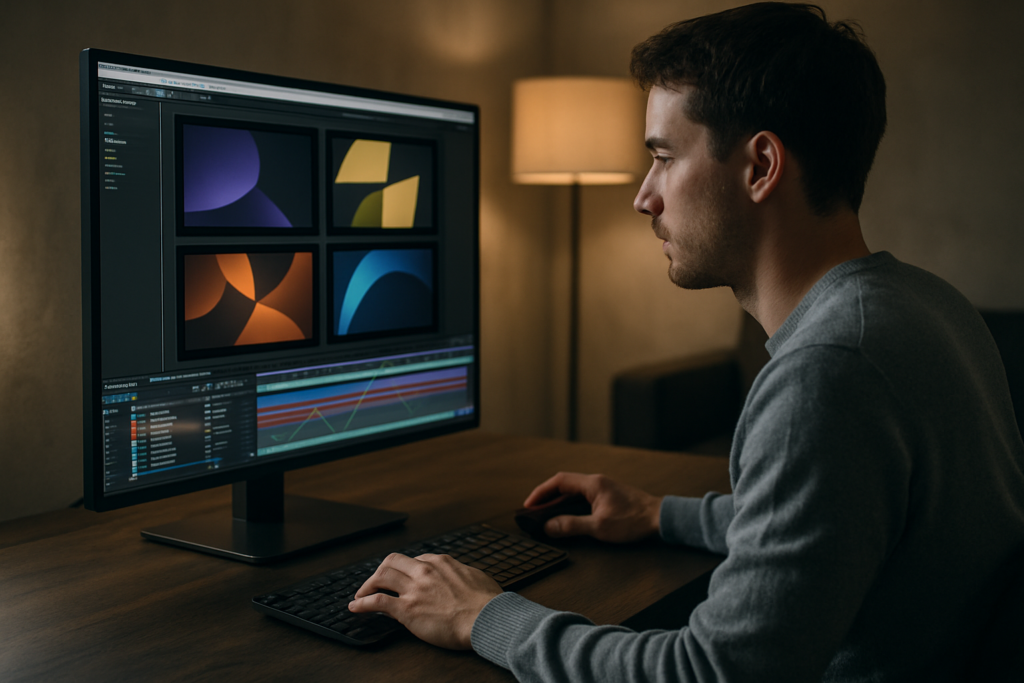
- 3-up and 4-up grids: Great for panel discussions, product feature highlights, or recap edits.
- Asymmetric layouts: One main hero panel plus smaller supporting panels for secondary footage.
- Dynamic animated grids: Panels slide, scale, or rotate into place to create more energy in intros or transitions.
When you browse split screen AE template collections, pay attention to the content they were designed for. Some packs are optimized for vertical social layouts, others for 16:9 YouTube intros, and some for more cinematic storytelling. For example, a dynamic multi-panel intro, similar to what you might see in a polished case study like this Revolut-inspired project, will feel very different from a static grid meant for corporate calls.
Look for templates that include:
- Multiple aspect ratios (16:9, 9:16, 1:1) and resolutions.
- Panel count variations (2, 3, 4, 6, 9 panels) to cover multiple use cases.
- Global controls for colors, borders, and typography.
- Clearly labeled placeholders and comps for quick drag-and-drop editing.
Templates are most powerful when they stay flexible. A well-designed split screen AE template should let you swap footage, re-time animations, and adjust panel sizes without breaking the design.
Common split screen mistakes editors make
Even experienced editors run into recurring problems with split screen layouts in After Effects. Recognizing these early will save time and avoid messy comps later.
1. Inconsistent framing across panels
- Subjects not centered or using different headroom in each panel.
- Mixed focal lengths that feel visually uneven.
- Horizon lines that do not align.
Fix: Use guides and a reference grid. Pre-crop your footage or use a null control to adjust position/scale consistently across all panels.
2. Messy compositions and naming
- All layers dropped into one comp with default names.
- No precomps for each panel, making timing changes painful.
- Confusing layer stacks that slow every adjustment.
Fix: Create one precomp per panel (Panel_01, Panel_02, etc.). Use a master layout comp where you only handle placement, borders, and global effects.
3. Overcomplicated timing and animations
- Every panel using different easing and motion speed.
- Too many unique transitions causing viewer fatigue.
- Graph Editor used inconsistently, leading to jerky motion.
Fix: Design a small set of reusable easing curves. Apply them with copy/paste or expression controls so the movement feels cohesive.
4. Performance issues and slow previews
- High-resolution footage scaled down without proxies.
- Multiple effects per panel (glows, blurs, heavy color grades).
- Too many nested precomps without caching strategy.
Fix: Use lower preview resolution and region of interest. Consider proxies or pre-rendered intermediate files for heavy shots.
5. Ignoring audio and pacing
- Visual cuts do not align with key audio beats.
- Too many panels active during dialogue, splitting attention.
- No focus cues such as scale-ups or subtle highlights.
Fix: Build your split screen around the audio edit. Use subtle zooms, exposure adjustments, or focus frames on the active speaker.
6. Overuse of effects and graphics
- Thick borders and loud backgrounds that compete with footage.
- Too many labels or icons in each panel.
- Busy transitions between layouts that distract from story.
Fix: Start minimal. Add only what supports clarity: slim borders, gentle shadows, and clean type.
Thinking through these pitfalls upfront will make your later template choices and custom builds much more reliable.
Choosing the right split screen workflow for each project
Different projects demand different split screen strategies. The right workflow balances speed, flexibility, and consistency across an entire edit.
Social reels and shorts
- Usually vertical (9:16) and fast-paced.
- Split screens used for comparisons, duets, tutorials, or multi-angle product shots.
- Workflow: build a vertical master comp (e.g., 1080×1920), then use simple 2–4 panel layouts. Keep panel animations snappy and readable on mobile.
Ads and performance creatives
- Often run in many formats (16:9, 1:1, 4:5, 9:16).
- Split screens highlight benefits, features, testimonials, or before/after results.
- Workflow: create a base 16:9 layout, then build format-specific comps that reframe the same panels. Use global controls for brand colors and fonts.
YouTube intros and explainers
- Split screens are great for bringing in multiple b-roll angles, UI closeups, and presenter footage.
- Workflow: design 3–4 hero layouts and reuse them across the episode so the visual language stays consistent.
Cinematic and documentary edits
- Split screens support parallel storytelling or time comparisons.
- Workflow: prioritize composition and pacing over flashy transitions. Use slower, more deliberate panel moves and minimal effects.
Many editors prefer to work from ready-made layouts instead of building every variation from scratch. Using professional templates, such as modular multi-panel designs or even more specialized layouts like a YouTube-style UI treatment similar to the YouTube widget concept, helps maintain consistency across a whole series with minimal manual setup.
To deepen your technical understanding of what is possible and keep up with new features, it is worth occasionally revisiting the official After Effects help and learning resources. Combining that knowledge with a reliable Unlimited After Effects Templates Subscription gives you a flexible toolkit: you can adapt to any client brief, region, or platform worldwide while keeping your core workflow familiar.
Get faster split screen setups
Step by step split screen template and workflow guide
This section walks through a practical way to use split screen templates and custom setups like an editor, focusing on repeatable steps and clean organization.
Project setup and compatibility
- Decide on your delivery format first (e.g., 1920×1080 at 25 fps, 1080×1920 at 30 fps).
- Match your composition settings to the final export specs so you do not reframe everything later.
- Check template requirements: minimum After Effects version, supported frame rates, and whether it is GPU-heavy.
When working with template-based layouts, align them with your existing project structure. For example, if you are mixing a split screen intro with interactive UI inserts similar to the style showcased in this automotive UI-driven layout, keep your comps organized under clear folders (Intro, Main, Outro, Widgets).
Organizing precomps and naming
- Create one master folder for split screens (e.g., 01_SplitScreens).
- Inside, create subfolders like Layouts, Footage_Panels, and Exports.
- Name master comps clearly: Split_2up_Main, Split_4up_Grid, Split_3up_Stacked.
- Name precomps per panel: Panel_01_A, Panel_02_B, etc.
Good naming is essential when you hand projects off to other editors, especially on larger worldwide teams.
Building a basic split screen manually
- Create a new comp at your final resolution.
- Drop in two video layers and scale them to fit roughly half the frame.
- Use rulers and guides to align the center and edges precisely.
- Add a solid layer on top and use masks or shape layers to create clean borders between panels.
- Parent each footage layer to its border or to a null so you can animate panels together.
Once you like the result, save this comp as a template in your own library so you can reuse it across projects.
Using a split screen AE template efficiently
- Open the template and locate the MAIN or RENDER comps.
- Identify the panel placeholder comps; they are usually named like Panel_01, Drop_Footage_01, etc.
- Replace the placeholder footage in each panel precomp with your own clips or images.
- Use global controls (often in a dedicated control layer) to adjust border thickness, colors, and typography.
Performance tips during layout
- Use 1/2 or 1/4 resolution for previews, especially with more than four panels.
- Enable motion blur only when you are close to final, or per layer where it actually matters.
- Set your preview range to work sections instead of full-length timelines.
- Use proxies for 4K+ footage; downscaled panels will still look clean at 1080p.
Managing plugin dependencies and safe alternatives
- Check if the template uses third-party plugins (glows, transitions, lens effects).
- If you do not have the plugins, look for template versions that rely on native AE effects.
- When possible, replace heavy effects with simpler ones to keep renders fast.
Customizing colors, typography, and transitions
- Use one or two accent colors tied to your brand or client.
- Choose a clean, legible typeface for labels and lower thirds; keep font sizes consistent across panels.
- Limit yourself to a small number of transitions (e.g., slide in, scale up, cross dissolve) and reuse them throughout the video.
Timing and storytelling with split screens
- Align panel in/out points with music beats, dialogue pauses, or scene changes.
- Use staggered animations (e.g., panels sliding in one after another) to guide attention.
- Use brief moments where only one panel is active to reset the viewer’s focus.
Use cases and layout choices
- Reels and shorts: 2-up comparison (before/after, POV vs. product), 3-up process shots, quick sidebars for subtitles.
- Ads: Feature grids, multi-testimonial layouts, product + interface pairings, localized cuts for different regions worldwide.
- Product promos: Multi-angle views, spec highlights alongside real-world usage footage.
- Cinematic edits: Parallel storylines (day vs. night, different locations), subtle motion and transitions.
Building your own library of reliable split screen layouts, plus having access to an Unlimited After Effects Templates Subscription, means you can quickly mix manual control with ready-made grids whenever deadlines are tight.
Advanced tips for long term split screen workflows
Once your basic split screen layouts are working smoothly, you can push into more advanced systems that save time across multiple projects.
Building reusable animation systems
- Create a master null or control layer that drives the motion of all panels (position, scale, rotation).
- Apply expressions so easing and overshoot are controlled from a single place.
- Store this system as a template project you duplicate for new jobs.
Maintaining visual consistency across an edit
- Define a mini style guide: border size, corner radius, color palette, type hierarchy.
- Use the same few split screen layouts across the entire piece instead of inventing new ones every scene.
- Reference approved layouts from previous edits or series to keep episodes visually aligned.
Styleframes and approvals
- Before animating, export a few static frames of your split screen layouts.
- Share them with clients or teammates for quick feedback on framing and hierarchy.
- Lock core decisions (number of panels, border style, type placement) before committing to keyframes.
Keeping projects lightweight
- Pre-render heavy sections (e.g., complex animated grids) as intermediate files and re-import them.
- Trim precomps to their actual duration to avoid unnecessary processing.
- Delete unused layers and comps after picture lock to simplify archiving.
Export and render considerations
- Use the Render Queue or an external encoder to output visually lossless masters before creating platform-specific encodes.
- Check thin borders against different compressions; overly thin lines may flicker or disappear in low bitrate exports.
- Test exports on mobile and desktop to ensure text in smaller panels stays readable.
Dynamic link and collaboration pitfalls
- Dynamic Link into Premiere can be handy but heavy; render high-usage sequences as video for smoother editing.
- When sharing projects, consolidate all media and template files in a single folder structure before sending.
- Document which split screen layouts are used where so editors can make consistent changes without hunting.
Consider building modular layouts that can adapt to different content types, similar in concept to how a flexible collaboration layout like this multi-participant widget design can be repurposed for many call or panel scenarios. Over time, you will accumulate a personal ecosystem of split screen systems that plug into almost any brief.
Split screen search intents and quick answers
Editors often search for very specific split screen questions. Here are concise answers to some of the most common ones.
- How do I quickly make a 2-up split screen in After Effects? Create a comp, drop two clips, scale to 50% width, align left/right with guides, and add a vertical border using a shape layer.
- What is the easiest way to reuse a split screen layout? Save a project that contains only your best layouts and turn it into a reusable template; duplicate that file for new jobs.
- Can I animate between different grid layouts? Yes. Use precomps for each grid and crossfade or animate panels scaling/moving into the new layout. Keep motion slow enough that viewers can follow.
- How do I sync split screen panels to music? Place markers on the timeline at key beats, then align panel in/out points and main keyframes to those markers.
- What is the best resolution for vertical split screen reels? 1080×1920 is a common and safe standard. Work at the highest resolution your system handles comfortably, then export platform-specific files.
- Can I combine motion graphics and footage in split screens? Absolutely. Use some panels for footage and others for motion graphics, stats, or lyrics, similar to how multi-panel lyric layouts or overlays are handled in projects like this lyric-driven piece.
- How do I avoid clutter when using 4 or more panels? Use simple backgrounds, consistent color coding, minimal text, and clear hierarchy. Do not keep all panels high-contrast and high-motion at the same time.
- Is there a way to preview only one panel? Solo the relevant panel layer or open its precomp separately, then return to the master comp when timing is set.
Bringing your split screen workflow together
Clean, effective split screens are about structure and intent. When you understand how to create split screen videos in After Effects from the ground up, you can pair solid composition and timing with consistent design choices that work across formats and platforms.
Start with a small library of trusted layouts, refine your naming and precomp structure, and build simple animation systems that you can reuse. Over time, supplement those with a curated split screen AE template collection, supported by an Unlimited After Effects Templates Subscription, so you can answer more client requests in less time while keeping quality high.
Whether you are editing social reels, ads, product demos, or cinematic stories, a reliable split screen workflow lets you focus on storytelling instead of rebuilding grids. Lock in a setup that feels natural, iterate on it, and let templates handle the repetitive layout work for you.Start building faster layouts
Conclusions
Effective split screen work in After Effects comes down to clear layouts, consistent timing, and smart reuse of systems and templates. Combine structured comps with a focused template library to handle different formats, from reels to long-form edits, while keeping your workflow fast, reliable, and ready for the next client brief.
FAQ
How do I center panels perfectly in a split screen layout?
Use rulers and guides, enable snapping, and position panels with exact values. For example, for a 2-up 1920×1080 layout, set each panel to 960 pixels wide and align them to the center and edges.
Do I need plugins to create split screens in After Effects?
No. Basic split screens only require native tools like shape layers, masks, and transforms. Plugins can add style or speed for transitions but are optional for core layouts.
What is the best frame rate for split screen videos?
Match your delivery or source: 24 fps for cinematic, 25 fps for broadcast in many regions, 30 fps for most online content. Keep your entire pipeline on the same frame rate to avoid timing issues.
Can I use the same split screen template for vertical and horizontal videos?
Yes if the template includes both formats or flexible controls. Otherwise, you may need to duplicate the layout, change comp size, and manually reframe panels for each aspect ratio.
How can I keep text readable in small split screen panels?
Use short labels, high contrast, and larger minimum font sizes. Test on a phone screen and avoid placing text too close to panel edges or over busy footage areas.
What is the fastest way to replace footage in a split screen AE template?
Open each panel precomp, alt-drag (option-drag on Mac) new footage onto the existing layer to preserve timing and effects, then adjust minor framing if needed.