Motion design for TikTok blends fast edits, bold typography, and clear storytelling inside a tiny vertical frame. As an editor or motion designer, you need a workflow that is fast, repeatable, and easy to adapt across multiple videos and clients. This guide walks you through practical, After Effects focused steps you can reuse daily.Browse TikTok-ready templates
Understanding motion design for TikTok
What motion design for TikTok actually is
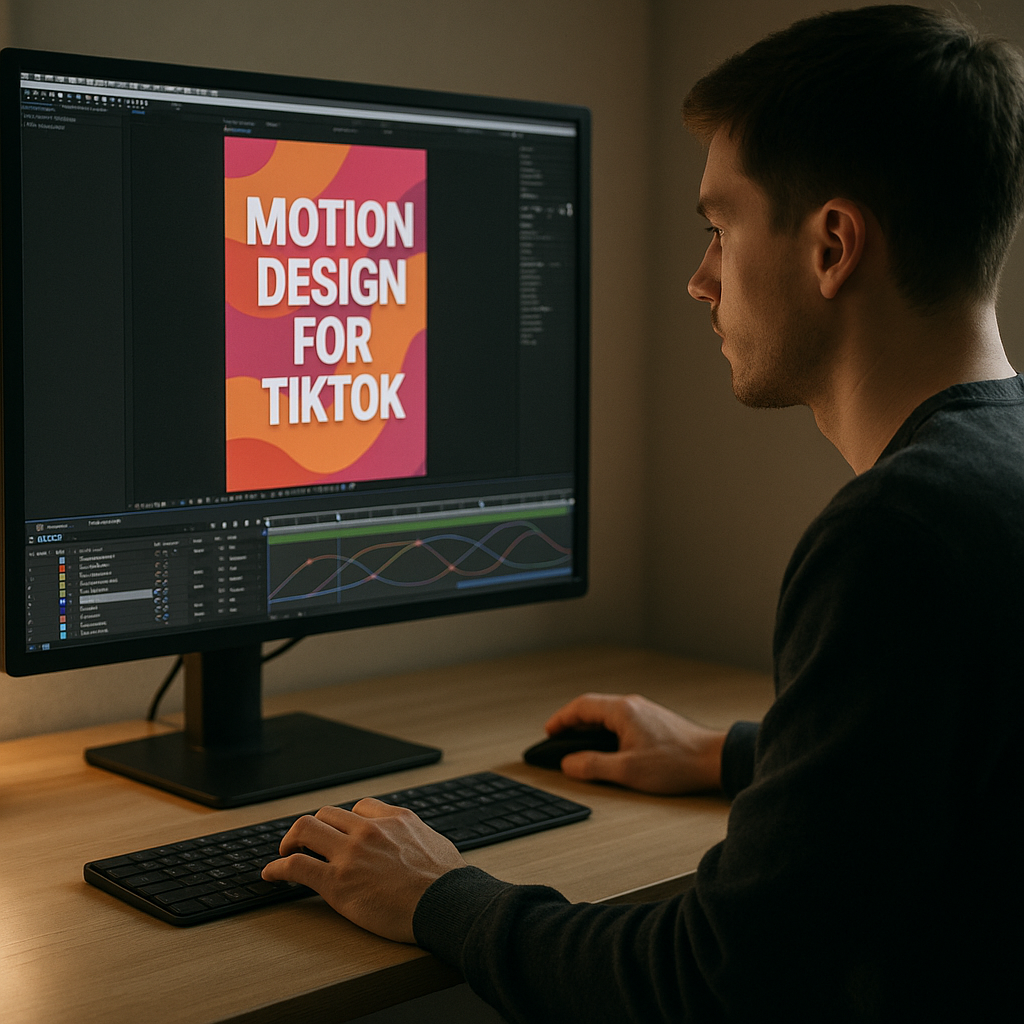
Motion design for TikTok is the practice of using animated graphics, typography, shapes, images, and video to support short-form stories on a vertical canvas. Unlike longer YouTube edits, you only have a few seconds to hook viewers, so every animation choice must push clarity, rhythm, and personality.
Why it matters for editors and motion designers
For editors and motion designers, TikTok is no longer just a social platform for trends; it is where brands, artists, and creators test ideas first. Strong motion design for TikTok helps you:
- Grab attention in the first 1–3 seconds with bold moves and readable typography.
- Guide the eye to key information such as hooks, CTAs, and product moments.
- Create recognizable visual systems that work across many videos and campaigns.
- Turn simple footage or screen recordings into polished, shareable content.
Who this workflow is for
This guide is built for:
- Video editors who work primarily in Premiere Pro or other NLEs but finish graphics in After Effects.
- Motion designers who want to adapt their skills to short vertical content without over-animating.
- Social content creators who want to move beyond basic text overlays and use more advanced animation without losing speed.
Core principles for TikTok-focused animation
To ground the rest of the workflow, keep these principles in mind:
- Clarity over complexity: Animations should make the idea easier to understand, not show off every trick.
- Rhythm over randomness: Match motion to beats, cuts, or story beats instead of arbitrary keyframe placement.
- Vertical-native design: Design everything for 9:16 first; horizontal adaptations should be secondary.
- System over one-off: Build reusable setups you can duplicate across an entire content calendar.
Once you understand the fundamentals, you can start building a repeatable TikTok animation workflow in After Effects that supports different video types and clients.
Building a reliable TikTok animation workflow
What a TikTok animation workflow looks like
A solid tiktok animation workflow is a repeatable sequence of steps for planning, animating, and exporting vertical clips. It lets you quickly adapt one visual language across many videos without redoing everything from scratch.
For After Effects users, a typical pipeline is:
- Outline story beats and hook.
- Set up vertical compositions and project folders.
- Drop in footage, screen captures, or assets.
- Apply reusable text and graphic systems (prebuilt templates or your own).
- Fine-tune timing, easing, and motion blur.
- Export and hand off to TikTok or your NLE.
Core TikTok content types and motion needs
Different TikTok formats demand slightly different motion design decisions:
- Face-to-camera explainers: Need clean lower thirds, hook captions, and subtle emphasis animations that do not distract from the speaker.
- Screen-recorded tutorials: Benefit from cursor highlights, callout boxes, and widget-style overlays, similar to a maps or app-inspired widget animation.
- Product or app demos: Thrive with snappy transitions, UI-style cards, and simple parallax that makes static screens feel alive.
- Lyrics and music edits: Use rhythm-based type reveals, bounce, and subtle effects that react to the track.
Where templates fit in the workflow
Templates let you skip repetitive build steps and jump into customization. With ready-made systems for captions, transitions, or overlays, you only need to swap text, colors, and footage. Collections like the ones on curated After Effects video project pages can inspire how you structure your own reusable setups.
Adapting workflows for speed and volume
When you are editing multiple TikToks per day, you need workflow choices that scale. Consider:
- Designing a master vertical comp, then duplicating it for each new script or cut.
- Using precomps for typography and widgets so you can update one comp and apply across many videos.
- Saving favorite animation presets (position, scale, opacity eases) to reuse quickly.
- Organizing assets so editors and designers can collaborate smoothly without hunting for files.
With this foundation, you can start spotting and removing the bottlenecks that slow down most TikTok motion projects.
Common motion design mistakes on TikTok
Overcomplicating animations
One of the biggest issues in motion design for TikTok is packing in too many moves. Short attention spans do not mean more animation; they mean clearer animation. Overly complex transitions and camera moves make it harder for viewers to follow the core message.
- Use 1–2 key motions per scene.
- Reserve big moves for hooks and key reveals.
- Choose either scale or position as your main motion, not both every time.
Ignoring timing and the Graph Editor
Flat linear keyframes create robotic motion that feels cheap, but overdone easing can feel floaty. Common mistakes include:
- No consistency in ease curves between elements.
- Extremely long eases that do not match short clip durations.
- Keyframes off-beat from the soundtrack or dialogue.
Graph Editor checklist
- Match ease curves for related elements (e.g., titles and backgrounds).
- Use sharper ease in for quick pops, smoother ease out for exits.
- Sync main keyframe hits with beats, words, or sound cues.
Messy compositions and precomps
Rushed TikTok edits often have:
- Dozens of unnamed layers in a single comp.
- No precomps for recurring elements like captions or widgets.
- Random resolution and frame rate changes from copy-pasted comps.
This makes revision rounds painful and slows down render times.
Motion blur misuse
Motion blur can sell speed, but misusing it can ruin clarity:
- Blur on tiny text makes captions hard to read mid-movement.
- Too strong blur on fast transitions causes smearing.
- Mismatched shutter angle between layers and cameras breaks realism.
Use blur selectively on larger, bolder elements and keep essential information sharp.
Heavy effects and plugins
Overusing effects and heavy plugins on a TikTok project leads to:
- Slow previews, which discourage proper timing tweaks.
- Longer render times that bottleneck content calendars.
- Compatibility issues when sharing projects with collaborators.
Keep your base comps light, and reserve heavy treatments for a few hero moments.
No visual hierarchy or safe zones
Another big mistake is ignoring TikTok UI overlays. Essential data placed behind the username, caption, or like buttons becomes useless. Always design with safe zones in mind and ensure:
- Primary text lives in the middle-upper part of the frame.
- Secondary labels or captions sit in clear areas not covered by UI.
- Scale and color clearly separate main messages from supporting info.
Fixing these issues first will instantly lift the quality of your TikTok animations before you even add more creative ideas.
Choosing motion strategies and smart shortcuts
Match motion design to content type
Different TikTok goals require different animation strategies. Tie your choices to the job:
- Organic creator content: Keep motion subtle and personal. Simple pop-in titles, soft lower thirds, and minimal transitions feel more authentic.
- Brand campaigns or UGC-style ads: Use bolder typography, dynamic transitions, and clear product callouts. Maintain a consistent color and type system across all videos.
- Education and tutorials: Prioritize legibility with highlighted steps, numbered callouts, and simple focus animations instead of flashy wipes.
- Music-driven edits: Build motion directly on the beat, using looping background animations and rhythmic type reveals.
When to animate in AE vs the native app
TikTok has built-in text and sticker tools, but they are limited. A good rule:
- Use native tools for quick personal posts where quality is less critical.
- Use After Effects when you need brand consistency, layered animation, or reusable systems.
If you are producing content for multiple channels beyond TikTok, After Effects gives you full control to adapt design for Reels, Shorts, and story placements.
Templates and systems as time-savers
Instead of designing every title and transition from scratch, build or use pre-made systems. An Unlimited After Effects Templates Subscription can help you assemble a toolkit of:
- Caption and lyric styles for talking-head or music edits.
- App-style overlays for tutorials, similar in spirit to finance or UI-based widgets like a slick card animation project.
- Transition packs tailored for vertical formats.
- Reusable background loops or patterns for intros and outros.
Practical decision guide
- If you are editing daily TikToks for one brand, create a master AE project with precomps for logo stings, titles, and CTAs.
- If you cut multi-client content, keep a flexible system with multiple color and typography options you can switch per project.
- If you have tight deadlines, rely more on tested templates and simple motion so you can prioritize story and sound.
Making deliberate choices about when to invest time in custom animation and when to lean on existing systems lets you keep quality high while delivering at TikTok speed.Speed up your TikTok workflow
Practical template-based workflow for TikTok in After Effects
Start with project settings and compatibility
Before touching any keyframes, lock in your technical setup:
- Composition size: 1080×1920 (9:16) is a standard vertical base.
- Frame rate: Match your footage or the intended delivery (commonly 25 or 30 fps). Staying consistent prevents stutter and weird motion interpolation.
- Duration: Make comps a little longer than your planned TikTok (e.g., 20 seconds for a 15-second video) to allow for padding and trims.
If you use templates, always check:
- Minimum After Effects version.
- Whether expressions are language-dependent.
- Included controls for colors, fonts, and timing.
Organize your project like an editor
Think like you are building a reusable kit, not just a single video:
- Have main folders for 01 Footage, 02 Audio, 03 Precomps, 04 Renders, and 05 Assets (icons, shapes, backgrounds).
- Store text systems (captions, big titles, lower thirds) in clearly named precomps.
- Keep one master style guide comp with sample texts and colors, so you can quickly copy-paste styles.
If you work with UI or widget overlays often, studying dedicated widget templates such as a social platform style overlay can give you ideas for how to organize reusable components.
Keyframe organization and naming
Clean layer stacks save you time on every revision:
- Name important layers (e.g., Hook_Title, Caption_Line_01, BG_Block).
- Group related elements in precomps (for example, all hook text and its background shapes).
- Color-label layers so you can visually separate text, backgrounds, footage, and adjustment layers.
For keyframes themselves:
- Keep main animation keyframes aligned to clear beats or edit points.
- Avoid micro keyframe spam; use as few as needed to describe movement.
- Reuse easing presets so your motion language feels cohesive.
Performance tips for smoother previews
TikTok edits are short, but lots of layers and effects can still bog down your machine. To keep AE responsive:
- Use quarter or half-res previews, especially once your look is locked.
- Pre-render heavy background loops or particle layers.
- Enable region of interest when finessing small areas.
- Use proxies for high-res footage or screen captures when needed.
Good performance encourages more experimentation, which results in better motion design.
Plugin dependencies and safe alternatives
Many TikTok-ready templates use popular plugins. When picking or building your own systems:
- Limit plugin use to essentials (e.g., for advanced type animation or certain distortion looks).
- Offer fallback options using native AE tools where possible.
- If you share projects with clients or other editors, document which plugins are required.
Whenever possible, build core motion using built-in tools so your projects stay portable.
Customization workflow for colors and typography
Once your structure is in place, tailor the design quickly:
- Create a global color control using control layers and expressions so you can swap brand colors in one place.
- Define 2–3 text styles only: hook headline, body caption, and small labels.
- Keep enough contrast between text and background; for busy footage, use solid or blurred backing shapes.
When using a template, locate the main control comp and identify where text, font, and color settings live before changing anything else.
Timing, transitions, and storytelling beats
Motion design for TikTok should follow clear story beats:
- 0–3 seconds: Hook title and strongest visual moment.
- 3–7 seconds: Set up context with secondary text and footage.
- 7+ seconds: Add depth, examples, or transformations, then close with a clear end beat.
Plan transitions around these beats rather than using random wipes every second. For music-based or lyrics content, reference a project like a dedicated lyrics animation to understand pacing that respects both rhythm and readability.
Use cases: reels, shorts, ads, and promos
Once your system is dialed in, adapting it is straightforward:
- Reels and Shorts: Keep the same vertical base but adjust safe zones for different platform UIs.
- Performance ads: Emphasize clarity of offer text, trust signals, and product shots with restrained motion.
- Product or feature promos: Utilize UI-style frames, zooms, and emphasis highlights similar to app or widget-based project files, for example a battery-style app widget animation.
By following this checklist from setup to export, you build an efficient TikTok-focused AE pipeline that you can reuse across clients and campaigns.
Advanced techniques and long-term optimization
Designing animation systems, not single clips
Once you are comfortable building individual TikTok edits, start thinking in systems. Create reusable modules for:
- Hook cards (title plus background, with in/out animations).
- Talking-head captions with multiple line variations.
- Product callouts and price tags.
- End screens or follow prompts.
Each module should be easy to duplicate and relabel, letting you remix content for weeks.
Styleframes and visual consistency
To keep a whole account coherent over time:
- Build a simple styleframe template with sample footage, big title, and caption.
- Test how your look behaves on dark and light footage.
- Save approved color palettes and typography styles.
When making more stylized edits, refer back to these guides so your experiments still feel like part of the same brand. Watching how highly stylized pieces like a music-driven edit concept balance motion and mood can inspire your own consistent visual direction.
Modular transitions and reusable motion
Instead of creating dozens of unique transitions, design a small library of:
- Directional slides and pushes.
- Masked reveals from shapes or typography.
- Simple parallax or faux camera moves.
Store them in precomps that accept drop-in footage or graphics, so you can replace content quickly while keeping motion identical.
Quality control and review passes
As you scale production, schedule specific passes:
- Readability pass: Check if text can be read in one glance on a phone held at arm length.
- Beat sync pass: Verify that key movements and transitions hit on audio cues.
- Branding pass: Confirm that colors, logos, and typography match current guidelines.
Running the same checklist for every TikTok keeps output consistent even under deadlines.
Export considerations and render strategy
For TikTok, you typically want:
- Vertical 1080×1920 MP4 or MOV files with good compression.
- Reasonable bitrate that balances quality and file size.
- Safe loudness levels so audio is clear on mobile speakers.
When using the Render Queue or external encoders:
- Export master files from AE in a high-quality mezzanine format.
- Use consistent naming (e.g., Brand_Topic_Platform_Version) to avoid confusion.
- Keep a separate folder for social-optimized exports.
Dynamic link and project weight
If you are editing primarily in an NLE and sending shots to After Effects, be careful with dynamic link:
- Use it sparingly for shots that genuinely need AE-level motion.
- Consider rendering complex sequences out of AE and importing back as clips.
- Avoid stacking many dynamic-linked comps in one timeline, as it can slow down playback.
Keep projects lightweight by clearing unused solids, pre-rendering heavy effects, and purging caches regularly.
Scaling your system for teams
For agencies and studios producing TikTok at scale:
- Share a master AE project with documented templates and notes.
- Create a short internal guide explaining which precomps to duplicate and how to adjust controls.
- Use consistent versioning, especially when several editors and motion designers are touching the same campaign.
With these practices, your TikTok animation workflow stays stable and efficient as your output grows.
Search-driven ideas for motion design in TikTok workflows
Common search intents and quick answers
Editors and motion designers often search for very specific solutions related to motion design for TikTok. Here are typical questions and concise answers to guide your workflow:
- Best TikTok export settings from After Effects
Render a high-quality master, then compress to 1080×1920 MP4 with a reasonable bitrate. Test a few exports on your phone to balance quality and size. - How to animate subtitles for TikTok
Build a caption precomp with multiple text lines, simple pop-on animations, and high-contrast backplates. Sync to dialogue using markers, then reuse the same system for each new video. - How do I make TikTok motion design look professional
Keep a limited color palette, use only 1–2 typefaces, apply consistent easing, and ensure every move has a purpose. Avoid stacking many gimmick effects. - Can I reuse YouTube motion graphics for TikTok
Yes, but adapt them: flip comps to 9:16, adjust safe zones away from UI, enlarge type, and simplify layouts for smaller screens. - How to keep TikTok projects light in After Effects
Work at native resolution, minimize heavy effects, use pre-renders for complex sections, and delete unused assets and layers. - How many animations should a 15-second TikTok have
Focus on 3–5 meaningful motion beats: hook, one or two internal highlights, and a clear ending movement. Too many moves become noise. - Do I need motion design templates for TikTok
You can build everything manually, but templates speed up consistent titles, captions, and transitions, which is crucial when delivering multiple clips per week. - What aspect ratio should I design for first
Design for 9:16 vertical first, then adapt sideways if needed. TikTok is primarily vertical, so your strongest composition decisions should center that format. - How to integrate music with motion
Place markers on important beats or lyrics, then align your main keyframes to those markers to make movement feel intentional and musical. - How to mix live action and graphical overlays
Use simple shapes, gradients, or widget-style elements anchored to areas of interest in the footage. Keep overlays readable but avoid covering essential visual information.
Use these questions as prompts to refine your own process and to design reusable solutions for recurring TikTok needs.
Bringing your TikTok motion design system together
Recap of the workflow
Motion design for TikTok works best when treated as a repeatable system: set clean project settings, organize your comps, rely on well-structured templates, and keep animation purposeful and beat-aware. Rather than inventing a new style every time, refine a few visual systems you can apply across many videos.
Key takeaways for editors and motion designers
- Design vertical-first and keep safe zones clear of platform UI.
- Limit motion to a few well-timed, story-driven beats.
- Use organized precomps and naming so revisions stay painless.
- Lean on templates and reusable modules for captions, hooks, and transitions.
- Run quality control passes for readability, rhythm, and branding before export.
Next steps for your TikTok projects
As you refine your system, build a small library of vertical-ready projects, presets, and templates so you can focus more on ideas and less on rebuilding motion from scratch. When you are ready to expand your toolkit with more options for hooks, lyrics, widgets, and visual accents tailored to short-form content, explore how an Unlimited After Effects Templates Subscription can support daily production without slowing you down.
Upgrade your TikTok animations
Conclusions
Motion design for TikTok is about clarity, rhythm, and repeatable systems more than flashy effects. With a solid After Effects workflow, organized templates, and a focus on story-driven motion, you can ship more vertical videos in less time while keeping style and quality consistent across every post.
FAQ
What resolution should I use for motion design on TikTok?
Use a 1080×1920 vertical composition (9:16). Keep all key graphics and text away from the bottom and right edges to avoid overlapping TikTok UI.
What frame rate works best for TikTok animations in After Effects?
Most workflows use 25 or 30 fps. Match your source footage where possible and stay consistent across comps to avoid jitter or timing issues.
Do I need plugins for professional TikTok motion design?
No. Native After Effects tools are enough for clean, readable motion. Plugins are optional for specific looks but should not be required for core animations.
How long should text stay on screen in a TikTok video?
Aim for at least 1.5–2 seconds per short line of text. If viewers cannot read it in one glance on a phone, extend the timing or simplify the wording.
Can I reuse one motion system across TikTok, Reels, and Shorts?
Yes. Design for 9:16 first, then adapt safe zones and slight layout tweaks for each platform. Keep typography and color consistent across all channels.
How do templates help a TikTok animation workflow?
Templates give you ready-made systems for titles, captions, transitions, and overlays. You swap content instead of rebuilding, which speeds up delivery and improves consistency.