Motion design in After Effects can feel overwhelming, especially when deadlines are tight and projects keep stacking up. This workflow focused guide walks through practical steps editors, designers and creators can apply today to animate faster, cleaner and with more consistency, using smart project structure and templates as a base.Explore template access
What motion design in After Effects really means
Motion design in After Effects is the craft of turning static visuals into moving, timed and designed sequences. It sits between animation, graphic design and video editing, using layers, keyframes and effects to communicate ideas with motion.
For editors, motion design turns rough cuts into polished stories with titles, lower thirds, transitions and screen graphics. For designers, it is a way to bring brand systems, UI layouts and illustrations to life. For creators, it powers intros, outros, overlays and loopable visuals for social media.
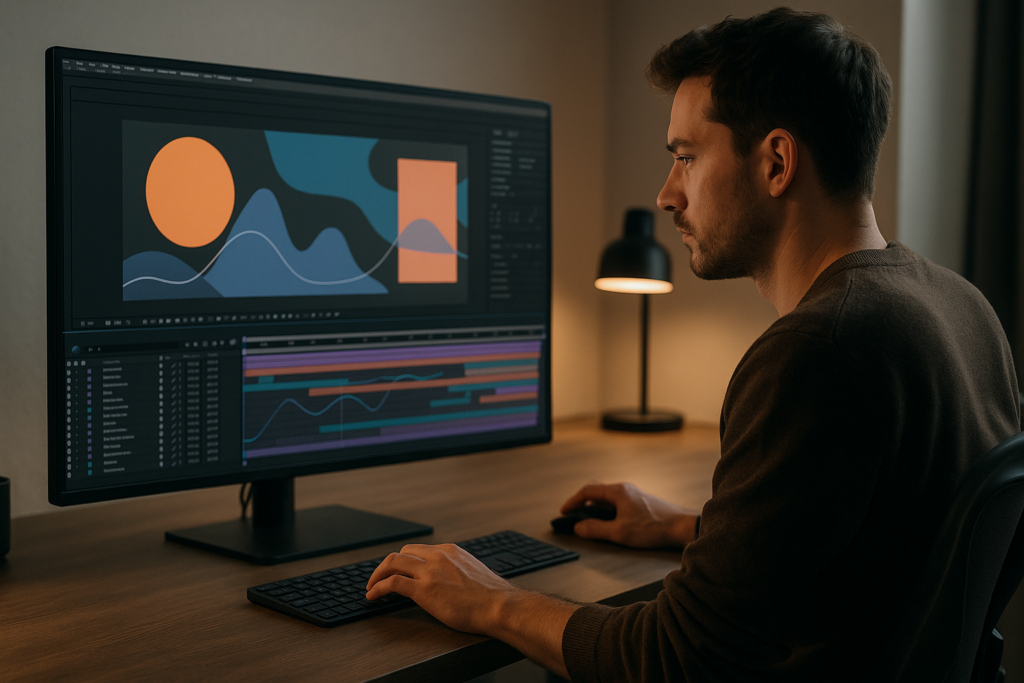
After Effects is built for this kind of work. Instead of cutting clips on a traditional editing timeline, you work inside compositions. Each composition can hold multiple layers: text, shapes, imported footage, precomps and adjustment layers. You animate properties like position, scale, rotation, opacity and effects using keyframes and the Graph Editor to shape motion.
Why it matters: well designed motion guides the eye, clarifies hierarchy and adds energy without distracting from the content. Done right, motion design supports the message: a button feels tappable, a chart feels understandable, a lyric video feels musical, a product feels premium.
Motion design in After Effects is for:
- Editors who need titles, callouts, transitions and animated screen inserts.
- Motion designers building full sequences, explainer videos and animated brand systems.
- Content creators making YouTube packages, TikTok hooks, reels, lyrics and loopable social assets.
- Teams who must keep visuals consistent across campaigns, regions and platforms.
This foundation sets up your workflow choices: how you structure comps, where you use templates, and how you get from idea to export without breaking your timeline or your machine.
Understanding the After Effects motion design workflow
The term after effects motion design workflow describes the repeatable steps you follow from brief to final render. A solid workflow keeps you organized, speeds up revision rounds and lets you reuse work across multiple projects.
At a high level, most motion design workflows pass through these phases:
- Planning: clarify message, duration, aspect ratio and delivery platforms.
- Designing: styleframes, type choices, color palette and basic layout.
- Building: set up compositions, import assets, create precomps and global controls.
- Animating: block timing, add easing, refine Graph Editor and overlaps.
- Polishing: motion blur, secondary details, transitions and sound considerations.
- Exporting: render settings per platform, file naming and versioning.
Your workflow changes slightly depending on project types. For example, a UI driven animation might rely on reusable widgets; you could adapt ideas from a YouTube style widget animation into your own layouts. A lyric video often needs a tempo aligned structure similar to a dedicated lyric template.
Common workflow variations include:
- Template first workflow: you start from an existing project file, swap assets, adjust colors and timing, then extend where needed. This works well for recurring content like weekly shows, ads or social series.
- Design first workflow: you design static frames in tools like Photoshop or Illustrator, then import and rig them in After Effects.
- Hybrid workflow: you use templates for utility elements (lower thirds, transitions, widgets) while custom building hero scenes or complex story moments.
Motion design in After Effects becomes much faster when you treat your workflow as a system. Organize your project panel, name comps clearly, reuse modules and learn from complete projects, such as looping UI widgets or a themed animation like a seasonal motion graphic scene. The more reusable building blocks you have, the less you start from a blank comp.
Frequent motion design mistakes that slow you down
Once you start producing more work, the bottlenecks in your motion design in After Effects process usually come from a few recurring issues. Spotting them early saves a lot of time later.
Messy project structure
- Randomly named compositions and layers that make revising a nightmare.
- Assets scattered across drives, breaking links when projects move between machines.
- No master controls, forcing you to change colors or logos in dozens of places.
Weak timing and spacing
- Animations that start and stop abruptly without easing.
- Every element moving at the same time instead of staggered, layered motion.
- Ignoring the Graph Editor, resulting in robotic movement.
Overusing effects and motion blur
- Too many glows, blurs and distortions stacked on top of each other.
- Motion blur enabled on layers that barely move, adding render time for no benefit.
- Effects applied per layer instead of using adjustment layers or precomps.
Heavy, unoptimized compositions
- Working at 4K with 32 bit color on every project, even when delivery is vertical mobile.
- Very long comps with hundreds of layers and no precomps to simplify them.
- Relying on many third party plugins when simpler native tools would do.
Inconsistent style
- Changing easing curves between shots, so movement feels disconnected.
- Mixing unrelated fonts, stroke weights and icon styles.
- No clear rules for color use, making sequences feel chaotic.
To avoid these pain points, use quick checks during production:
- Can someone else understand my comp structure after five minutes?
- Does every main move use intentional easing, ideally refined in the Graph Editor?
- Am I previewing at a reasonable resolution and frame rate for this stage?
- Are style choices (type, color, stroke, motion curves) consistent across the whole piece?
When these basics are under control, you free up mental energy to focus on design decisions instead of fighting the software.
Choosing the right approach for each motion design project
Different projects demand different motion design in After Effects strategies. The right approach depends on duration, platform and level of originality required.
Short social clips and reels
- Keep comps light and modular, one section per message or hook.
- Use bold, legible typography and fast pacing; most viewers watch muted.
- Base your layout on a reusable system so each new reel reuses animations, colors and positioning for speed.
Performance driven ads
- Start from tested structures: open with problem or hook, show solution, end with clear CTA.
- Reuse a base project where logo, offer text and product shots are easily swapped.
- Prioritize readability and brand alignment over flashy but irrelevant effects.
YouTube and long form content
- Build a motion toolkit: intro, lower thirds, chapter cards, subscribe bumpers, end screens.
- Store all assets in a master project so updates (new logo, fonts) cascade into future episodes.
- For complex sequences like lyric or music based visuals, study structured projects such as a dedicated lyric animation workflow to understand pacing and layering.
Corporate and explainer content
- Focus on clarity: clean icons, simple transitions and restrained color use.
- Use precomps for sections so entire chapters can be reordered easily.
- Maintain a style guide for animation: standard easing curves, default transition durations and safe text sizes.
When templates make sense
Templates and ready made motion systems are ideal when you produce content repeatedly: weekly videos, recurring campaigns, multi language or multi region outputs. They give you consistency and a tested structure so you can focus on messaging.
Adobe maintains solid technical documentation and feature overviews at their official After Effects help center. Combine that reference with practical, production ready templates and you get both technical understanding and a faster path to publish.
For teams creating content at scale worldwide, an Unlimited After Effects Templates Subscription can standardize motion design while letting each editor customize messaging. You choose whether to build from scratch, adapt a styleframe, or start from a fully animated layout depending on your deadline and resources.Compare subscription options
Step by step motion design template workflow in After Effects
Once you understand which approach suits your project, you can set up a reliable, template based motion design in After Effects workflow. Think like an editor: fast, organized, revision friendly.
Project and version basics
- Create a clean folder structure: Project, Renders, Assets, Audio, Exports.
- Save versions incrementally: projectname_v01.aep, v02, especially before big changes.
- Check template documentation or comments for recommended settings when opening any project.
After Effects version and project settings
- Confirm the minimum After Effects version in the template description; opening older templates in newer versions is usually safe, the reverse is not.
- Match frame rate to your final delivery (often 23.976, 25 or 30 fps). Changing fps mid project will cause timing drift.
- Choose resolution and aspect ratio up front: 1920×1080 landscape, 1080×1920 vertical, or square/other formats as needed.
Understanding comp structure
- Identify MAIN or RENDER compositions; these are usually your final outputs.
- Look for placeholders comps where you replace text, logos, images or videos.
- Find global control comps or layers (often called CONTROLS or MASTER) that adjust colors, fonts and other style settings in one place.
Keyframe organization and naming
Even with templates, you will likely add or tweak animation. Good habits here keep your motion clean:
- Label layers by type: text, icon, background, control. Use colors to group related elements.
- Use markers on the timeline to mark beats, VO cues or edit points.
- When adding new moves, copy easing from existing keyframes to preserve style consistency.
Precomps and modular design
- Use precomps to group complex elements like UI widgets or lyric lines so they behave as single layers in the main timeline.
- If you modify a repeated element, consider editing the source precomp so all instances update.
- Study modular layouts from more complex widgets, such as an integrated UI scene like a map based motion graphic, to see how nested comps are used efficiently.
Performance and preview tips
- Preview at Half or Third resolution until final polish.
- Toggle motion blur off globally while blocking timing, then enable for final previews.
- Use Region of Interest to preview only part of the frame when tweaking details.
- Consider proxies for large footage or 3D renders to keep interaction responsive.
Plugin dependencies and alternatives
- Check the template notes for required plugins; install them before opening to avoid missing effects.
- If a plugin is optional, see if the template offers a fallback using native tools.
- When designing your own reusable assets, favor built in effects where possible so projects are portable between machines.
Customization: colors, typography, transitions, timing
- Change colors from a single control layer or shape style where available, keeping brand palettes centralized.
- Adjust typography to your brand fonts, but respect sizes and hierarchy defined in the template for readability.
- Refine transitions by nudging keyframes, not by adding new, competing effects.
- Align animation beats with audio using markers; for music driven pieces, this is crucial.
Use cases: from reels to promos
- Reels and shorts: focus on bold titles, simple backgrounds, rapid timing. Short hooks benefit from snappy animations found in social ready templates.
- Product promos: use camera moves, reflections and environment details carefully, similar in spirit to detailed product demos like a digital card or app showcase.
- Cinematic edits: lean on subtle type, light leaks, grain and smooth transitions rather than heavy UI elements.
- Music and lyric visuals: structure comps around sections of the track, one precomp per verse or chorus, so revisions stay manageable.
Final checklist before rendering
- All placeholders replaced; no default logos or lorem ipsum remain.
- Colors and fonts align with current brand guidelines.
- Key moves checked in Graph Editor for smooth easing.
- Render settings match platform requirements (codec, bitrate, resolution, fps).
- Project folder collected and backed up for future reuse.
When you treat each template as a teachable project, you both deliver quickly and learn new motion design techniques you can reuse in your own builds.
Advanced motion design systems and workflow optimization
Once your base motion design in After Effects workflow feels stable, you can push into more advanced, system level thinking. The goal is reliable output across many videos, not just one polished piece.
Building reusable animation systems
- Create universal transition comps you can drop between sections instead of rebuilding cuts each time.
- Use expression driven controllers for colors, stroke widths and global timing multipliers.
- Store commonly used elements (lower thirds, chapter cards, callouts) in a single master project.
Styleframes and motion tests
- Begin with a few key frames that show layout, color and type hierarchy.
- Animate short segments (1–2 seconds) to confirm pacing before building a full sequence.
- For more complex, stylized sequences, analyze existing motion pieces such as a full performance based animation like a music inspired visual sequence to understand layering and rhythm.
Maintaining consistency across whole edits
- Lock in a default easing curve and apply it everywhere unless there is a strong design reason to differ.
- Limit your color palette: primary, secondary and accent, plus neutrals.
- Document type scales and line spacing; reuse them across comps.
Quality control passes
- Do a readability pass: can you understand text at typical viewing sizes and distances?
- Do a motion pass: check for unwanted flickers, jittering, or overshoots that never settle.
- Do a brand pass: confirm logos, spacing and clear space follow guidelines.
Export considerations and render queue basics
- Use lossless or mezzanine codecs (such as visually lossless intermediates) from After Effects, then encode platform specific versions via a dedicated encoder.
- Queue multiple outputs overnight when projects are heavy.
- For multi ratio deliveries (16:9, 9:16, 1:1), use different final comps that reference shared precomps so changes only happen once.
Dynamic link and project weight
- Use dynamic link between your editing app and After Effects for shots that need live updating; render to files for shots that are final to keep timelines lighter.
- Avoid stacking many effects and large media inside a single comp; pre render complex segments if performance drops.
- Archive completed projects by collecting files and removing unused footage to keep storage manageable.
Over time, these practices give you a motion design in After Effects pipeline that scales from single creator setups to team environments, without sacrificing clarity or performance.
Motion design and After Effects search questions answered
People searching for motion design in After Effects often have specific, workflow focused questions. Here are concise answers to common intents.
- How do I start learning motion design in After Effects as an editor? Begin by animating titles, lower thirds and simple transitions. Focus on keyframes, easing and timing before complex effects.
- What is the best after effects motion design workflow for YouTube creators? Build a master project with intro, lower thirds, chapter cards and end screens. Reuse it for each episode, changing only text and colors as needed.
- How can I make UI and widget style animations faster? Use pre built systems for cards, dashboards and on screen elements. Look at how compact widgets, similar to a payment card interface animation, are structured with precomps and controls.
- What frame rate should I use for social motion design? Most platforms handle 24, 25 or 30 fps well. Choose one and stick with it for consistency. Align your template settings and edits to that frame rate.
- How do I keep my animations smooth, not choppy? Use consistent easing via the Graph Editor, avoid random frame rate changes, and preview at full fps when checking final motion.
- Do I need plugins for professional motion design in After Effects? Not necessarily. Native tools are very capable. Plugins can speed up specific tasks, but reliable workflow and design fundamentals matter more.
By focusing on these recurring questions and answering them inside your pipeline, you turn each project into reusable knowledge for the next one.
Bringing your motion design workflow together
By now you have a complete picture of how motion design in After Effects moves from concept to export: clear structure, reusable comps, considered easing and platform aware outputs. The real advantage comes when this becomes a repeatable system rather than a one off setup.
For editors, that means predictable projects that render on time and are easy to revise. For designers, it means visual consistency across campaigns. For content creators, it means spending less time building graphics and more time crafting stories, while still publishing polished motion content regularly.
Leaning on a reliable library such as an Unlimited After Effects Templates Subscription gives you a base of proven layouts, transitions and widgets to customize instead of rebuilding from scratch. Combined with the workflow practices covered here, you can deliver cleaner motion, faster turnaround and more consistent results, whether you work solo or with a team worldwide.
Conclusions
Motion design in After Effects becomes manageable once you treat it as a structured workflow instead of a collection of tricks. Focus on clear comps, reusable elements, consistent easing and platform aware exports. Combine solid fundamentals with smart use of templates and you will deliver reliable, polished motion pieces on tighter timelines, project after project.
FAQ
What is motion design in After Effects used for?
It is used to animate titles, UI, logos, infographics and full sequences for ads, social content, explainers, intros, outros and music based visuals.
Is After Effects good for beginners in motion design?
Yes. Start with simple text and shape animations, learn keyframes and easing, then gradually add masks, effects and precomps as you gain confidence.
How can I speed up my After Effects motion design workflow?
Organize projects, reuse templates, keep comps modular, preview at lower resolution, limit heavy effects and standardize fonts, colors and easing curves.
Do I need powerful hardware for motion design in After Effects?
Stronger hardware helps, but smart settings matter more. Use proxies, optimized resolutions, pre renders and avoid unnecessary high bit depth until final.
What frame rate is best for motion design projects?
Common choices are 23.976, 25 or 30 fps. Pick one based on region or platform norms and keep it consistent across your templates and outputs.
How important are templates for professional motion work?
Templates are very useful for recurring content, giving consistent design and saving time. They work best combined with solid fundamentals and custom tweaks.