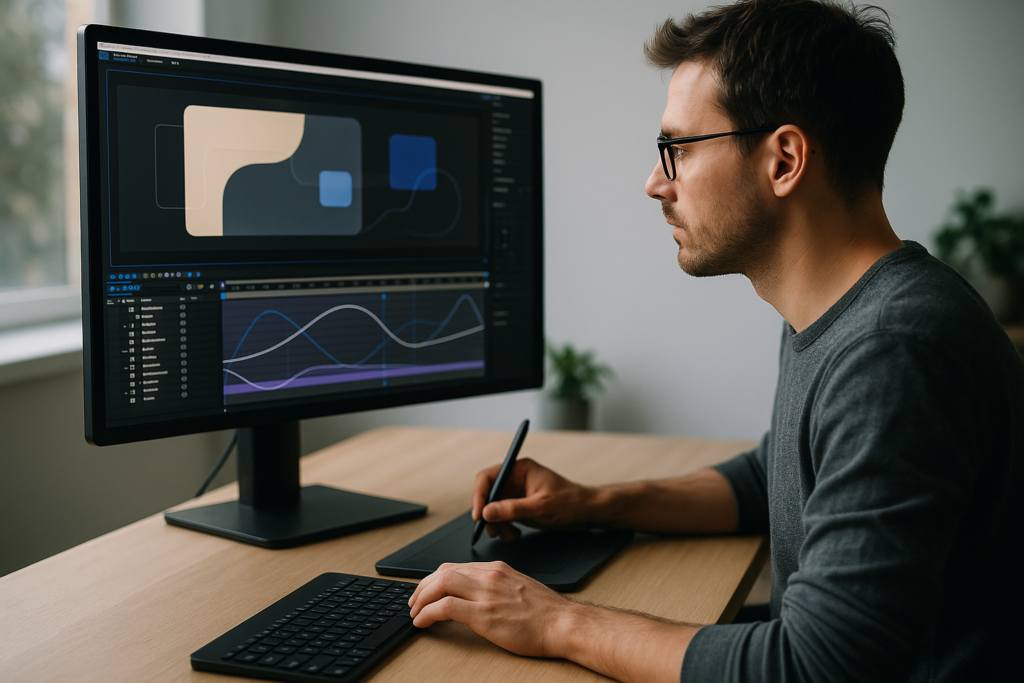
Satisfying UI animations are no longer just a nice-to-have. They guide attention, communicate system status, and make every tap or click feel intentional. For editors and motion designers working in After Effects, mastering this style unlocks clean, modern visuals that clients expect across apps, products, and content worldwide.Explore AE templates now
📋 Table of Contents
What Satisfying UI Animations Really Are
Satisfying UI animations are the subtle, polished motions that make digital interfaces feel responsive, calm, and intentional. Think of a button press that gently rebounds, a card that glides into place, or a progress bar that fills with smooth ease instead of jerky steps. They are small details, but they shape the entire experience of a product or video.
For motion designers and editors, these moments show up in app promos, explainer videos, SaaS demos, and even lyric videos with interface-inspired layouts. When people say an animation feels “crisp” or “clean”, they are usually reacting to how well the motion supports the core UI design.
Why they matter
Satisfying UI animations matter because they:
- Guide the viewer’s eye without shouting for attention.
- Reinforce hierarchy, showing what is primary and what is secondary.
- Explain cause-and-effect, like what happens after a tap or click.
- Add a premium feel that makes products look refined and trustworthy.
For editors, they are also a time-control tool: UI motions can act as beats, transitions, or visual cues that lock content to music or voiceover.
Who they are for
These animations are especially relevant if you are:
- An editor cutting app or fintech promos who needs reusable, on-brand UI motion.
- A motion designer creating product walkthroughs or feature explainers.
- A creator building reels or shorts that showcase screens, dashboards, or widgets.
- A studio looking for consistent interface animation language across clients worldwide.
After Effects is ideal for this because it offers fine control over timing, easing, and compositing. The challenge is building a workflow that gives you that satisfying polish without spending days manually keyframing every element. The rest of this guide moves from UI micro interactions basics to advanced systems you can reuse in real projects.
UI Micro Interactions AE Workflows and Variations
When people search for ui micro interactions ae, they usually want precise, loopable animations that show how an interface reacts to user input. In After Effects, this often means short, self-contained animations you can reuse in multiple edits.
Types of UI micro interactions
- Tap and press states – button press, icon tap, card selection, toggle on/off.
- Loading, progress, and status – spinners, battery indicators, upload bars, syncing dots.
- Feedback and confirmation – checkmarks, success/fail states, subtle color pulses.
- Navigation and transitions – tab switches, page slides, modal appear/disappear.
- Data and finance motions – charts animating in, balance changes, transaction cards.
Micro interaction use cases in edits
- App previews for social ads and launch trailers.
- Fintech promos with dashboards and cards.
- Education content that visualizes apps or learning screens.
- Widgets layered over live action or B-roll.
You can see this philosophy in focused widget-style projects such as a clean battery indicator similar to battery status widgets, or finance cards reminiscent of modern payment apps like those shown in a card-based fintech animation. Each one is essentially a micro interaction pack: tap, load, confirm.
Micro interactions as building blocks
Think of each micro interaction as a LEGO piece. One tap animation might drive multiple UI elements. A single loading sequence can be reused across product videos. In After Effects, this usually means:
- Creating precomps for each self-contained interaction.
- Keeping durations short (0.3–0.8 seconds for most UI actions).
- Animating in a way that loops or resets cleanly.
Template-based widget projects, like a social or video platform overlay similar to a video player-style widget, show how collections of micro interactions can come together in one cohesive system. When you think in systems instead of one-off shots, your edits become faster and more consistent.
Common Mistakes That Break Satisfying UI Motion
Even experienced After Effects users can accidentally ruin satisfying UI animations with a few small mistakes. These problems often come from rushing, skipping structure, or overcomplicating shots.
Timing and easing issues
- Animations are too fast or too slow – If tap feedback lingers, it feels sluggish; if it snaps instantly, it feels harsh. Aim for 200–300ms for small UI state changes and 400–600ms for larger transitions.
- Default linear keyframes – Linear movement looks robotic. Without custom easing or graph editor tweaks, micro interactions lack that satisfying feel.
- Inconsistent timing – Different components move at different speeds without logic, making the UI feel stitched together instead of cohesive.
Graph Editor and overshoot problems
- Overdoing bounce or overshoot – Too much bounce makes UI feel cartoony. For interfaces, use subtle overshoot and keep motion under control.
- Messy curves – Spiky, chaotic curves lead to awkward motion. Tidy curves with smooth ease-in/out give cleaner results.
Messy compositions and precomps
- No clear hierarchy – Buttons, backgrounds, and icons in one comp without separation make adjustments painful.
- Random naming – “Shape Layer 33” and “Comp 6” slow down revisions and handoffs.
- Over-nesting – Too many unnecessary precomps can make small changes slow and confusing.
Overloaded projects
- Too many heavy plugins – For simple UI motion, big plugin stacks increase render times without adding value.
- Large textures for tiny elements – High-res images for small UI parts eat RAM and slow previews.
- No caching or proxies – Scrubbing the timeline becomes painful, which leads to less polish on micro timing.
Ignoring motion hierarchy
- Everything animates at once – If each element moves simultaneously with equal weight, nothing feels guided.
- No primary vs secondary motion – Buttons and background panels competing for attention make interactions feel noisy and unsatisfying.
Fixing these issues is less about learning one trick and more about building a reliable workflow: controlled timing, tidy comps, and deliberate hierarchy. That is what the next chapters will focus on.
Choosing the Right UI Animation Approach for Each Edit
Not every project needs the same kind of satisfying UI animations. Your approach should follow the format, platform, and storyline. The goal is to pick a motion language that fits the context instead of reusing the same moves everywhere.
Social reels and shorts
- Keep UI micro interactions quick and bold, optimized for vertical viewing.
- Use clear, legible buttons, panels, and pop-ups to explain features fast.
- Snap motions slightly faster, synced to beats or transitions.
Performance-oriented app or fintech ads
- Focus on clarity: charts, balances, and cards should animate with minimal distraction.
- Use subtle easing and short delays between elements to create rhythm.
- Limit color changes and focus on clean reveals and progress animations.
YouTube walkthroughs and tutorials
- Slow down animations slightly so viewers can understand each step.
- Use repeated motion patterns for consistency: same way modals open, same way tooltips appear.
- Keep micro interactions readable in lower resolutions and on older devices.
Cinematic and storytelling edits
- Treat UI elements like actors in the scene; let them enter and exit with purpose.
- Integrate parallax, depth of field, or lighting shifts to blend UI with footage.
- Reserve bold motion for key beats, using subtle UI motion elsewhere.
Why templates and systems help
Instead of building every button state and loading animation from scratch, many editors rely on libraries or an Unlimited After Effects Templates Subscription to quickly test different approaches. This lets you:
- Apply consistent easing and timing across projects.
- Swap visual styles (minimal, playful, glassy, neumorphic) without rebuilding logic.
- Maintain a repeatable structure for loading bars, cards, tabs, and overlays.
Exploring curated UI and product design motion on platforms like Dribbble is a great way to spot emerging trends, then recreate those motions cleanly in After Effects using your own systems or template setups.
The next chapter dives into how to actually build and customize these systems step by step, so your UI micro interactions AE workflow is fast, predictable, and stylistically consistent.Compare subscription options
Step by Step Workflow for Satisfying UI Templates
This is where everything becomes practical. Whether you start from a custom setup or a prebuilt UI template, the process for getting satisfying UI animations in After Effects should feel structured and repeatable.
Project setup and compatibility
- After Effects version – Confirm templates match your AE version. If a project uses newer expressions or features, open it in a compatible release to avoid broken interactions.
- Frame rate – Choose 24, 25, or 30 fps depending on the platform. For UI, 30 fps often feels snappier and more “digital”, but match your final delivery.
- Resolution – Decide early: 1080×1920 for vertical, 1920×1080 for horizontal, 1:1 or 4:5 for feeds. Set comps up front to avoid scaling UI elements later.
Organizing UI precomps and micro interactions
- Create separate precomps for components (buttons, cards, tooltips) and scenes (full screens or dashboards).
- Name comps clearly: UI_BTN_Primary_Tap, UI_Card_Stack_Entry, UI_Loading_Ring.
- Use color labels to group logic: interactions one color, backgrounds another, indicators a third.
Widget-driven projects, such as overlays similar to a clean call overlay like a video meeting-style widget, are good examples of how separate UI elements can be composed into a single, clean shot while staying modular.
Keyframes, easing, and timing
- Build base motion with simple position, scale, and opacity keyframes.
- Use the Graph Editor to add gentle ease-out on entrances and ease-in on exits.
- Keep micro interaction durations short: 6–12 frames for tiny flourishes, 12–20 frames for primary actions.
- Stagger keyframes slightly to create hierarchy: parent panels move first, inner icons and text follow.
Naming conventions inside comps
- Rename layers by role: BTN_Background, BTN_Label, BTN_Icon, BTN_Highlight.
- Use guide layers for alignment markers or safe zones.
- Add markers on the timeline for Tap Start, Tap Peak, Tap Settle to make re-timing faster.
Performance and preview tips
- Lower preview resolution while refining timing; bump up to full only for final checks.
- Trim comp work areas tightly around micro interactions so RAM previews loop quickly.
- Use proxies or pre-rendered background plates when layering UI on footage.
- Turn off effects you do not need while timing (glows, heavy blurs, complex grain).
Plugin dependencies and safe alternatives
- If a template uses third-party effects, check if your system has licenses; if not, consider native AE replacements like simple blurs, drop shadows, and shape animators.
- Avoid overusing heavy particle or distortion plugins for UI; they can conflict with the clean aesthetic that makes UI satisfying.
- Use expressions and shape layers where possible to keep files lightweight and easily editable.
Customization workflow
- Colors – Centralize colors in one control layer (e.g., “UI_Color_Control”) so you can match brand palettes quickly.
- Typography – Use one or two type styles. Save character styles and keep font sizes consistent across components.
- Corner radius and depth – Decide early if your style is flat, glassy, or soft; keep radii, shadows, and blur levels consistent.
- Micro timing – Fine-tune with tiny adjustments (1–2 frames) until taps, swipes, and loads feel natural.
You can also explore more stylized interface projects, like a soft, animated liquid glass-inspired UI look, to see how advanced treatments still follow the same core rules of timing, easing, and hierarchy.
Use cases and scene types
- Reels and shorts – Focus on one main interaction per shot; cut hard between states instead of slowly transitioning.
- Ads and promos – Combine multiple micro interactions in one scene (tap, card slide, confirmation) to tell a short story.
- Product walkthroughs – Build sequences where each scene uses the same motion language but highlights different features.
- Cinematic edits – Integrate UI onto devices or floating in 3D space using tracked or parallax setups.
Checklist before export
- Are all UI elements aligned to a grid or consistent spacing?
- Does every interaction start and end on a clean, holdable frame?
- Are colors and type styles consistent across scenes?
- Are all comps and layers named logically for future updates?
- Do micro interactions loop cleanly if the scene repeats?
A structured workflow makes it much easier to manage multiple UI-heavy edits at once. The next chapter looks at how to push this further with reusable systems and long-term optimization.
Advanced Systems for Consistent, Satisfying UI Motion
Once your basic workflow for satisfying UI animations is stable, the next step is to design systems you can reuse across projects. This saves time and keeps your work recognizable and cohesive.
Building a motion language
- Define standard speeds: small actions (taps) vs big actions (screen transitions).
- Pick a default easing curve and reuse it everywhere.
- Decide how elements enter and exit (fade and slide, scale and fade, etc.).
Reusable animation modules
- Turn common actions into precomps: button press, tab switch, tooltip appear.
- Keep source comps neutral (gray UI, neutral text), then customize via color controls.
- Store these in a personal “UI Systems” folder for all client work.
Styleframes and approval
- Create a few key moments with static frames first: default state, pressed state, loading state.
- Once approved, build animations on top, so you do not redo design and motion together.
- Use stills to check readability on mobile and desktop.
Studying compact UI sequences, like a stylized navigation overlay such as a map-based widget animation, can help you understand how multiple states stay visually coherent while still being dynamic.
Export and delivery considerations
- Render UI with alpha channels when you need to layer over other edits later.
- Stick to visually lossless codecs when you expect multiple edit passes.
- For social, test exports at target resolutions; check that small labels remain legible.
Render queue and dynamic link tips
- Batch render your UI micro interactions comps overnight so you have clean elements ready for the next day of editing.
- If using dynamic link into an NLE, keep AE projects light; too many heavy comps can slow the timeline.
- Consider pre-rendering complex sequences to avoid surprises under deadline.
Keeping projects lightweight
- Regularly purge unused solids, precomps, and footage.
- Consolidate duplicate assets (icons, backgrounds) into shared libraries.
- Archive final UI packs separately so you can reuse them without carrying old timelines.
Quality control pass
- Play each scene without sound first: does the motion alone feel clear and satisfying?
- Check for micro jitters: unintended shifts by 1–2 pixels that can ruin perceived quality.
- Review on different screens (monitor, laptop, phone) to catch contrast and readability issues.
The more you treat your UI micro interactions AE work like a repeatable system instead of a one-off effect, the easier it becomes to deliver polished, satisfying UI motion for many clients with consistent quality.
Search Friendly Tips for Satisfying UI Motion Questions
Editors and motion designers often search for very specific, practical help. Here are concise answers to common intents around satisfying UI animations and UI micro interactions in AE.
- Best easing for UI in AE – Use gentle ease-out for entrances and ease-in for exits. Avoid extreme bounces; keep curves smooth with subtle overshoot if needed.
- Ideal duration for button tap – 0.2–0.3 seconds total feels responsive. Compress or stretch by a few frames to match the pace of the edit.
- How to loop loading spinners cleanly – Animate a full 360-degree rotation over a simple duration like 12, 24, or 30 frames. Set the comp to loop and use seamless motion blur if needed.
- Matching UI motion to music – Align key states (tap, complete, pop-up) to beats or phrase changes. Let small UI details follow subdivisions like 1/8 or 1/16 notes when music is busy.
- Combining multiple UI interactions in one shot – Decide one primary interaction (e.g., tap) and treat others as secondary support motions, slightly delayed and less pronounced.
- Making fintech dashboards feel premium – Use smooth number count-ups, restrained color accents, and clean card reveals. Consider subtle glows or highlights only on key actions.
- Using UI animations over footage – Keep UI minimal and bright over darker footage, or inverse. Use slight parallax and blur so elements sit naturally in space.
- Where to get structured UI animation ideas – Look at curated interface and widget animations, such as compact overlays similar to an entertainment widget concept, to study timing, staging, and hierarchy.
- Reducing render times for UI-heavy edits – Work with pre-renders, avoid unnecessary 3D layers, and use simple native effects where possible.
- Keeping style consistent between multiple videos – Save a dedicated UI style and motion guide: easing presets, durations, color codes, radius, and font styles, then reuse them across campaigns.
These patterns and answers double as a checklist for building your own reusable UI motion system over time.
Bringing It All Together for Faster, Cleaner UI Motion
Satisfying UI animations come from a mix of clear design, disciplined timing, and a solid After Effects workflow. When you treat UI micro interactions AE projects as systems instead of one-off shots, you gain speed, consistency, and confidence in every deliverable.
Keep your process simple: define a motion language, organize comps and naming, refine easing, and build reusable modules for taps, loads, and transitions. Use templates and structured libraries to cover repetitive work so you can focus on storytelling and polish.
If you keep refining this approach across edits, your projects will feel cleaner, your revisions will be faster, and your UI sequences will better match what modern brands and audiences expect.
Start upgrading your UI motion
Conclusions
Satisfying UI animations are built on small, intentional choices: precise timing, consistent easing, and clean structure. With a thoughtful AE workflow and reusable systems, you can deliver UI micro interactions that feel modern and calm while staying efficient under real production deadlines. Keep refining your system and every new project becomes faster, clearer, and more enjoyable to build.
FAQ
What makes a UI animation feel satisfying in After Effects?
Controlled timing, smooth easing, clear hierarchy, and clean design. Short, well-paced transitions that support the interface, not distract from it.
How long should UI micro interactions be?
Most UI micro interactions sit between 0.2 and 0.6 seconds. Taps and small state changes are shorter; screen transitions and modals can be slightly longer.
Do I need plugins for good UI animations in AE?
No. Most satisfying UI animations rely on core AE tools: shape layers, masks, opacity, and custom easing. Plugins are optional for extras like glows or textures.
How do I keep UI animations consistent across a series?
Define a motion system: standard durations, easing curves, corner radius, and color rules. Save presets and reusable precomps, then apply them across all edits.
What frame rate is best for UI animation projects?
30 fps is common for digital UI and social content because it feels responsive and clean. Match the platform or client requirements when in doubt.
Can I reuse UI animation templates for different clients worldwide?
Yes, if you keep base designs neutral and rely on easily editable colors, typography, and content. Swap branding while keeping the same motion system underneath.