2D motion graphic design is at the center of modern video content, from YouTube explainers to app promos and social ads. For editors and motion designers in After Effects, it is all about combining clean visuals with efficient workflows. This guide focuses on practical, template-friendly methods you can apply directly to your next project.Explore AE template plans
📋 Table of Contents
Understanding 2D motion graphic design basics
2D motion graphic design is the art of animating flat shapes, text, and illustrations to communicate ideas, explain products, or support storytelling. Instead of fully modeled 3D, you work with layers, paths, and keyframes on a flat canvas, usually inside Adobe After Effects.
What 2D motion graphic design is
At its core, 2D motion graphics combine design, animation, and editing. You start with simple elements such as rectangles, icons, and typography, then animate properties like position, scale, rotation, and opacity. The result can be anything from a minimal UI animation to a full explainer video.
Why it matters for editors and creators
For editors, 2D motion graphic design bridges the gap between raw footage and polished visuals. Instead of relying only on cuts, you can help viewers follow information using titles, lower thirds, UI mockups, transitions, and animated infographics. For creators publishing on YouTube, TikTok, and shorts platforms, strong motion design often makes the difference between a scroll-past and a watch.
Who 2D motion graphic design is for
2D motion graphics are used by:
- Video editors who need titles, overlays, and animated segments that match their edit.
- Motion designers focused on explainers, app demos, and brand videos.
- Social content creators who want dynamic yet easy-to-produce visuals.
- Agencies and teams producing recurring content that must stay on-brand.
Why After Effects is the standard
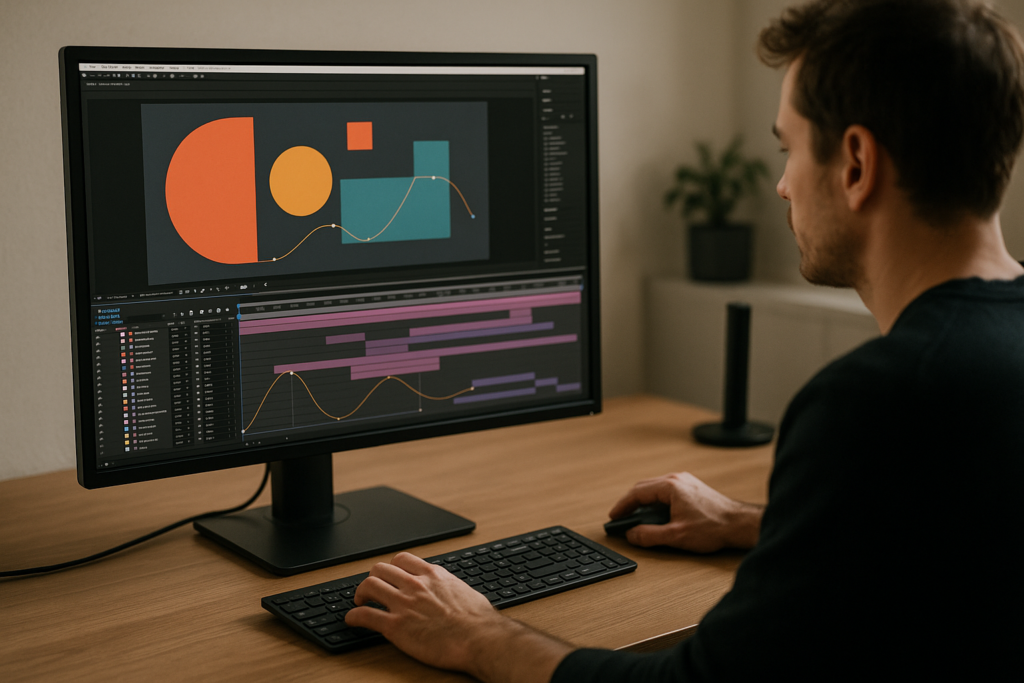
After Effects has become the typical environment for 2D motion graphic design because it provides timeline-based animation, layer compositing, graph editor controls, and deep integration with other Adobe tools. Its blend of keyframe animation, shape layers, and expressions makes it ideal for building reusable systems, especially when combined with digital templates.
Once you understand the fundamentals, the next step is narrowing down into specific styles like flat motion graphics and learning how they translate into concrete After Effects workflows.
Flat motion graphics AE styles and use cases
What flat motion graphics AE means
Flat motion graphics AE generally refers to motion design built in a flat, minimal visual style inside After Effects. Think simple shapes, solid colors, clean icons, and bold typography with very little shading or texture. This look is popular because it is readable on mobile, easy to brand, and relatively efficient to animate.
Common styles of flat 2D motion graphics
- UI and app widgets – animated mockups of apps, dashboards, and cards, like battery, finance, or social widgets.
- Icon and logo animations – simple strokes and fills animating in and out, great for intros and outros.
- Explainer sequences – characters, charts, or objects moving in flat scenes.
- Text-only layouts – kinetic typography, lyric videos, captions, and quote cards.
Use cases where flat motion graphics shine
Flat motion graphics work especially well when you need clarity and speed:
- Tech and app explainers – visualizing data, notifications, messages, and maps.
- Finance and SaaS promos – showing payments, dashboards, and metrics with simple geometric shapes.
- Social and YouTube content – bold titles and overlays that are legible on small screens.
- Lyric and music videos – type-focused animations that respond to the beat.
Connecting style to templates
Instead of building every animation from scratch, many editors start from widget-style flat graphics that are already structured. For example, a banking-style layout similar to a digital card UI can be quickly adapted to different brands, much like a project such as the payment widget animation.
Discovering variations of flat motion graphics
Within flat 2D design, there are multiple substyles you can explore in After Effects:
- Minimal monochrome – mostly one color plus accent, perfect for slick tech explainers.
- Playful and rounded – soft corners, bright palettes, ideal for education and lifestyle content.
- Corporate clean – muted tones, careful typography, used in business and B2B content.
- Hybrid flat plus depth – flat base shapes with subtle shadows or gradient backgrounds for more richness.
Thinking of flat motion graphics AE in these categories helps you select or build templates that truly fit the audience and platform instead of forcing a one-style-fits-all solution.
Typical After Effects mistakes in 2D motion graphics
Relying only on default easing
One of the most common issues in 2D motion graphic design is leaving keyframes on linear or using only basic Easy Ease. This leads to robotic, mechanical movement. Without tuning the graph editor, even beautifully designed flat graphics will feel off.
Ignoring timing and rhythm
Good motion design is rarely on whole seconds. Beginners often align everything to 1s, 2s, or 3s marks instead of using musical beats or narrative emphasis. This breaks flow and makes transitions feel arbitrary.
Messy compositions and naming
Editors under deadline frequently drop all layers into a single composition. Without clear precomps and naming, it becomes hard to revise colors, swap text, or version the project. This is especially painful when clients ask for quick copy or logo changes.
- Unnamed layers such as Shape Layer 47 clutter the timeline.
- Reused comps without duplication cause accidental changes across multiple scenes.
- Missing structure makes handing off projects to teammates risky.
Overcomplicating animations with heavy plugins
Another trap is stacking many third-party effects to achieve simple flat motion. This slows previews, increases crash risk, and complicates render pipelines. Often you can achieve similar results with native tools, precomps, and smart use of mattes.
Inconsistent visual language
Mixing different stroke widths, easing curves, and motion blur settings within the same edit makes sequences feel stitched together. When you combine flat motion graphics AE from different projects, this problem becomes obvious:
- Texts animate from different directions for no reason.
- Easing varies wildly between shots.
- Colors and typography drift away from brand guidelines.
Underusing precomps and adjustment layers
Beginners sometimes duplicate complex setups instead of precomping recurring elements. This wastes time and makes broad changes nearly impossible. Similarly, global effects such as grain or tint are often applied layer by layer instead of with adjustment layers.
Skipping quality checks
Rushed workflows lead to:
- Pixel snapping and jitter due to subpixel positioning mistakes.
- Visible cut points where elements pop instead of easing.
- Mismatched motion blur on fast-moving elements.
- Different frame rates across imported assets.
Recognizing these mistakes early helps you design a more deliberate workflow for your 2D motion graphics projects, especially once you start integrating reusable templates.
Choosing the right 2D motion approach for each edit
Matching style to content type
The right 2D motion graphic design approach depends heavily on what you are editing. Start by clarifying:
- Where will this video live? (feed, story, YouTube, website)
- How fast is the message? (snappy hook vs. slow explanation)
- How strong is the brand? (strict guidelines vs. flexible)
Social reels and shorts
For vertical content, prioritize bold typography, simple layouts, and fast pacing. Flat motion graphics AE works well when:
- Text builds line by line or word by word on the beat.
- Backgrounds stay clean to keep focus on the message.
- UI-style elements highlight comments, likes, or stats.
Templates with prebuilt kinetic text and vertical-safe layouts let you focus on messaging while maintaining consistency.
Ads and performance creatives
For ads, clarity and brand recall matter more than complex animation. Consider:
- Short sequences (3–10 seconds) that highlight key benefits.
- Simple product callouts and badges.
- UI or dashboard shots for SaaS products.
This is where having a library of reusable layouts, like charts or app cards, becomes extremely efficient, especially on campaigns with frequent iterations.
YouTube and explainer content
Longer-form content benefits from a modular system of sections: openers, chapter titles, on-screen diagrams, and lower thirds. Rather than designing each one from zero, build or use templates that share consistent type, color, and motion language.
Cinematic and hybrid edits
For more cinematic videos, keep 2D motion subtle and complementary. You might integrate minimal titles, UI overlays, or tech elements. Motion should follow camera movement and lighting instead of dominating the frame.
Leveraging template ecosystems
To stay efficient across many deliverables, editors often build a personal or team library of animations. A curated subscription of compatible After Effects templates can provide a base set of widgets, lyric styles, and overlays that you re-skin for each brand. Portfolios on platforms like Behance are helpful for studying how experienced designers structure such systems.
The real benefit is not only speed but also decision-making: with prebuilt systems, you spend less time on layout experiments and more on message clarity, copy, and timing, especially when deadlines are tight.Compare template options
Template-driven 2D motion workflow in After Effects
Start with project compatibility
Before importing any template into your 2D motion graphic design project, verify technical details:
- After Effects version – confirm the minimum version and whether it supports your OS.
- Frame rate – check if the template is built at 23.976, 25, 29.97, or 30 fps and match your master composition.
- Resolution and aspect ratio – identify if it is 16:9, 9:16, or square and duplicate sequences for different platforms.
Align these settings early to avoid scaling artifacts or timing issues later.
Organize your project structure
When you open a template, take a moment to understand the folder hierarchy:
- Locate MAIN comps, EDIT comps, and RENDER comps.
- Identify where to replace text, colors, and assets.
- Rename top-level compositions to reflect your deliverables (e.g., Brand_Video_Intro_1080p).
This prevents confusion when collaborating or revisiting the project weeks later.
Keyframe organization and precomps
Clean 2D motion graphic design projects rely on disciplined precomping:
- Group related elements (e.g., title plus background bar plus icon) into one precomp.
- Use meaningful names: Title_Lower_Third_Left instead of Comp 12.
- Keep complex keyframing inside precomps and expose only necessary controls at top level.
Having fewer visible layers in the main sequence makes timing and transitions easier to manage.
Performance and preview tips
Flat motion graphics AE can still become heavy if you stack too many effects or large textures. To keep previews responsive:
- Use Half or Quarter resolution for initial layout passes.
- Limit motion blur to key elements and disable it while blocking timing.
- Pre-render particularly heavy segments and import them as video if they are locked.
- Use proxies for high-resolution footage or screen recordings.
Managing plugins and dependencies
Always check which effects the template uses:
- If it depends on specific plugins, confirm licenses and versions before committing.
- When possible, favor templates built mainly with native effects; this simplifies collaboration and archiving.
- Test opening the project on a second machine or a clean profile to catch missing plugins early.
Customization workflow checklist
Approach template customization like an editor:
- Step 1: Replace content – drop in your logo, footage, or screenshots.
- Step 2: Match brand colors – modify color control layers or master controllers first, then fine-tune exceptions.
- Step 3: Set typography – swap fonts once at the master level when possible; keep hierarchy clear (titles vs. body).
- Step 4: Adjust timing – slide in/out keyframes or entire precomps to sync with voiceover or music.
- Step 5: Polish easing – refine graph editor for main moves; keep micro animations consistent across scenes.
- Step 6: Add subtle texture or noise – gentle grain or gradients can make flat graphics feel less sterile.
Use-case specific tips
Different outputs require slightly different workflows:
- Reels and shorts – prioritize hooks; build 1–2 strong animation systems you can repeat across episodes.
- Ads and promos – keep copy minimal; ensure product shots or screenshots remain readable.
- Product demos and UI showcases – leverage widget-style layouts that mimic dashboards or app cards, similar in spirit to a map or location widget animation.
- Music and lyric videos – use tempo-based markers and modular type comps so you can reuse the same style across many tracks.
Final pre-render checks
Before moving to export, run a quick checklist:
- No stray frames at cut points.
- Consistent motion blur and grain across scenes.
- Text inside safe margins for all platforms.
- Colors verified on both bright and dim screens.
Template-based workflows are most powerful when you treat them as structured systems rather than one-off scenes. That mindset keeps your flat motion graphics fast to edit and easy to maintain across multiple campaigns.
Advanced consistency and optimization for 2D motion systems
Build a reusable animation language
Beyond individual scenes, strong 2D motion graphic design relies on having a recognizable motion language. Define a few core principles and apply them everywhere:
- Preferred entrance directions for titles and lower thirds.
- Standard easing curves for primary and secondary elements.
- Consistent use of overshoot, bounce, or no overshoot.
Once these rules are set, use them across multiple projects, especially when working on a recurring series or brand package.
Create styleframes and motion references
Before animating full sequences, design a handful of styleframes that show key moments: opener, information slide, and outro. For motion, a short reference comp with all core moves (title in, icon reveal, transition) saves time and keeps collaborators aligned.
Modular transitions and segments
Think in modules rather than single timelines:
- Intro bumpers and stingers.
- Chapter or topic titles.
- Callout overlays and UI highlights.
- End cards or CTAs.
Each module should be drag-and-drop ready. For example, a vertical social template might have separate comps for hook, main message, and outro that can be rearranged as needed.
Quality control for flat motion graphics AE
Set up a quick QC routine:
- Scrub frame by frame through key transitions to spot pops or gaps.
- Check that all animated elements have intentional easing; avoid sudden linear movement unless stylistically justified.
- Verify that icons and UI elements snap cleanly to pixel grid where needed for sharpness.
Export and render strategy
For editors handling many deliverables, render strategy affects overall efficiency:
- Use visually lossless intermediate codecs for assets you will re-edit in your NLE.
- Batch multiple resolutions or aspect ratios through a single render queue pass when possible.
- Name exports clearly with version, platform, and aspect ratio (e.g., Brand_Explainer_v08_9x16.mp4).
Dynamic link and project weight
Dynamic link between After Effects and your editing software can be convenient but risky in heavy 2D motion projects. Long chains of linked comps increase load times and can break if project paths change. For stable pipelines:
- Use dynamic link for sequences still in flux.
- Once timing is locked, render finalized segments and replace links.
- Periodically clear caches and trim project files to remove unused assets.
Combined, these practices help you maintain long-term consistency and keep your flat motion assets usable across multiple clients and campaigns without redoing foundational work every time.
SEO-friendly motion design topics and micro-questions
Understanding user search intent in motion design
People searching around 2D motion graphic design and flat motion graphics AE often have practical, workflow-driven questions. Addressing these within your own content and documentation helps both clients and collaborators understand what you do and how you work.
Common long-tail topics and concise answers
- “What is the difference between 2D motion graphics and animation?” – 2D motion graphics usually focus on shapes, text, and UI; character animation involves rigs, acting, and more complex storytelling.
- “Are flat motion graphics still popular?” – Yes, especially for apps, SaaS, and social content because they are readable, brandable, and cost-effective to produce.
- “How long does it take to animate a 30-second explainer?” – For a single designer, anywhere from a few days to a couple of weeks depending on complexity and revision cycles.
- “Do I need plugins for good 2D animations in After Effects?” – No; strong timing, easing, and clean design matter more than plugins. Add-ons are helpful but not essential.
- “How do I keep my motion graphics on-brand?” – Lock in a core style guide: colors, font pairs, logo usage, and a small set of motion rules. Bake these into your templates.
- “What export settings are best for social media?” – Generally H.264 with platform-specific bitrates and aspect ratios. Test short clips to verify quality and load times.
- “Can I reuse the same template for multiple clients?” – Yes, provided the license allows it and you thoroughly change color, typography, and iconography so each client looks distinct.
- “How do I avoid choppy animations at 24 fps?” – Use stronger motion blur, keep moves short and purposeful, and avoid unnecessary micro-movements that show stutter.
Thinking in terms of these long-tail questions helps you design more useful internal documentation and client-facing explanations, while also clarifying your own 2D motion workflows.
Bringing it all together for efficient 2D motion graphics
Applying 2D motion graphic design effectively is about combining clear visual language, strong timing, and organized After Effects projects. When you use flat motion graphics AE thoughtfully, your edits become cleaner, faster to build, and easier to adapt across platforms and clients.
Start by mastering core principles like easing, composition structure, and motion consistency. Then, build or adopt template-based systems that let you reuse proven layouts and animations while still customizing branding, messaging, and pacing. Over time, you will spend less energy rebuilding foundations and more on creative decisions that impact results.
For editors, motion designers, and creators working worldwide, a solid library of well-structured After Effects projects becomes an ongoing advantage: quicker turnarounds, consistent quality, and smoother collaboration with clients and teams.
With a practical toolkit of compatible templates and a disciplined workflow, every new project becomes an incremental refinement, not a reinvention.Get unlimited AE assets
Conclusions
Strong 2D motion graphic design comes from a balance of style, structure, and speed. By combining flat motion graphics AE techniques with organized After Effects workflows and reusable templates, you can deliver consistent, high-quality animations on demanding schedules while keeping room for experimentation and creative growth.
FAQ
What software is best for 2D motion graphic design?
Adobe After Effects is the primary tool for 2D motion graphics thanks to its layer-based timeline, keyframe controls, and integration with editing software.
Do I need drawing skills for flat motion graphics AE?
Strong drawing skills help, but they are not required. Many flat motion graphics rely on shapes, typography, and simple icons that can be built directly in After Effects.
How can I speed up my 2D motion workflow in After Effects?
Use structured templates, organize comps and naming, standardize easing curves, and rely on precomps and adjustment layers instead of rebuilding animations from scratch.
What frame rate should I use for 2D motion graphics?
Most online content uses 23.976, 24, 25, or 30 fps. Match your delivery platform and keep a consistent frame rate across all project assets to avoid motion issues.
How do I keep my flat motion graphics from looking boring?
Use thoughtful timing, clean easing, subtle overshoot, and small secondary movements. Add restrained texture or gradients without breaking the flat visual style.
Can I combine 2D motion graphics with live-action footage?
Yes. Overlay titles, UI elements, and animated callouts on top of footage. Match perspective, motion blur, and color so graphics feel integrated with the live-action scene.