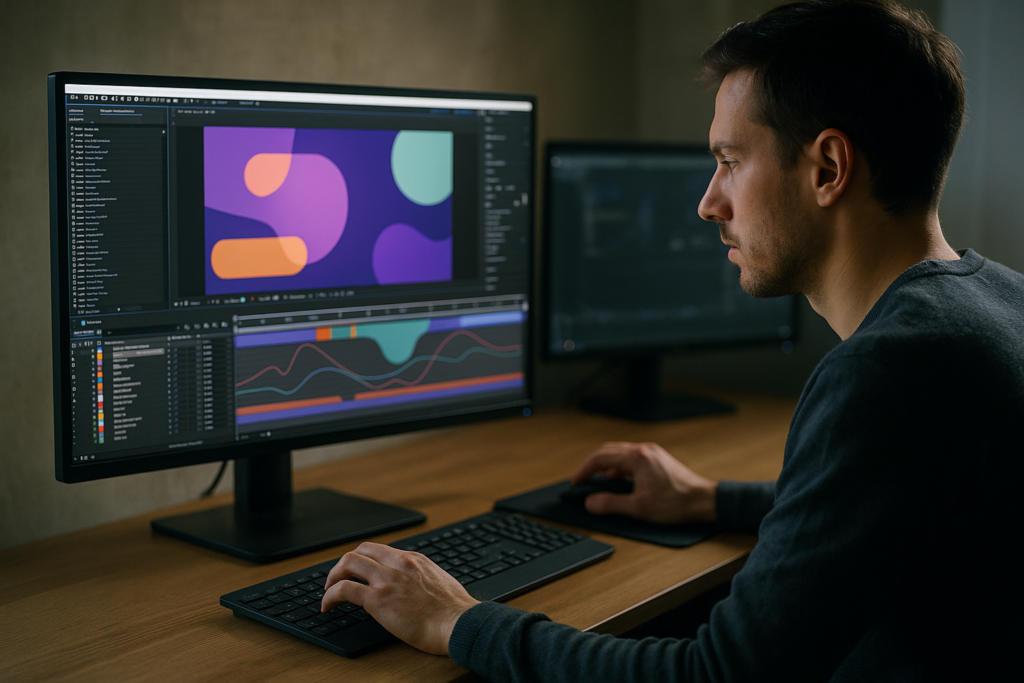
Motion design templates are one of the easiest ways to speed up your Adobe After Effects projects while keeping a professional, consistent look across all your videos. This guide walks through how to use motion design templates step by step, so you can spend less time rebuilding the same animations and more time on creative decisions.Explore templates now
📋 Table of Contents
Understanding Motion Design Templates In After Effects
What motion design templates are
Motion design templates for Adobe After Effects are pre-built project files that include ready-made animations, layouts, and visual systems. They can contain animated titles, social overlays, widgets, product frames, transitions, lyric videos, and more. Instead of animating everything from scratch, you open the template, replace media and text, adjust colors and timing, and export.
Why templates matter for editors and designers
Templates matter because they compress hours of motion design work into minutes of customization. For editors, they turn complex animation into a repeatable process. For motion designers, they provide starting points and reusable systems that can be refined and combined into custom styles.
Who motion design templates are for
Motion design templates are ideal for:
- Video editors who mainly live in timelines and want polished motion without animating from zero.
- Motion designers who need to deliver consistent assets for brands, series, or channels.
- Social media teams producing frequent reels, shorts, and stories on tight deadlines.
- Agencies building repeatable visuals across client campaigns.
Where templates fit in your workflow
Templates typically sit between concept and final export. You still decide the story, pacing, and structure in your edit, but you pull in templates for titles, callouts, widgets, or full sections. Over time, your template library becomes a toolkit you can mix and match to solve specific problems, like animating app interfaces or dynamic lyrics.
Template Workflow Optimization For Different Project Types
What template workflow optimization means
Template workflow optimization is about treating templates as a structured system rather than one-off files. You organize, label, and standardize how you import and customize them so your projects stay fast, predictable, and easy to update.
Types of motion design templates you will use
- Widget and UI templates – app-style overlays, notifications, and interface elements, similar to projects like the YouTube-inspired widget template.
- Text and lyric templates – animated typography, lower thirds, subtitles, and lyric layouts.
- Logo and branding templates – intros, outros, bumpers, and transitions based on a brand system.
- Product and promo templates – layouts for showcasing app screens, physical products, or features.
- Visual effect and transition templates – liquid effects, glitch, overlays, and scene transitions.
Organizing templates on disk
Create a simple folder structure that mirrors how you work:
- 01_Branding (logos, intros, outros)
- 02_Titles_Lyrics (lower thirds, main titles, lyric systems)
- 03_Widgets_UI (social, app, map, finance, chat)
- 04_Transitions_Overlays
- 05_Special_Projects (one-off campaigns or series)
Optimizing import and reuse
Instead of dragging templates randomly into existing timelines, dedicate an After Effects project or folder for each key type. For example, keep a master widget project that holds a curated set of UI and overlay templates. When you start a new job, you simply import the needed comps rather than entire cluttered projects.
Matching templates to user intent
Think in terms of what the viewer expects:
- Information-first content (tutorials, explainers) benefits from clean lower thirds, callouts, and UI widgets.
- Music-driven content works well with rhythmic lyric templates, waveform details, and beat-based transitions.
- Brand-heavy content should use templates that emphasize logos, colors, and consistent typography.
By aligning template types with project goals, you keep your motion design both efficient and context-aware while building a library that makes sense at a glance.
Common Template Workflow Mistakes To Avoid
Messy project structure
One of the biggest issues when learning how to use motion design templates is dropping multiple template projects into a single file with no structure. This leads to duplicated folders, confusing precomps, and hard-to-find assets.
- Create a top-level folder per template you import.
- Use consistent naming, such as TMP_Widget_ or TMP_Lyrics_ prefixes.
- Move only the comps you actually use into a dedicated USED_TEMPLATES folder.
Ignoring composition settings
Importing templates that use different frame rates or resolutions without adapting them can cause stutter, motion mismatches, or black bars.
- Check that comp FPS matches your master sequence (e.g., 23.976, 25, or 30).
- Scale or rebuild templates that were designed for a different aspect ratio.
- Standardize your master composition settings before importing anything.
Overloading projects with heavy effects
Some templates rely on multiple blur, glow, and particle layers. Stacking too many heavy templates in one sequence slows previews and complicates rendering.
- Use pre-renders when you lock an animation you do not need to tweak again.
- Disable high-cost effects while editing and re-enable them before final render.
- Keep a separate “lightweight” version of your project for quick revisions.
Poor keyframe and precomp hygiene
Leaving default labels, unrenamed precomps, and scattered keyframes makes it hard to update projects later.
- Rename important control layers to reflect their function (e.g., CTRL_Main Colors).
- Color-label control layers and key sections of your animation.
- Use precomps only where they simplify the hierarchy, not by habit.
Skipping global controls
Many templates include master controls for colors, fonts, or timing. Ignoring these and editing individual layers instead makes updates painful.
- First, look for a Control or Settings comp.
- Test changes there before touching specific layers.
- Use expressions and adjustment layers provided by the template instead of duplicating effects.
Forgetting about future you
Messy naming, missing notes, and no versioning are great ways to confuse yourself days later.
- Add a simple text layer or comment describing what each key comp is for.
- Save incremental versions when you make major changes to a template.
- Document any plugin requirements in a notes layer or separate text file.
Choosing The Right Template Strategy For Each Edit
Start from the edit, not the template
Before browsing for assets, map out the structure of your piece: intro, main sections, transitions, and outro. This prevents you from forcing a flashy template into a sequence that does not need it.
Social reels and shorts
For vertical, fast-paced content, prioritize:
- Bold titles and punchy transitions.
- UI-style widgets for stats, captions, and CTAs.
- Easy-to-read typography at small sizes.
Here, a focused library of short, loopable animations and app-like widgets is more valuable than complex cinematic templates.
YouTube and long-form content
For YouTube, podcasts, and tutorials, you will likely reuse the same lower thirds, interstitials, and end screens across many episodes. Think about templates as part of a brand system:
- One consistent intro/outro instead of many variations.
- Reusable segment titles and chapter cards.
- Subtle transitions that do not distract from the content.
Ads and product promos
Performance and clarity matter the most in ads. Choose templates that showcase features and benefits clearly:
- Device mockups for apps and SaaS products.
- Clean product carousels and feature callouts.
- Animated pricing or offer highlights.
Cinematic and story-driven edits
For trailers or cinematic montages, templates should support atmosphere, not define it:
- Use light-handed titles and lower thirds.
- Reserve heavier effects like particles or liquid transitions for key beats.
- Focus on color grading and pacing first, then layer motion design.
When template subscriptions make sense
If you deliver high volumes of content for multiple clients or channels, maintaining your own library can become a job in itself. An Unlimited After Effects Templates Subscription gives you a consistent, searchable source of compatible projects so you focus on selection and customization instead of hunting for assets.
Staying aligned with After Effects updates
Templates are only useful if they work reliably with your software. Check official documentation at the Adobe After Effects help center for version changes that might affect plugins, expressions, or performance. Build your template strategy around the version you actually use in production.
Step By Step Template Workflow Guide In After Effects
Step 1 – Confirm compatibility before you start
Before opening any template, check:
- After Effects version – note the minimum version the template was built for. Opening a newer template in an older AE version can break expressions or effects.
- Frame rate and resolution – ensure the template matches your delivery (e.g., 1080×1920 30fps for vertical shorts, 1920×1080 25fps for broadcast).
- Aspect ratio – know whether the template is built for horizontal, vertical, or square formats, and whether alternate comps are included.
Step 2 – Check plugin dependencies
Open the documentation or readme inside the project folder. Look for:
- Required plugins (e.g., particle systems, glows, distortions).
- Optional plugins that add flair but are not essential.
- Notes about expressions and script compatibility.
If plugins are missing, decide whether to:
- Install them where licenses allow.
- Swap plugin-based layers with native effects.
- Pre-render those elements from a system that has the plugin and import the footage instead.
Step 3 – Build a clean project shell
Create your main After Effects project first. Set your master composition with correct FPS, resolution, and duration. Then import the template project as a separate folder. This keeps control in your hands and stops the template from dictating your entire structure.
Step 4 – Locate master controls
Most well-made templates contain:
- A central Control or Settings comp.
- Color controls on dedicated adjustment layers.
- Text style controls for font size, tracking, and line spacing.
Open that comp and do a quick pass:
- Match brand colors using color pickers or hex values.
- Switch to approved brand fonts where possible.
- Adjust global timing sliders if the template offers them.
Step 5 – Organize keyframes and precomps
When you adapt timing or movement, avoid random keyframe edits on every layer. Instead:
- Use existing controllers or nulls to scale up or slow down motion.
- Keep related animations grouped in clear precomps (e.g., Title_Main, Title_Background).
- Color-label important animation layers (e.g., cyan for text, yellow for controls).
Step 6 – Optimize performance as you customize
To keep previews smooth while customizing:
- Use lower preview resolution (Half or Quarter) until final checks.
- Turn off motion blur, depth of field, and heavy glows temporarily.
- Use Region of Interest to preview only the area you are working on.
- Create proxies or pre-render heavy sections when locked.
Step 7 – Customize content systematically
Work in passes rather than jumping around:
- Pass 1 – Content: Replace all placeholders for footage, images, and logos.
- Pass 2 – Text: Update titles, subtitles, captions, and lyric lines with final copy.
- Pass 3 – Color and branding: Match brand colors, backgrounds, and accent highlights.
- Pass 4 – Timing and pacing: Adjust in and out points, ease curves, and cuts to audio.
Step 8 – Tailor for specific use cases
Use slightly different approaches depending on format:
- Reels and shorts – emphasize bold, fast motion and clear titles that are readable on phones. You may trim some animations for snappier pacing.
- Ads and product promos – keep animations purposeful. Use callout templates to emphasize features or pricing rather than decorative effects.
- Cinematic edits – soften motion and use fewer transitions. Let the footage lead and use template elements mainly for structure (titles, sections, end cards).
Step 9 – Final tidy and export prep
Before exporting, run a quick checklist:
- Rename final comps clearly (e.g., FINAL_1080p_Social).
- Remove unused template comps and assets to reduce project size.
- Turn motion blur and high-quality effects back on.
- Double-check that all expressions are error-free in the Info panel.
Once everything is clean, send your final comp to the Render Queue or your encoder of choice, making sure bitrate and format match your delivery platform.
Advanced Template Systems And Long Term Optimization
Build your own mini template ecosystem
Instead of treating every project as unique, identify repeating patterns in your work: recurring lower thirds, standard transitions, intro formats, or device frames. Package these into your own reusable templates and keep them alongside downloaded ones.
Maintain consistent style across series
For recurring content like weekly shows or tutorial playlists, consistency is part of the brand. Use:
- Shared color palettes across all titles and widgets.
- A small, defined set of transition types.
- One or two consistent lower thirds, not dozens.
This keeps your timeline clean and makes it easier to swap in updated versions of the template if branding changes.
Use modular animation systems
Design or choose templates that are modular: intro blocks, title blocks, info blocks, and outro blocks that can be rearranged without breaking. Modular systems let you assemble new edits quickly while avoiding repetitive, copy-paste timelines.
Styleframes and approvals
Before you commit to full sequences, use a few frames from your templates to create styleframes for client or internal approval. Swap in brand colors and fonts first, then send stills or short screen captures. This reduces late-stage revisions when everything is already animated.
Quality control passes
Build a simple QC routine for every template-heavy project:
- Check spelling and alignment for all text layers.
- Toggle visibility to ensure no placeholder text or watermarked previews remain.
- Scrub transitions to confirm no unintended flickers or cuts.
- Verify logo sizing and safe margins for all platforms.
Export and render strategy
For efficient exports:
- Group renders by format (e.g., all 1080×1920 pieces in one batch).
- Use lossless or mezzanine codecs for master files, then create platform-specific versions from those masters.
- Keep a log of export presets that work best for each platform, so you can reuse them.
Avoiding dynamic link pitfalls
When templates are part of larger Premiere Pro edits, dynamic linking can become heavy. To keep things stable:
- Pre-render complex Ae template sequences to high-quality files before importing into your NLE.
- Limit the number of active dynamic links per timeline.
- Keep Ae and your NLE on compatible versions to avoid relink issues.
Keeping projects lightweight
Over months of production, many imported templates can bloat projects. Regularly:
- Archive older template versions you no longer use.
- Collect files for finished projects and store them separately from active libraries.
- Strip unused footage, audio, and precomps before final delivery.
By treating templates as a long-term system instead of one-off shortcuts, you build a workflow that remains fast and predictable even as your volume of work grows.
Motion Design Template Questions Editors Ask
Which templates are best for my workflow
Editors often search for how to use motion design templates efficiently for their specific niche. A practical approach is to narrow down to a small set of template types you use constantly: one or two intros, a handful of lower thirds, and a reliable set of transitions. This is more useful than collecting dozens of overlapping styles.
How many templates do I really need
Most workflows run smoothly with a focused core library and optional specialty templates for unique jobs. The goal is not maximal variety but fast, confident choices. An Unlimited After Effects Templates Subscription can be helpful when you regularly need fresh options but still rely on a curated set of favorites.
How do I keep templates from looking generic
Generic results usually come from skipping customization. Make sure you:
- Replace default fonts with your chosen type system.
- Apply your own color palette and imagery.
- Adjust timing and easing so animations match your audio and pacing.
Can I mix different template styles in one project
Yes, but do it carefully. Use one dominant visual language and treat anything else as an accent. Try to unify elements via color, typography, and motion behavior, even if the underlying templates come from different sets.
How do I stay fast when deadlines are tight
Template workflow optimization under pressure means:
- Reusing a pre-approved base project with all your main templates already wired in.
- Keeping alternate versions of key comps (short, medium, long).
- Saving custom presets for effects and expressions you often tweak.
What should I focus on next
Once you are comfortable with the basics, the biggest gains come from organizing your library, standardizing naming, and building a few of your own reusable comps on top of existing templates. This combination gives you speed, control, and a recognizable style over time.Start optimizing today
Conclusions
Using motion design templates effectively is less about collecting as many files as possible and more about building a clear, repeatable workflow. When your projects are organized, your controls are unified, and your template choices are intentional, you edit faster, keep motion cleaner, and deliver more consistent results across every platform and client.
FAQ
How do I start using motion design templates in After Effects?
Begin by setting your master composition settings, then import one template at a time. Locate its control comp, update colors and fonts, replace placeholders, and adjust timing to match your edit.
What is the fastest way to optimize my template workflow?
Create a base project with your most-used templates already organized into folders, set up a consistent naming system, and customize global controls once so you can reuse that setup across multiple edits.
How can I avoid performance issues with heavy templates?
Work at lower preview resolutions, temporarily disable motion blur and heavy effects, use proxies or pre-renders for complex sections, and remove unused comps and assets before final export.
Do I need plugins to use motion design templates?
Some templates require third party plugins, but many rely only on native After Effects effects. Always check documentation for plugin lists and decide whether to install, replace, or pre render plugin based elements.
How do I keep multiple videos visually consistent with templates?
Use the same core set of intros, lower thirds, and transitions, lock in a defined color palette and font pairing, and apply small variations in timing rather than changing styles completely from video to video.
Can I customize templates for different aspect ratios?
Yes. Either use alternate comps included in the template for vertical or square formats or duplicate and adjust existing comps by changing frame size, repositioning elements, and checking safe margins.