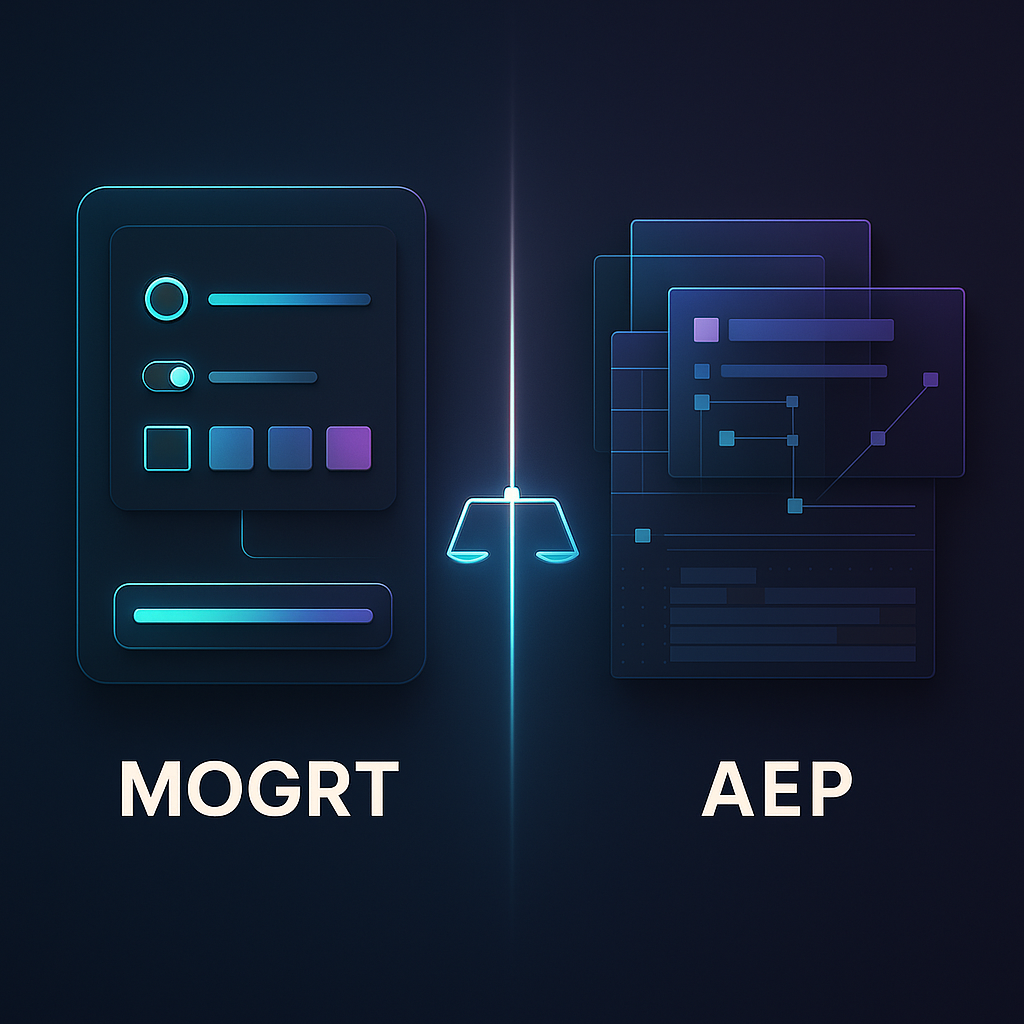
If you’re deciding between an After Effects MOGRT and an AEP template, here’s the clean answer: choose MOGRT when you want editors (especially in Premiere Pro) to customize approved controls quickly without breaking the design; choose AEP when you want full, surgical access to every layer, keyframe, effect, precomp, and render choice inside After Effects. Both are “templates,” but they’re built for different people, different permissions, and different moments in a production pipeline.
That distinction matters more in 2026 than it did a few years ago, because teams are faster, more distributed, and more likely to have mixed skill levels-one person lives in After Effects, another never leaves Premiere Pro, and someone else is just trying to get the lower thirds out before lunch. MOGRTs and AEPs are two ways of packaging motion design so it can travel through that reality without turning into chaos.
📋 Table of Contents
What are After Effects MOGRT and AEP Templates?
Before you compare them, it helps to treat them like two different “contracts.” A MOGRT is a contract that says: “You may change these things, in these ways.” An AEP template is a contract that says: “Here’s the whole kitchen-please don’t burn the place down.” Both can be brilliant. Both can be disastrous. The difference is how much freedom (and risk) you’re handing to the next person in line.
Definition of MOGRT templates
A MOGRT (Motion Graphics Template) is a packaged motion graphic that’s meant to be used and customized-most famously inside Adobe Premiere Pro via the Essential Graphics panel. A motion designer builds the animation in After Effects, then exposes a curated set of controls (text, colors, toggles, sliders, media replacements, etc.) so an editor can adjust the graphic without opening After Effects.
Adobe’s own description captures the spirit well: “Motion Graphics templates can include various motion graphics elements packaged as templates with easy-to-use controls along with the source images, videos, and pre-comps necessary to maintain consistent design across your projects.” In other words: it’s not just the animation; it’s the animation plus the guardrails, plus the ingredients needed to keep it consistent.
And crucially, MOGRTs are built through After Effects’ Essential Graphics workflow-where the panel acts as a control surface, a place to define “primary properties,” and the export mechanism for .mogrt files.
Definition of AEP templates
An AEP template is simply an After Effects project file (.aep) created to be reused. It might be a lower third pack, a logo reveal, a full opener, a slideshow, a broadcast package, or a modular toolkit of precomps. Unlike a MOGRT, an AEP template doesn’t inherently limit what a user can touch. If you can open the project, you can select any layer, open any precomp, change any effect, replace any asset, rewrite any expression, and reroute the entire structure.
That’s why AEP templates are the default currency of motion design marketplaces: they’re flexible, they’re transparent, and they give buyers the comforting feeling that nothing is hidden. Of course, that also means nothing is protected.
Purpose and typical use cases for each
MOGRTs exist to scale motion design across editing. The classic scenario is a motion designer crafting a brand-safe system-lower thirds, titles, callouts, end cards-then handing those to editors who need to make daily or weekly content. The designer keeps stylistic control, while the editor gets speed. Adobe puts it plainly: “Motion designers working in After Effects can retain stylistic control of compositions while providing editors working in Premiere the ability to customize the motion graphic according to the project’s needs.”
AEP templates exist to accelerate motion design inside After Effects. They’re ideal when the person using the template is also responsible for the motion craft-or when the job demands deep changes that would be awkward to predefine as simple controls. AEPs also shine when you need to version, extend, or repurpose the template into something the original author didn’t anticipate.
So, if your “template user” is an editor who wants to change names, colors, and maybe swap a logo: MOGRT. If your “template user” is a motion designer who wants to reshape timing, rebuild transitions, and add new scenes: AEP.
Key Differences Between MOGRT and AEP Templates
At a glance, it’s tempting to reduce the comparison to “MOGRT is for Premiere, AEP is for After Effects.” True, but incomplete. The deeper difference is philosophical: MOGRTs are designed interfaces, while AEPs are full projects. One is a product; the other is a workshop.
File format and compatibility
MOGRT files use the .mogrt extension. They’re exported from After Effects and then installed or imported into Premiere Pro (and sometimes shared via Creative Cloud Libraries). Premiere reads the template and displays the author-defined controls in the Essential Graphics panel. Depending on how the MOGRT is built, Premiere may render it using After Effects components under the hood, which is why MOGRT performance can vary widely.
AEP files use the .aep extension and open directly in After Effects. Premiere Pro does not natively “open” an AEP as a template in the same way it handles a MOGRT. You can move content between apps through other workflows (Dynamic Link, renders, exports), but that’s not the same thing as having a self-contained, editor-friendly template interface.
One useful nuance: you can open a .mogrt inside After Effects to modify it. Adobe notes: “To edit your After Effects Motion Graphics template (.mogrt files), you can open them in After Effects as a Project file… After Effects extracts the project file and assets, then you can modify and re-export.” So a MOGRT can round-trip back to AE for maintenance-an underrated advantage for teams that evolve graphics over time.
Editing capabilities within Premiere Pro and After Effects
In Premiere Pro, a MOGRT behaves like a clip with superpowers. Drop it into a timeline, then tweak exposed parameters-text, color, layout, and sometimes media. Adobe describes the experience: “When the Motion Graphics template created in After Effects is installed and opened in Premiere, the Essential Graphics panel reveals all the defined properties… enabling making dynamic changes to text, color, and layout.”
In After Effects, an AEP is fully editable. You can adjust keyframes, swap effects, restructure precomps, and change render settings. That freedom is the point. But it also means the template’s “ease of use” depends entirely on how well the author organized the project-and how brave the user feels when they see a timeline full of expressions and shy layers.
In After Effects, a MOGRT is also editable (after extraction), but the whole design is typically built around the idea that only certain properties should be touched. You can touch everything-but if you do, you’re stepping outside the intended workflow, and you may need to re-author controls to keep it Premiere-friendly.
Customization and control options for end users
MOGRT customization is intentionally constrained. The author chooses which properties become controls, and those controls are limited to what Essential Graphics supports: checkboxes, color controls, numerical sliders, source text, 2D points (position/anchor), 2D scale, angle properties, and even specialized items like shadow color for 3D layers. Text layers can expose font family, style, size, and faux styles-handy when a brand allows a controlled range of typography changes.
Those controls can be renamed, reordered, and grouped so editors aren’t hunting through a messy list. The Essential Graphics panel even supports adding comments-little embedded instructions that can save your team from Slack messages like “Which slider do I touch to move the logo?”
AEP templates, by contrast, offer unlimited customization because they offer unlimited access. The “control options” are whatever the user can do in After Effects. That includes things you’d never want to expose to an editor under deadline: editing expressions, changing blend modes, altering track mattes, adjusting 3D cameras, or swapping out complex effect stacks.
Workflow implications for video editors and motion designers
For editors, MOGRTs are a gift: they keep you in Premiere, reduce context switching, and make motion graphics feel like a natural extension of editing rather than a separate discipline. You don’t need to render intermediate files every time someone’s job title changes from “Marketing Manager” to “Senior Marketing Manager.” You change a field and move on.
For motion designers, MOGRTs are a way to productize your work. You build once, then let the template do the repetitive labor. The tradeoff is that you must think like a system designer: anticipate what needs to be editable, build safe constraints, and test the template like software. AEP templates let you think more like a craftsperson: build the beautiful thing, then hand the whole thing to someone else who also knows the craft.
In teams, the biggest workflow difference is permissioning. MOGRTs are “edit-proof-ish.” AEPs are “anything goes.” If brand consistency matters and not everyone is a motion designer, MOGRTs reduce the odds of accidental design drift.
Benefits of Using MOGRT Templates
MOGRTs aren’t just a convenience feature; they’re a strategy for scaling motion design. When built thoughtfully, they turn recurring graphics from a bottleneck into a self-serve menu-without sacrificing the look that makes your content feel like it belongs to your brand.
How MOGRTs improve Premiere Pro editing efficiency
The efficiency gain is simple: fewer round trips. Without MOGRTs, an editor often has to request a change, wait for a motion designer, receive a render, import it, and then discover the name is still misspelled. With MOGRTs, the editor corrects the spelling directly in Premiere and keeps cutting.
MOGRTs also reduce timeline clutter. Instead of juggling multiple pre-rendered versions of the same lower third (v1, v2, final, final2, final-really), you use one template instance and adjust properties per clip. That makes projects easier to reopen months later-especially when you’re making a “best of the year” montage and need consistent titling across wildly different footage.
And because MOGRTs can be shared through Creative Cloud Libraries or installed locally, teams can standardize graphics across multiple editors and machines. The Essential Graphics panel is effectively the distribution hub: build controls, export .mogrt, choose a destination (Library, local templates folder, or local drive), and you’ve got a repeatable pipeline.
Browse After Effects motion design examples
Ease of use for non-After Effects users
A well-designed MOGRT feels like a tiny app: labeled controls, grouped settings, and maybe a comment or two that explains what’s safe to change. Editors don’t need to understand precomps, parenting, or why there’s an expression that looks like it was written by a sleep-deprived mathematician.
Because the author can rename controls and group them, you can present a clean interface: “Text,” “Colors,” “Logo,” “Layout,” “Timing.” That structure is not fluff-it’s what makes templates usable at speed. Under deadline, nobody wants to guess what “Slider 12” does.
MOGRTs also make onboarding easier. New editors can produce brand-consistent graphics on day one, even if they’ve never opened After Effects. That’s especially valuable for agencies, internal comms teams, and social teams where turnover or rotation is normal.
Portability and sharing advantages
MOGRTs are designed to travel. You can export them as local files, store them in shared folders, or publish them to Creative Cloud Libraries so they appear where editors already work. You can even set a poster frame-a thumbnail moment that makes browsing a template library feel less like rummaging in a junk drawer.
Another portability win: MOGRTs can include the necessary assets-source images, videos, and precomps-so the template doesn’t break the moment someone moves a folder. That packaging is part of why they’re so attractive for standardized design systems.
Finally, MOGRTs support surprisingly advanced setups when authored properly. Adobe notes they can provide controls over “particle simulations, special effects, and 3D animations.” The point isn’t that every editor should tweak particle physics-it’s that designers can build sophisticated motion and still expose only the safe knobs.
Benefits of Using AEP Templates
AEP templates are the “full fidelity” option. They’re not trying to simplify motion design for editing; they’re trying to accelerate motion design itself. When you need depth, flexibility, and the ability to rebuild the underlying mechanics, AEP templates are the most honest container: what you see is what you get.
Advanced customization in After Effects
The biggest benefit is obvious and huge: in an AEP, you can change anything. Want to alter the animation curve style across the whole project? Do it. Need to replace a 2D scene with a 3D camera move? Go for it. Want to swap a glow-based aesthetic for something more gritty and textured? You’re not fighting a template interface-you’re working directly with the project.
This is especially valuable when the deliverable isn’t a simple title, but a sequence: openers, explainers, product promos, broadcast packages, or social kits with multiple aspect ratios and versions. AEP templates can be designed as modular systems with precomps and master comps, giving you a strong starting point without restricting your creativity.
In practice, advanced customization also includes technical choices: color management, render pipeline decisions, third-party plugins, and custom expression rigs. Those elements can be difficult (or inappropriate) to package as a MOGRT meant for editors.
See an After Effects project-style animation example
Full access to composition and layer settings
With AEP templates, the user has full access to composition settings, layer switches, blending modes, track mattes, cameras, lights, and effect stacks. If something is slow, you can optimize it. If something is fragile, you can rebuild it. If something is confusing, you can reorganize it. That’s power-and responsibility.
Full access also means you can audit the template. For professional motion designers, that’s not just curiosity; it’s risk management. You can see whether the template relies on missing fonts, questionable expressions, or a plugin you don’t own. You can also adapt it to your studio’s standards: naming conventions, folder structures, render comps, and versioning practices.
And if you’re collaborating, AEP templates are easier to hand off between motion designers because the “interface” is simply After Effects itself-no need to reverse-engineer what was or wasn’t exposed as a control.
Ideal scenarios for AEP template use
AEP templates are ideal when the work is primarily motion design, not editing. If you’re delivering a hero animation where timing, art direction, and bespoke transitions matter, you’ll want the freedom of an AEP. The same is true when you’re creating new variants that weren’t anticipated: different pacing, new sections, alternate layouts, or a completely new brand skin.
They’re also ideal when the template is a learning tool. Many designers learn by opening AEP templates and studying how they’re built. MOGRTs can be opened in After Effects too, but AEPs are typically clearer about structure because they were authored for AE-first workflows.
Finally, AEP templates are a better fit when you need to integrate third-party plugins or highly customized expression rigs that aren’t meant to be exposed as simple sliders for editors.
Limitations and Challenges of MOGRT vs AEP Templates
Templates are never “set and forget.” They’re software-like objects living inside creative projects, and that means they inherit the messy realities of version differences, performance constraints, missing assets, and human unpredictability. The trick is choosing the set of problems you’d rather have.
Restrictions on animation and effects in MOGRTs
MOGRTs are limited by what can be reliably exposed and controlled through Essential Graphics. You can only add supported properties as controls, and those controls need to live in the primary composition or within its hierarchy. If you accidentally add “unrelated properties” (from comps outside the hierarchy), After Effects warns you-those properties show up highlighted in red and won’t work correctly when exported unless you nest the comp properly. That’s a very real gotcha when you’re building complex template systems.
Even when a property is supported, designing a good control is an art. A slider that technically works can still be dangerous if it lets an editor push values into ugly territory. So MOGRT authors often spend time building guardrails: clamping values with expressions, offering dropdown-like behavior via expressions, or limiting font choices to what’s brand-safe.
Meanwhile, AEP templates have the opposite limitation: no restrictions. That sounds like a benefit (and it is), but it’s also a challenge because users can easily break the template-especially if they don’t understand dependencies like parenting chains, precomp timing, or expression-driven layouts.
File size and performance considerations
MOGRTs can be deceptively heavy. Because they may package assets and complex comps, they can become large, and in Premiere they can tax playback-especially if the template uses intensive effects, high-resolution footage, or heavy 3D. A designer might build something that previews fine in After Effects but becomes sluggish in an editorial timeline where everything is already competing for resources.
AEP templates can also be large, of course, but performance management is more straightforward: you’re in After Effects, where you expect to manage previews, proxies, pre-renders, and render queues. In Premiere, editors expect real-time responsiveness. That mismatch is why it’s wise to test MOGRTs in real editorial conditions, not just in a clean demo project.
Another practical consideration: version compatibility. Teams often run slightly different Creative Cloud versions. AEP templates can open with warnings or missing features; MOGRTs can behave differently depending on how Premiere and After Effects components interpret them. The best mitigation is boring but effective: standardize versions within a team when possible, and maintain a small “template QA project” for testing.
Learning curve and technical requirements
MOGRTs lower the learning curve for editors but raise it for authors. Building a great MOGRT means understanding not only After Effects animation, but also how to design a user interface inside Essential Graphics: naming, grouping, and exposing the right parameters. You also need to understand the primary composition hierarchy rule, supported property types, and how to avoid unrelated-property traps.
AEP templates are easier to author (you’re just making an AE project), but harder to use for non-designers. If the template is intended for clients or editors, you’ll often need to add documentation, instructional layers, or carefully labeled control nulls. Otherwise, the template becomes a maze.
Technical requirements also show up in asset management. AEP templates frequently rely on fonts, plugins, and linked footage that may not exist on another machine. MOGRTs can package assets more tightly, but they still may depend on fonts and certain features being available.
How to Create and Export MOGRT and AEP Templates
Creating templates is less about clicking “Export” and more about designing a repeatable experience. A template is a promise: it promises speed, consistency, and fewer mistakes. The way you build it determines whether that promise holds up when real humans use it.
Steps to build Motion Graphics templates in After Effects
To build a MOGRT, you start in After Effects and think in terms of a primary composition-the main comp that will be exported. This comp should contain (or nest) everything the template needs. If you have separate comps that aren’t nested, their properties won’t behave as expected once exported.
From there, build your animation like you normally would: design the layout, animate text and elements, add effects, create precomps for modularity, and ensure the timing is sensible. Then switch mental modes: decide what the end user should be able to change. Keep it focused. A template with 40 controls is not “powerful”; it’s often just exhausting.
Finally, test with extreme values. Long names, short names, weird punctuation, bright colors, dark colors, oversized logos. Templates fail at the edges, not in the center.
Using the Essential Graphics panel for MOGRT creation
After Effects provides a dedicated workflow: “To create a Motion Graphics template, use the Essential Graphics workspace (Window > Workspace > Essential Graphics).” Once you’re there, you can open the current comp in the Essential Graphics panel via Composition > Open in Essential Graphics or right-click a comp in the Project panel and choose Open in Essential Graphics.
In the panel, you add controls by dragging properties from the Timeline into Essential Graphics, or by right-clicking a property and choosing Add Property to Essential Graphics (you can also use the Animation menu). If you want to avoid chasing unsupported properties, use the panel’s Solo Supported Properties filter to see what’s eligible.
Once controls are added, treat the panel like a mini product UI. Rename controls so they read like instructions (“Name,” “Title,” “Accent Color,” “Logo Scale”). Reorder them so the most common edits are at the top. Use grouping to reduce clutter (Add Formatting > Add Group), and drag controls into groups like “Text,” “Color,” and “Layout.” Add comments where confusion is likely-especially for controls that have safe ranges or recommended settings.
Also consider poster frames: you can set the poster time in the primary comp so the template thumbnail looks intentional rather than random. This matters more than you think when your library grows beyond a handful of items.
Exporting templates for use in Premiere Pro
When you’re ready, export directly from the Essential Graphics panel: select the Export Motion Graphics Template button. In the export dialog, choose a destination-Creative Cloud Libraries, the Local Templates Folder, or a Local Drive. You can also include a video preview so the thumbnail becomes a moving preview, which helps editors pick the right graphic quickly.
After export, install or import the MOGRT into Premiere Pro. Once it’s available, editors can drag it into sequences and adjust the exposed properties in Premiere’s Essential Graphics panel. This is where your careful naming and grouping pays off: it turns “template usage” into a fast, low-stress action rather than a mini training session.
If the template needs updating later, you can open the .mogrt in After Effects (File > Open Project, select the MOGRT). After Effects extracts the project and assets, letting you modify and re-export-a practical maintenance loop for evolving brands.
For teams doing repeatable data visuals, consider data-driven MOGRTs. After Effects can expose controls for CSV/TSV data so editors can update charts and graphs without manual entry. The workflow involves importing the CSV/TSV, adding it to the comp, then dragging the data property group into Essential Graphics. Editors can then modify spreadsheet properties in Premiere. (One oddly specific but real-world note: some Excel setups save TSV as .txt, and you may need to rename the extension to .tsv before attaching it in Premiere.)
Saving and sharing AEP templates
Saving an AEP template is straightforward: clean up the project, organize assets, and save the .aep. The real craft is in making it usable by someone else. That means consistent naming, a clear folder structure in the Project panel, and obvious “edit here” precomps. Many template authors include a top-level comp labeled something like “START HERE” and a dedicated “Controls” null with essential sliders and color controls.
When sharing AEP templates, include all required assets (footage, images, audio if needed) and provide notes about fonts and plugins. If you’re distributing to a team, consider packaging the project in a way that preserves relative paths, or provide a simple relink guide. AEP templates are powerful, but they’re less forgiving when a file goes missing.
Optimizing Workflow Using MOGRT and AEP Templates
The best workflows don’t pick a side; they assign the right tool to the right stage. Many teams use both: AEP templates for design and development, and MOGRTs for deployment and daily use. Think of it as “build in AE, operate in Premiere”-when appropriate.
When to choose MOGRT over AEP and vice versa
Choose MOGRT when:
- You need editors to customize graphics inside Premiere Pro.
- Brand consistency matters and you want to limit what can be changed.
- You’re producing high volume content (social series, weekly shows, internal updates).
- You can define the editable parameters in advance (text, colors, layout, media slots).
Choose AEP when:
- The user is a motion designer who needs full control.
- The project requires structural changes, new scenes, or deep re-timing.
- You rely heavily on plugins or complex rigs not suited to editor-facing controls.
- The template is a starting point for bespoke work, not a locked system.
A practical hybrid approach: keep an AEP “master” project that is the authoritative design system, and export a set of MOGRTs from it for editorial use. When the brand evolves, update the master, then re-export and redistribute MOGRTs.
Integrating templates into editing projects
Integration is where good intentions meet timelines. For MOGRTs, integration means making them easy to find and predictable to use. Store them in a shared library, enforce naming conventions, and keep versions clear (e.g., “Lower Third – Clean – v3”). Encourage editors to treat MOGRTs like any other editorial asset: label tracks, keep graphics organized, and avoid duplicating old versions unnecessarily.
For AEP templates, integration often means planning handoffs. If an editor needs a motion piece from an AEP template, decide early whether the output will be a render (ProRes with alpha, for example), a Dynamic Link comp, or a batch of pre-rendered elements. Each choice affects turnaround time, revision speed, and system load.
If you’re using data-driven MOGRTs for charts or scoreboard-like graphics, establish a data management habit: keep CSV/TSV files in a consistent folder, version them, and document expected column names. Templates love consistency; spreadsheets love surprising you.
Tips for organizing and managing template libraries
Template libraries tend to grow like weeds-fast, messy, and oddly resilient. A few habits keep them usable:
- Use clear naming: include format (16×9, 9×16), style, and version.
- Set poster frames: thumbnails should be recognizable at a glance.
- Group controls thoughtfully: “Text,” “Color,” “Layout,” “Media” beats “Group 1.”
- Add comments: short notes about safe ranges or required assets reduce support requests.
- Maintain a changelog: when you update a template, note what changed and why.
Also, periodically prune. Retire templates that are off-brand or redundant. Archive them if you must, but don’t keep them in the primary “active” library where they’ll be used accidentally at the worst possible time.
Common Questions About After Effects MOGRT vs AEP Templates
Most confusion around MOGRT vs AEP comes from assuming they’re interchangeable. They overlap, but they’re not the same tool. These questions come up constantly-especially in teams where editors and designers share responsibility for graphics.
Can MOGRT templates be edited after import?
Yes-within limits. In Premiere Pro, you can edit whatever controls the author exposed: commonly text, color, position/scale tweaks, and media replacements. Those edits are the whole point of a MOGRT: fast customization without leaving the edit.
If you need deeper changes (new animation, different effects, restructuring), you typically go back to After Effects. Conveniently, you can open a .mogrt in After Effects as a project, because After Effects can extract the underlying project and assets for modification and re-export. That makes MOGRTs maintainable rather than disposable-assuming you keep your source organized and your template logic sane.
Are AEP templates compatible with Premiere Pro?
Not in the same “template” sense. Premiere Pro doesn’t treat .aep files like installable, editor-friendly templates with exposed controls. To use an AEP-based design in an edit, you typically render from After Effects (with or without alpha), or use a linking workflow-each with its own pros and cons.
If your goal is: “Editors should be able to change text and colors in Premiere,” then an AEP template alone won’t deliver that. You’ll want to convert the relevant comps into MOGRTs by authoring Essential Graphics controls and exporting .mogrt files.
Which template type is better for beginners?
It depends on what “beginner” means in your context:
- If you’re a beginner editor (learning Premiere Pro), MOGRTs are friendlier because they present a simple set of controls and keep you inside your editing workflow.
- If you’re a beginner motion designer (learning After Effects), AEP templates can be a great way to study structure and techniques-because you can open everything, inspect everything, and experiment.
There’s also a “beginner team” reality: if your organization is new to motion graphics systems, start with a small MOGRT library (a few titles and lower thirds) and grow it. You’ll learn quickly which controls people actually need-and which ones sounded nice in theory.
Conclusion: Choosing between MOGRT and AEP templates is really about choosing how creativity flows through your team. MOGRTs turn motion design into a reusable service-complete with an interface, guardrails, and a predictable experience in Premiere Pro. AEP templates keep motion design as a craft space-open-ended, deeply editable, and ready for reinvention. If you want a future-proof approach, treat your motion package like a living product: design a clean AEP master, export MOGRTs for day-to-day editorial needs, and build a habit of testing templates the way you’d test anything people rely on under pressure. The best template isn’t the fanciest-it’s the one that survives real deadlines, real names, real data, and real humans.