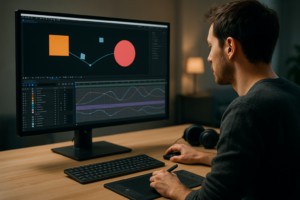

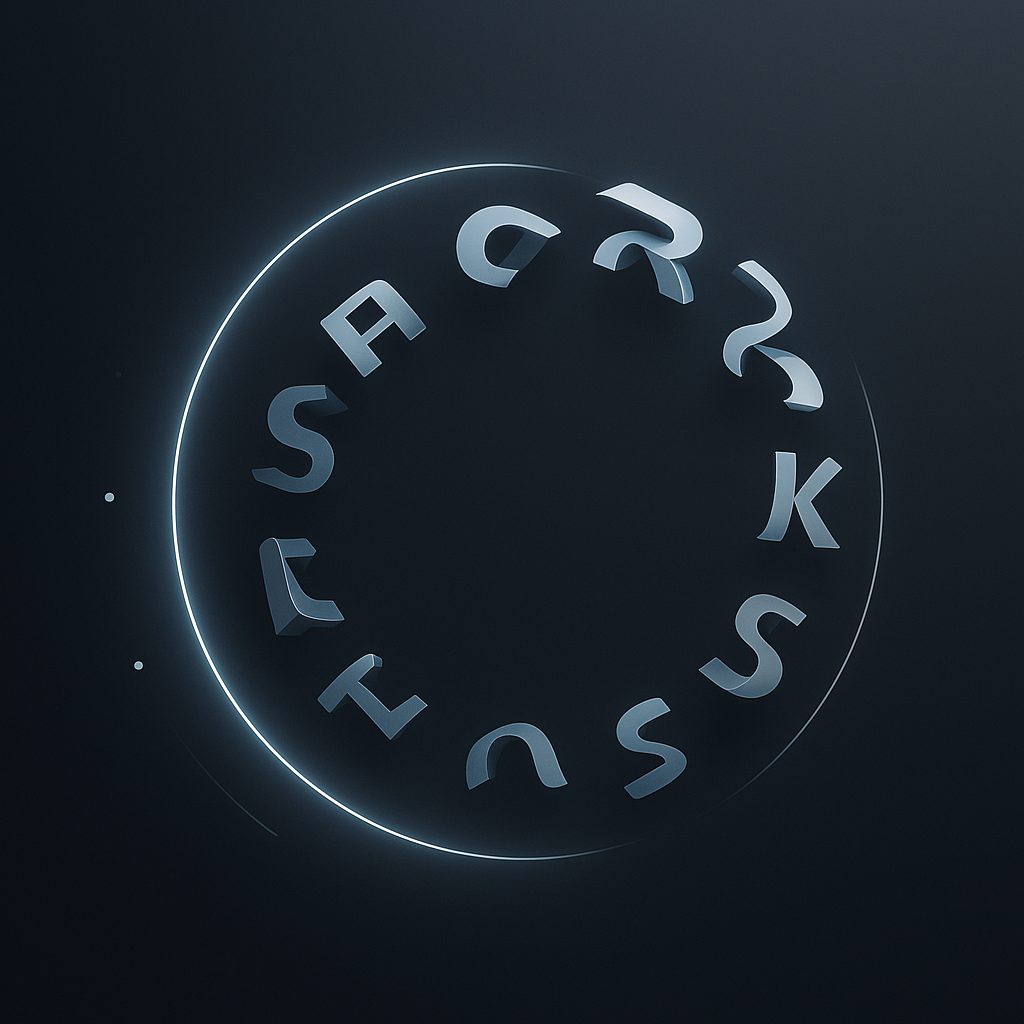
“Animowanie tekstu po okręgu” in After Effects simply means making text travel along a circular path-like a label orbiting a planet, a slogan wrapping around a badge, or a name spinning around a logo. Yes, it’s absolutely doable with built-in tools: you create (or use) a circle as a path, attach a text layer to that path via Path Options, and then animate properties such as First Margin (and sometimes Last Margin) so the text appears to rotate smoothly around the circle.
In practice, it’s less “mystical typographic spellcasting” and more “clever use of paths.” After Effects provides tools to animate text along shapes like circles, and once you understand the handful of controls that matter, you can build everything from clean corporate rings to playful kinetic typography. This article walks through the concepts, the tools, the step-by-step method, and the common traps-plus how to make the result feel intentional rather than like it’s stuck on a carnival ride.
Watch more After Effects motion design tutorials
📋 Table of Contents
What is animowanie tekstu po okręgu in After Effects?
Definition and basic concept
The phrase animowanie tekstu po okręgu is Polish for “animating text along a circle.” In Adobe After Effects, it describes a workflow where a text layer is mapped to a circular path (usually a mask path or a shape path), and then animated so the characters move around that path over time.
Under the hood, After Effects treats the path like a track. Your text becomes a train of characters that can be positioned along that track using Path Options. That’s why many tutorials phrase it as: “Use the ‘Path Options’ in the text layer to attach your text to the circle path.” Once attached, you can control where the text starts, how it aligns, whether it flips, and how it offsets around the circle.
There are two big ideas to keep in mind:
- The path defines geometry: the circle’s size, center, and curvature determine how the text wraps.
- The animation defines time: keyframes (and easing) determine how the text moves-whether it glides, accelerates, loops, or snaps.
When people say “rotate text around a circle,” they often mean one of two looks: either the text itself is traveling along the ring (like a ticker), or the whole circular text object is rotating as a unit. Both are valid, but the first one-text moving along a path-is what this topic usually implies, and it’s also the more flexible technique.
Use cases and applications
Circular text animation shows up more often than you might think. It’s a classic graphic design move that translates beautifully to motion design-especially when you want something to feel emblematic, energetic, or “designed” without adding complex 3D.
Here are common real-world uses:
- Badges and seals: text wrapping around a stamp-like circle, rotating gently to add life.
- Logo reveals: a brand name orbiting a mark before settling into place.
- Music and event promos: artist names circling a record, a disco ball, or a festival icon.
- UI and HUD graphics: sci-fi rings with labels spinning around a center point.
- Social loops: short, seamless animations where circular motion helps hide the loop point.
It also solves a practical layout problem: when you have a circular element (a logo mark, a product shot, an icon), circular text can “frame” it without stealing space above or below. Motion adds hierarchy: you can keep the center static and let the perimeter do the talking.
Which tools in After Effects enable animowanie tekstu po okręgu?
Text path and shape layers
The backbone of circular text animation is the relationship between a text layer and a path. In After Effects, that path can come from:
- A mask path on a layer (often the text layer itself).
- A shape layer path (like an Ellipse path inside a shape layer).
Most designers prefer a shape layer ellipse because it’s clean, editable, and can be resized precisely. Many tutorials start with exactly this: “Create a circle shape to serve as the path for your text.” You draw an ellipse, make sure it’s a perfect circle, and then use it as the guide rail for your typography.
Once you have a circle, you attach the text using the text layer’s Path Options. This is where After Effects quietly becomes a typography tool: it lets you align text to the path, flip it inside/outside, and animate offsets without manually keyframing every letter.
One subtle but important point: a circle path can be animated too. If the circle scales, the text responds. If the circle morphs into a blob, the text follows the blob. That’s fun, but it’s also a reason to keep your path stable when you want consistent speed and spacing.
Text animation presets
After Effects includes a library of text animation presets-useful for entrances, exits, and per-character motion. While these presets don’t usually “attach text to a circle” by themselves, they’re excellent companions once your text is already on a path.
For example, you can:
- Use a preset to fade characters in sequentially while the whole line travels around the circle.
- Combine a preset that animates tracking with path motion to create breathing space as the text passes key points.
- Add a subtle opacity shimmer or scale pulse so the text feels less mechanical.
Presets are often misunderstood as “one-click solutions.” Think of them instead as modular ingredients. Circular path motion is your base; presets are seasoning. A little goes a long way.
Also, presets can teach you. If you apply one and open the layer’s Animator properties, you’ll see how After Effects structures text animation: animators, selectors, ranges, and offsets. That knowledge pays off when you want to build your own custom behaviors.
Custom expressions and scripts
Expressions aren’t mandatory for animating text on a circle, but they’re extremely useful when you want precision, automation, or easy looping. A few common expression-driven goals include:
- Perfect loops (e.g., a 4-second seamless orbit).
- Linking speed to a slider so you can art-direct motion without re-keyframing.
- Auto-compensation for circle circumference changes (advanced, but possible).
A simple looping expression might drive the Path Options margin value using time. But you can also keep it friendly: add a Slider Control called “Speed,” and multiply time by that slider. Suddenly, you have an orbit control panel.
Scripts can help when you need to generate multiple rings, distribute text layers evenly, or build a template for repeated use. For motion designers working on brand systems, that’s the difference between a one-off animation and a reusable toolkit.
That said, don’t reach for expressions to fix a basic setup problem. If your text is flipping unpredictably or spacing is off, solve the path and alignment first. Expressions are best when your foundation is already stable.
How to create text animation along a circle in After Effects?
Creating a circular path for the text
Start with a new composition sized for your project (for example, 1920×1080 for HD). Then create a circle that will act as your path. The cleanest method is a shape layer:
- Create a new Shape Layer.
- Select the Ellipse Tool.
- Double-click the ellipse tool to create a perfect ellipse that fits the comp, or drag while holding Shift to constrain proportions.
- In the shape layer contents, find Ellipse Path and adjust Size to the diameter you want.
This matches the standard guidance: “You can create a circular text path and animate text along it.” The circle is your path; now you just need to give your text permission to ride it.
Two practical tips before moving on:
- Center your circle: use Align tools to center the shape in the comp. Circular motion looks “wrong” when the center is off by a few pixels.
- Decide inside vs outside early: if the text should sit outside the ring (like a badge), you’ll want consistent placement from the start to avoid re-tuning later.
If you prefer a mask path workflow, you can draw a circular mask on a solid or on the text layer. But shape layers are easier to edit and keep tidy-especially when you later want multiple rings.
Attaching text to the circular path
Next, create your text layer (Type Tool, click, and type your phrase). Choose a font that behaves well on curves: overly condensed fonts can look cramped, and extremely wide fonts may require more spacing adjustments.
Now attach the text to the circle using the text layer’s Path Options. The common instruction is worth repeating because it’s the key step: “Use the ‘Path Options’ in the text layer to attach your text to the circle path.”
- Select the Text Layer.
- Twirl open: Text > Path Options.
- Set Path to the circle path. If you used a shape layer, you may need to copy the shape path and paste it as a mask on the text layer (depending on your AE version/workflow), or use a mask path directly on the text layer.
- Adjust Reverse Path if the direction is opposite of what you expect.
Depending on your setup, After Effects may only allow selecting a mask path on the same layer in the Path Options dropdown. If that happens, here’s a reliable workaround:
- Copy the circle path from the shape layer (select the Ellipse Path, then copy).
- Select the text layer, create a mask, and paste the path onto that mask.
- Now choose that mask in Text > Path Options > Path.
Once attached, your text will snap onto the circle. It may appear upside down or inside the ring at first-don’t panic. That’s normal, and you’ll correct it with alignment controls.
Adjusting text alignment and spacing
This is where circular text goes from “technically correct” to “pleasant to look at.” You’ll typically adjust:
- Alignment (centered, left, right) to decide where the text sits around the path.
- Perpendicular to Path to push text inside/outside the circle.
- Tracking (character spacing) to prevent crowding.
Start by setting your paragraph alignment (in the Character/Paragraph panel). Center alignment is often easiest for circular designs because it gives you a predictable midpoint. Then use Perpendicular to Path to nudge the text outward so it hugs the outside edge rather than sitting awkwardly on top of the ring.
Spacing is the silent deal-breaker. On a circle, letters naturally appear to “fan” as they curve, and tight tracking can make the top arc look especially cramped. Increase tracking slightly, then compensate by reducing font size if necessary. If your text is long, consider breaking it into two arcs (top and bottom) instead of forcing one line to do all the work.
If your text flips or appears mirrored, use Flip or Reverse Path in Path Options. The goal is consistent reading direction: your audience shouldn’t need to tilt their head like a confused puppy to read your headline.
Finally, check your circle size relative to the text. If the circle is too small, curvature becomes aggressive and readability suffers. A slightly larger radius often looks more premium and less “sticker-like.”
Animating the text motion around the circle
With the text attached and aligned, you’re ready to animate. The most straightforward method is to animate the margin controls in Path Options. Many tutorials emphasize exactly this: “Animate the ‘First Margin’ and ‘Last Margin’ parameters to make the text move along the circle.”
In many cases, First Margin alone is enough. It offsets where the text begins along the path, which effectively makes the text travel around the circle.
- On the text layer, open Text > Path Options.
- Click the stopwatch for First Margin to set your first keyframe at time 0.
- Move forward in time (e.g., 4 seconds), then change First Margin to a new value so the text completes a full orbit.
This aligns with the typical workflow: “Set keyframes for the margins and adjust them to animate the text over time.” As you scrub the timeline, you’ll see the text sliding around the circle’s edge. With the right values, it will appear as if it’s rotating perfectly along the ring: “Adjusting the margins allows the text to appear as if it is rotating around the circle.”
How do you know the “full orbit” value? It depends on the path length and text metrics, which is why many artists eyeball it. A practical approach:
- Increase First Margin until the text returns to its starting position.
- Note that value and use it as your loop distance.
If you need an endless loop, you can either copy/paste keyframes and use loopOut, or manually set the last keyframe to match the first position. The key is to avoid a visible jump: your start and end frames should be identical.
Also consider animating Rotation of the entire text layer very slightly in the opposite direction. It can create a subtle parallax feel-like the text is moving while the badge holds steady. Just keep it tasteful; you’re designing motion, not launching a theme park ride.
Finally, timing matters. “Ensure proper timing and positioning for smooth text animation along the circular path.” In other words: don’t just animate; choreograph. Give the motion a reason to exist-sync it to music beats, to a logo reveal, or to a narrative beat in your edit.
See a real-world After Effects animation breakdown
What common challenges appear in animating text on a circular path?
Handling text orientation and rotation
The first frustration most people hit is orientation: the text appears upside down, inside the circle, or reversed. This is not you failing; it’s After Effects being literal about path direction and alignment.
To fix orientation issues, work through this checklist:
- Reverse Path: changes the direction the path is interpreted (clockwise vs counterclockwise).
- Flip (in Path Options): moves text from one side of the path to the other.
- Perpendicular to Path: pushes text outward/inward without changing reading direction.
Another subtle issue: as the text travels, certain fonts can appear to “tilt” awkwardly at the sides of the circle. That’s because the baseline is constantly changing direction. If it looks odd, try a font with more neutral geometry, reduce the circle curvature (bigger radius), or shorten the text so fewer characters sit on extreme angles.
Finally, beware of mixing layer rotation with path motion. If you rotate the text layer itself while also animating First Margin, you can accidentally create compounded motion that’s hard to predict. When you want the text to orbit, animate the margin. When you want the entire badge to spin, rotate the precomp. Keeping those roles separate makes troubleshooting far easier.
Maintaining consistent speed around the circle
On paper, a circle is uniform-so speed should be uniform too. In practice, speed problems show up because of keyframe interpolation, easing choices, and sometimes because the path is not truly circular (for example, if it’s been scaled non-uniformly).
To maintain consistent speed:
- Use linear keyframes for a constant orbit. If you add easing, you’re intentionally changing speed.
- Avoid non-uniform scaling of the path layer (scaling X and Y differently turns a circle into an ellipse, which changes perceived speed and spacing).
- Check motion blur: if motion blur is on, uneven blur can make speed changes feel more dramatic than they are.
There’s also a perceptual issue: text feels faster on the sides of the circle because it moves horizontally relative to the frame, while at the top and bottom it moves more vertically. If you’re aiming for a calm, premium motion, consider slowing the orbit overall and using easing only at the beginning and end (like a gentle start-up and coast-down) rather than easing continuously.
If you need a perfect loop with constant speed, expressions help. But even without expressions, you can achieve reliable results by keeping keyframes linear and ensuring your end position matches your start position exactly.
What are tips for improving animowanie tekstu po okręgu after effects?
Using easing for smooth animations
Easing is the difference between “it moves” and “it feels designed.” Even a simple orbit benefits from thoughtful acceleration-especially if the motion is part of a reveal or a transition rather than an endless loop.
Use easing intentionally:
- Ease In at the start when the text begins moving (like it’s being powered up).
- Ease Out at the end when it comes to rest (like it’s settling into place).
- Linear in the middle if you want a consistent travel phase.
In After Effects, you can apply Easy Ease, then refine in the Graph Editor. A good habit: zoom into the speed graph and look for spikes. Smooth curves feel elegant; jagged changes feel like mistakes-even when they’re technically “correct.”
If your animation is meant to loop forever (like a social media background), easing can cause a visible speed shift at the loop point. In that case, either keep it linear or design the loop so the easing happens off-screen or during a moment when attention is elsewhere.
Combining multiple animation properties
Circular motion is a strong visual motif, but it can look flat if it’s the only thing happening. The trick is to add secondary animation that supports the main motion rather than competing with it.
Effective combinations include:
- Opacity + orbit: fade the text in as it begins moving, or fade it slightly as it passes behind a foreground element.
- Tracking + orbit: subtly increase tracking as the text accelerates, then tighten as it slows-tiny, but it reads as “responsive.”
- Scale micro-pulses: a 2-4% pulse synced to beats can make kinetic typography feel musical.
- Blur accents: a slight directional blur during faster sections can sell speed without making the text unreadable.
Another powerful technique is layering: duplicate the circular text, offset its timing, and change its weight or color. One ring can be the “headline,” the other can be supporting info. Motion design loves hierarchy, and circles are great at hosting it.
Just don’t throw everything in at once. If the text is informational (like a name or a call-to-action), keep the ornamentation restrained. If it’s decorative (like a looping badge), you can be more playful.
Optimizing the text readability during animation
Readability is the tax you pay for motion. The more kinetic the type, the more you must protect legibility with design choices.
Start with these fundamentals:
- Contrast: ensure the text stands out from the background. Use a stroke or subtle shadow if needed.
- Font choice: avoid ultra-thin fonts unless the background is calm and high-contrast.
- Size and radius: a larger circle reduces curvature and improves readability.
Then handle motion-specific issues:
- Speed: if viewers can’t read it at normal playback, it’s too fast. Slow down or reduce the amount of text.
- Motion blur discipline: motion blur can look gorgeous, but too much turns letters into soup. Consider enabling it but reducing shutter angle (or keeping speed moderate).
- Strategic pauses: if your message matters, let the text linger at a readable position (top center is common) before continuing.
A practical trick is to separate “decorative orbiting text” from “important readable text.” Let the orbiting ring be vibe and texture, while the key message sits static in the center. You get motion and clarity at the same time-no compromise required.
How to apply animowanie tekstu po okręgu in different projects?
Logo design and branding animations
Branding is where circular text truly shines. Many brand marks already live in circles-badges, seals, emblems, monograms-so animating type around a ring feels natural rather than gimmicky.
For logo animations, consider a narrative arc:
- The ring text starts off-screen or blurred.
- It orbits once (or half once) as if “searching” for position.
- It snaps into perfect alignment as the central logo resolves.
This is where “precise positioning and timing” becomes more than advice-it’s the whole point. A logo reveal is basically a promise: “We care about details.” If your ring jitters, the promise breaks.
Another branding-friendly approach is modularity: build a template where the circle diameter, font, and orbit speed are controlled by a few sliders. That way, the same motion language can be reused across campaigns without rebuilding from scratch.
Finally, keep brand guidelines in mind. If the brand is minimal, use slow motion, generous spacing, and subtle easing. If the brand is energetic, you can push speed, add texture, and combine orbit with per-character animation presets.
Title sequences and lower thirds
Circular text isn’t only for logos; it can add sophistication to titles and lower thirds-especially in documentary, sports, fashion, or tech content.
In title sequences, circular text can act like a framing device. Imagine a character name orbiting a faint ring behind them, while the main title sits bold and static. The circle suggests continuity and motion without distracting from the primary read.
For lower thirds, use circular text sparingly. A full orbiting ring near the bottom of the screen can feel busy. But a partial arc-like a semicircle that subtly slides-can be stylish and modern. You can also use a circular path as a transitional element: the ring sweeps in, reveals the name, then fades.
Workflow tip: precompose your circular text animation. Then you can treat it like a single layer in your edit, apply transforms, add camera moves, or blur it for depth. Precomps are the unsung heroes of clean motion design.
And if you’re delivering broadcast-style graphics, remember safe areas. Circular elements near edges can clip on certain displays. Keep the ring comfortably inside title-safe bounds.
Social media and promotional videos
Social media loves loops. Circular motion is inherently loop-friendly because the end can match the beginning without feeling forced. That makes animowanie tekstu po okręgu a strong choice for reels, stories, TikTok promos, and YouTube intros.
For promos, circular text can carry:
- Event details (date, venue, tagline) orbiting around a central hero image.
- Product features rotating around a product shot like a carousel of benefits.
- Calls-to-action that orbit once, then land in a static readable position.
Social-specific considerations matter:
- Mobile readability: small screens punish thin fonts and fast motion. Slow it down and increase size.
- Compression: fine strokes can shimmer after upload. Consider slightly heavier weights or add a subtle stroke.
- Loop hiding: design the loop so the reset happens during a blur moment, a flash, or when the text is behind another element.
If you want your animation to feel modern, pair the orbit with a simple design system: two colors, one font family, consistent spacing, and one “hero” motion. The orbit becomes your signature move rather than a one-off trick.
As of 2026-10-14, audiences are even more sensitive to motion that feels like a template. The good news: circular text can still feel fresh if you treat it like typography-carefully spaced, deliberately timed, and integrated into a broader visual concept.
Explore a YouTube-style motion design example
Conclusion
Circular text animation sits at a sweet spot: it’s technically approachable, but creatively deep. Once you’re comfortable attaching text to a path and animating margins, you can start thinking like a designer rather than an operator-asking questions like, “What does this orbit mean?” Is it signaling energy, continuity, precision, or play? Motion becomes a metaphor, not just movement.
If you want to push beyond the basics, experiment with typographic structure: build two rings that counter-rotate at different speeds, or split a sentence into top and bottom arcs with different weights. Try mixing languages, or using small caps and punctuation as design elements. And if you’re building a reusable toolkit, consider turning your setup into a Motion Graphics Template so editors can swap text without opening the whole project-circular type is a perfect candidate for templating because the behavior is consistent, while the content changes.
Most importantly, treat the circle as a stage. Your text is the performer. Give it good lighting (contrast), a comfortable tempo (timing), and a reason to move (concept). After Effects will handle the mechanics-your job is to make it feel like it belongs.