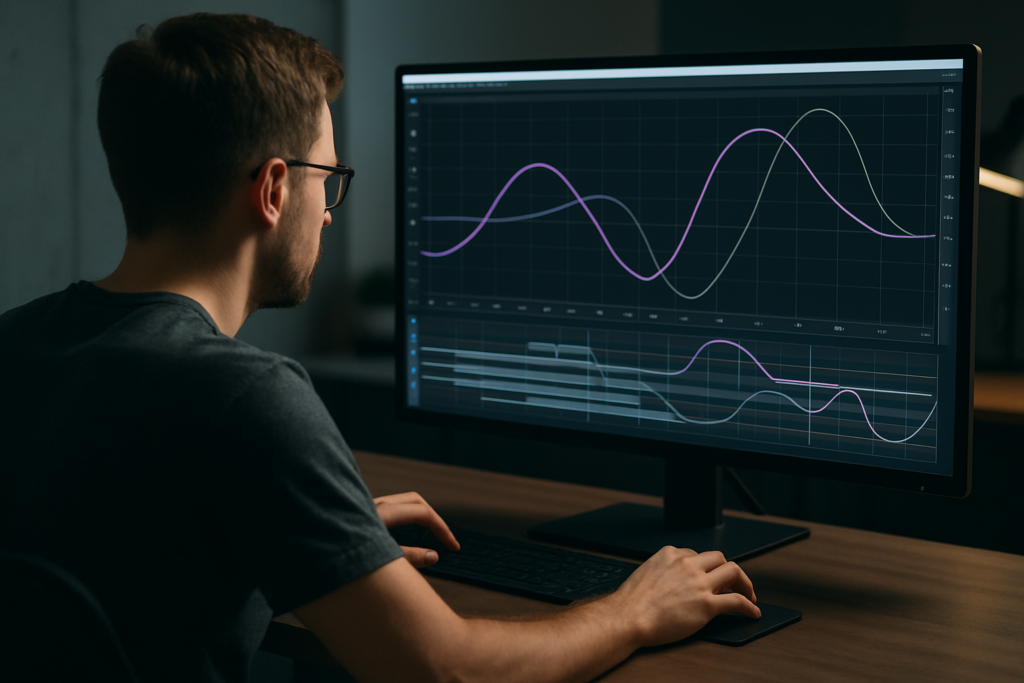
The Graph Editor often feels confusing until you understand what it is really showing you. Learning how to read and shape the speed and value graphs is the fastest way to get smoother, more intentional animation in After Effects while keeping your workflow efficient and predictable.Explore motion templates
📋 Table of Contents
Understanding the Speed Graph vs Value Graph
The Graph Editor in After Effects gives you precise control over how your keyframes move between values. The core decision you face is speed graph vs value graph. Both control the same animation, but they visualize it differently and encourage different ways of thinking about motion.
What the Value Graph shows
The Value Graph plots the actual value of a property over time. For example:
- Position: pixel coordinates going up or down.
- Scale: percentage growing or shrinking.
- Opacity: from 0 to 100.
On the Value Graph, the horizontal axis is time and the vertical axis is the property value. A steeper slope means a faster change in value. A flat line means no change at that moment. It is literal and easy to read if you are thinking in terms of numbers or distances.
What the Speed Graph shows
The Speed Graph plots the speed of change over time rather than the value itself. The vertical axis represents speed (how fast the value is changing) instead of the value. That means:
- A higher peak = faster movement.
- Near-zero speed = paused or very slow motion.
- Curves up and down = acceleration and deceleration.
The underlying animation is the same, but now you can directly shape the feeling of motion: how quickly something starts, how long it zips, and how softly it lands.
Why this choice matters for motion designers
Choosing between speed graph vs value graph in After Effects shapes how you design movement. Motion designers often think in “how fast does this feel?” rather than “what exact value is this at frame 45?” That makes the Speed Graph more intuitive when crafting stylized easing, especially for UI, logo, and text motion.
Editors coming from video cutting backgrounds may find the Value Graph more straightforward initially because it resembles a timeline of values. Over time, most advanced users learn both and switch depending on the task.
Who each graph is best for
- Value Graph: good for precise value targeting, consistent ramps, and complex linked properties (like parented rigs or expressions).
- Speed Graph: ideal for stylized easing, overshoots, bouncy motion, and matching the “energy” of music or cuts.
Understanding both views sets the foundation for using graph editor easing in After Effects efficiently, and for reading any template or project you open, even if someone else animated it.
Graph Editor Easing in After Effects
What is easing in the Graph Editor
Easing controls how an object moves between keyframes, not just where it starts and ends. Graph editor easing in After Effects lets you smooth out robotic, linear motion into more natural, cinematic timing. Instead of constant speed, easing adds acceleration and deceleration.
Basic easing tools you already have
- Easy Ease (F9): automatically adds a soft ease-in and ease-out.
- Ease In / Ease Out: focuses easing on either the start or end of a keyframe.
- Bezier handles in the Graph Editor: manual control for fine-tuning curves in both speed and value graphs.
How easing looks in the Value Graph
In the Value Graph, easing appears as curved segments instead of straight lines. A gentle curve means smooth acceleration; a tight bend near a keyframe means a strong ease right at the start or end. This view is particularly handy when animating properties like opacity or scale where you care about the actual value at specific moments.
How easing looks in the Speed Graph
In the Speed Graph, easing becomes even clearer: you literally draw the speed. A tall peak that quickly drops means a punchy start that eases into stillness. A gradual hill means slow ramp-up and slow ramp-down. This is why many designers rely on the Speed Graph for UI-style animations, such as a card sliding in from a clean interface widget animation.
Matching easing to project types
Different kinds of work benefit from different easing styles:
- Social reels and shorts: snappier curves with steeper speed peaks emphasize energy.
- Corporate explainers: smoother, longer easing to keep motion calm and readable.
- Lyric and music-driven motion: easing timed to beats and lyrics, as seen in highly stylized projects like a dynamic lyrics widget animation.
When to toggle between speed and value graphs
You are not locked into one view. Many workflows look like this:
- Rough in timing using the Value Graph so distances and overlaps feel right.
- Switch to the Speed Graph to polish the acceleration and deceleration.
- Use Easy Ease as a starting point, then refine the handles manually.
By treating easing as a core design decision, not an afterthought, your Graph Editor work becomes about intentional motion language instead of random tweaking.
Common Graph Editor Problems and Mistakes
Overusing default Easy Ease
One of the biggest issues is relying on F9 for everything. While Easy Ease is better than linear, it often produces similar-feeling curves across your entire edit. This leads to bland motion where every element accelerates and decelerates the same way, no matter its weight or role in the scene.
Ignoring the difference between speed and value views
Many users never switch views and stay stuck in one graph. This can cause:
- Confusing curves that do not match the feeling you want.
- Difficulty solving “why does this look weird?” timing issues.
- Unintentional speed spikes or plateaus that kill flow.
Uncontrolled overshoots and wobbles
When Bezier handles are pulled too far in the Value Graph, you can accidentally create unwanted overshoot or reverse motion. This might look like a position jump or a scale “dip” before it grows. If not intentional, it feels like a glitch.
Messy compositions and keyframe chaos
Graph Editor issues often come from messy setups:
- Too many properties keyframed at once.
- No naming conventions for layers and precomps.
- Random motion across dozens of layers with no hierarchy.
When you eventually open the Graph Editor, it is a tangled mess of curves you cannot read, making refinement almost impossible.
Overusing heavy plugins instead of clean curves
Some users try to fix lifeless motion by stacking plugins (motion blur add-ons, warp effects, stylizers) instead of fixing the underlying timing. The result is sluggish previews, longer renders, and animation that still does not feel right because the easing is off at the core.
Ignoring frame rate and timing
If your compositions are at inconsistent frame rates or keyframes are not aligned to beats or cuts, even great easing curves will feel wrong. Timing mistakes include:
- Animations that land slightly off-beat with music.
- Transitions that finish too late relative to a cut.
- Text motion that is unreadable because easing is too fast.
Checklist for cleaner Graph Editor work
- Decide whether speed or value graph is more appropriate before you start tweaking.
- Limit keyframes to only what you truly need.
- Organize layers and precomps with clear names.
- Work at consistent frame rates and lock key story beats first.
- Use Easy Ease as a starting point, not a final solution.
Solving these pain points early makes every future project easier to animate and revise.
Choosing the Right Graph Strategy for Different Projects
Social reels and short-form content
Reels, shorts, and vertical clips reward punchy timing. Here the Speed Graph shines because you can clearly define fast hits and quick rests. A common approach is:
- Use strong ease-out at the start for snappy pops.
- Keep mid-motion speed high for energetic moves.
- Ease into final positions quickly so the viewer can read the content.
Templates built for short-form, like animated widgets or overlays, often arrive pre-tuned for this energy, so understanding the curves helps you adapt them fast.
Advertising and product promos
For product shots or feature highlights, you usually want a balance of precision and flair. A typical workflow:
- Block core positions and timings in the Value Graph.
- Switch to the Speed Graph to soften transitions between shots.
- Use controlled peaks for callouts or feature reveals that need emphasis.
A product UI animation similar to a sleek digital widget interface scene benefits from clear, deliberate easing that makes every move feel designed rather than random.
YouTube and long-form content
For intros, lower thirds, and info panels, consistency is more important than extreme snappiness. You might choose to:
- Standardize a few preferred easing curves for titles, captions, and transitions.
- Create presets or reuse animation controls so your whole channel feels cohesive.
- Favor readable, medium-strength easing over very aggressive bounces.
Cinematic edits and narrative pieces
In more cinematic or music-driven edits, graphs are about emotional flow as much as clarity. You can:
- Use long, gentle curves for camera-style movements.
- Combine subtle easing with motion blur for filmic movement.
- Shape the Speed Graph to follow musical phrasing, not just beats.
Using templates to speed up graph decisions
If you are working across multiple deliverables every week, hand-building every curve is not realistic. Well-built motion design assets come with curves already dialed in. For example, a complex sequence like a fluid, glassy animation might already contain polished Graph Editor work, letting you focus on timing tweaks and content, not drawing curves from scratch.
When you find a set of curves that fits your brand or channel style, you can reuse them across projects for a consistent motion language. The official Adobe documentation on keyframe interpolation is a useful technical reference when you want to understand exactly how interpolation and easing behave under the hood.See subscription options
Practical Workflow with Templates, Graphs, and Checklists
Start with compatible project settings
Before touching curves, confirm:
- After Effects version: Make sure the template matches your version or newer.
- Frame rate: Match your main sequence (often 23.976, 24, 25, or 30 fps) so easing lines up with edits and beats.
- Resolution: Use the intended comp size (1080×1920 for vertical, 1920×1080 for horizontal, etc.) to avoid scaling issues that can exaggerate or hide motion.
Many templates for UI or widgets, such as an animated map UI widget, are already set with optimal comp settings. Use those as your starting point and nest them into larger sequences as needed.
Organize keyframes, precomps, and naming
Clean organization makes graph work faster:
- Rename precomps based on their function (e.g., “Intro_Title_Motion,” “LowerThird_01”).
- On each layer, limit animated properties to what is truly changing.
- Group related elements into precomps so their curves are easier to read together.
When you dive into the Graph Editor of a template like a YouTube-themed widget animation, clear naming helps you understand which curves control which part of the motion.
Performance tips when working with graphs
Graph-heavy projects can feel slow. To keep your workflow responsive:
- Use Adaptive Resolution or reduce preview resolution while editing curves.
- Limit motion blur and heavy effects until your timing is locked.
- Use region of interest and solo layers when polishing easing in dense comps.
- Enable disk cache and purge only when needed.
Handle plugin dependencies carefully
Some templates rely on third-party plugins. If a project demands an effect you do not have, look for:
- Built-in alternatives that approximate the look.
- Pre-rendered assets embedded in the template.
- Settings that let you disable nonessential flourishes while keeping core motion.
Good projects keep the most important motion logic in native keyframes and expressions so the Graph Editor remains usable even without every plugin.
Customizing colors, type, and timing
Most high-quality templates provide control layers or essential graphics-style controllers. A practical customization flow:
- Update brand colors, typography, and logos first.
- Adjust durations and in/out points to match your audio or script.
- Only then fine-tune easing on key beats where emphasis matters.
Opening the Graph Editor at this stage lets you see where curves feel too slow or too aggressive relative to your new timing. For example, you might slow the easing on a key title in a layout similar to an informational finance widget animation so viewers can read important numbers comfortably.
Step-by-step checklist for working with templates and graphs
- Import the template and confirm version, fps, and resolution.
- Collect all main comps used in your edit and label them clearly.
- Replace text, images, or footage with your content.
- Lock in cut points and audio beats in a main sequence comp.
- Open the Graph Editor on only the most visible layers first (titles, callouts, hero elements).
- Decide whether the Speed Graph or Value Graph best fits the type of motion you want.
- Apply Easy Ease, then refine Bezier handles to match your desired feel.
- Preview small sections in real time and note where motion feels off.
- Normalize easing styles across similar elements for consistency.
- Once satisfied, turn on final effects and motion blur, then run a full preview.
Use cases to practice graph decisions
To build muscle memory, try these scenarios:
- Reels and shorts: Take a fast social-style animation, like the feel of a playful app-like widget, and exaggerate the Speed Graph peaks to increase energy.
- Ads and promos: Practice subtle, confident reveals for product details, using the Value Graph to keep positions and scales exact.
- Cinematic or lyric edits: Use curves to follow the rhythm of vocals and instruments, similar to timing used in a music-inspired motion piece.
By following a repeatable checklist, you spend less time guessing in the Graph Editor and more time making clear, intentional choices.
Advanced Graph Techniques and Long-Term Workflow
Building a consistent motion system
Instead of reinventing easing on every project, treat your curves as a design system. You can:
- Create a set of reference layers with your favorite position, scale, and opacity curves.
- Copy and paste keyframes between layers to reuse easing styles.
- Save animation presets for commonly used moves (pop-ins, slide-ins, fades).
This allows even complex sequences, like a multi-screen layout reminiscent of a ride-share style animation, to feel cohesive across dozens of elements.
Using styleframes and motion tests
Before fully animating, build a few simple motion tests to dial in your curve language. Animate one title, one icon, and one background element. Once you are happy with how their speed and value graphs look, roll those decisions into the rest of the project.
Modular transitions and reusability
Design transitions so they can live as reusable precomps:
- Keep their timing self-contained (in and out within a defined length).
- Expose only key controls (colors, text, icons) via control layers.
- Align Graph Editor curves to start and end cleanly at the same frame counts.
That way you can drop these into other edits without redoing graph work, leveraging your existing easing choices.
Quality control for motion
As your projects grow, it is easy for curves to drift from your intended style. Create a QC pass focused only on motion:
- Solo key layers and scrub through their graphs.
- Look for random spikes in the Speed Graph or value overshoots you did not plan.
- Ensure similar elements share similar easing, so nothing feels out of place.
Export, render, and dynamic link considerations
Your graph decisions affect final export:
- Overly complex curves and heavy effects increase render time.
- When using dynamic link to an NLE, prerender graph-heavy segments if playback stutters.
- Use the Render Queue or Media Encoder with sensible bitrates so motion stays clean and banding-free.
Keeping projects lightweight
To avoid bogging down future revisions:
- Pre-render finished segments with locked timing and easing.
- Archive a “clean curves” version of the project with minimal effects.
- Remove unused layers, comps, and imported assets before final delivery.
Over time, this lets you build a personal library of motion projects that open quickly, are easy to understand, and showcase clear, deliberate use of both speed and value graphs.
Search Intent Around Speed and Value Graphs
Common questions users ask
When people search around speed graph vs value graph in After Effects, they are usually trying to solve practical problems. Here are typical search intents, with concise answers:
- “Should I use the speed graph or value graph?” Use the Speed Graph for shaping how fast something feels, and the Value Graph when you care about exact values at specific times. Many workflows switch between both.
- “Why does my easing look weird after Easy Ease?” Easy Ease is a generic curve. Open the Graph Editor and adjust the Bezier handles. Check that you do not have accidental overshoots or mismatched keyframe spacing.
- “How do I copy easing from one layer to another?” Select the keyframes on the source layer, copy, then paste onto the target property. This copies both timing and easing. You can then adjust values without losing the curve shape.
- “How do I make bouncy motion using graphs?” Add extra keyframes that overshoot the final value, then settle back. Use the Speed Graph to control how strong and how fast each bounce occurs, with diminishing peaks over time.
- “Why is my animation stuttering or jittery?” Check for uneven spacing between keyframes, unwanted hold keyframes, or sudden speed spikes in the Speed Graph. Align keyframes to consistent frame intervals where appropriate.
- “How can I match motion to music beats?” Mark beats with timeline markers, then place keyframes on or slightly before those points. Use the Speed Graph to accent hits with quick speed peaks that drop to zero between phrases.
- “Do I need expressions to get good easing?” No. Expressions help with automation, but professional motion is very achievable with manual graph editor easing once you understand how your curves relate to time and value.
- “How do templates handle graph editor easing?” Quality templates usually come with curves already tuned to a specific style. You can open the Graph Editor, study those curves, and adjust timing or intensity to match your edit.
Understanding these practical questions makes it easier to diagnose issues in your own projects and know when you should focus on the Speed Graph, the Value Graph, or overall timing.
Bringing It All Together for Faster, Cleaner Motion
Recap of key ideas
The Speed Graph and Value Graph are two views of the same motion, each useful in different situations. The Value Graph helps you manage exact values and clean ramps; the Speed Graph lets you sculpt the feel of acceleration and deceleration. Together, they give you precise control over how your animation reads, from subtle UI movement to bold text hits.
Graph editor easing in After Effects is not just a polish step; it is a core design tool. By choosing the right graph for each task, organizing your project cleanly, and using templates with solid curves as your starting point, you reduce guesswork and keep your workflow predictable.
Next steps for your workflow
To keep improving:
- Pick one project and consciously decide when to use each graph type.
- Save a few “hero curves” as presets or reference layers.
- Study how well-built templates structure their keyframes and easing.
The more you intentionally shape your graphs, the more your work will feel consistent, professional, and easy to update across campaigns, channels, and clients worldwide.
Conclusions
Mastering the Speed Graph and Value Graph in After Effects turns motion from guesswork into a deliberate craft. By pairing smart graph choices with organized projects and well-built templates, you get smoother animation, faster iterations, and results that stay consistent across every edit you deliver.
FAQ
What is the main difference between the Speed Graph and Value Graph in After Effects?
The Value Graph shows the actual property value over time, while the Speed Graph shows how fast that value changes. Both control the same keyframes but provide different ways to shape motion.
Which graph should beginners use first for easing in After Effects?
Beginners often start with the Value Graph because it is more literal, then adopt the Speed Graph as they get comfortable shaping acceleration and deceleration directly.
Why does my animation look stiff even when I use Easy Ease?
Easy Ease applies a generic curve. To avoid stiffness, open the Graph Editor and manually adjust Bezier handles so the timing and speed peaks match the style and energy of your project.
Can I switch between Speed Graph and Value Graph on the same keyframes?
Yes. The underlying keyframes do not change when you switch views. You can adjust easing in one graph, then toggle to the other to refine or inspect the motion from a different perspective.
How do templates help with graph editor easing?
Quality templates include predesigned curves tuned for specific styles. You can reuse these curves, adjust timing, and study them to learn how professionals structure motion.
Do I need third-party plugins to get smooth graph editor easing?
No. Smooth, professional motion comes primarily from good keyframes and graph work. Plugins can add style or convenience, but they are not required for clean easing.