
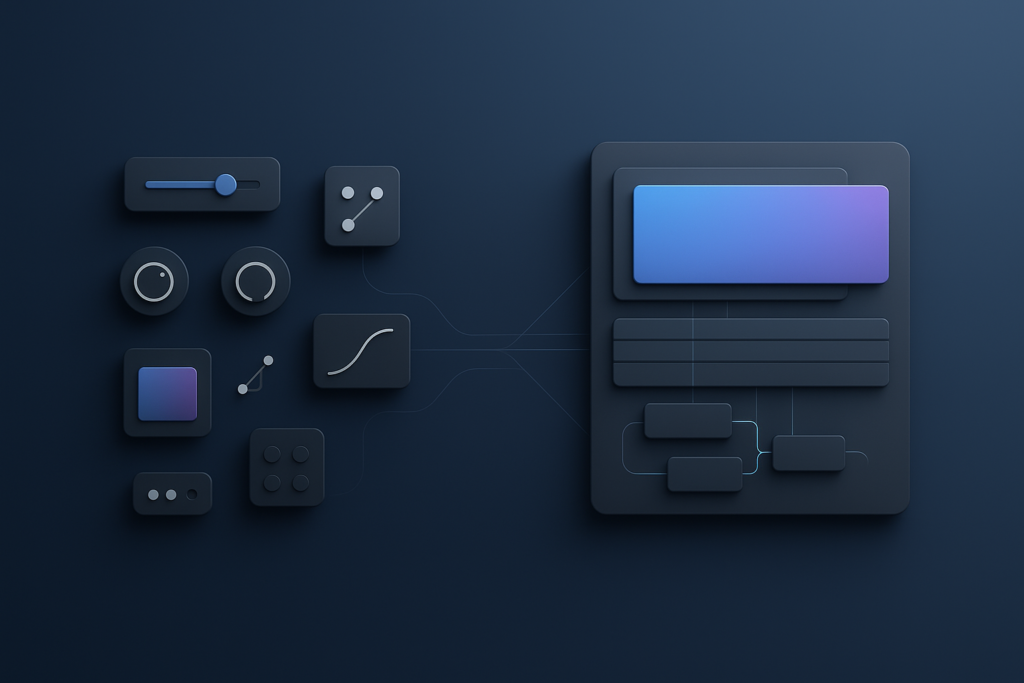
After Effects presets and templates are not the same thing: presets are reusable effect/animation settings you apply to specific properties (like text animators, transitions, color looks, or motion blur setups), while templates are pre-built project structures (often entire scenes or timelines) designed to be edited by swapping text, media, and a few controls. If you need a fast, polished “ready-to-edit” sequence, choose a template; if you want to speed up a particular technique inside your own design, choose a preset.
That’s the clean answer. The more useful answer is messier-in a good way-because real projects rarely live at the extremes. Most working editors and motion designers mix both: a template for the backbone (intro, lower thirds pack, slideshow), then presets to refine pacing, add texture, and keep a consistent finishing style across deliverables. This article will help you decide what to use, when to use it, how to install and customize both, and how to avoid the classic “template look” while still enjoying template speed.
📋 Table of Contents
What are After Effects Presets and Templates?
Before comparing them, it helps to picture After Effects as a kitchen. A template is a full recipe card with the ingredients laid out and the oven preheated. A preset is a spice blend you can sprinkle into any dish-useful, repeatable, and powerful, but it won’t cook dinner by itself.
Both exist because motion design is full of repeatable patterns: easing curves that feel “right,” type reveals that read clearly, camera shakes that don’t scream “random wiggle,” and color treatments that unify a brand. Presets and templates simply package those patterns at different scales.
Definition of After Effects Presets
An After Effects preset is a saved collection of settings-usually applied to layer properties or effects-that you can reuse on other layers or in other projects. Presets often come as .ffx files and can include anything from a single effect’s parameters (say, a glow look) to a multi-property animation (like a text animator that types on with overshoot and blur).
Presets are typically modular. They don’t dictate your whole timeline; they influence a piece of it. You might apply a preset to:
- Text layers (kinetic typography, pop-in, tracking animations)
- Adjustment layers (color grading, film looks, halation, vignette)
- Shape layers (stroke reveals, trim paths behaviors)
- Camera/Nulls (handheld shake rigs, parallax setups)
- Transitions (zoom blur, whip pan, glitch, light leaks)
Because presets attach to existing layers, they work best when you already have a composition structure in mind and want to accelerate a specific effect or animation technique.
Definition of After Effects Templates
An After Effects template is a pre-built project or composition system. It usually includes multiple comps, layers, precomps, expressions, and a designed layout-often with placeholder media and text. Templates can be delivered as an .aep project file or as a Motion Graphics Template (.mogrt) for use inside Adobe Premiere Pro (and, in some workflows, inside After Effects as well).
Templates are about structure. They often include:
- Designed scenes (openers, logo reveals, slideshows, social packs)
- Pre-animated lower thirds and titles with editable controls
- Color controllers, font controls, and “drop media here” placeholders
- Render-ready comps with safe margins and delivery formats
In other words: templates are closer to “buying a finished stage set,” while presets are closer to “buying a lighting rig you can mount anywhere.”
Common Uses for Presets and Templates in After Effects
Presets tend to show up in the middle of a workflow: you’ve got footage, a concept, a timeline, and you need to move quickly without re-inventing the wheel. Templates tend to show up at the start (when you need a structure) or at the end (when you need a consistent package across many deliverables).
Typical preset-friendly tasks include polishing: adding consistent motion blur settings, applying a house color grade, building quick transitions between scenes, or giving text a signature “brand bounce.” Typical template-friendly tasks include building a YouTube intro, a corporate opener, a conference screen loop, a reel, or a set of Instagram story layouts.
There’s also a practical reality: many teams use templates for client-facing speed, then layer presets to make the final output feel bespoke. That hybrid approach is where a lot of the professional magic lives.
Key Differences Between After Effects Presets and Templates
If you’ve ever downloaded something and thought, “Why is this so hard to change?” you’ve already met the core difference: presets assume you are building; templates assume you are editing. One is additive; the other is foundational.
Let’s break the differences down in a way that maps to real decisions you’ll make at 11:47 p.m. the night before delivery.
Customization Options
Presets generally offer customization by letting you tweak the effects and keyframes they apply. Because they’re attached to properties, you can often modify them freely: change easing, timing, intensity, blending modes, or even delete parts you don’t want. Presets are like “here’s a starting point-make it yours.”
Templates often provide customization through controllers (sliders, color pickers, dropdowns) and a set of clearly labeled placeholder layers. That’s great when the template is well-built. But if you want to go beyond the intended controls-say, redesign the layout, alter the animation style, or change the comp architecture-you may be stepping into a dense forest of precomps, expressions, and naming conventions that were never designed for strangers.
In short: presets usually allow deeper creative customization; templates usually allow faster safe customization.
Ease of Use and Time Savings
Templates typically win the “instant gratification” contest. You drop in your logo, swap text, replace footage, render-done. If you’re producing a lot of similar deliverables (weekly episodes, recurring promos, social ads), templates can cut hours into minutes.
Presets save time differently. They don’t build your timeline for you, but they speed up repeated micro-decisions: the same smooth text reveal across 30 lower thirds, the same transition between segments, the same finishing look across a campaign. Over a week of production, those small savings become huge.
Also, ease of use depends on what you already know. A beginner may find templates easier because they reduce the number of choices. A more experienced user may find presets easier because they don’t lock you into someone else’s structure.
Flexibility and Adaptability for Projects
Presets are flexible because they’re portable. You can apply a preset to many kinds of projects: 16:9, 9:16, 1:1, 4K, HD, cinematic, social-your preset doesn’t care, as long as the target properties exist. If you design your own presets with resolution-agnostic expressions (or use percentage-based values), they become even more adaptable.
Templates can be adaptable, but only if they were designed that way. Some templates include multiple aspect ratios, responsive design, and master controls. Others are rigid: change the comp size and suddenly the background doesn’t cover, the camera move crops awkwardly, and the typography feels like it’s shouting from the wrong corner.
So if your project is likely to evolve-new formats, new durations, new brand rules-presets often age better. Templates can still be great, but you’ll want to choose them carefully (and ideally from creators who build with responsiveness in mind).
Benefits of Using After Effects Presets
Presets are the quiet workhorses of After Effects. They don’t always look flashy in a marketplace preview, but they’re the tools that keep your day from dissolving into a swamp of repetitive clicks.
Used well, presets can make you faster, more consistent, and-counterintuitively-more original, because you spend less time rebuilding basics and more time making intentional design choices.
Improving Workflow Efficiency
Efficiency in After Effects is rarely about one big trick. It’s about removing friction from the 200 tiny actions you repeat. Presets help by turning multi-step setups into one action: apply preset, adjust a couple values, move on.
Examples of workflow wins:
- Reusable text animation: A preset that handles tracking, opacity, blur, and overshoot can standardize titles across a whole project.
- Consistent transitions: Instead of keyframing a whip pan every time, apply a preset and adjust duration.
- Finishing stack: A preset applied to an adjustment layer can add grain, subtle sharpening, and a gentle vignette in one go.
Another underrated benefit: presets reduce decision fatigue. When your baseline is already good, you can spend your creative energy on what actually matters-story, pacing, clarity, and brand.
Browse After Effects widget animations
Creating Consistent Visual Effects
Consistency is what makes work feel “designed,” even when the viewer can’t explain why. Presets are excellent for consistency because they encode your preferred settings: the same glow radius, the same blur falloff, the same easing curve, the same motion blur shutter angle, the same grain amount.
This is especially useful for teams. If multiple editors are touching the same project, shared presets help maintain a unified look without requiring everyone to memorize the exact recipe. A preset becomes a small piece of style governance-friendly, practical, and hard to argue with.
Consistency also improves revisions. When a client says, “Can we make all the titles a bit snappier?” you can adjust the preset-driven approach systematically rather than hunting through dozens of layers with slightly different keyframes.
Learning and Applying Effects
Presets can be educational. When you apply a preset and then inspect what changed-what effects were added, how keyframes are eased, how expressions are structured-you get a guided tour of a technique. It’s like reverse-engineering a finished sound to learn the synth patch.
To learn effectively, treat presets as study material:
- Apply the preset to a duplicate layer and compare before/after.
- Reveal modified properties (U / UU) to see what was touched.
- Change one parameter at a time and observe the visual result.
Over time, you’ll build intuition: what makes motion feel soft vs. punchy, what kind of blur sells speed, what timing helps readability. The best part is that the learning is immediately practical-you’re not studying in a vacuum; you’re shipping work.
Advantages of Using After Effects Templates
Templates are the big, bold promise: “You can have a polished motion piece today.” And often, that promise is real-especially when you’re working under the most common constraint in modern content: time.
They’re also a gateway into design systems. A good template isn’t just pretty; it’s organized, labeled, and built for replacement. That structure can teach you how experienced creators build scalable projects.
Speeding Up Project Completion
Templates are unbeatable when you need to deliver quickly. If your deliverable is a standard format-logo reveal, event opener, lower thirds pack, photo slideshow-templates can reduce the project to a series of substitutions: swap footage, edit text, adjust colors, render.
This is particularly valuable for:
- Social media teams producing high volume
- Marketing departments iterating ads across audiences
- Freelancers who need to protect margins on fixed budgets
- Agencies creating multiple versions for A/B testing
Time saved is not just time saved-it’s time redirected. You can use the extra hours for better copy, better shot selection, tighter sound design, or simply fewer late nights.
Access to Professional-Quality Designs
Many templates are built by specialists who live and breathe motion design: they know typography, spacing, pacing, and the subtle tricks that make animation feel expensive. Buying a template can be like licensing a slice of that expertise.
This is not “cheating.” It’s closer to using professional fonts, stock footage, or music libraries. You’re assembling a production with licensed components. The key is to choose templates that align with your brand and then customize them enough that the final piece feels intentional rather than generic.
And yes, templates can raise your baseline quality dramatically-especially if your current baseline is “I know what keyframes are, but I’m still negotiating with easing.”
Ideal for Non-Experts and Beginner Editors
Templates shine for beginners because they reduce the number of ways you can break things. Instead of building a comp structure from scratch, you’re guided by placeholders, pre-built animations, and controlled customization.
They also help beginners learn project organization by exposure. A well-made template demonstrates:
- Clear naming conventions
- Use of precomps for modularity
- Master control layers for global changes
- Render comps vs. working comps separation
One caveat: templates can become a crutch if you never open the hood. The best path is to use templates to deliver now, while gradually dissecting them to learn how to build your own systems later.
When to Choose Presets vs Templates for Your Project
Choosing between presets and templates is less about ideology (“real artists don’t use templates”) and more about constraints: what you’re making, how fast you need it, who will maintain it, and how many versions you’ll produce.
A practical way to decide is to think in layers: structure (template) vs treatment (preset). If you already have structure, you probably need treatment. If you don’t have structure, a template might save you.
Assessing Project Complexity
If your project is complex-multiple scenes, lots of timing dependencies, a narrative arc, or bespoke art direction-templates can either help or hinder. A template can provide a starting framework, but it can also fight you if the story requires unusual pacing or layout changes.
Presets tend to be safer in complex projects because they don’t impose architecture. You can build the project exactly as needed and then use presets to accelerate repeated techniques (text reveals, transitions, finishing looks) without inheriting someone else’s decisions.
On the other hand, if complexity comes from volume rather than uniqueness-like producing 40 similar social videos with different offers-templates are perfect. They turn complexity into a repeatable system.
Considering Customization Needs
Ask yourself what kind of customization you need:
- Surface-level edits (text, logo, images, colors): templates are ideal.
- Style-level edits (animation language, typography system, spacing rules): presets or a custom-built template may be better.
- Structural edits (new scenes, different pacing, unusual aspect ratios): presets typically win unless the template is designed for that flexibility.
If you find yourself wanting to change the “personality” of a template-how it moves, not just what it says-you’re drifting toward preset territory (or toward building your own template from scratch).
A useful compromise is to start with a template for layout and timing, then replace signature motions with your own preset-driven style. That’s how you get speed and identity.
Time Constraints and Budget
When time is tight, templates are often the fastest path to a finished deliverable. They also provide predictable budgeting: you can estimate the time to swap content and render, rather than estimating the time to design and animate from zero.
Presets can be budget-friendly in a different way: if you invest in a good preset library (or build your own), you reduce labor across many projects. The ROI grows over time. For freelancers and small teams, a curated set of presets becomes a competitive advantage-your work stays consistent and you move quickly without relying on one specific template.
One more budget note: sometimes the cheapest option is expensive. A poorly built template can cost hours in troubleshooting. A well-built preset can save minutes every day for years. Value is not just price-it’s reliability.
How to Install and Apply After Effects Presets and Templates
Installation is where many people lose time unnecessarily. The good news: once you understand the basic pathways-Effects & Presets panel for presets, project import/open for templates-it becomes routine.
Below are practical steps that work for most modern After Effects setups. (Exact menu labels can vary slightly by version, but the workflow remains the same.)
Step-by-Step Installation Process
Installing presets (.ffx):
- Download and unzip the preset pack if needed.
- In After Effects, open the Effects & Presets panel.
- From the panel menu, choose Browse Presets… (or locate the Presets folder manually).
- Place the .ffx files into your After Effects Presets directory (many users create a subfolder like “My Presets” or “Studio Pack”).
- Restart After Effects (or refresh) so the presets appear in the panel.
Installing templates (.aep / .mogrt):
- For .aep: open the project file directly, or import comps into your current project via the Project panel (depending on how the template is delivered).
- For .mogrt: install it in Premiere Pro via the Essential Graphics panel, or keep it in a shared library if your team uses Creative Cloud Libraries.
- If the template includes fonts or plugins, install those first to avoid missing assets and broken expressions.
Pro tip: keep a “Template Staging” folder on your drive. Duplicate the template into a new job folder before editing. That way you never accidentally overwrite the original, and you can reuse it cleanly later.
Applying Presets to Your Project
Applying a preset is usually as simple as selecting a layer and double-clicking the preset, or dragging the preset onto the layer. But the best results come from matching the preset to the right kind of layer.
A few practical guidelines:
- Read the preset’s intent: Is it for text, footage, shape layers, or adjustment layers? Applying it to the wrong layer can produce odd results.
- Use adjustment layers for “look” presets (grading, blur, grain). This keeps your stack clean and lets you toggle the look on/off.
- Check modified properties (press U) to see what the preset changed. This makes troubleshooting faster.
- Normalize timing: many animation presets assume a certain layer length. Trim/extend layers so the animation has room to breathe.
If a preset uses expressions, make sure you understand what controls it expects (like a named Null object). Many higher-end presets rely on simple rigs; once you provide the expected structure, they behave beautifully.
Customizing Templates Effectively
Templates are easiest to customize when you follow their intended workflow. That usually means editing the “Edit Here” comps, replacing placeholders, and using control layers rather than digging into precomps randomly.
Best practices for template customization:
- Start with the documentation (often included as a PDF or a readme). If the creator cared enough to write it, it will save you time.
- Replace assets at the source: swap media in the designated placeholder comps rather than overriding layers in the final comp.
- Use the provided controllers for colors, fonts, and timing whenever possible. They’re there to keep the template stable.
- Localize safely: if you’re changing language, watch for text expansion. You may need to adjust tracking, box sizes, or line breaks.
If you want to push beyond the template’s intended design, do it in stages: duplicate the comp, make one structural change at a time, and test renders frequently. Templates can be intricate ecosystems; small changes can ripple.
See a YouTube-style After Effects widget template
Sources and Marketplaces for After Effects Presets and Templates
Where you get presets and templates matters as much as what you get. The same category label-“glitch transitions,” “modern titles,” “cinematic grade”-can hide wildly different build quality, performance, and support.
Look for creators and marketplaces with clear previews, version compatibility notes, and transparent requirements (plugins, fonts, included assets).
Popular Websites for Downloading Presets
Presets are often distributed by individual creators, motion design studios, and asset sites. Common places include:
- Creator websites (often the best for updates and support)
- Large asset libraries that offer preset packs alongside overlays and LUTs
- Community platforms where artists share smaller experimental presets
When browsing, pay attention to whether the presets are built for native After Effects effects or require third-party plugins. Native presets tend to be more future-proof and easier to share across teams.
If you’re building a long-term toolkit, consider curating a small set of high-quality preset packs rather than hoarding hundreds. A tidy toolbox beats a cluttered garage.
Reliable Marketplaces for Templates
Templates are widely sold through established marketplaces and subscription libraries. Reliable sources usually provide:
- Clear licensing terms for commercial use
- Compatibility info (After Effects version, plugins required)
- Customer reviews and update history
- Support or at least consistent documentation
Also consider .mogrt templates if your workflow lives in Premiere Pro. They can be a huge win for editors who want motion graphics without round-tripping into After Effects for every change.
For teams, it’s often worth standardizing on a few trusted sources so you know what you’re getting: consistent naming, consistent build quality, fewer surprises.
Tips for Choosing High-Quality Presets and Templates
Quality is not just “looks good in the preview.” It’s also performance, organization, and how gracefully the asset survives real-world edits. Use this checklist:
- Performance: Does it preview smoothly? Excessive motion blur, heavy particles, or stacked effects can choke laptops.
- Organization: Are comps and layers named clearly? Is there a control layer? Are placeholders obvious?
- Responsiveness: Does it handle different aspect ratios or longer text? Are elements anchored logically?
- Dependencies: Are plugins required? If yes, are they common in your pipeline?
- Typography: Is the type readable, well-spaced, and not dependent on a single trendy font that will age in six months?
- Licensing: Does the license fit your usage (client work, broadcast, resale, etc.)?
And a subtle sign of quality: a template that looks slightly “less flashy” in the preview can be more useful in practice because it leaves room for your content to shine.
Optimizing Your Work with Presets and Templates in After Effects
Using presets and templates is not just about speed-it’s about building a workflow that stays sane as projects multiply. Optimization means you can deliver consistently without burning out or rebuilding the same components every week.
The goal is to create a system: templates handle structure, presets handle style, and your project organization keeps everything searchable and reusable.
Combining Presets and Templates for Better Results
The best results often come from combining both. A practical hybrid workflow might look like this:
- Start with a template to establish layout, timing, and deliverable format.
- Swap content (text, media, logo) using placeholders and controllers.
- Apply presets to unify motion language: consistent transitions, consistent text behavior, consistent finishing look.
- Replace signature moments: if the template’s main reveal feels generic, rebuild just that beat with your own preset-driven animation.
This approach reduces the risk of the “I’ve seen this template before” feeling. Your audience may not recognize the template, but they can sense when something feels mass-produced. Presets help you inject a recognizable hand.
Also, presets can fix template mismatches. For example, if a template’s color treatment doesn’t match your footage, a color treatment preset on an adjustment layer can bring everything into the same visual world.
Saving Custom Presets for Future Use
One of the most powerful habits in After Effects is saving your own presets. Any time you solve a problem you expect to meet again-text readability, a lower-third animation, a subtle camera shake, a finishing stack-save it.
What to save as a preset:
- A text animator setup you love (including range selectors and easing)
- An adjustment layer “final look” stack
- A transition built from native effects (so it’s portable)
How to make saved presets more useful:
- Name them descriptively (e.g., “Title Reveal – Soft Blur 12f” rather than “cool1”).
- Version them when you improve them (“v2”, “2026”).
- Keep them modular: smaller presets combine better than giant, do-everything presets.
Over time, your personal preset library becomes your style-codified. It’s like building your own template ecosystem, but with more flexibility.
Maintaining Organized Project Files
Templates and presets can create clutter fast: multiple precomps, duplicated assets, imported folders, and “FINAL_FINAL_v7” energy. Organization is not optional if you want speed to stay speed.
Practical organization tips:
- Folder structure in the Project panel: “01_COMPS”, “02_PRECOMPS”, “03_ASSETS”, “04_AUDIO”, “05_RENDERS”.
- Color labels for key layers (controllers, placeholders, text).
- Master controls: keep a dedicated control layer at the top of main comps.
- Collect Files before archiving or handing off, so missing footage doesn’t haunt you later.
If you work in a team, agree on naming conventions early. The fastest workflow is the one where anyone can open the project and instantly understand where to edit and where not to touch.
Common Misconceptions About After Effects Presets and Templates
Presets and templates carry baggage. Some of it is snobbery, some of it is fear, and some of it comes from bad experiences with low-quality assets. Let’s clear the air.
Used thoughtfully, both presets and templates are professional tools. The difference is not whether you use them, but whether you use them with intention.
Presets and Templates Are Only for Beginners
This misconception persists because beginners use them visibly. But professionals use them quietly. In many studios, reusable components are the backbone of consistency and speed-especially for branding packages, broadcast graphics, and recurring content.
Professionals often build internal templates and preset libraries precisely because they’re experts. They know which parts of the workflow should be standardized and which parts should be bespoke. Reuse is not a lack of skill; it’s a sign you understand production reality.
The real beginner move is not using presets or templates-it’s repeating the same setup from scratch every time and calling it “craft.” Craft is great. Repeating avoidable labor is not.
Using Templates Limits Creativity
Templates can limit creativity if you treat them as the final answer. But if you treat them as a starting structure, they can actually free creativity by removing busywork.
Creativity often needs space: time to try alternate pacing, time to refine typography, time to explore a better visual metaphor. Templates can buy you that space. The trick is to customize beyond the obvious: change timing, adjust the motion language, refine spacing, and integrate brand-specific details (color behavior, type hierarchy, icon style).
If you’re worried about sameness, build a small set of “signature moves” as presets-your favorite text reveal, your favorite transition, your favorite finishing look-and apply them to templates. That’s how you keep your voice while borrowing structure.
Presets and Templates Are Expensive
They can be, but “expensive” depends on what you’re comparing them to. If a $40 template saves you four hours, it’s cheap. If a $15 preset pack saves you five minutes once, it’s expensive.
There are also many free options, though quality varies. Free assets can be excellent for learning and experimentation, but they may lack documentation, updates, or clean licensing for commercial work. For client projects, paying for reliable assets often costs less than troubleshooting time.
A smart approach is to budget for assets the way you budget for music or stock footage: as production tools that protect your schedule and improve consistency.
Future Trends in After Effects Presets and Templates
As of 2026-07-19, the direction is clear: presets and templates are becoming more intelligent, more responsive, and more integrated into broader editing workflows. The line between “template” and “tool” is blurring, especially as creators package entire systems with modular controls.
Expect less of the old “one flashy opener” model and more of the “design kit” model: cohesive sets of components that can generate many variations quickly.
Integration with AI and Automation Tools
Automation is increasingly part of motion workflows, and presets/templates are adapting. We’re seeing more assets designed to work with data-driven and semi-automated pipelines: placeholder systems that can be batch-populated, text fields designed for variable content, and rigs that can re-time intelligently.
AI assistance is also influencing how creators build assets:
- Faster iteration on style variations (colorways, layout options, timing feels)
- Smarter “responsive” behaviors (auto-resize boxes, adaptive line breaks, safe-area awareness)
- Automated versioning for multi-format delivery (16:9 to 9:16 without rebuilding everything)
The practical outcome is that templates will feel less rigid, and presets will feel more like mini-tools with friendly controls rather than static parameter dumps.
Increasing Variety and Complexity of Templates
Templates are expanding beyond single-use projects into ecosystems: full brand packages with openers, lower thirds, end cards, transitions, and social cutdowns designed to match. Complexity is increasing, but so is usability-because creators know buyers demand clean controls and quick customization.
We’re also seeing templates that prioritize real-world needs over pure spectacle: accessibility-friendly typography, better readability on mobile, modular scene builders, and more attention to performance (because not everyone previews on a monster workstation).
The next wave of “good” templates will likely be those that behave like design systems: coherent, adaptable, and easy to maintain over months of content, not just one render.
Conclusion
Presets and templates are ultimately about momentum: keeping your ideas moving forward instead of getting stuck in technical molasses. If you treat them as building blocks rather than shortcuts, they become part of your craft-tools that let you spend more time on choices that viewers actually feel: rhythm, emphasis, clarity, and taste.
If you want a practical next step, try this: pick one template you genuinely like, then create three small presets that reflect your personal style (a text reveal, a transition, and a finishing look). Apply them to the template and render two versions-one “as-is,” one “you.” That comparison teaches you more than any abstract debate, because you’ll see exactly where identity lives: in the details you repeat on purpose.
And if you’re building a long-term workflow, consider documenting your own mini “motion rules”-preferred easing, type scale, spacing, and color behaviors-then encoding those rules into presets and reusable comps. Over time, you won’t just be choosing between presets and templates. You’ll be building a library that makes your work faster, cleaner, and unmistakably yours.