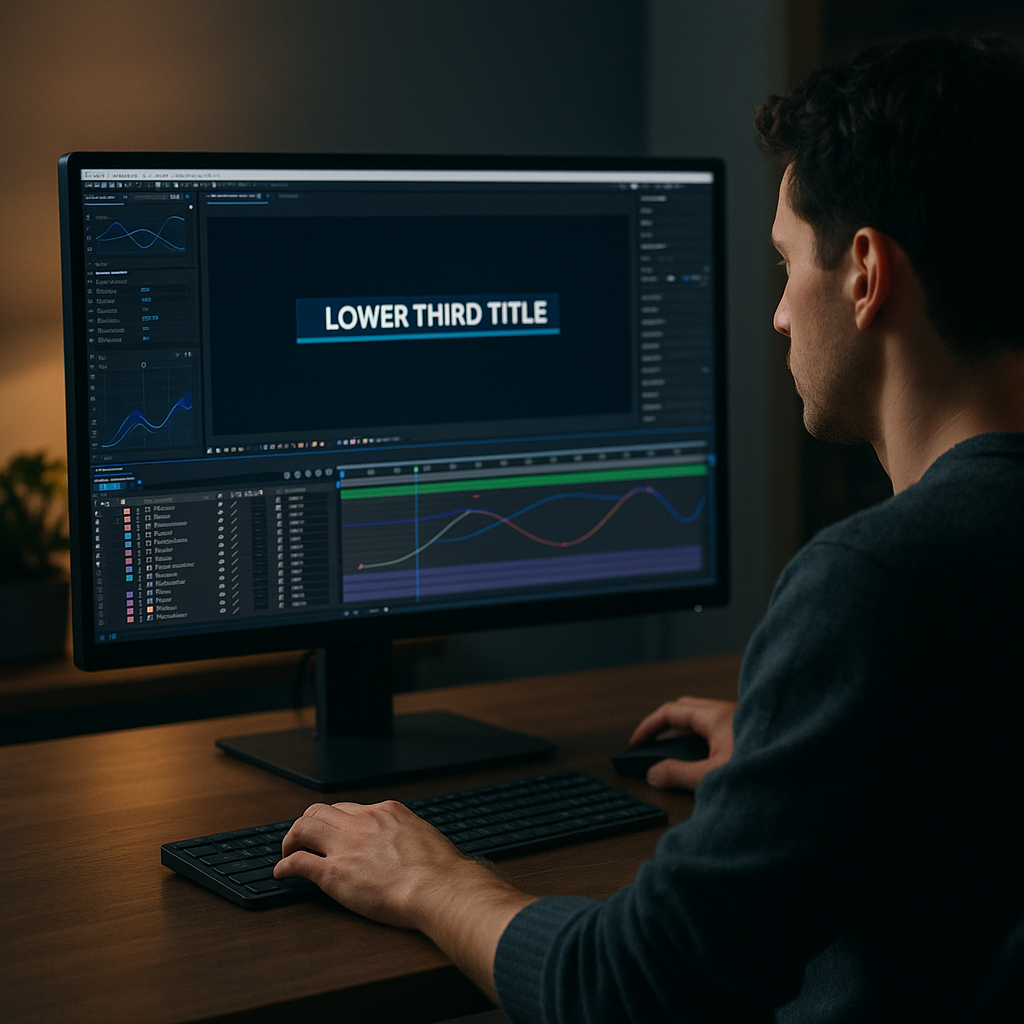
Lower thirds are one of the most reused elements in any edit, and turning them into Motion Graphics Templates (MOGRTs) makes them fast and consistent across projects. This tutorial walks through how to create a lower third MOGRT in After Effects in a way editors actually enjoy using.Explore AE template access
📋 Table of Contents
Understanding Lower Third MOGRT Basics
What is a lower third MOGRT
A lower third MOGRT is a Motion Graphics Template built in After Effects and exported for easy use in Premiere Pro or other compatible hosts. It usually displays names, titles, locations, or topics in the lower area of the frame with animated text and graphic elements.
Instead of rebuilding the same animation on every project, you design it once in After Effects, expose only the controls editors need (like name, title, brand colors), then save it as a .mogrt file. Editors drag it onto a timeline, customize the text and colors, and never touch keyframes.
Why lower third MOGRTs matter
Lower thirds are used constantly: interviews, YouTube shows, explainers, livestreams, corporate videos, documentaries, news-style edits, and more. Turning them into MOGRTs helps you:
- Keep branding consistent across a whole series or channel.
- Reduce repetitive design work for every new episode.
- Give non-motion editors polished graphics they can adjust safely.
- Avoid accidental animation breaks when someone edits text layers directly.
Who this workflow is for
This workflow is ideal for:
- Editors in Premiere Pro who want reliable plug-and-play graphics.
- Motion designers who build systems for teams or clients worldwide.
- YouTube creators who want a recognizable channel look.
- Agencies producing recurring formats, like news updates or product explainers.
Once you understand how to create a lower third MOGRT in After Effects, you can adapt the same idea to intros, info bars, end screens, and entire on-air packages.
Lower Third MOGRT Tutorial Overview and Use Cases
The goal of this lower third MOGRT tutorial
This lower third MOGRT tutorial focuses on a workflow you can reuse: clean comps, simple expressions, and clear controls in the Essential Graphics panel. Think of it as building a mini product inside your project.
Common types of lower third MOGRTs
- Basic name and title – Two text lines, a bar or box, subtle animation.
- Segment labels – For topics like “Coming up next” or “Sponsored by”.
- Social handles – Username with platform icon or subtle background, perfect for formats similar to YouTube-style widgets.
- Data/info tags – For stats, prices, or locations in product videos or UI-style edits.
Where editors typically use them
- YouTube channels – Series intros, guest IDs, host name straps.
- Corporate content – Interviews, webinars, and training videos.
- Social clips – Reels, shorts, and TikToks that still need brand consistency.
- Ads and promos – Product feature callouts, limited-time offers, or simple price tags.
Why build your own vs. only using presets
Ready-made templates save time, but building at least one custom lower third from scratch teaches you:
- How to structure precomps and controls so projects stay organized.
- How to manage safe margins, font choices, and readability at different sizes.
- How to expose just the right sliders and color pickers for editors.
Once you are comfortable with this, you can mix your own designs with specialized packs, like lyric-style layouts similar to music-driven templates or UI-style overlays such as map widgets, and still keep all of them working as MOGRTs.
Common Mistakes When Building Lower Third MOGRTs
Messy compositions and naming
One of the biggest problems is disorganized comps and layers. When the structure is unclear, you or another editor will struggle to update the template later.
- Give comps specific names like LT_Main, LT_Background, LT_Text.
- Use color labels to group related layers.
- Avoid leaving unused or test layers in the final build comp.
Rigid designs that break with longer names
Designs that only work with short names often break when a guest or title runs long.
- Test with both short and long text in your main comp.
- Use Source Rect At Time expressions to connect background size to text length.
- Leave padding around the text so it does not hit frame edges.
Poor timing and easing
Another frequent issue is awkward timing and default easing.
- Lower thirds should appear fast but not jarringly: around 8–12 frames to animate on is a good starting point.
- Use the Graph Editor to soften easing, but avoid overdoing slow motion for fast-paced edits.
- Keep in/out timings consistent across all lower third variants.
Ignoring safe margins and various aspect ratios
If you design only for 16:9, placing lower thirds in 9:16 reels can clip important information.
- Turn on Action Safe and Title Safe guides.
- Keep text a bit higher than the absolute bottom edge.
- Consider whether your MOGRT will be adapted for square or vertical formats later.
Overuse of heavy effects and plugins
Stacking multiple blurs, glows, and third-party plugins can make your MOGRT slow to preview and render.
- Favor simple shape layers and subtle blur over heavy stylized looks.
- Minimize the number of precomps with unnecessary 3D or adjustment layers.
- Test performance on a regular machine, not just a high-end workstation.
Exposing the wrong controls
Editors do not want to dig through complex UIs.
- Expose only the essentials in Essential Graphics: text fields, key colors, maybe timing switches.
- Hide advanced controls that could break the layout.
- Label everything clearly with helpful, human-readable names.
Use these points as a checklist while you build, and you will avoid most of the headaches that make many MOGRTs unpleasant to use.
Choosing the Right Lower Third MOGRT Approach for Your Edit
Match style to content type
Different projects need different lower third styles and MOGRT complexity.
- YouTube and podcasts – Friendly, bold type, maybe playful motion. A simple slide-in with a light bounce works well.
- Corporate and B2B – Clean, subtle, and conservative. Keep motion minimal and avoid distracting colors.
- Ads and product promos – More dynamic, on-brand color accents, and a bit more motion energy, like you might see in UI-driven layouts similar to financial or app-style animations.
- Cinematic or documentary – Understated, with slower fades and maybe low-opacity shapes.
Decide how flexible the MOGRT needs to be
Not every template needs every control. Before building:
- List which elements truly need to change across episodes: name, role, maybe logo color.
- Decide if editors should be able to choose between a one-line and two-line version.
- Think about whether you need left/right alignment options for different framing.
Balancing custom builds with template libraries
If you are working on recurring formats or multiple shows, you may want both custom MOGRTs and a library-based workflow. Adobe has a useful overview of Motion Graphics Templates in their own lower third template guide, which complements what you are building.
For busy pipelines, a mix of your own designs and an Unlimited After Effects Templates Subscription can give you a baseline system you can adapt per client, while keeping everything consistent and fast for editors.
Team collaboration and handoff
When you are designing a MOGRT for someone else to use:
- Confirm the NLE they use most (Premiere Pro, etc.).
- Agree on fonts that everyone has access to.
- Document which fields to edit and which to leave alone.
This preparation makes your MOGRT feel like a reliable tool rather than a one-off graphic experiment.Get consistent lower thirds
Step by Step Guide to Building a Lower Third MOGRT
Plan the design and use case
Before opening After Effects, clarify a few things:
- What resolution will it be used at (1080p, 4K, vertical)?
- What typical text length do you expect?
- Which brand colors and fonts are mandatory?
Sketch a quick wireframe: background bar, primary text (name), secondary text (title), maybe an icon or subtle accent line. Look at minimal UI-based overlays for inspiration, like the clean structures in editing-style widgets.
Set up your After Effects project
Create a new composition:
- Resolution: 1920×1080 (or your main working format).
- Frame rate: match your main edit (typically 23.976, 25, or 29.97 fps).
- Duration: 8–10 seconds (enough time for in, hold, out).
Rename the comp to something clear like LT_Main. Set the background to transparent to make sure the lower third sits correctly over footage.
Build the layout with shape and text layers
Add a rectangle shape layer for the background bar. Place it near the lower third of the frame but inside Title Safe. Then add two text layers: one for the name, one for the title/role.
- Use paragraph left alignment so text grows to the right.
- Set tracking and line spacing for readability at small sizes.
- Use color and weight contrast between name (bolder) and title (lighter).
Animate the in and out
Keep the animation simple and purposeful.
- For a slide-in: animate position from off-screen to final position over 8–12 frames.
- Add opacity keyframes (0 to 100) slightly offset from position for a subtle fade.
- Use Easy Ease and refine timing in the Graph Editor.
- Build a short hold (2–4 seconds) before animating out.
To animate out, either reverse the in animation or use a simpler fade-out to keep the motion understated.
Make the layout responsive to text length
Use expressions like sourceRectAtTime() to make your background shape layer adjust based on text length. Connect the rectangle size to the name text width plus some padding. This reduces the chance of long names overflowing.
Organize with precomps and naming conventions
Once the design feels solid:
- Precomp your background and accent shapes if they are complex.
- Keep text layers at the top of the hierarchy for quick access.
- Prefix layers with CTRL_ for anything that will be exposed in Essential Graphics.
A clear structure now will be a lifesaver if you need multiple variants later, like alternate colors or a different style for sponsored segments.
Set up Essential Graphics controls
Open the Essential Graphics panel, set LT_Main as the master comp, and drag in the properties you want editors to change:
- Name text source.
- Title text source.
- Main brand color pickers.
- Optional switch for showing a secondary line or icon.
Rename the controls to something readable like “Guest Name” or “Role Title” rather than the default property names.
Check performance and preview behavior
Before exporting the MOGRT:
- Switch to a lower preview resolution (Half) and make sure playback is smooth.
- Purging the cache occasionally helps judge true performance.
- If the animation stutters, simplify effects or reduce extra layers.
For heavier sessions or layered graphics, consider working with proxies, especially when testing multiple lower thirds in context, as you might with motion-heavy intros like liquid-style animations.
Export as a MOGRT
From the Essential Graphics panel, choose Export Motion Graphics Template. Point it to your local drive or a shared library used by your team. In Premiere Pro, you will be able to import and drag this MOGRT onto a timeline, edit the exposed controls, and keep the animation locked.
Testing across different edits
Finally, test your new lower third in a few scenarios:
- Short and long names, different languages if you work worldwide.
- Light and dark footage backgrounds.
- Fast-cut sequences and slow interview timelines.
Adjust timing, readability, and default settings based on what you learn from these tests so your MOGRT behaves predictably in real projects.
Advanced Workflow and Template Management
Build a reusable system, not a one-off
Once your first lower third MOGRT is working, turn it into a small system:
- Create variants for different roles (speaker, quote, location) using the same base animation.
- Use the same easing, timing, and color palette so everything feels cohesive.
- Keep all lower third comps in a single folder inside your project.
Consistency across an entire series
Series-based content (weekly shows, podcast videos, recurring streams) benefits from a unified visual language:
- Lock in a master styleguide: fonts, sizes, corner radius, motion speed.
- Apply that style not only to lower thirds but also to bumpers and callouts, similar to how UI overlays repeat patterns in music interface-style projects.
- Keep one master AE project with all final MOGRTs to avoid drifting styles.
Quality control before sharing MOGRTs
Treat every MOGRT like a product release:
- Double-check spelling and capitalization in default text.
- Test in Premiere Pro with someone who did not build the template.
- Confirm that all text fields and color pickers behave as expected.
Keeping projects lightweight
Large teams often struggle with heavy graphics projects.
- Avoid nested precomps if they do not add clarity.
- Limit the use of frame-heavy elements like high-res textures.
- If using external assets, keep them in an organized folder structure.
Export and render considerations
When it is time to output your final edit:
- In Premiere Pro, check that your sequence preview codec can handle graphics cleanly.
- For master exports, choose a high-quality mezzanine codec to preserve sharp text.
- For social delivery, test a short clip with embedded MOGRTs to ensure compression does not ruin readability.
Dynamic Link and compatibility
While Dynamic Link can connect After Effects and Premiere Pro directly, it is not always the best solution for lower thirds meant for heavy reuse. MOGRTs are often more stable and portable, especially across different machines and timelines.
Long-term maintenance of your lower third library
As your library grows:
- Version your MOGRTs (v1, v2, etc.) when making breaking changes.
- Keep project notes or a simple changelog for team members.
- Regularly review which templates are actually being used and retire clutter.
Over time, this disciplined approach makes your lower third MOGRTs feel like part of a professional toolkit rather than scattered, one-off designs.
Answering Common Search Questions About Lower Third MOGRTs
Typical search intents around lower third MOGRTs
When editors and motion designers look up how to create a lower third MOGRT in After Effects, they usually have very specific needs. Here are some common intents and concise answers.
- “How do I make a lower third MOGRT without expressions?”
Use a fixed-width background and keep text length moderate. You can still expose text and colors in Essential Graphics. It will not be fully responsive but is fine for controlled use cases. - “Why does my MOGRT not show up in Premiere Pro?”
Confirm it was exported to a folder Premiere is scanning, check that your Premiere Pro version supports that MOGRT format, and make sure fonts used in the template are installed. - “How do I change fonts in a MOGRT?”
Most font decisions must be made in After Effects. Some MOGRTs expose font style controls, but generally you open the original AE project, change fonts, and re-export the MOGRT. - “Can a lower third MOGRT work for vertical videos?”
Yes, build separate vertical comps (1080×1920) or design with safe central zones. You can maintain the same animation logic while repositioning text and bars. - “How do I speed up or slow down a lower third MOGRT?”
The cleanest solution is to adjust keyframes in the AE master comp and re-export. Time remapping in Premiere can work but may cause easing and blur to feel off. - “Do I need plugins for lower third MOGRTs?”
No. Solid lower thirds can be built entirely with native shape layers and text. If you use plugins, document them and consider safe fallbacks for users who may not own them. - “How many lower third styles should one show have?”
Usually 1–3: a main speaker ID, a special version (like “Host” or “Guest”), and maybe a category/tag bar. More than that can dilute brand coherence.
Using lower third MOGRTs beyond interviews
Editors also search for ways to adapt these templates to more stylized uses: lyric highlights, product stats, UI-style notifications, or app mockups similar to TV interface widgets. The same principles apply: clean comps, limited but clear controls, and careful timing.
Bringing It All Together for Faster, Consistent Lower Thirds
Key takeaways
You have seen how to create a lower third MOGRT in After Effects from the ground up: planning the layout, building responsive text and shapes, organizing comps, exposing controls in Essential Graphics, and testing in real edits. The same structure works for everything from simple IDs to more advanced, UI-inspired overlays.
When you approach each MOGRT as a reusable tool rather than a quick one-off, you save time for every future project, keep branding consistent, and give editors a reliable way to customize graphics without breaking the animation. Pairing your own designs with an Unlimited After Effects Templates Subscription can further speed up your workflow while preserving flexibility for unique shows and clients.
The more you refine this system—clean timing, smart controls, and solid testing—the more your lower thirds quietly support the story instead of calling attention to the process behind them.
Conclusions
Lower third MOGRTs turn a routine graphic into a reusable system that serves editors, clients, and audiences. By planning clearly, organizing comps, and exposing the right controls, you create lower thirds that drop into any timeline, stay on brand, and are easy to update across entire series and campaigns.
FAQ
What is the main benefit of using a lower third MOGRT?
It lets editors change names, titles, and colors without touching keyframes, keeping animations consistent and saving time across multiple edits.
Which After Effects version do I need for MOGRTs?
Use a relatively recent Creative Cloud version that includes the Essential Graphics panel and supports exporting Motion Graphics Templates.
Can I update a lower third MOGRT after delivering it to a client?
Yes. Open the original AE project, adjust the design or controls, re-export the MOGRT, and replace the older version in the client’s library.
How complex should my first lower third MOGRT be?
Start simple: one background bar, two text lines, and basic color controls. Focus on clean organization and timing before adding advanced features.
Do lower third MOGRTs work for 4K and HD sequences?
Yes, as long as the comp size matches or scales cleanly. Many designers build at 1920×1080, which also scales well inside 4K edits.
Can I share the same MOGRT with a team working worldwide?
You can, but ensure everyone has the required fonts, compatible software versions, and clear documentation for using the exposed controls.