Lower thirds carry crucial information: names, titles, and context that guide viewers through your story. When you know how to customize lower thirds templates in After Effects properly, you get cleaner design, faster edits, and consistent branding across all your videos. This guide walks you through practical workflows you can apply to any template, on any project.Browse template plans
📋 Table of Contents
Understanding Lower Thirds In After Effects
What are lower thirds
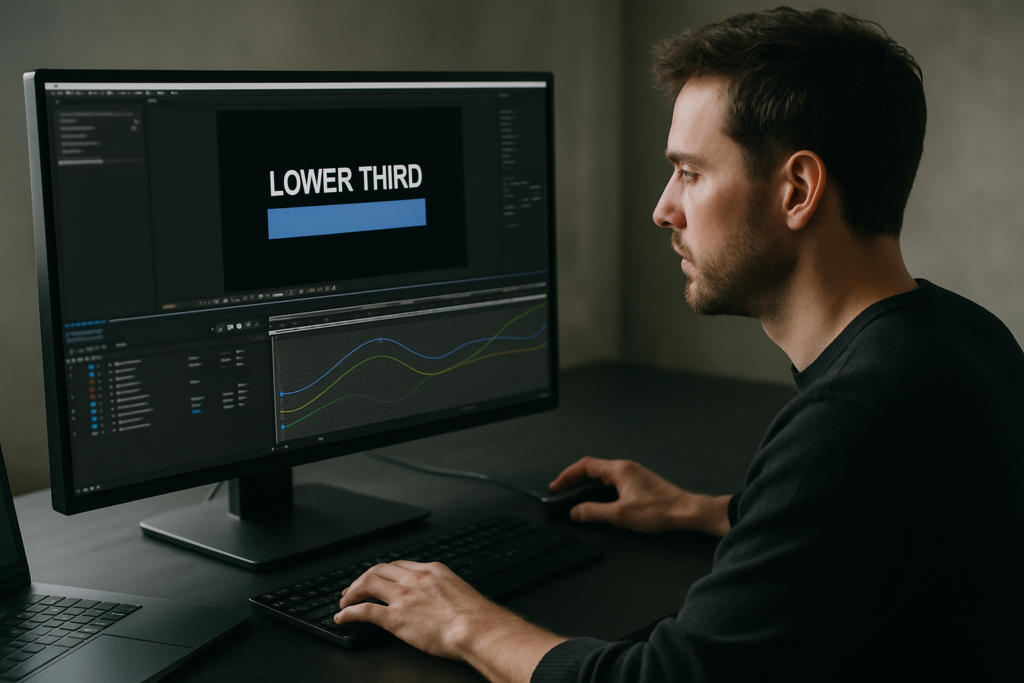
Lower thirds are small on-screen graphics that sit in the lower area of the frame and display information such as a person’s name, job title, location, or additional context. In Adobe After Effects, they are typically built as compositions with animated text, shapes, and sometimes icons or images.
Why lower thirds matter
Done well, lower thirds:
- Reinforce your visual brand with consistent typography and color.
- Help your audience quickly understand who is speaking or what they are seeing.
- Give your edit a polished, professional broadcast feel.
- Allow editors to update titles without redesigning the animation each time.
Who uses lower thirds templates
Lower thirds template customization matters for:
- Video editors who need fast, repeatable graphics for series, YouTube channels, or social content.
- Motion designers who want reusable systems instead of building from scratch for every client.
- Marketing teams who manage branded video across campaigns and platforms.
- Solo creators who want professional graphics without hiring a designer for every video.
How templates fit into After Effects workflows
Templates are pre-built After Effects projects where animation, layout, and timing are already designed. You mainly adjust:
- Text fields (names, titles, descriptions).
- Colors and fonts to match your brand.
- Timing and placement to fit different shots and formats.
Once you understand how to customize lower thirds templates in After Effects, you can reuse one design across entire series, saving hours of keyframing and layout work.
Types Of Lower Thirds Template Customization
Different styles of lower thirds
Lower thirds come in many animation and design styles. Understanding them helps you pick the right template for each edit:
- Minimal bars – simple rectangles with clean type; perfect for corporate and tutorials.
- Dynamic motion blocks – sliding and scaling shapes; ideal for YouTube, gaming, and entertainment.
- Callout-style – lines or shapes that point at on-screen elements; great for product demos.
- Lyrics and music visuals – rhythmic text animations, similar to modern lyrics widgets, suited to music videos.
Levels of lower thirds template customization
Most After Effects lower thirds templates allow multiple levels of customization:
- Basic – editing text, logo, and a few colors via control layers.
- Intermediate – adjusting timing, entrances, exits, and easing.
- Advanced – editing precomps, layout, or expressions to change behavior.
Matching templates to content types
Think of lower thirds as part of your overall visual system. Different content calls for different tones:
- Tech or finance explainers – consider clean bar or widget-based titles, similar to interface-inspired designs like subtle payment UI widgets.
- Lifestyle or vlogs – soft, playful animation with rounded shapes and overshoot.
- High-energy shorts – bold color blocks with punchy in-and-out transitions.
- Cinematic pieces – restrained motion, small type, and longer on-screen times.
Template formats and delivery
Most professional packs are delivered as After Effects project files (.aep) with:
- A main control comp for global settings.
- Individual lower third comps for different layouts (single line, two-line, social handle, etc.).
- Precomps for logos or icons.
When you approach lower thirds template customization with this structure in mind, it becomes much easier to adapt one pack to multiple projects.
Common Mistakes When Customizing Lower Thirds
Overcomplicating the design
Many editors start by changing too many elements: fonts, colors, shapes, and motion curves all at once. This quickly leads to cluttered graphics that feel disconnected from the original template.
- Limit yourself to 1–2 font families.
- Stick to a primary and secondary brand color plus neutral tones.
- Respect padding and alignment built into the original layout.
Ignoring safe margins
Lower thirds that sit too close to the frame edge feel cheap and can be cropped on some displays. Avoid:
- Placing text right against the bottom or sides.
- Scaling elements beyond what the layout supports.
Use After Effects’ title/action safe guides to keep elements comfortably inside the frame.
Messy compositions and naming
When you dive into precomps without organizing, it becomes painful to reuse graphics later. Typical issues include:
- Unnamed layers like “Shape Layer 27” or “Text 5”.
- Reused comps that overwrite each other’s content.
- Lost assets when moving projects between machines.
Rename key layers and comps as you go (e.g., “LT_Name_Text”, “LT_Background_Bar”). This makes later edits far easier.
Timing that ignores the edit
A common problem is dropping a stylish lower third over an interview and leaving its default duration. Results:
- Titles pop on too late, after the person starts speaking.
- Graphics linger awkwardly after the sentence is done.
- Animations feel disconnected from audio beats.
Always set in/out points relative to dialogue or music, not the template’s default timing.
Heavy effects and slow previews
Some templates ship with multiple blur, glow, and particle layers. If you duplicate them for many speakers, previews can crawl. Watch out for:
- Stacked glows and blurs on every lower third.
- High-resolution precomps used in small corner graphics.
- Unnecessary adjustment layers on top of each comp.
Use solo layers and disable heavy effects while you adjust text and layout, then re-enable for final checks.
Breaking expressions unintentionally
Changing layer names, deleting controllers, or moving anchor points can break expressions that drive animation. If sliders or controls stop working, you might have:
- Renamed control layers used in expressions.
- Deleted expression controls you thought were unused.
- Moved layers between comps without updating links.
To avoid this, duplicate the original comp before experimenting and keep a clean master version as a backup.
Choosing The Right Lower Thirds Approach For Each Project
Match the graphic to the platform
Different platforms and formats benefit from different lower third strategies:
- YouTube videos – You can get away with more personality: bold motion, playful easing, and creative color. Make sure text is legible on both mobile and desktop.
- Social reels and shorts – Viewers scroll fast. Use short, punchy lower thirds that appear quickly and exit cleanly, leaving space for captions and stickers.
- TV and OTT – Keep typography and color conservative. Respect broadcast-safe areas and ensure sharp readability on large screens.
- Corporate explainers – Aim for clear hierarchy and minimal distraction. The message should always beat the motion.
Deciding between custom-built and template-based
Building from scratch makes sense when:
- You need a highly specific, one-off look.
- You are developing a brand system that must be unique.
- You have enough time to design, iterate, and get approvals.
Using templates is ideal when:
- You manage a series with repeating formats and deadlines.
- You want a consistent, tested animation system you can tweak.
- You need a library of ready-to-use styles for different clients.
An Unlimited After Effects Templates Subscription lets you treat lower thirds like a toolbox: you pick styles for interviews, explainers, and promos without reinventing layouts each time, then focus your energy on timing and content.
Learning from official resources
If you are new to animated titles in general, checking out official learning material such as Adobe’s guide to lower third animations can give you a baseline before you dive deeper into more complex templates.
Choosing animation intensity
Ask yourself how much attention the lower third should attract:
- Low attention – subtle fades and slides, ideal for dense informational content.
- Medium attention – short, eased motion with light overshoot, good for most YouTube and explainers.
- High attention – fast, graphic moves best reserved for intros, highlight moments, or energetic segments.
Once you know your platform, attention level, and delivery schedule, it becomes easier to choose the right template and set expectations with your team or client.Compare subscription options
Step By Step Workflow For Customizing Lower Thirds Templates
Prep your project before importing
Before opening any template, set your environment:
- Create a new After Effects project and save it in a dedicated folder.
- Set your composition presets (resolution, frame rate, duration) to match your edit from Premiere Pro, Resolve, or your NLE.
- Organize folders for “Footage”, “Audio”, “Graphics”, and “Exports”.
Aligning project settings early avoids time spent reinterpreting footage or resizing comps later.
Check After Effects version compatibility
When you open a template, After Effects may warn you about version differences. To avoid issues:
- Confirm the template’s minimum required version in its documentation.
- Update your software if the template relies on newer features.
- Watch for deprecated effects or missing plugins.
If your machine is older or you work across teams, pick templates that rely on native tools whenever possible.
Review the template structure
Spend a few minutes just exploring:
- Look for a “Main Controls” or “Global Controls” comp.
- Identify individual lower third comps (e.g., Single Line, Two Line, Social Handle).
- Check precomps for logos, icons, or background elements.
This quick map of the project lets you customize confidently without breaking core logic.
Use control layers for global changes
Most modern lower thirds packs include dedicated control layers with color and typography settings. Typical controls:
- Primary and secondary colors.
- Background opacity and blur strength.
- Corner radius, stroke width, or shadow intensity.
Change these controls first. That way, all lower thirds in the pack update consistently, and you avoid editing dozens of comps individually.
Edit text safely
When you change names and titles:
- Edit only text layers clearly labeled for content (e.g., “Name_Text”, “Title_Text”).
- Avoid renaming layers referenced by expressions unless you know how they are linked.
- Use paragraph and character panels to adjust tracking or line breaks instead of manually scaling text.
Keep an eye on how long names wrap. If a name is too long, slightly increase box width or adjust font size rather than cramming text.
Adjust timing to match your edit
Lower thirds should feel tied to dialogue and music:
- Trim layer in/out points so the lower third appears just before the speaker is introduced and exits shortly after.
- Use markers on your timeline to plan where titles should appear.
- If the default animation is too slow or fast, consider precomposing time-remapped versions so you can reuse them.
For music-heavy content such as sequences inspired by beat-synced animations, line up key moments with beats or lyric changes.
Organize keyframes and precomps
Good templates usually have clean keyframes and precomps. To keep them that way:
- Do not scatter extra keyframes on every layer; use existing animation curves where possible.
- When you need a variation, duplicate the comp and rename it (e.g., “LT_Name_Variant01”).
- Use shy layers to hide helper layers you dont need to see frequently.
This keeps the template re-usable for future projects rather than turning into a one-off mess.
Manage performance while working
Lower thirds are relatively lightweight, but multiple copies in 4K timelines can still slow previews. Optimize by:
- Lowering preview resolution (Half or Third) while editing text and timing.
- Disabling motion blur and heavy effects during layout tweaks.
- Using region of interest around the lower third area when adjusting details.
For more complex layouts, similar to widget-based HUDs like interface map overlays, performance settings matter even more.
Check for plugin dependencies
Some templates rely on third-party plugins (e.g., glitch, particles). When you open the project:
- Note any “missing effect” warnings and decide if you can replace them with native effects.
- Consider baking complex plugin-heavy comps into prerendered clips if you need to share the project with others.
- If a plugin adds only subtle flair, you might disable it altogether for speed.
Customize colors and typography systematically
Instead of random color tweaks, define a mini brand guide for the project:
- Choose 1–2 brand colors plus a neutral (white/gray) for text.
- Set consistent font sizes for names and titles across all lower thirds.
- Confirm legibility against your footage; add subtle backgrounds behind text when needed.
Apply this system across your entire series so your lower thirds feel like one family, not a mix of unrelated graphics.
Adapt for multiple use cases
Lower thirds templates can serve more than interviews:
- Reels and shorts – Use shorter durations and bolder contrast so titles read fast.
- Product promos – Turn name fields into feature highlights or pricing callouts.
- Cinematic edits – Reduce motion intensity, use lighter fonts, and keep text smaller.
- Educational content – Repurpose templates as chapter headers or topic labels.
Once you trust your workflow, you can treat lower thirds as a modular toolkit that supports any format you edit.
Advanced Techniques For Consistent Lower Thirds Across Projects
Build reusable animation systems
Instead of treating each lower third as a one-off, think in systems. Create master comps for:
- Primary speaker lower third.
- Secondary or guest lower third.
- Location or topic labels.
Each master should share easing, color system, and general motion style. When you need variations, duplicate and adjust contents only.
Use styleframes before animating
Before you commit to motion, create static styleframes in After Effects or your design tool:
- Block out where names, titles, and logos sit on the frame.
- Test combinations over representative footage: bright, dark, and busy backgrounds.
- Share stills for approval with clients or teammates.
Once layouts are approved, animation and template tweaks have a clear direction, saving time later.
Keep projects modular and lightweight
A modular project is easier to maintain over months:
- Store all lower thirds comps in a dedicated folder.
- Use precomps for repeating elements like backgrounds, brand bars, or icons.
- Avoid nesting too many layers deep; two or three levels is usually enough.
If you plan ongoing content, this modular approach is similar to how interface-style widgets are structured in reusable projects like video platform widgets.
Quality control checklist
Before exporting any final edit, run through a quick QC pass:
- Check spelling and capitalization on every name and title.
- Verify that colors match your brand guidelines.
- Confirm consistent timing of in/out animations across episodes.
- Scan for any overlapping or cropped lower thirds due to aspect ratio changes.
Watch your edit once with sound off, focusing only on graphics timing and legibility.
Export and render considerations
Lower thirds rarely cause issues on their own, but poor export settings can soften text or introduce artifacts:
- Use a high-quality mezzanine codec (e.g., ProRes, DNx) when sending graphics to your NLE.
- Enable “Use Maximum Render Quality” if scaling occurs between comps and sequences.
- Avoid heavy color compression for text-heavy content when possible.
If you use dynamic linking to an NLE, be mindful that complex comps can slow down timeline playback; prerender final lower third sequences if needed.
Long-term template management
Over time, you will collect many templates, including interface-inspired or brand-like packs such as location pickup graphics. To keep them usable:
- Organize folders by category (Lower Thirds, Titles, Overlays, Widgets).
- Keep a notes file with version compatibility and plugin requirements.
- Create a few “go-to” combinations that you know render fast and look on-brand.
Having a structured library means you can quickly respond to new projects without redesigning your entire graphics system every time.
Long Tail Questions About Lower Thirds Templates
How long should a lower third stay on screen
For interviews, 3–6 seconds is usually enough for viewers to read both name and title without rushing. On fast-paced shorts, aim closer to 2–4 seconds with bolder typography.
Can I use the same lower third for vertical and horizontal formats
Yes, but test both orientations. For vertical content, keep graphics narrower and slightly higher above the bottom edge to avoid overlapping platform UI and captions.
How do I avoid lower thirds covering important visual elements
Before placing graphics, scrub your footage and mark sections where the action happens near the bottom third. You can:
- Shift the lower third slightly left or right.
- Reduce bar height or background opacity.
- Use an alternate layout designed for tighter framing.
What if I need different languages
When localizing, plan for text expansion. Some languages need more characters for the same message. Leave extra padding, and use fonts that support full character sets for all languages in your project.
How do I make lower thirds match existing brand guidelines
Start by translating your brand manual into motion rules:
- Set exact hex values for primary and accent colors.
- Specify heading and body fonts that match your documents or website.
- Define simple animation rules (e.g., “always slide from left”, “200ms fade out”).
Then apply these as global controls throughout your template.
Are lower thirds templates useful for non-interview content
Absolutely. You can repurpose them for chapter markers, quick tips, product specs, or even lyric lines in music edits similar to animated lyric layouts. The key is to keep timing and hierarchy clear.
Bringing It All Together For Faster, Cleaner Lower Thirds
Recap the core workflow
When you know how to customize lower thirds templates in After Effects, you turn a pre-built project into a flexible graphics system. Start by understanding the template structure, then adjust global controls, typography, and color to match your brand. From there, dial in timing to fit dialogue and music, and keep everything organized for future reuse.
Focus on speed and consistency
Editors and motion designers benefit most when lower thirds feel invisible to manage. A clear naming convention, lightweight comps, and a few trusted template styles let you deliver professional titles across full series, campaigns, and platforms without rebuilding animations for every new video.
Next steps for your own projects
Pick one current or upcoming edit and standardize its lower thirds: define brand rules, choose one or two template styles, and build a mini system you can reuse. With each project, your library grows, and your workflow gets faster, while your visuals stay consistent and professional.
Conclusions
Lower thirds work best when they are systematic: clear typography, consistent motion, and a simple, repeatable workflow. By understanding how templates are built, organizing your comps, and aligning animation with your story, you can produce polished titles for any platform while keeping projects fast, maintainable, and ready for the next edit.
FAQ
How do I change colors in a lower thirds template without breaking it
Look for a control or settings comp with color controls. Adjust colors there so changes propagate globally, instead of editing individual layers.
What if my font is different from the template font
You can swap fonts via the Character panel. After changing, check line breaks, text box sizes, and overshoot to ensure nothing clips or reflows awkwardly.
How can I reuse the same lower third across multiple videos
Create a master project with cleanly named lower third comps. Duplicate and update text per video, then import those comps or renders into your edits.
Do I need plugins for professional lower thirds
Not necessarily. Many high quality templates are built entirely with native tools. Plugins are optional for stylistic effects like glows or particles.
Why do my lower thirds look soft after export
Softness often comes from heavy compression or scaling. Export with a higher bitrate or mezzanine codec and avoid unnecessary rescaling between comps and timelines.
Can I adapt one lower third template for multiple brands
Yes. Create separate control versions for each brand with unique colors and fonts, while keeping the same core animation to speed up production.