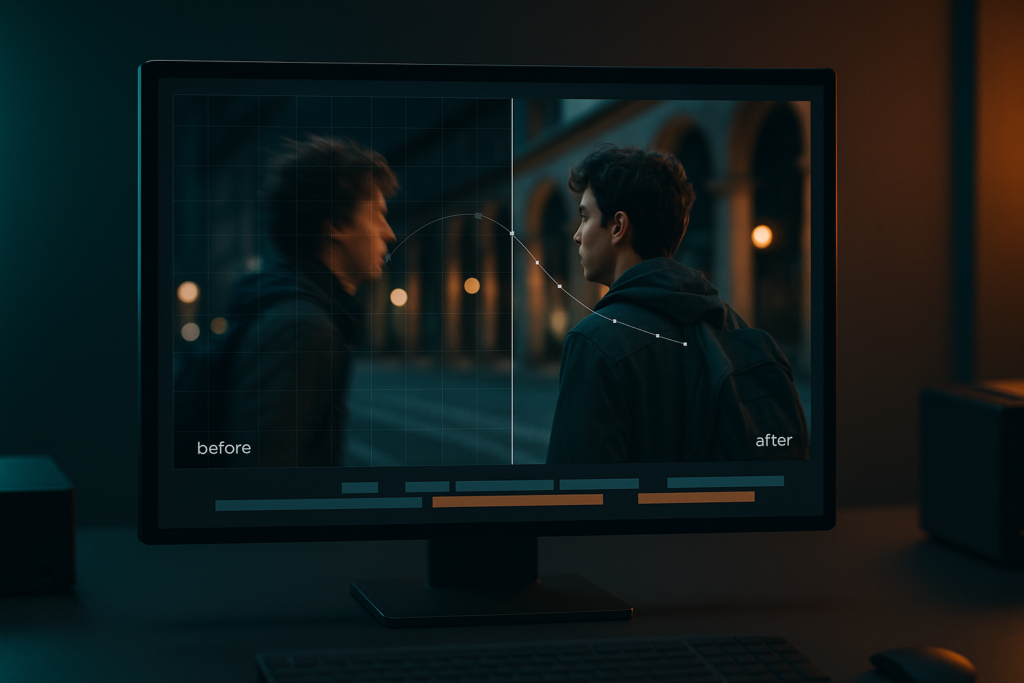
To stabilize shaky footage in After Effects, you’ll typically apply Warp Stabilizer VFX to your clip, let it analyze motion, and then tune a handful of settings (like Result, Smoothness, and Method) until the shot feels steady without looking rubbery or overly zoomed. That’s the direct answer-and it works surprisingly often. The rest of the job is knowing when Warp Stabilizer will shine, when it will struggle, and how to prepare, refine, troubleshoot, and export so your final video looks intentional rather than “fixed in post.”
Stabilization is a balancing act: you’re trading some combination of crop, scale, and potential distortion to remove unwanted camera movement. After Effects gives you both an excellent one-click-ish stabilizer and the deeper manual tools to take control when automation gets a little too confident. Below is a practical, in-depth guide you can follow shot by shot.
Explore After Effects motion design examples
📋 Table of Contents
What is shaky footage and why stabilize it?
“Shaky footage” is any shot where the camera motion distracts from the subject. Sometimes it’s obvious-handheld jitter that makes the frame buzz. Other times it’s subtle-micro-vibrations from walking, wind, a long lens, or a car mount. The key is that the movement doesn’t feel like a creative choice. Stabilization is the process of smoothing or removing that movement so the shot reads as deliberate.
Importantly, stabilization isn’t about making everything look like it was shot on a tripod. Plenty of handheld work is beautiful. The goal is to remove the kind of motion that feels accidental: the twitch at the start of a pan, the little “bounce” while walking, the tremor on a telephoto close-up, or the rolling wobble from a wide-angle action cam.
Common causes of shaky footage
Shakiness has many parents, and they all show up differently in the image. Handheld jitter is the classic: tiny, high-frequency movements from your hands and body. Walking introduces a rhythmic vertical bob. A long focal length amplifies every tremor, making even a gentle breath look like an earthquake. And if you’ve ever shot in the cold, you know your muscles can add their own special brand of vibration.
Then there are mechanical and environmental causes. Wind can nudge a tripod or gimbal. A suction mount on a car can transmit road texture into the camera. Cheap tripods flex. Even internal stabilization systems can create strange artifacts if they fight your movement or hit their limits, especially on wide lenses with rolling shutter.
Finally, there’s “operator intention” that doesn’t quite land. A pan that starts too abruptly. A tilt that overshoots and corrects. A handheld shot that tries to be locked-off but can’t quite commit. These are the moments stabilization can rescue-if you treat it like craft, not magic.
Effects of shaky footage on video quality
Shaky footage doesn’t just look messy; it changes how viewers feel. Excessive jitter can create discomfort, fatigue, or motion sickness-particularly on large screens. It can also make your footage seem lower quality, even if it’s technically sharp and well exposed. Humans are extremely sensitive to camera motion because our brains interpret it as “where we are.” If the camera feels out of control, the audience feels ungrounded.
Shakiness also complicates editing. Cuts become harder to match. Motion continuity breaks. Text, graphics, and VFX elements become harder to track. And if you’re planning to reframe, punch in, or add stabilization later, you may discover you don’t have enough resolution headroom to do it cleanly.
In short: shaky footage can turn a strong shot into a “maybe we don’t use it” shot. Stabilization is often the difference between a clip that gets cut and a clip that carries the scene.
Benefits of stabilizing footage in After Effects
After Effects is particularly good for stabilization because it’s built around analysis, transformation, and compositing. You’re not just stabilizing; you’re also in an environment where you can pre-process the clip (denoise, reduce flicker, correct lens distortion), stabilize, then post-process (reframe, add grain, composite, add motion blur) in a controlled pipeline.
Another benefit is precision. When Warp Stabilizer is enough, it’s fast. When it isn’t, After Effects gives you motion tracking, keyframes, expressions, and layer-based control to stabilize only what you want-like smoothing a background while keeping a subject’s natural movement.
And because After Effects integrates neatly with other Adobe tools, you can round-trip shots from Premiere Pro, stabilize hero moments in AE, and bring them back into an edit without rebuilding your entire workflow.
What tools does After Effects provide for stabilizing shaky footage?
After Effects offers stabilization through a combination of automated effects and manual techniques. The headline tool is Warp Stabilizer VFX, but the deeper toolkit includes motion tracking, point/planar tracking workflows, and old-school transform-based stabilization using keyframes. Think of Warp Stabilizer as the power tool, and manual stabilization as the hand tool you reach for when the power tool starts chewing the wood.
In real projects, you’ll often use both: Warp Stabilizer for a strong first pass, then manual tweaks to address framing, drift, or artifacts.
Overview of Warp Stabilizer VFX
Warp Stabilizer VFX analyzes motion across the frame and applies a stabilization transform to reduce it. It doesn’t just track one point; it evaluates many areas (depending on settings) and builds a model of how the camera moved. Then it compensates by moving, scaling, rotating, and sometimes warping parts of the image to counteract that motion.
It’s excellent for handheld shots, walking shots, and minor bumps-especially when the scene has enough texture and stable detail to track. It can also handle some complex motion, but it has limits: heavy motion blur, low contrast, repeating patterns, fast whip pans, and rolling shutter can all confuse the analysis or produce “jello” distortion.
Warp Stabilizer is also opinionated: it will crop and scale your image to hide edges, and it may introduce subtle warping to maintain a steady frame. The art is choosing settings that serve the shot’s intent rather than chasing “perfectly still” at any cost.
Difference between Warp Stabilizer and other plugins
Warp Stabilizer is built-in, widely trusted, and tightly integrated into After Effects’ rendering pipeline. Third-party stabilizers and dedicated apps may offer different motion models, better rolling-shutter compensation, or smarter horizon locking. Some tools focus on gyro data from action cameras; others provide more control over the stabilization path.
The practical difference usually comes down to three things:
- Control vs. convenience: Warp Stabilizer is quick and good, but sometimes less transparent than specialized tools.
- Artifact handling: Some plugins manage distortion and edge filling differently, which can matter on wide lenses or fast movement.
- Workflow: If you need to stabilize dozens of clips rapidly, you might prefer a tool inside your NLE; if you need a few shots perfected, AE’s depth is hard to beat.
That said, for many editors and motion designers, Warp Stabilizer is the default for a reason: it’s available everywhere After Effects is, it’s fast to iterate, and it’s “good enough” often enough to be a hero.
How to prepare footage before stabilization in After Effects
Stabilization works best when you feed it footage that’s easy to analyze and consistent in timing and framing. Preparation is less glamorous than clicking an effect, but it’s where you win: you reduce the chance of weird warps, avoid unnecessary reprocessing, and make sure the stabilized shot fits your final delivery.
Before you stabilize, decide what “stable” means for this shot. Do you want tripod-like stillness? A gentle handheld float? A locked horizon? A smoother pan? Your answer changes the settings you’ll choose and the compromises you’ll accept.
Organizing clips and sequence preparation
Start by importing your footage and placing it in a composition that matches your intended output (frame size, frame rate, and duration). If you’re stabilizing for a 1080p timeline but you shot 4K, keep the comp at your delivery resolution and scale the footage down-this gives you extra pixel “padding” for stabilization crops.
Trim the layer to the portion you actually need. Warp Stabilizer analyzes the whole visible duration of the layer; if you only need a 6-second segment from a 45-second clip, split or trim first. This saves time and can improve results because the analysis focuses on one type of motion rather than multiple camera moves stitched together.
If your shot includes multiple distinct moves (for example: a pan, then a pause, then a push-in), consider splitting it into separate layers and stabilizing each segment differently. Stabilization is not one-size-fits-all; a setting that’s perfect for the pan can look wrong on the pause.
Evaluating footage for stabilization suitability
Not every shaky shot is a good candidate for stabilization. Look for these red flags:
- Extreme motion blur: If detail smears across frames, the tracker has less to grab.
- Low light noise: Noise can look like texture and confuse analysis, causing jittery corrections.
- Fast whip pans: The motion may be too large and too quick for pleasing stabilization without heavy crop.
- Foreground occlusions: People walking across frame can disrupt tracking if they dominate the image.
- Rolling shutter wobble: Especially on phones and small sensors, vertical lines may bend during motion.
Also consider what’s in frame. Warp Stabilizer loves textured surfaces, architecture, and consistent backgrounds. It struggles with water, smoke, bokeh-heavy shots, and repeating patterns (like blinds or fences) where the motion model can “slip.”
Finally, ask the editorial question: do you have enough framing room? Stabilization often requires scaling up. If your subject is already tight in frame, you may not have the pixels to spare without making the shot feel cramped or soft.
Pre-stabilization correction techniques
A few quick fixes before stabilization can dramatically improve results. If the footage is very noisy, apply light denoising first (even a modest temporal denoise in your workflow) so the stabilizer tracks real features rather than dancing grain. If the shot has lens distortion (especially wide-angle), consider correcting it before stabilizing; straight lines that bow can encourage warping artifacts.
If there’s flicker or exposure pumping, correct it early. Rapid brightness changes can reduce tracking consistency because the “features” the stabilizer uses may change appearance frame to frame. Similarly, if the shot has heavy chromatic aberration or softness, mild correction can help-but don’t over-sharpen, because it can create crunchy edges that shimmer.
One more practical move: if your clip has a big bump at the beginning (the classic “I pressed record and then settled”), trim it off. Stabilizers can handle bumps, but you’ll often get a cleaner result by removing the worst frames rather than asking software to perform miracles on them.
How to apply Warp Stabilizer for shaky footage
Applying Warp Stabilizer is straightforward, but getting a professional result is about choosing the right settings for the shot’s intent. Think of the default settings as a starting point, not a verdict.
Also note: Warp Stabilizer analyzes in the background, but it’s still doing real work. Make sure you let it finish analyzing before judging the result. Half-analyzed stabilization is like half-baked bread: technically edible, emotionally disappointing.
Step-by-step process to apply Warp Stabilizer
- Place your clip in a composition at your desired frame rate and resolution.
- Select the footage layer in the timeline.
- Apply Warp Stabilizer VFX via Effect > Distort > Warp Stabilizer VFX.
- Wait for analysis. You’ll see “Analyzing in background” and then “Stabilizing.” Let it complete.
- Preview the result with RAM preview. Watch the entire stabilized section, not just the first second.
- Tune settings based on what you see: too floaty, too cropped, warping, or still jittery.
- If needed, pre-compose the stabilized layer (or the source) to isolate effects and keep your comp clean.
Workflow tip: if you plan to add effects like speed ramps or time remapping, do those decisions carefully. Warp Stabilizer generally prefers stable timing; if you time-remap after stabilizing, you may change motion cadence and reveal artifacts. If you time-remap before stabilizing, you may force reanalysis. Test both approaches on a short segment to see which behaves better for your shot.
Adjusting Warp Stabilizer parameters for best results
These are the settings you’ll touch most often:
- Result (Smooth Motion vs. No Motion)
-
Smooth Motion keeps some natural movement but reduces jitter-great for handheld shots you want to feel alive. No Motion aims for a locked-off look-useful for shots that should feel tripod-stable, but it can increase cropping and warping.
- Smoothness
-
This controls how aggressively the motion is smoothed. Higher values often mean more crop/scale and more potential distortion. If the shot starts looking like it’s floating on a gimbal in space, lower Smoothness. If you still see micro-jitter, raise it gradually.
- Method (Position, Position/Scale/Rotation, Perspective, Subspace Warp)
-
Position is the simplest and often the cleanest-less distortion, but less stabilization power. Position/Scale/Rotation is a strong general choice. Perspective can help when the camera shifts angle relative to the scene. Subspace Warp is the most powerful and the most likely to create “rubber” artifacts on complex motion.
If you see bending lines, wobbling faces, or a gelatin-like frame, try stepping down from Subspace Warp to Perspective or Position/Scale/Rotation.
- Framing (Stabilize, Crop, Auto-scale)
-
Most of the time you’ll use Stabilize, Crop, Auto-scale. It hides edges by scaling up. If the auto-scale is too aggressive, you can switch to Stabilize Only to inspect what’s happening at the borders, then decide how to handle edges manually.
- Auto-scale
-
This is the zoom amount used to hide edges. If it’s zooming in too far, lower Smoothness, choose a simpler Method, or accept some edge handling (like a subtle crop, reframing, or filling) instead of massive scale.
A practical tuning approach is to start with Smooth Motion, a modest Smoothness (often 5-20 depending on the shot), and Position/Scale/Rotation. Only escalate to Perspective or Subspace Warp if you need it. The simplest method that solves the problem usually looks the most natural.
If the shot is a pan, consider that a perfectly stabilized pan can feel wrong-it can “stick” and then drift. Sometimes the best result is a slightly smoothed pan rather than a locked frame.
Interpreting stabilization results and troubleshooting
When you preview, look for three categories of issues:
- Residual jitter: small shakes remain, often due to noise, motion blur, or insufficient Smoothness.
- Over-stabilization: the shot feels floaty, robotic, or like the camera is magnetized to the center.
- Distortion artifacts: bending lines, wobbling edges, or “rubber sheet” warps.
If you see residual jitter, try increasing Smoothness slightly, switching Method up one notch (Position → Position/Scale/Rotation), or pre-denoising. If the shot is over-stabilized, reduce Smoothness, choose Smooth Motion instead of No Motion, or simplify Method.
If you see distortion, simplify Method (Subspace Warp → Perspective → Position/Scale/Rotation → Position). Distortion is often the stabilizer trying too hard to reconcile parallax, moving subjects, or rolling shutter. Less “intelligence” can look more believable.
And if the analysis seems wrong-like the frame drifts oddly-try trimming the clip, removing frames with occlusions, or splitting the shot into segments. Warp Stabilizer is very good at stabilizing one kind of motion at a time; it’s less happy when the shot changes its mind mid-sentence.
How to refine stabilization manually in After Effects
Sometimes Warp Stabilizer gets you 80-90% there, but the last 10% matters. Manual refinement is where you stop asking the software to guess your intent and start telling it what you want. This is especially useful for shots with parallax, foreground movement, or when you want to stabilize the background but keep a subject’s natural handheld energy.
Manual stabilization can also be more predictable: instead of warping the image, you can stabilize using position/rotation adjustments based on a tracked point. The result may be less “perfect,” but it often looks more cinematic because it preserves real camera physics.
Using motion tracking for advanced control
A classic manual approach is to track a stable feature in the shot (like a corner of a building, a sign, or a high-contrast detail), then apply the inverse of that motion to the layer. In After Effects, you can use the built-in tracker to generate tracking data and apply it to a Null object.
A common workflow looks like this:
- Track Motion on the layer and choose Position (and Rotation if needed).
- Choose a high-contrast feature that stays visible for most of the shot.
- Analyze forward and correct any slips (manual adjustments during tracking can save the whole shot).
- Apply the track to a Null Object.
- Parent the footage to the Null, then invert the Null’s motion (or use expressions) to counteract the shake.
Why go through this? Because you can decide exactly what “stable” means: maybe you only want to remove vertical bounce but keep horizontal drift. Or you want to lock the horizon but allow a gentle push-in. Manual tracking lets you sculpt the motion rather than erase it.
For difficult shots, consider tracking multiple points and averaging motion, or tracking a background plane rather than a moving subject. The more your track represents camera motion (not object motion), the better the stabilization will feel.
Adjusting position, scale, and rotation keyframes
Even without a full tracking workflow, you can refine stabilization by keyframing Transform properties. This is especially effective for short “problem moments”: a bump during a pan, a single step that jolts the frame, or a micro-wobble at the end of a move.
One approach is to stabilize broadly with Warp Stabilizer, then add a subtle manual correction layer on top:
- Pre-compose the stabilized clip.
- On the precomp layer, keyframe Position and Rotation to correct any remaining drift.
- Use the Graph Editor to smooth abrupt changes-stabilization should feel like easing, not snapping.
Another approach is the opposite: do a gentle manual stabilization first (remove the worst bumps), then run Warp Stabilizer with lower Smoothness. This can reduce the amount of aggressive warping Warp Stabilizer feels it must apply.
When adjusting keyframes, watch for “boiling” edges-tiny changes that cause the frame to shimmer. Fewer keyframes with smoother curves often look better than many tiny corrections.
Correcting edge artifacts after stabilization
Stabilization almost always creates edge problems: black borders, transparent gaps, or corners that peek in during strong movement. Auto-scale hides most of this, but sometimes the cure (a big zoom) is worse than the disease.
Here are common edge-fix strategies in After Effects:
- Manual reframing: Keep the stabilized result but adjust Position/Scale to minimize how much you zoom.
- Scale with intention: If you must zoom, consider matching it with a subtle creative push-in so it feels motivated.
- Edge fill via duplicate layer: Duplicate the stabilized layer, place it underneath, scale it up more, blur it slightly, and use it as a soft “background” to hide edges. This is popular because it’s fast and often invisible in motion.
- Content-aware fill (selectively): For some shots, you can patch small edge gaps, though results vary depending on texture and movement.
Also consider aspect ratio choices. If your delivery allows a slightly tighter crop (for example, stabilizing for a vertical cut from a horizontal master), you can use that reframing flexibility to hide edges without excessive scaling.
What are common issues with stabilizing footage and how to fix them?
Stabilization problems tend to fall into a few repeating patterns. The good news is that once you can name the issue-warping, cropping, failure to analyze-you can usually fix it with a small set of moves: simplify the motion model, improve trackability, or change how edges are handled.
Below are the most frequent headaches and the most reliable cures.
Handling warping and distortion
Warping looks like the image is made of flexible plastic: straight lines bend, faces subtly deform, and the background can ripple as the stabilizer tries to reconcile parallax. This often happens when:
- The shot has strong parallax (foreground and background moving differently).
- The camera is close to objects, exaggerating depth changes.
- Rolling shutter causes skew that the stabilizer interprets as motion.
- There are large moving subjects that dominate the frame.
Fixes to try, in order:
- Change Method to a simpler model (Subspace Warp → Perspective → Position/Scale/Rotation → Position).
- Lower Smoothness. Over-smoothing can force the algorithm into more extreme warps.
- Stabilize a precomp with a masked region (advanced): sometimes isolating the background (or excluding a moving subject) can help, though it requires careful compositing.
- Use manual tracking stabilization to avoid warping entirely.
If the shot includes people, be extra cautious with Subspace Warp. Viewers forgive a slightly shaky background more than they forgive a subtly melting face.
Dealing with cropping and zoom effects
Stabilization needs room to move the frame around, which means it needs extra pixels beyond your final crop. When you don’t have that room, the stabilizer zooms in. Too much zoom can make the shot feel claustrophobic, and if your source resolution is limited, it can soften detail.
To reduce excessive zoom:
- Lower Smoothness until the auto-scale becomes reasonable.
- Trim the worst bumps at the start/end that force large compensation.
- Split the shot and stabilize segments separately to avoid one big move dictating the crop for the whole clip.
- Use a simpler Method so the stabilizer doesn’t “fight” complex motion with big corrections.
- Work from higher resolution source when possible (4K→1080p gives you a lot of breathing room).
If you must accept zoom, make it feel like a choice. Add a subtle film grain after scaling, match sharpness to surrounding shots, and consider adding a gentle camera move (like a slow push) so the stabilized shot doesn’t stand out as “the one that got fixed.”
Managing stabilization failures and reprocessing
Sometimes Warp Stabilizer fails outright: analysis gets stuck, the result jitters wildly, or the motion seems to “snap” unpredictably. When that happens, treat it like debugging rather than despair.
Reliable reset steps:
- Clear the effect and reapply. It sounds basic, but it forces a clean reanalysis.
- Trim the layer to the needed section and stabilize only that.
- Precompose the clip (move all attributes) and apply Warp Stabilizer to the precomp layer.
- Reduce complexity: choose a simpler Method and lower Smoothness.
- Improve trackability: denoise, reduce flicker, increase contrast slightly (carefully), or correct lens distortion.
If you’re working with variable frame rate footage (common from phones), consider transcoding to a constant frame rate before bringing it into After Effects. Variable frame rate can cause timing inconsistencies that make motion analysis less predictable.
Finally, remember that stabilization is not always the right fix. If a shot is fundamentally chaotic, you may get a better result by embracing it: cut faster, use it briefly, add motion blur, or treat it as an intentional handheld moment.
How to optimize After Effects for faster stabilization
Stabilization can be computationally expensive, especially on long clips, high-resolution footage, or when you’re stacking effects. Speed matters because stabilization is iterative-you rarely nail it on the first try. A faster workflow means you can experiment more, and experimentation is where the best results come from.
Optimization is about reducing the amount of data After Effects must process while you’re making decisions, then returning to full quality for final renders.
Using proxies and lower resolution settings
Proxies are your friend. Create a proxy at a lower resolution or lighter codec, stabilize using that for quicker analysis and previews, then switch back to full-res for final output. Even when you return to full-res, you’ll have a better sense of the settings you want, so you’ll do fewer full-quality reanalyses.
Also use viewer resolution controls. While Warp Stabilizer analysis is not the same as preview resolution, keeping your previews at Half or Quarter can make it easier to iterate quickly. Consider working in a dedicated stabilization comp where you keep the pipeline minimal: footage → prep corrections → stabilization → output. Save the heavy color grade and effects for later comps when the motion is locked.
If you’re stabilizing multiple shots from the same camera setup, standardize your approach: similar Smoothness ranges, similar Methods, and consistent pre-processing. Consistency reduces the “try everything” loop that eats time.
Hardware acceleration tips
After Effects performance depends on CPU, RAM, disk speed, and GPU (for certain accelerated features). To keep stabilization moving:
- Close unnecessary apps so AE has RAM and CPU headroom.
- Use fast storage (SSD/NVMe) for cache and media when possible.
- Enable hardware acceleration where applicable in AE preferences, and keep GPU drivers up to date.
- Prefer optimized codecs for editing/VFX (intraframe codecs are often smoother than highly compressed long-GOP footage).
If your footage is H.264/H.265 from a phone or mirrorless camera, transcoding to an editing-friendly intermediate codec can make the entire After Effects experience less sluggish-not just stabilization.
And yes, it’s boring advice. It’s also the difference between “I can try five settings in ten minutes” and “I can try one setting and then stare into the middle distance while it caches.”
Effective cache management
After Effects relies heavily on disk cache for previews. If your cache is too small or on a slow drive, you’ll constantly re-render previews and lose time. Set your disk cache to a fast drive and give it enough space to breathe-especially when working with high-resolution footage.
When stabilization results seem inconsistent or previews don’t match what you expect, clearing cache can help. But do it strategically: clearing everything too often can slow you down. A good rhythm is to clear cache when you’ve made major pipeline changes (like switching proxies, changing interpretation settings, or altering time remapping) and you suspect old frames are hanging around.
Also, keep project organization tidy. Multiple versions of stabilized comps, duplicated layers, and nested precomps can become a spaghetti bowl that makes caching less predictable. Name stabilized comps clearly (for example: Shot_12A_stab_v03) so you know what you’re previewing and rendering.
Alternatives and complementary methods to After Effects for stabilizing shaky footage
After Effects is a strong stabilization environment, but it’s not the only one-and sometimes it’s not the fastest. Depending on your project, you might stabilize in your NLE for speed, use a dedicated tool for gyro-based footage, or combine multiple methods: a light stabilization in one tool, then refinement in After Effects.
Choosing the right tool is less about brand loyalty and more about what the shot needs: speed, control, or specialized correction (like rolling shutter or horizon lock).
Comparison with Adobe Premiere Pro’s stabilization tools
Premiere Pro includes Warp Stabilizer as well (with a similar concept and many similar settings). If you’re cutting an edit and need quick stabilization on many clips, Premiere can be the more efficient place to do it because you can stabilize directly on the timeline without round-tripping.
After Effects, however, tends to be the better choice when:
- You need advanced pre-processing before stabilization (denoise, lens correction, compositing).
- You want manual refinement with tracking, keyframes, and layer control.
- You’re integrating VFX, motion graphics, or screen replacements that depend on stable motion.
A practical workflow is to stabilize “utility” clips in Premiere (good enough, fast), then send only the hero/problem shots to After Effects for a more careful pass.
Third-party plugins and software options
Third-party stabilization tools can be excellent, especially for specific camera types and shooting styles. Dedicated stabilizers may offer:
- Gyro-based stabilization using metadata from action cameras or gyro logs, often producing very natural results with minimal warping.
- Better rolling shutter compensation for certain sensors.
- More explicit control over the stabilization path, horizon leveling, and edge fill.
These tools can be complementary rather than competitive. For example, you might use a gyro-based stabilizer to handle the main shake and horizon, then bring the result into After Effects for reframing, compositing, and finishing. Or you might stabilize lightly in AE and then do final micro-smoothing in another tool that excels at a particular artifact.
The key is to avoid stacking heavy stabilizers unless you have a clear reason. Multiple aggressive passes can compound cropping and introduce unnatural motion. If you do stack, keep each pass subtle and purposeful.
How to export stabilized footage from After Effects
Export is where stabilization either quietly succeeds-or betrays you with edge flickers, unexpected softness, or a tiny jitter you didn’t notice at preview resolution. The trick is to export in a way that preserves detail and motion, and to check the final render like a suspicious detective, not an optimistic artist.
Stabilized footage often involves scaling and resampling, so your export settings and codec choices matter more than usual.
Recommended export settings for quality retention
For a high-quality master, export to a visually lossless or high-bitrate intermediate format appropriate for your workflow. The exact codec depends on your platform and pipeline, but the principle is consistent: avoid overly compressed delivery codecs (like low-bitrate H.264) as your first export if you plan further editing or color work.
General best practices:
- Match the comp settings: frame rate, resolution, and pixel aspect ratio.
- Render at Maximum Depth if your pipeline benefits from it (especially with gradients and heavy grading).
- Use high-quality scaling and ensure your project’s color management is consistent with the rest of your workflow.
- Keep a master and then make smaller deliverables from the master, not the other way around.
If you must export directly to a delivery format, use a sufficiently high bitrate and consider a two-pass encode when available. Stabilization can introduce fine motion and texture that low bitrates love to smear.
Previewing and checking stabilization in final output
Before you call it done, watch the exported file at full resolution. Look specifically for:
- Edge flashes (a corner appearing for a frame during a big correction).
- Micro-jitters that only show up in real-time playback.
- Warping on straight lines (buildings, door frames) and on faces.
- Unexpected softness from scaling-especially if the shot was already cropped tightly.
Also check the shot in context. A stabilized clip can look perfect alone but feel wrong in an edit if it suddenly becomes too steady compared to surrounding handheld footage. Sometimes the right move is to reduce Smoothness so the shot matches the scene’s visual language.
If you spot issues, don’t immediately crank settings. Often the best fix is surgical: trim a few frames, split the shot, simplify the Method, or handle edges with a smarter fill rather than more zoom.
See polished After Effects animation workflow examples
Conclusion
Once you’ve stabilized a shot successfully, you’ve unlocked a second creative opportunity: intentional camera language. Stabilization isn’t just a repair tool; it’s a way to decide how the viewer should feel while watching. A barely-smoothed handheld shot can feel intimate and present. A locked-off “No Motion” frame can feel clinical, tense, or observational. A gently stabilized walking shot can feel like memory-steady enough to follow, imperfect enough to breathe.
That’s why it’s worth building a small personal playbook. Save a few Warp Stabilizer presets for common scenarios (light handheld, heavy handheld, walking, telephoto micro-jitter). Keep notes on what Method choices tend to distort faces or bend architecture in your typical footage. And if you’re shooting your own material, stabilize before you even hit record: give yourself extra framing, avoid needless whip pans, and capture a second of stillness at the head and tail of the shot. Your future self in After Effects will be grateful-and will stop muttering at the screen like it can hear you.
Stabilization is ultimately a collaboration between what happened on set and what you decide in post. After Effects gives you the tools to make that collaboration look effortless-provided you’re willing to do the one thing that separates “fixed” from “finished”: choose the version of steady that best tells the story.