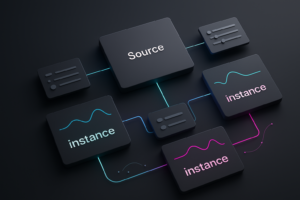

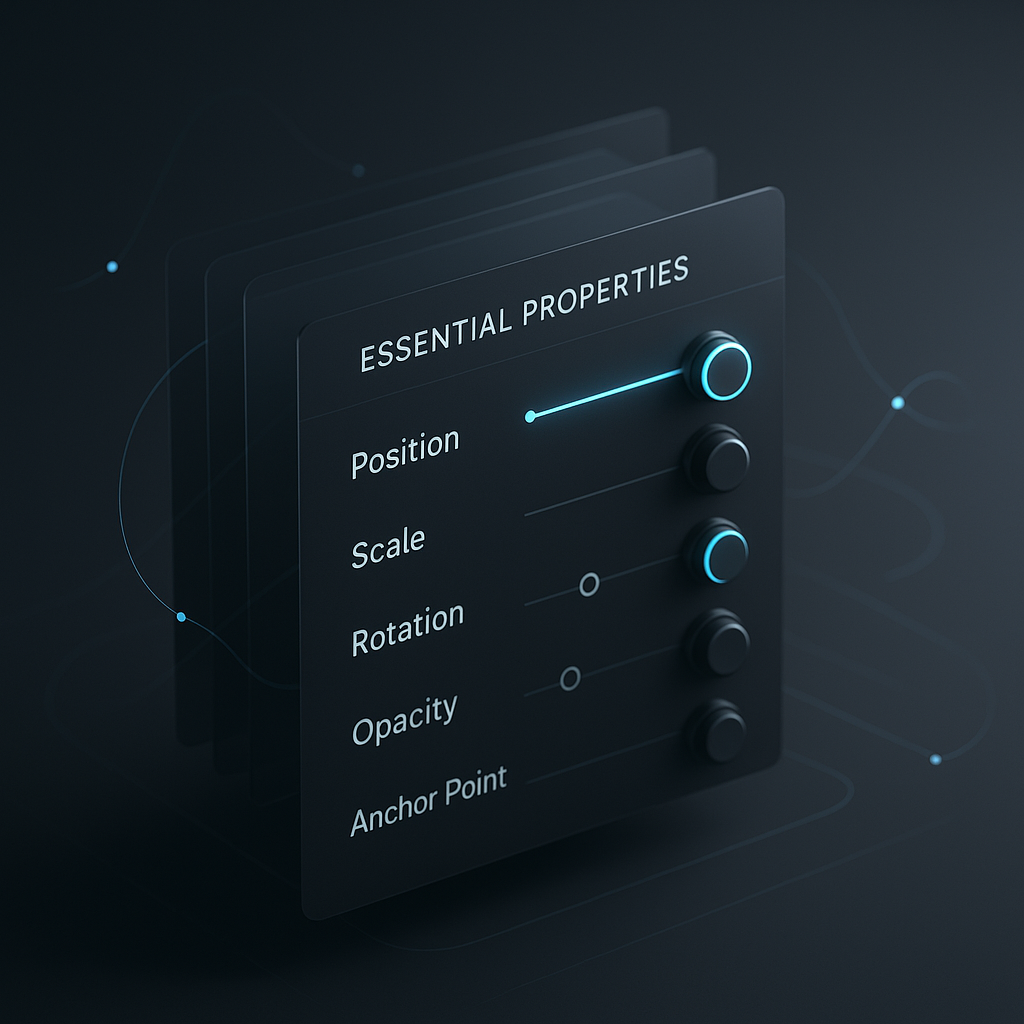
Essential Properties in After Effects are a streamlined set of controls-think the “greatest hits” of a layer-that let you keyframe and manage animation faster by surfacing only what you actually need. Instead of spelunking through a layer’s full property tree every time you want to nudge motion, you can work from a cleaner interface that keeps your focus on the attributes that matter most.
That simple idea-show less, animate more-adds up to a surprisingly big workflow win. When you’re deep in a project with dozens (or hundreds) of layers, Essential Properties become a kind of animation cockpit: fewer distractions, fewer clicks, and fewer chances to keyframe the wrong thing at 2 a.m. They’re also flexible: you can add, remove, and organize what appears there, turning a messy timeline into something closer to a curated control panel.
This article digs into what Essential Properties are, how they relate to the familiar transform controls (Position, Scale, Rotation, Opacity, Anchor Point), how they differ from effect parameters, and how to animate them with confidence. Along the way, we’ll talk about performance, expressions, plugins, and the very real “why is my anchor point doing that?” moments that every motion designer eventually meets.
📋 Table of Contents
What Are Essential Properties in After Effects?
After Effects is famously deep. Every layer can contain transforms, masks, effects, shape contents, text animators, and a small universe of toggles. Essential Properties exist to tame that depth. They “simplify the process of animating layer attributes in After Effects,” not by removing capabilities, but by giving you a focused view of the properties you’re most likely to touch.
In practice, Essential Properties are designed to provide a streamlined interface for keyframing and controlling specific layer properties. You select a layer and open the Timeline panel, and you’ll find an Essential Properties section that can display commonly used attributes for that layer type. The key benefit is psychological as much as technical: when you see fewer controls, you make decisions faster-and you’re less tempted to overcomplicate the animation just because you can.
Another underrated feature: you can add, remove, and organize properties within Essential Properties for easier workflow. That means Essential Properties aren’t a rigid preset; they’re a customizable “shortlist.” In a team setting, that shortlist can become a shared language: “Animate the Essential Opacity” is clearer than “Open the layer, twirl down Transform, and keyframe Opacity, unless it’s a precomp, in which case…” You get the idea.
Position, Scale, Rotation Explained
Let’s start with the classics. Position, Scale, and Rotation are the bread-and-butter transform attributes that define where something is, how big it is, and how it’s oriented. They’re common across most layer types (footage, solids, text, shapes), which is precisely why they tend to show up prominently in Essential Properties.
Position controls the layer’s location in comp space. It’s a two-dimensional value in 2D layers (X and Y), and becomes three-dimensional (X, Y, Z) when you enable 3D. In Essential Properties, Position is usually the first thing you want accessible because nearly every motion beat begins with “move it.” Small changes to Position can also imply weight and intention-whether something floats, snaps, drifts, or lands with authority.
Scale determines size as a percentage. It’s deceptively simple: scaling up isn’t just “bigger,” it can read as approaching the viewer, gaining importance, or building energy. Scaling down can feel like retreat, de-emphasis, or a gentle exit. In Essential Properties, having Scale close at hand encourages you to treat it as a storytelling tool rather than an afterthought.
Rotation is where personality sneaks in. A perfectly straight object is neutral; a slight tilt is a mood. Rotation can also sell physics: a swing, a wobble, a spin-down, a pendulum. When Rotation is surfaced as an Essential Property, you’re more likely to use it in subtle ways-micro-rotations during movement, a tiny overshoot on landing, or a “settle” rotation that gives the motion a human touch.
One practical note: After Effects also offers Orientation for 3D layers, which behaves differently from Rotation. Essential Properties often prioritize the most common controls, but you can curate your own list depending on whether you’re building 2D motion graphics or 3D-ish camera moves.
Watch After Effects UI animations for Essential Properties ideas
Opacity and Anchor Point Functions
Opacity and Anchor Point are the transforms people either love immediately or only appreciate after being burned by them. They’re essential in the literal sense: you can animate without them, but you’ll constantly feel like you’re missing a hand.
Opacity controls transparency from 0% (invisible) to 100% (fully visible). It’s the backbone of fades, but it’s also the secret sauce behind elegant transitions. For example, a layer can slide in while simultaneously fading from 0% to 100%, which reads smoother than motion alone. Opacity also pairs well with blur effects for depth, with blend modes for stylized composites, and with track mattes for reveals.
In Essential Properties, Opacity is a prime candidate because it’s a high-frequency control: you’ll tweak it often, sometimes in tiny increments. And because it’s easy to keyframe, it’s also easy to overuse. Having it visible reminds you to treat it intentionally: fade for a reason, not because you’re afraid of a hard cut.
Anchor Point is the pivot around which Scale and Rotation occur. If you’ve ever scaled a logo and watched it grow from an awkward corner instead of its center, you’ve met Anchor Point the hard way. Anchor Point is not the same as Position: Position moves the layer in the comp; Anchor Point moves the layer’s internal pivot relative to its own content.
Anchor Point matters for believable motion. A door rotates around its hinge, not its center. A hand swings from the wrist, not the palm. A speech bubble might scale from its tail, not its midpoint. When Anchor Point is easy to access, you’re more likely to set it correctly before animating-saving yourself from redoing keyframes later.
One more subtlety: adjusting Anchor Point can change how existing Position keyframes appear to behave, because you’re changing the internal reference point. That’s not a bug; it’s geometry. But it’s also why Anchor Point is a frequent source of “why did everything shift?” confusion-something we’ll tackle in the challenges section.
How Essential Properties Differ from Effects Properties
After Effects has two broad categories of things you animate: layer properties (like Transform and Masks) and effect properties (parameters inside applied effects like Gaussian Blur, Lumetri, Glow, or third-party plugins). Essential Properties are about curating and surfacing a set of controls so you can work faster; they don’t replace effect parameters, but they change how you approach them.
Effects properties live under the Effects section on a layer. They can be numerous, nested, and sometimes intimidating. Essential Properties, on the other hand, “show only the most commonly used attributes for a layer, making it easier to focus on essential controls.” That focus can include transform properties and, depending on your setup, selected effect controls you decide are important enough to elevate.
Another difference is intent. Effect properties often shape appearance (blur, color, distortion), while transform properties shape motion and placement. In real projects, those two worlds overlap constantly. A punchy transition might animate Position and Scale while also ramping Blur and Glow. Essential Properties help you manage that overlap by letting you keep the core controls front and center, then dive into effects when needed-rather than living permanently in a fully expanded timeline forest.
Finally, Essential Properties encourage standardization. If you’re building a template or a reusable animation system, you can decide which parameters are “safe” for users to touch. That’s a different mindset than “everything is available, good luck.” Even if you’re the only user, you’ll thank your past self for creating a consistent control surface across comps.
How to Use Essential Properties for Efficient Animation
Efficiency in After Effects isn’t just about speed; it’s about reducing cognitive load. When you’re not hunting for controls, you’re thinking about timing, spacing, and story. Essential Properties shine when you treat them as an intentional workspace rather than a default panel you occasionally glance at.
The core workflow is straightforward: you access Essential Properties by selecting a layer and opening the Timeline panel. From there, you can work with the properties that are already surfaced, and you can curate the set by adding, removing, or reordering controls. The result is a timeline that feels less like a technical manual and more like an instrument panel.
Efficiency also comes from consistency. If you decide that every animated element in a sequence should expose Position, Scale, Rotation, and Opacity in a standard order, you’ll build muscle memory. You’ll stop thinking about where things are and start thinking about how they should move.
Enabling Essential Properties in Shape Layers
Shape layers are powerful, but they can become property labyrinths. A single shape layer can contain multiple groups, paths, strokes, fills, trim paths, repeaters, and more-each with its own transform stack. Essential Properties can keep you sane by surfacing only the controls you actually animate.
To get value from Essential Properties in shape layers, start by identifying your “public controls.” For example, if you’ve built a shape-based lower third, you might animate the overall Position and Opacity of the layer, plus a Trim Paths End value, plus maybe the rectangle size. Those are the controls you want accessible without expanding ten nested groups.
In practical terms, you’ll select the shape layer in the Timeline and look for the Essential Properties section. From there, you can add relevant properties and arrange them in an order that matches your workflow: perhaps overall Transform first, then the key shape animation parameters, then any secondary tweaks. The goal is to make the shape layer feel like a neat, controllable module rather than a bowl of spaghetti.
A useful strategy is to name your shape groups clearly before you curate Essential Properties. “Group 1” is a mystery; “Underline Bar” is a promise. When you add properties to Essential Properties, those names travel with them, making your control panel readable at a glance.
Benefits of Using Essential Properties for Performance
Let’s be honest: Essential Properties won’t magically turn a heavy comp into a buttery real-time preview. If you’re running multiple 4K layers with motion blur, deep blur effects, and a few ambitious plugins, your GPU and CPU will still have opinions. But Essential Properties can improve workflow performance in a different sense: it reduces the time you spend navigating and reduces the chance of errors that lead to rework.
When fewer properties are visible and expanded, the Timeline becomes more responsive to your attention. You scroll less. You twirl down fewer menus. You set keyframes faster because the target is right there. That is performance-human performance. And in motion design, human performance is often the bottleneck.
There’s also a subtle technical angle: a cleaner timeline encourages cleaner rigs. When you build animation setups with a small, intentional set of exposed controls, you’re more likely to keep complexity behind the curtain. That can mean fewer accidental keyframes on internal properties, fewer broken relationships, and fewer “why is this value drifting?” mysteries.
For teams, Essential Properties can reduce iteration time. If a designer hands off a comp to an editor who only needs to adjust timing and a couple of parameters, a curated Essential Properties list prevents the editor from rummaging through internal controls and breaking the design system. The project becomes more robust-and robustness is a kind of performance too.
When to Animate Essential Properties vs. Expressions
Essential Properties and expressions are not rivals; they’re collaborators. The decision is less “which is better?” and more “what kind of control do I need?”
Animate Essential Properties when you want direct, editable, keyframe-based control. If the motion is bespoke-timed to music, reacting to a voiceover, or tuned to a specific edit-keyframes are usually the cleanest tool. Essential Properties make that process faster by keeping the important controls visible and organized.
Use expressions when the motion should be rule-based, procedural, or dependent on other values. If you want a bounce that always happens after a scale change, a wiggle that stays within bounds, or a system where multiple layers follow a master control, expressions reduce manual keyframing and keep behavior consistent.
A hybrid approach is often ideal: expose a small set of Essential Properties as “artist knobs” (like Amplitude, Frequency, Offset, or a master Position) and drive the rest with expressions. That way, you keep the rig smart but still editable. The person animating doesn’t need to read code; they just adjust the knobs.
As a rule of thumb: if you find yourself copying and pasting the same keyframe patterns across many layers, consider expressions. If you find yourself fighting an expression to get a specific timing nuance, consider keyframes. Essential Properties make either path easier by clarifying which values are meant to be touched.
How to Animate Essential Properties
Animating Essential Properties is not a separate discipline-it’s the same animation craft you already use in After Effects, just with a cleaner dashboard. You’re still setting keyframes, shaping motion curves, and building transitions. The difference is that Essential Properties encourage you to work on the animation’s “surface” first, without immediately diving into the engine room.
That surface-first approach is powerful. It keeps you focused on the big reads: timing, arcs, staging, and rhythm. Once those feel right, you can add detail-secondary motion, effects, texture-without losing the thread.
Keyframing Basics for Essential Properties
The mechanics are straightforward: click the stopwatch next to a property to create the first keyframe, move the playhead, change the value, and After Effects creates the next keyframe. Essential Properties don’t change this; they simply place the most relevant stopwatches within easy reach.
What does change is how you think about keyframes. When you’re only seeing the essential controls, it’s easier to animate in passes. For example:
- Pass 1: Block the motion with Position and Scale-get the timing right.
- Pass 2: Add Rotation for character and directionality.
- Pass 3: Add Opacity for entrances/exits and emphasis.
- Pass 4: Adjust Anchor Point if the pivot needs to feel physically correct.
This pass-based workflow prevents the classic beginner trap: tweaking ten properties at once and not knowing which change improved (or ruined) the motion. Essential Properties gently nudge you toward clarity.
Another practical habit: label your key moments. Even without markers, you can keep keyframes aligned by selecting them and using easy ease consistently, then refining in the Graph Editor. Essential Properties make it easier to select the right keyframes because the property list is shorter and more readable.
Using Graph Editor with Properties
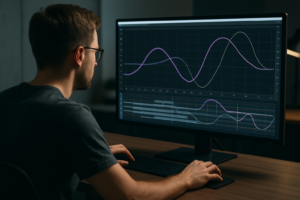
If keyframes are the notes, the Graph Editor is the music. Essential Properties don’t replace the Graph Editor; they make it more approachable because you’re typically graphing fewer things at once.
When you animate Position, Scale, or Rotation, the Graph Editor lets you shape acceleration and deceleration-how quickly motion starts, how it coasts, and how it settles. Most professional-looking motion relies on controlled easing. A linear move feels robotic unless that’s the intention; a well-shaped curve feels intentional even when the move is simple.
Two graph types matter most:
- Value Graph: Shows how the value changes over time. Great for scale pulses, opacity fades, and any motion where the “shape” of the value is the point.
- Speed Graph: Shows how fast the value changes. Great for Position moves because it helps you sculpt speed-especially for overshoots and settles.
With Essential Properties, you can select the property you’re animating and jump into the Graph Editor without hunting through nested groups. This matters because graph work is iterative: you’ll bounce between timeline and graph repeatedly. Removing even a few clicks from that loop makes you more willing to refine, which is how good motion becomes great motion.
A useful technique is to graph one property at a time. For example, refine Position speed first until it feels right, then refine Rotation to complement it. Essential Properties help you keep those edits clean and separated.
Tips for Smooth Transitions and Realistic Motion
Smooth motion isn’t about adding more keyframes; it’s about making fewer keyframes do more work. Essential Properties encourage this restraint, because you’re working with a curated set of controls rather than a sprawling list that invites tinkering.
Here are practical, repeatable tips that translate directly into better animation:
- Use “ease” with intent: Easy Ease is a starting point, not a finish line. Adjust handles in the Graph Editor so motion accelerates and decelerates in a way that matches the object’s “mass.”
- Offset properties for natural overlap: If Position and Rotation keyframes happen at exactly the same time, motion can feel stiff. Try starting Rotation a few frames after Position begins, or letting it settle a few frames later.
- Favor arcs over straight lines: Real objects rarely move in perfectly straight paths. Even a subtle arc in Position can add life. Use motion paths and adjust bezier handles.
- Add a tiny overshoot: For UI-like motion, a slight overshoot on Scale or Position can make transitions feel responsive. Keep it subtle-often 2-8% is enough.
- Let Opacity support motion, not replace it: A fade can hide problems, but it can also add polish. Pair it with movement so the transition has both spatial and visual logic.
Realism also comes from consistency. If your project uses a particular easing style-snappy, elastic, gentle-apply it across layers. Essential Properties help by keeping the same core controls visible across elements, making it easier to maintain a coherent motion language.
Finally, remember that Anchor Point is part of realism. A rotation that pivots from the wrong place reads as “graphic” rather than “physical.” Sometimes that’s fine; sometimes it breaks the illusion. Keep Anchor Point accessible so you can fix pivots early.
How Essential Properties Integrate with Effects and Plugins
After Effects projects rarely rely on transforms alone. Effects provide texture, depth, stylization, and problem-solving (stabilization, keying, color). Essential Properties don’t live in a separate universe; they sit alongside effects and can be animated in concert with them.
The key is choreography. Transform properties often define the “where” and “when,” while effects define the “how it feels.” A title might slide in (Position), pop slightly (Scale), and sharpen from blur (effect parameter). When those animations are coordinated, the result feels designed rather than assembled.
Animating Properties of Effects Alongside Essential Properties
Many transitions are really a duet between transforms and effects. Consider a common example: a layer moves into place while a blur decreases to zero. If the blur resolves too early, the layer looks artificially sharp while still moving fast. If it resolves too late, the layer looks muddy even after it stops. The sweet spot is timing-something you can only get by animating both properties together.
A practical workflow is to keep transforms in Essential Properties and effect parameters in their effect groups, then animate them with aligned keyframes. You can also decide to elevate a few effect parameters into your Essential Properties list if they’re used constantly. For example, if every shot uses a Glow Intensity ramp, surfacing that control makes sense.
Plugins often add many parameters, sometimes with cryptic names. Essential Properties can act as your “friendly interface” by exposing only the plugin controls that matter for the animation. This is especially helpful when you’re handing a project to someone else: they shouldn’t need to understand every plugin nuance to adjust the animation timing.
When combining transforms and effects, watch for order-of-operations issues. Effects are applied after transforms in the render pipeline, but some effects behave differently depending on layer scale or precomp scale. If an effect looks inconsistent while scaling, consider precomposing or using effects that are resolution-independent, and test at final output resolution.
Using Expressions with Essential Properties
Expressions pair beautifully with Essential Properties because they let you hide complexity behind simple controls. The pattern is: write an expression that creates behavior, then expose a small number of parameters that shape that behavior.
For example, you might drive a wiggle on Position with an expression, but expose two essential controls: Wiggle Amount and Wiggle Speed. Or you might create a “follow” system where multiple layers offset from a master Null’s Position, but each layer has an Essential Offset slider. The animator gets intuitive knobs; the rig stays consistent.
Expressions also help with consistency across comps. If you have a brand animation system where titles always ease in the same way, you can encode that easing logic and expose only the timing. Essential Properties become the user-facing layer of your system.
Be mindful of evaluation cost. Expressions, especially on many layers, can slow previews. If you’re using expressions heavily, consider caching, reducing expression complexity, or baking motion to keyframes when the design is locked. Essential Properties won’t remove expression overhead, but they can reduce the temptation to add unnecessary animated parameters that complicate the rig.
Common Challenges and Solutions with Essential Properties
Essential Properties are meant to simplify, but they can still be involved in confusing situations-usually because they sit at the intersection of transforms, parenting, precomps, and expressions. The good news is that most problems have a small set of recurring causes. Once you learn the patterns, troubleshooting becomes less like panic and more like routine maintenance.
Below are the issues people most often bump into, along with practical ways to diagnose and fix them without turning your timeline into a crime scene.
Troubleshooting Unexpected Behavior
Unexpected behavior often looks like one of these: keyframes don’t seem to do anything, values jump, motion feels offset, or the “wrong” property appears to be driving the result. When this happens, start with a calm checklist.
1) Check for parenting and hierarchy. If a layer is parented to another layer (or a Null), its Position and Rotation are relative to the parent. You might be keyframing the child’s Position while the parent is moving, creating a compounded motion you didn’t anticipate. Solution: temporarily disable the parent relationship to test, or animate the parent intentionally and keep the child’s animation simpler.
2) Look for expressions. A property with an expression will ignore manual value changes unless the expression is designed to incorporate them. If you keyframe a value and it snaps back, an expression may be overriding it. Solution: disable the expression (temporarily) to confirm, then rewrite it to include the property’s own value if needed (for example, adding wiggle on top of the base value).
3) Confirm you’re animating the correct property. Shape layers can have multiple Transform groups: the layer’s Transform, the group’s Transform, and even nested transforms. If you animate a group’s Position when you intended to animate the layer’s Position, the result can look “wrong.” Solution: rename groups clearly and expose the correct controls in Essential Properties so you’re always animating the intended level.
4) Watch for separated dimensions. If Position dimensions are separated, X and Y have independent keyframes and graphs. That can be great, but it can also confuse if you expected a single Position property. Solution: check whether dimensions are separated and adjust accordingly.
When in doubt, isolate. Solo the layer, disable effects, disable motion blur, and test the transform animation alone. Then reintroduce complexity step by step. Essential Properties help here because they keep the core controls visible while you debug.
Performance Issues and Optimization
Performance issues are often blamed on “After Effects being After Effects,” but they’re usually caused by a few predictable culprits: heavy effects, high-resolution sources, too many 3D layers, motion blur, and expression-heavy rigs. Essential Properties won’t change the physics of rendering, but they can support a more optimized workflow.
Optimize previews while animating. Lower preview resolution, use region of interest, and disable motion blur until timing is locked. Essential Properties make it easier to keep animating even with features temporarily turned off, because you’re not relying on seeing every detail to adjust core motion.
Precompose strategically. If a layer has multiple expensive effects, precompose and render it as a unit, especially if the internal animation is final. This can reduce the number of times effects are recalculated. Just be mindful that precomps introduce their own transform context, which can affect how transforms and effects interact.
Reduce expression overhead. If you’re using expressions across dozens of layers, consider whether some motion can be baked to keyframes. Alternatively, centralize calculations on a controller layer and reference those results, rather than repeating expensive math everywhere.
Keep Essential Properties curated. This is a human optimization: if your Essential Properties list becomes bloated, you lose the benefit. Treat it like a cockpit: only the controls you need during flight belong there. Everything else can stay in the engine bay.
Fixing Anchor Point Related Problems
Anchor Point issues are so common they deserve their own category. The symptoms are recognizable: scaling causes a layer to drift, rotation looks like it’s orbiting, or moving the anchor point ruins existing animation.
Understand what’s moving. Changing Anchor Point moves the pivot relative to the layer’s content. If you change Anchor Point after animating Position, the layer may appear to shift because the content is now offset relative to the same Position value. Solution: set Anchor Point before major animation whenever possible.
Use the Pan Behind (Anchor Point) tool thoughtfully. This tool makes it easy to reposition the anchor point visually. If you need to adjust Anchor Point mid-animation, consider also compensating Position to keep the layer in place. A common technique is to move Anchor Point while holding modifier keys (depending on your version/settings) to preserve visual position, but always verify the result with a few frames of playback.
Be careful with precomps and collapsed transformations. Anchor Point behaves in the layer’s coordinate space. If you precompose, you may end up with two anchor contexts: inside the precomp and on the precomp layer in the main comp. Solution: decide where the “true pivot” should live. For character-like elements, keep pivots inside the precomp; for layout-level motion, use the precomp layer’s transforms.
Match anchor logic to real-world pivots. If an object is hinged, place the anchor at the hinge. If it’s hanging, place it at the attachment point. This sounds obvious, but it’s the difference between motion that feels correct and motion that feels like it’s sliding around on invisible ice.
Anchor Point problems are rarely “fixed” by adding more keyframes. They’re fixed by establishing the right pivot and then letting simple animation do its job.
See a UI animation example using clean control surfaces
What Are Best Practices for Managing Essential Properties in Complex Projects?
Complex After Effects projects don’t fail because of one bad keyframe; they fail because the system becomes unmanageable. Essential Properties can act as a management layer, but only if you treat them as part of your project design-not an afterthought.
Think of Essential Properties as the interface you build for yourself (and possibly others). A good interface reduces mistakes, speeds up iteration, and makes the project easier to revisit months later when you’ve forgotten your own cleverness.
Organizing Layers and Properties
Organization begins before Essential Properties. If your layer names are vague, your Essential Properties list will be vague too. Clear naming, consistent labeling, and a predictable structure turn Essential Properties into a real advantage.
Use naming conventions that describe function. Instead of “Shape Layer 12,” use “BTN_BG,” “TITLE_Main,” “Accent_Line,” or whatever matches your style. The point is that a layer name should answer: “What is this doing here?”
Curate Essential Properties like a product UI. Ask: which controls will I animate repeatedly? Which controls should remain untouched to preserve design integrity? Keep the list short. Remember the guiding idea from the provided knowledge: Essential Properties show only the most commonly used attributes, making it easier to focus on essential controls. Don’t sabotage that by exposing everything.
Order properties by workflow. Put the controls you adjust first at the top: Position, Scale, Rotation, Opacity, then specialty controls like Trim Paths or effect intensities. This reduces scanning time and helps you animate in consistent passes.
Group by intent when possible. If your Essential Properties list includes both motion controls and look controls, consider ordering them in two blocks: “Motion” first, “Look” second. Even without fancy grouping UI, ordering can communicate structure.
Remove what you don’t use. Because you can add, remove, and organize properties within Essential Properties, make pruning part of your routine. If a control hasn’t been touched in ten iterations, it probably doesn’t belong on the dashboard.
Using Precompositions Wisely
Precompositions are both a gift and a trap. They let you encapsulate complexity, reuse elements, and keep timelines tidy. They can also create confusion about where to animate what, especially when transforms exist both inside and outside the precomp.
Precompose to encapsulate internal animation. If an element has its own internal behavior-like a looping icon animation-keep that inside a precomp. Then use Essential Properties on the precomp layer for external placement: Position, Scale, Opacity. This separation keeps responsibilities clear.
Avoid “precomp nesting for tidiness” alone. Nesting precomps purely to make the timeline look clean can backfire if it obscures important controls. If you do nest, make sure the top-level comp exposes the controls you actually need. Essential Properties can help here by surfacing the right parameters at the level you animate most.
Decide where timing lives. If the timing of an element is driven by the edit (external), animate at the top level. If the timing is intrinsic to the element (internal), animate inside the precomp. Mixing timing responsibilities across levels often leads to “why is this out of sync?” headaches.
Be cautious with scale and rasterization. Scaling precomps can affect text sharpness, shape fidelity, and effect appearance depending on settings (continuous rasterization, collapse transformations). Test at final output size early, not the night before delivery.
In complex projects, the best precomp strategy is the one that makes your controls obvious. Essential Properties are a tool for that clarity, but the underlying structure must support it.
Conclusion
Essential Properties are often introduced as a convenience feature, but they’re more interesting than that: they encourage you to think like a system designer. When you choose which controls are “essential,” you’re making a statement about what matters in the motion-timing, placement, emphasis, pivot, and a handful of style parameters that define the look.
If you want to push this further, consider building a small personal library of reusable animation modules-titles, lower thirds, icon callouts-where each module exposes a consistent set of Essential Properties. Over time, you’ll develop a signature workflow: a familiar set of knobs that lets you move quickly without sacrificing nuance. This is especially valuable in 2026-era pipelines where speed matters, but so does consistency across formats, versions, and deliverables.
And here’s a final, practical idea: treat Essential Properties as documentation. A well-curated set of controls tells the next person (or future you) how the animation is meant to be adjusted. It’s a quiet kindness embedded in the project file-one that pays back every time a revision request arrives with the cheerful phrase, “Just a quick tweak.”
Explore a widget animation breakdown for practical timing & easing