
If your goal is motion graphics, After Effects is the better tool-it’s built for animation, compositing, and procedural control in a way Premiere Pro simply isn’t. Premiere Pro can absolutely handle simple motion graphics (titles, basic transforms, quick social animations), and it often wins on speed when you’re already editing and just need a little movement. But when a project demands layered animation, sophisticated timing, effects that interact, or anything that smells like “design,” After Effects is the place where motion graphics stop being a workaround and start being a craft.
That answer is the headline, but the real decision lives in the details: what you’re making, how fast you need to make it, how much iteration you expect, and whether your workflow is closer to editing or animating. Let’s walk through both apps like a working motion designer would-less brand loyalty, more “what gets the job done without pain.”
Watch motion graphics examples made in After Effects
📋 Table of Contents
Differences between After Effects and Premiere Pro for Motion Graphics
Adobe markets both apps under the same Creative Cloud umbrella, which can make them feel like siblings with overlapping wardrobes. In practice, they grew up with different personalities. Premiere Pro thinks in timelines, clips, and editorial decisions. After Effects thinks in layers, keyframes, and visual construction. You can animate in both-but the depth, control, and intent behind the tools are not the same.
A helpful mental model: Premiere Pro is for assembling (shots, audio, story beats), while After Effects is for building (graphics, effects, composites). Motion graphics often need both. The question is where the “center of gravity” of your project sits.
Core Functions of After Effects in Motion Graphics
After Effects is essentially a motion graphics studio in software form. Its core strengths are all the things motion designers reach for daily: precise animation control, layering, compositing, and an effects ecosystem that goes deep enough to become a career.
At the heart of After Effects is the layer-based composition. Every element-text, shape, footage, solids, adjustment layers-stacks in a way that feels closer to Photoshop than to an NLE (non-linear editor). That matters because motion graphics are often about relationships: this text reveals behind that shape, this glow only affects that logo, this blur is driven by a matte, and the whole thing needs to respond to a camera move.
Then there’s animation. After Effects gives you:
- Keyframes with graph editor control for easing that feels intentional instead of accidental.
- Parenting and linking for rigs-so one controller can drive a whole system.
- Shape layers with operators (trim paths, repeater, merge paths) that make clean 2D motion feel almost procedural.
- Text animators that can animate per-character, per-word, per-line, with range selectors and expressions-perfect for kinetic typography.
- Expressions (JavaScript-like) for automation, data-driven animation, and “make it smarter” workflows.
After Effects is also a compositing tool. That means it handles:
- Keying (green screen and beyond), rotoscoping, and matte workflows.
- Blend modes, track mattes, and precomps-essential building blocks for layered design.
- 3D space (2.5D) with cameras and lights, plus integrations that extend 3D capabilities.
In motion graphics, you rarely animate one thing. You animate systems: a title package, a lower-third set, a transition language, a whole brand toolkit. After Effects is designed for that kind of modular construction-where you can precompose, reuse, template, and refine.
One more practical point: After Effects is comfortable with non-destructive experimentation. You can stack effects, toggle them, animate them, and keep exploring without “baking” decisions too early. That’s motion design culture in a nutshell: try it, tweak it, push it, pull it back, ship it.
Core Functions of Premiere Pro in Motion Graphics
Premiere Pro is an editor first, but it’s not motion-graphics-illiterate. Adobe has steadily improved its built-in graphics tools, and for many everyday needs-especially in fast-turnaround content-Premiere can be the most efficient place to do “just enough” animation.
Premiere’s motion graphics strengths tend to cluster around three ideas: speed, context, and simplicity.
Speed: If you’re already cutting a video, adding a title, moving it, scaling it, timing it to the beat, and exporting-doing that inside Premiere avoids round-tripping. The Essential Graphics panel (and modern text tools) let you create titles, captions, and basic shape elements quickly.
Context: Motion graphics often depend on editorial timing. In Premiere, you’re already looking at the full sequence-music, dialogue, pacing, cut points. That makes it easy to place a lower third exactly where the speaker starts, or to time a punchy title to a sound effect.
Simplicity: Premiere’s animation is typically clip-based: position, scale, rotation, opacity, and a handful of effects. You can keyframe these, add easing, and create clean, minimal motion. For social content, news-style graphics, quick YouTube packaging, and internal corporate videos, that’s frequently enough.
Premiere also supports Motion Graphics Templates (.mogrt). This is a big deal in collaborative environments: a motion designer can build a template in After Effects, then editors can customize text, colors, and sometimes layout directly inside Premiere-without touching the After Effects project. That’s not Premiere becoming After Effects; it’s Premiere becoming a convenient control panel for motion design systems.
Where Premiere tends to struggle is when motion graphics stop being “a clip with keyframes” and start being “a layered design with dependencies.” You can still brute-force some of it, but you’ll feel the friction: limited layer-style compositing, less robust animation tooling, fewer procedural helpers, and a workflow that isn’t optimized for complex builds.
Interface and Workflow Comparison
The interface difference isn’t cosmetic-it’s philosophical.
Premiere Pro is built around the editorial timeline: tracks of video and audio, clips that represent media, and trimming tools that help you shape time. You think in terms of sequences, versions, and deliverables. The most common question in Premiere is: “Does this cut work?”
After Effects is built around the composition: a canvas and a stack of layers, each with transform properties and effects. You think in terms of building shots, animating elements, and refining motion. The most common question in After Effects is: “Does this move feel right?”
That difference shows up in daily workflow:
- Timing: Premiere excels at macro timing (sequence pacing). After Effects excels at micro timing (the nuance of a 12-frame overshoot).
- Organization: Premiere organizes by bins, sequences, and media management. After Effects organizes by comps, precomps, and layer hierarchies.
- Iteration: Premiere iteration often means recutting, swapping shots, adjusting audio. After Effects iteration often means changing animation curves, adjusting design, and rethinking how elements reveal.
- Performance expectations: Premiere is optimized for real-time playback of edited footage. After Effects is optimized for building frames-often requiring previews and caching when things get heavy.
In practice, many creators end up with a hybrid workflow: edit in Premiere, design/animate in After Effects, then bring the results back. The trick is knowing when to switch tools so you don’t waste time fighting the wrong interface.
Which Software Is Better for Different Motion Graphics Tasks?
“Motion graphics” is a wide umbrella. A bouncing lower third and a fully designed explainer animation both qualify, but they don’t ask the same things of your software. So rather than arguing in generalities, it’s more useful to map tasks to tools.
Below are two common motion-graphics categories where the choice becomes clear, plus the gray areas where either app can work depending on your tolerance for friction.
Animating Text and Shapes
If your motion graphics are mostly text and shape-based-titles, callouts, UI-style overlays, kinetic typography, logo stings-After Effects generally offers more control and better “motion feel.” That’s not just because it has more features; it’s because those features are designed around the way motion designers actually animate.
After Effects advantages for text go beyond simple keyframes:
- Text animators let you animate properties per character with range selectors-perfect for type reveals, jitter, tracking changes, and rhythmic builds.
- Advanced easing via the graph editor makes typography feel snappy, elegant, or punchy on command.
- Precomps allow you to build reusable title systems and then drop them into different contexts.
- Expressions can automate type layouts (for example, auto-resizing boxes behind text) and keep templates flexible.
After Effects advantages for shapes are similarly practical:
- Trim Paths for clean line reveals and icon animations.
- Repeaters for patterns, bursts, and radial motion without duplicating layers manually.
- Shape modifiers that encourage experimentation and procedural design.
That said, Premiere Pro can be the better choice for text and shapes when the motion is intentionally minimal and the deadline is aggressively real. Examples:
- A talking-head video that needs lower thirds, speaker IDs, and chapter titles.
- Social cutdowns where the text must follow the edit constantly.
- News or event highlight reels where graphics are functional, not ornamental.
In those scenarios, Premiere’s biggest advantage is that you can edit and animate in one place. You don’t have to export intermediate files or manage multiple project states. You can adjust a cut and slide the title in the same breath, which is often the difference between “done today” and “done tomorrow.”
A smart compromise many teams use: build a branded title package in After Effects as .mogrt templates, then let editors deploy them in Premiere. That way, the motion design is high-quality, but the application is fast.
See an After Effects example of YouTube-style UI motion
Creating Complex Visual Effects and Compositing
When motion graphics start to include compositing-integrating elements into footage, matching perspective, adding atmospheric effects, tracking, keying, rotoscoping-After Effects becomes less “nice to have” and more “why would you do this anywhere else?”
After Effects is built for the layered logic of compositing. You can isolate parts of an image, combine multiple passes, use track mattes, and stack effects in a controlled order. That order matters. A blur before a key behaves differently than a blur after a key. In After Effects, that kind of cause-and-effect is explicit and manageable.
Common complex tasks that strongly favor After Effects:
- Green screen keying with spill suppression, edge refinement, and multiple keys for different regions.
- Rotoscoping and subject isolation for stylized overlays or background replacements.
- Motion tracking for attaching graphics to moving objects, screens, or faces.
- Camera moves in 3D space with layered parallax and depth cues.
- Multi-layer effects stacks (glows, distortions, grain, chromatic aberration) tuned to match footage.
Premiere can apply effects and do some tracking, but it’s not designed to be a full compositing environment. Even when it technically can do something, the workflow often becomes fragile: you end up nesting sequences, stacking effects in ways that are harder to debug, and losing the clean layer logic that compositing thrives on.
There’s also a creative point: complex motion graphics often benefit from play. After Effects makes it easy to try variations-duplicate a comp, swap a matte, test a different blend mode, animate a parameter-without dismantling your edit. Premiere can feel like you’re decorating a house while people are still moving furniture through the hallway.
Integration and Compatibility
One reason this “versus” debate never fully ends is that Adobe doesn’t actually want you to choose only one. The Creative Cloud ecosystem is designed so the tools interlock: edit here, animate there, polish elsewhere. For motion graphics, the practical question becomes: how do I combine them without turning my project into spaghetti?
Integration is where you can win huge time savings-or accidentally create a workflow that breaks when you’re one hour from delivery. Let’s talk about the sane ways to connect these apps.
How After Effects and Premiere Pro Work Together
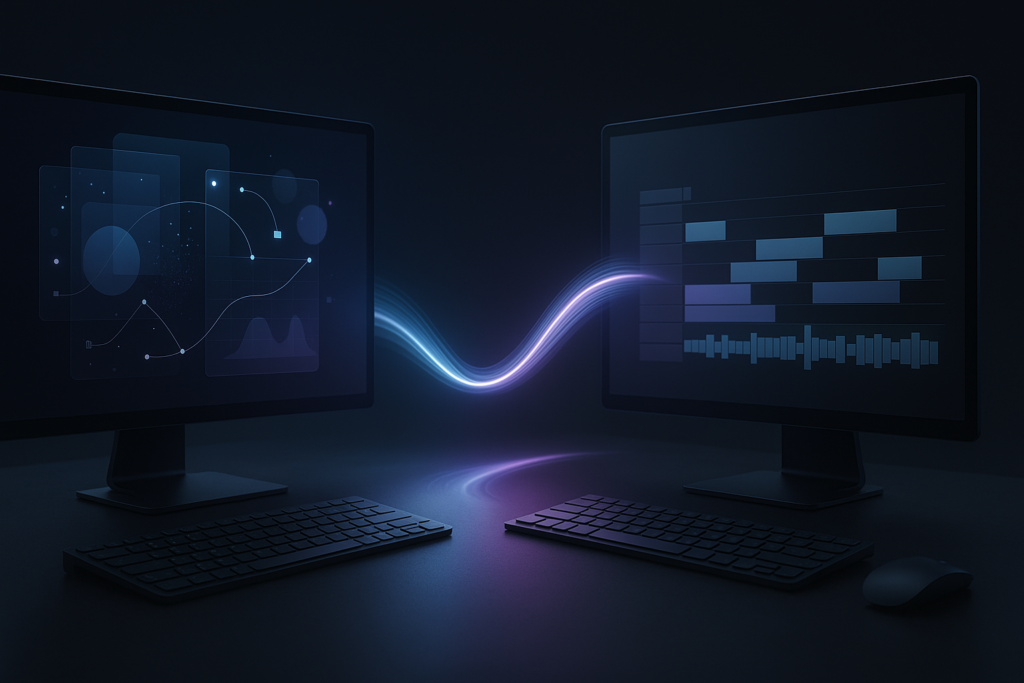
The flagship bridge between Premiere Pro and After Effects is Dynamic Link. In simple terms, it lets you use an After Effects comp in Premiere without rendering a separate intermediate file. You can update the comp and see it update in the Premiere timeline.
When Dynamic Link is a good idea:
- You’re iterating heavily on motion graphics while the edit is still changing.
- You need to keep everything “live” for quick revisions (client feedback, brand tweaks, last-minute copy changes).
- You’re working on a system where the same comp is reused multiple times and updates need to propagate.
When Dynamic Link can be risky:
- The After Effects comp is heavy (lots of effects, 3D, high-res assets) and your timeline becomes sluggish.
- You’re handing the project off to another machine/editor and want predictable playback.
- You’re close to final delivery and stability matters more than editability.
In those “risky” cases, the old-school solution is still excellent: render and replace (or export a high-quality intermediate) once a graphic is approved. You trade live updating for reliability and performance. Many professionals do both: Dynamic Link during design, rendered files for final online.
Another major integration path is Motion Graphics Templates (.mogrt). This is where the collaboration story gets really strong:
- A motion designer builds a template in After Effects with editable controls (text, colors, toggles).
- The template is exported as a .mogrt.
- Editors in Premiere can drag it into the timeline and customize it without opening After Effects.
This is especially valuable in teams producing lots of consistent content: podcasts, weekly shows, corporate communications, sports packages, education series. You get brand consistency without bottlenecking every small change through the motion designer.
Finally, both apps share a lot of compatibility through Adobe’s broader ecosystem: importing Photoshop and Illustrator assets, using shared fonts, and leveraging consistent color management practices. Even if you never touch Dynamic Link, that shared DNA makes it easier to move assets around without rebuilding everything from scratch.
Support for Plugins and Third-Party Tools
Motion graphics workflows rarely stay “vanilla.” The moment you start doing this seriously, you’ll want tools that speed up repetitive tasks, expand animation options, or add specialized effects. Both After Effects and Premiere Pro support plugins, but the depth of the ecosystem is dramatically different.
After Effects has the richer motion-graphics plugin universe, largely because it’s the industry’s default playground for animation and compositing. Categories you’ll commonly see:
- Animation helpers: tools for easing, overshoot, bounce, and quick timing adjustments.
- Rigging systems: controllers for character animation or complex layer setups.
- Procedural effects: particles, stylized looks, distortions, and generative patterns.
- Workflow accelerators: batch renaming, layer management, precomp automation, and render utilities.
After Effects also benefits from a culture of scripts-small tools that automate tedious steps. If you’ve ever spent an hour nudging anchor points or aligning dozens of layers, you’ll understand why scripts feel like discovering fire.
Premiere Pro’s plugin ecosystem is strong too, but it tends to focus on editorial needs: transitions, color tools, audio cleanup, captioning helpers, and export utilities. For motion graphics specifically, Premiere often leans on templates and built-in graphics tools rather than deep procedural animation extensions.
A practical note about compatibility: plugins can be a blessing and a liability. They speed you up-until a version update breaks them, or a collaborator doesn’t have the same plugin installed. A good professional habit is to keep a “core workflow” that can survive without exotic dependencies, and treat plugins as accelerators rather than load-bearing walls.
Which Software Should You Choose for Motion Graphics?
The best choice depends less on what the software can do in theory and more on what you need to do this week, with your current skill level, your hardware, your collaborators, and your tolerance for learning curves. Choosing well isn’t about picking a winner-it’s about reducing friction in your process.
Below are three angles-beginner, professional, and project/workflow fit-that should make the decision feel practical instead of ideological.
Considerations for Beginners
If you’re new to motion graphics, the temptation is to start with the tool that feels easiest. Premiere often wins that first impression because it’s straightforward: drag clips in, add text, keyframe a move, export. You can get something on screen quickly, which is motivating.
But motivation and momentum matter, so here’s a balanced approach:
Start in Premiere Pro if:
- You’re primarily learning video editing and want to add light motion graphics on top.
- Your projects are short-form and deadline-driven (TikTok, Reels, YouTube shorts).
- You want to understand timing, pacing, and storytelling while dabbling in animation.
Start in After Effects if:
- You’re specifically drawn to animation, typography, logo motion, and design-driven video.
- You enjoy tinkering-keyframes, easing, layers, and visual problem-solving.
- You want skills that map directly to motion design roles and pipelines.
Be honest about the learning curve: After Effects can feel like walking into a cockpit. Panels everywhere, properties nested inside properties, and suddenly you’re discussing “precomps” like they’re a food group. The good news is that the complexity is meaningful. Once you learn the fundamentals-layers, transforms, keyframes, easing, masks, mattes-you’ll find that most motion-graphics tasks are variations on those themes.
A beginner-friendly strategy that works surprisingly well:
- Use Premiere to cut a short sequence (even 15-30 seconds).
- Identify one moment that needs motion design (a title, a callout, a logo reveal).
- Build that moment in After Effects.
- Bring it back into Premiere and finish the edit.
This keeps your learning anchored to real projects instead of abstract tutorials, and it teaches you the “handoff” mindset that professionals use daily.
Considerations for Professionals
Professionals rarely ask “Which is better?” They ask: Which tool reduces risk and increases throughput for this deliverable? The answer is often a pipeline, not a single app.
Choose After Effects as the primary tool when:
- You’re responsible for the motion language of a brand (consistent typography, transitions, graphic systems).
- You need advanced compositing, tracking, or VFX-adjacent work.
- You’re building reusable packages (broadcast-style toolkits, explainer templates, modular scenes).
- You need precise control over easing, spacing, and the “feel” of motion.
Choose Premiere Pro as the primary tool when:
- The deliverable is editorial-first and graphics are supportive rather than central.
- You’re turning around multiple versions, languages, or aspect ratios quickly.
- You’re collaborating with editors who need to update text frequently.
- You want to standardize graphics via .mogrt templates and keep production moving.
Professionals also think about versioning and approvals. After Effects comps can be endlessly tweakable, which is great until a client requests “just one more tiny change” 14 times. A robust workflow often includes deliberate lock points: once a graphic is approved, render it (or lock the template), so the project remains stable.
There’s also the question of specialization. In many teams, editors live in Premiere, motion designers live in After Effects, and the handoff is intentional. If you’re a one-person studio, you may do both roles-so your choice becomes about when to switch hats without losing time.
Project Type and Workflow Preferences
Sometimes the clearest way to choose is to match the software to the project type. Here’s a practical guide, framed around common real-world deliverables.
Pick After Effects (or mostly After Effects) for:
- Explainer videos with animated icons, charts, and scenes built from shapes and text.
- Brand launches and campaign assets where motion is part of the identity.
- Logo animations and stingers that require polish and precise easing.
- UI/UX motion mockups where you’re simulating interface behavior and transitions.
- Compositing-heavy social ads (product cutouts, tracked text, stylized overlays).
Pick Premiere Pro (or mostly Premiere Pro) for:
- Talking-head content with captions, lower thirds, and occasional animated emphasis.
- Event recaps where timing to music and fast editorial iteration matter most.
- Podcast video with consistent templates and frequent episode output.
- Multi-version deliverables (different runtimes, aspect ratios, language swaps) where graphics are standardized.
Use both (the common professional reality) for:
- Commercials: edit in Premiere, build graphics and composites in After Effects, finish and version back in Premiere.
- YouTube packaging: create a motion kit in After Effects, deploy via templates in Premiere.
- Documentary: editorial in Premiere, map animations/infographics and cleanup comps in After Effects.
Workflow preference matters just as much as project type. Some creators think visually in layers and enjoy building shots-After Effects will feel like home. Others think in sequences and story beats-Premiere will feel like oxygen. The best setup is the one that keeps you in flow.
One more factor that often decides things: how often will you revise? If the client changes copy constantly, templates in Premiere can be a lifesaver. If the client changes the look constantly, After Effects gives you the control to pivot without rebuilding everything.
Conclusion
Choosing between After Effects and Premiere Pro for motion graphics is less like picking a single “best” tool and more like choosing the right instrument for the part you’re playing. If you want a useful north star: let Premiere own the story and let After Effects own the spell-the moments where visuals persuade, clarify, or delight.
To make that choice pay off long-term, it helps to invest in the unglamorous side of motion graphics: asset discipline. Build a consistent folder structure, name comps and layers like someone else will inherit the project (because future-you counts), and keep a small library of reusable elements-logo reveals, lower thirds, safe-area guides, sound effects, texture overlays. Those habits matter regardless of which app you favor, and they’re often what separates “cool animation” from “repeatable production.”
And since today’s date is 2026-07-05, it’s worth acknowledging the modern reality: motion graphics rarely live in one format anymore. Vertical, square, wide-deliverables multiply. A smart approach is to design motion systems that can adapt: build responsive layouts, keep text and backgrounds modular, and consider template-based workflows early. That way, whether you animate in After Effects or deploy in Premiere, your motion graphics won’t just look good once-they’ll survive the next platform shift, the next rebrand, and the next “Can we get a version for tomorrow?” email.