Motion design 2D advanced workflows in After Effects are less about flashy tricks and more about structure, timing, and repeatable systems. Whether you edit social videos, ads, or YouTube content, dialing in a reliable 2D animation workflow lets you ship more work with fewer headaches and cleaner results.Explore AE templates now
📋 Table of Contents
Understanding Motion Design 2D Advanced Fundamentals
The phrase motion design 2d advanced usually describes the point where you move beyond basic keyframes, presets, and simple logo reveals into strategic animation decisions. It is less about individual tricks and more about building a system that produces consistent, polished work on real client timelines.
What makes 2D motion design advanced
At a basic level, you keyframe position, scale, rotation, and opacity. At an advanced level, you decide why things move, at which speed, and how that supports the story and brand. Advanced 2D motion design in After Effects typically involves:
- Intentional easing curves using the Graph Editor instead of default Easy Ease.
- Layered secondary motion and overshoot rather than single-step moves.
- Thought-out style systems for color, typography, grids, and spacing.
- Modular setups that can be reused across campaigns or episodes.
- Performance-aware projects that stay light enough for revisions.
Why advanced 2D motion matters for editors
Editors and motion designers dealing with social content, explainer videos, or brand packages need repeatability. Advanced 2D motion design helps you:
- Deliver more versions quickly without rebuilding animations from scratch.
- Keep branding consistent across videos and platforms.
- Avoid messy timelines that break under tight deadlines.
- Raise perceived production value without necessarily increasing render times.
Who benefits from leveling up
This level of motion design is ideal for:
- Video editors who need to integrate better graphics into their timelines.
- Motion designers building recurring series, shows, or ad formats.
- Content creators who want a recognizable visual identity across uploads.
- Studios and agencies that need handoff-friendly project files for teams.
How After Effects fits into the picture
After Effects remains the core tool for 2D animation workflows thanks to its layer-based timeline, keyframe controls, and support for reusable templates. For motion design 2d advanced work, your real advantage comes from how you structure projects, not which effects you use. That structure starts with a clear understanding of timing, hierarchy, and the role each animation plays in the viewer experience.
Building a Reliable 2D Animation Workflow in After Effects
The heart of 2d animation workflow in After Effects is predictability: knowing what happens from the moment you receive assets until the final render is delivered. Advanced workflows focus on minimizing surprises, keeping things editable, and reusing as much work as possible.
Key stages of a modern 2D animation workflow
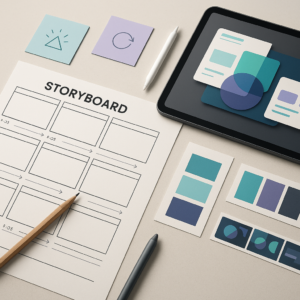
- Concept and references – Gather motion references, storyboards, or styleframes. Sites like Dribbble help you benchmark pacing, transitions, and layout ideas.
- Project setup – Define resolution, frame rate, naming conventions, folder structure, and main comps. Decide early if you target 1080×1920 reels, 1920×1080 YouTube, or multi-aspect deliverables.
- Asset preparation – Clean up vector files, separate layers, and standardize naming in your design files so the AE import is predictable.
- Animation passes – Block primary motion first (camera moves, main text and objects), then refine with secondary elements, details, and accents.
- Review and revisions – Build in time for feedback rounds with markers and labeled layers to keep changes manageable.
- Final renders and delivery – Export master files and socials-ready versions from a single, well-organized master comp.
Workflow variations by project type
Different formats often need slightly different 2D animation workflows:
- Social widgets and overlays – Heavily benefit from reusable setups such as a YouTube-themed widget animation that can be reused across episodes with simple text changes.
- Music-driven lyric videos – Need more detailed timing control, similar to a dynamic layout like a lyric-style widget project where beats and phrases guide motion.
- Product and fintech graphics – Require clean, precise UI motion; templates such as an interface-style animation like a payment UI widget concept give a good base for consistent transitions.
Matching workflow to user intent
Viewers scroll differently on TikTok than they browse a landing page video. In a strong 2D animation workflow, you consider:
- Attention span – Short-form content demands fast, legible motion and clear hierarchy.
- Platform constraints – Safe areas, subtitles, and file sizes change pacing and layout choices.
- Brand voice – Motion should express personality: playful, minimal, corporate, or energetic.
Once you recognize these patterns, you can design systems and templates that compress setup time while preserving creative control.
Common After Effects Mistakes That Break Advanced 2D Motion
Even experienced editors and motion designers run into recurring issues that slow projects or degrade quality. Identifying these early keeps your motion design 2d advanced work from turning into a tangle of comps and missed deadlines.
1. Messy compositions and layer chaos
- No clear naming or color labels for layers and precomps.
- Dozens of unused layers or experiments left active in the main comp.
- Nested precomps with different frame rates, causing timing drift.
How to avoid it
- Adopt a simple naming scheme: TXT_, ICON_, BG_, CTRL_ etc.
- Color-label controllers and main animation layers.
- Archive experiments into a dedicated folder outside the render path.
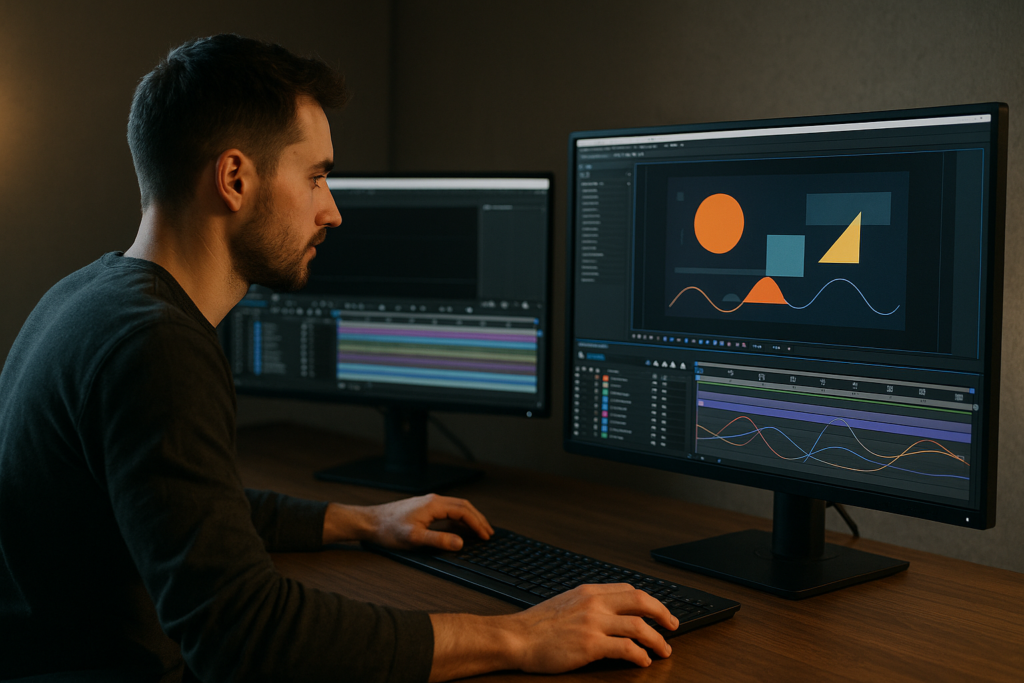
2. Ignoring the Graph Editor
Relying only on default Easy Ease leads to generic motion. Without tuning influence and velocity, everything feels similar and loses character.
- Stiff, robotic moves that stop too abruptly.
- Unintentional pops when multiple properties ease differently.
- Overly long settles that slow pacing.
3. Misusing motion blur
Motion blur can hide imperfections, but overuse causes muddy visuals.
- Applying motion blur to tiny HUD elements or text at low movement speeds.
- Leaving it on during blocking, slowing previews.
- Mixing different shutter angle aesthetics across scenes.
4. Overcomplicated precomp structures
Nested precomps are powerful, but overusing them creates fragile setups:
- Important animations buried three precomps deep.
- Scale and position applied on top of precomps instead of individual layers, causing fuzzy graphics.
- Comp dimensions not matching content, leading to awkward framing.
5. Heavy plugins for simple tasks
It is tempting to reach for plugins when a simple animated mask or shape layer would do. This creates dependencies that break when projects move between machines or when versions change.
6. Ignoring performance and preview settings
- Working at full resolution with motion blur on for all layers.
- No region of interest or adaptive resolution usage.
- Never purging cache, leading to sluggish timelines.
7. Poor asset management
Linking assets from multiple drives, random folders, or cloud locations often causes relink nightmares when revisiting a project or collaborating.
Practical checklist to reduce errors
- Before animating, lock in comp size, fps, and duration.
- Name and color-label key layers and control nulls.
- Block animation with motion blur off, preview at half or quarter res.
- Use the Graph Editor for important moves, not just for hero shots.
- Limit precomp depth and avoid unnecessary nesting.
- Keep a single “Assets” folder at project root for links.
Choosing the Right Advanced Workflow for Each Type of Edit
Not every project needs the same level of complexity. An advanced motion designer knows when to keep things lightweight and when to invest in detailed animation systems. Your decisions should start from the edit type and viewer expectations.
Social reels and shorts
These pieces live or die by clarity and speed. Keep the 2d animation workflow tight and modular:
- Design reusable setups for intros, lower thirds, and callouts.
- Use simple shape-based transitions that can adapt to many topics.
- Maintain a limited color palette and type scale for consistency.
Brand and performance ads
Ads need recognizable branding, clear messaging, and often multiple versions. Here, advanced systems shine:
- Build master comps for key scenes and precomps for variants (languages, CTAs, prices).
- Use expression-driven controls for color and typography to update whole campaigns quickly.
- Stick to grids and motion rules that align with brand guidelines.
YouTube explainers and recurring series
Episodes, tutorials, or commentary formats benefit from reusable package elements: intro, title cards, transitions, and data callouts. A dedicated graphic pack similar in spirit to a reusable map or location-themed widget layout can save hours across a season.
Cinematic and narrative edits
Here, design supports emotion and storytelling rather than dominating the frame. Keep 2D elements subtle and well integrated:
- Use typography and interface elements that feel grounded in the world.
- Favor slower, nuanced easing over quick pop animations.
- Ensure compositing and color grade integrate graphics with footage.
Where templates and libraries fit in
For recurring content types, an Unlimited After Effects Templates Subscription can serve as your motion library. Instead of reinventing common pieces like story-driven widgets, lyric-driven layouts, or simple overlays, you start from a proven base and adjust timing, content, and style to match each edit.
Decision-making checklist by project
- Define platform: vertical, horizontal, or multi-format.
- Estimate versions: single master vs many language or CTA variants.
- Choose between custom animation and adapted templates depending on timing.
- Lock in brand parameters: fonts, colors, corner radius, icon style.
- Decide where to spend detail: hero scenes, product moments, or key transitions.
Practical Template-Based Workflow for Advanced 2D Motion
Templates are not shortcuts for beginners only. Used well, they become the base layer of an efficient motion design 2d advanced system. The goal is to combine solid structure with your own timing and style decisions.
Project setup and compatibility
Before touching keyframes, confirm technical details:
- After Effects version – Check which versions are supported. If you work across teams, standardize on a version that supports all critical projects.
- Resolution and aspect ratios – Set master comps for 1920×1080, 1080×1920, and square when needed. Consider flexible layouts if repurposing designs.
- Frame rate – Match the template fps to your edit. Avoid mixing 23.976, 25, and 30fps across key precomps unless there is a clear reason.
Clean structure and naming conventions
Think like someone else will open your project tomorrow:
- Use clearly named folders: 01_MAIN_COMPS, 02_PRECOMPS, 03_ASSETS, 04_CONTROLS.
- Label control layers with a prefix like CTRL_ and color-code them.
- Keep master scenes as flat as possible; precomp only when it reduces complexity or enables a specific effect.
Keyframe organization and precomps
Once structure is clear, refine how you animate:
- Place main timing keyframes on top-level layers or control nulls so global retiming is easy.
- When precomposing, choose “Move all attributes” when you need effects inside the precomp, and avoid unnecessary nesting.
- Use markers to label beats, text changes, or cue points, especially for music-driven pieces similar to a timed layout like a lyrics-focused animation structure.
Performance tips
Advanced work often involves many layers and comps. To keep things responsive:
- Preview at half or quarter resolution while blocking motion.
- Turn off motion blur and heavy effects during layout staging.
- Use proxies for large image sequences or 4K footage.
- Periodically purge cache and close unused comps.
Plugin dependencies and safe alternatives
Templates may rely on plugins for certain looks or workflows. When possible:
- Preferring shape-layer and native effects solutions keeps projects portable.
- If a plugin is essential, document its version and purpose in a text layer or readme.
- Provide or build fallback versions for clients or collaborators without that plugin.
Customization workflow
1. Colors and branding
Start from a style control layer:
- Centralize brand colors using Fill or Color Control effects.
- Use a limited set of neutrals and accents to keep scenes cohesive.
2. Typography
Lock in your type system early:
- Define heading, subheading, and body styles (size, leading, tracking).
- Use Paragraph and Character styles in your design tool for consistency before import.
3. Transitions and timing
Adapt transitions to your content:
- Shorten or extend prebuilt transitions by scaling keyframes in time.
- Use the Graph Editor to preserve acceleration curves when retiming.
- Ensure transitions serve the story, not just add movement.
Use cases by format
- Reels and shorts – Quick, looping animations; consider modular elements like a HUD-style display similar in complexity to a dynamic overlay such as a battery-status style widget animation.
- Ads and promos – Emphasize clarity of product shots, benefits, and CTAs. Use templates that support multiple layout variations.
- Product or fintech explainers – UI and card-based layouts benefit from templates that mimic dashboard or card motion, close to the structure used in sleek interface animations.
- Cinematic edits – Use templates only as starting points for graphic packages, then refine timing and integration with footage.
Step-by-step checklist for template-based projects
- Confirm AE version, fps, and resolution.
- Duplicate the template project as a new working file.
- Relink or consolidate assets into a single master folder.
- Adjust global controls: colors, fonts, corner radius, stroke width.
- Swap placeholder text, logos, and icons with project-specific content.
- Review timing against audio and dialogue, refine easing and overlap.
- Check key scenes frame by frame for jitter, aliasing, and readability.
- Render test segments before committing to full exports.
Advanced Systems and Long Term Workflow Optimization
Once your immediate workflow is under control, advanced motion designers build systems that support many projects over months or years. The goals are consistency, maintainability, and predictable quality.
Styleframes and motion rules
Before animating complex sequences, define visual and motion rules:
- Styleframes that show typography, color, textures, and layout in static form.
- Reference animations that define how elements enter, hold, and exit.
- Guidelines for speed ranges, overshoot amounts, and preferred easing shapes.
Reusable animation systems
Instead of custom-building each animation, create reusable systems:
- Text animators with controllers for offset and randomness.
- Modular transitions that can snap between scenes or topics.
- Icon and UI motion presets tailored to your brand style.
These can start from well-built template projects, then be customized and saved into your own library, similarly to how you might adapt a complex card-based UI motion like a conceptual digital card animation layout into your own toolkit.
Consistency across large edits
For longer videos or series:
- Maintain a single master control comp for global color and typography changes.
- Use naming conventions for episodes or chapters so imports stay clean.
- Reuse intro, lower third, and info box setups with only content swapped.
Quality control habits
Advanced motion design 2d advanced work is judged on details:
- Check motion arcs for unwanted kinks or flat sections.
- Verify that parenting and anchor points make sense before retiming.
- Watch key sequences with sound to ensure rhythm matches pacing.
Export and render considerations
Finishing often exposes weak links in the workflow:
- Use the Render Queue or Adobe Media Encoder presets for repeatable outputs.
- Test-bit rates and codecs for your delivery platforms.
- For social content, export mezzanine masters and derive platform-specific encodes from them.
Dynamic link and project weight
Dynamic link between Premiere and After Effects is powerful but can get fragile:
- Limit the number of heavy, effect-laden comps used via dynamic link.
- Consider rendering complex sequences as ProRes or DNx files to keep timelines snappy.
- Periodically collect files to new folders to remove unused media and reduce project size.
These systems-oriented habits turn your individual projects into a cohesive, maintainable library of motion building blocks you can rely on under tight deadlines.
Search Driven Topics for Advanced 2D Motion Design
Editors and motion designers searching for motion design 2d advanced workflows usually have specific questions in mind. Addressing these helps you refine your own process and documentation.
Common search intents and concise answers
- Best 2D animation workflow in After Effects – Standardize project settings, organize folders, block main motion first, then refine easing and details, and only then add effects.
- How to make 2D motion look professional – Focus on pacing, easing curves, alignment, and consistent spacing rather than flashy effects. Subtlety and hierarchy matter more than complexity.
- How to keep AE projects fast – Use pre-renders for heavy scenes, work at lower preview resolution, manage cache, and avoid unnecessary high-res sources for small elements.
- How to reuse motion design across videos – Build modular templates: intros, transitions, and lower thirds that link to centralized control layers so branding updates propagate easily.
- How to animate UI and data elements – Treat them as real interfaces; move elements with believable inertia, respect grids, and avoid arbitrary, overly elastic motion.
- How to sync 2D animation to music – Use markers on the audio layer, identify beats and phrases, and base key motion events on those points rather than animating by eye.
- How to balance templates and custom animation – Use templates as structural bases and invest custom time into hero moments, storytelling beats, and unique transitions.
- How to hand off AE projects to clients – Collect files, remove unused assets, clearly label control comps, and include a short readme that explains how to update text and colors.
Reviewing these questions regularly helps you tune your own 2D animation workflow, template choices, and documentation, especially when collaborating across teams or working worldwide with remote clients.
Putting It All Together For Faster, Cleaner 2D Motion
Advanced 2D motion design in After Effects is not about stacking more effects; it is about intentional structure, clear timing, and reusable systems. From fundamentals and template choices to long-term optimization, each decision either adds friction or speeds you up.
A strong 2D animation workflow means you can focus on storytelling and brand expression instead of fighting layers and render times. With organized projects, consistent motion rules, and reliable templates, you ship more polished work in less time, whether you are delivering reels, ads, explainers, or full series for clients worldwide.
Use the concepts here as a checklist: define project settings early, keep comps readable, refine easing in the Graph Editor, and lean on well-built templates where it makes sense. Over time, this approach builds a personal library of motion systems that support every new brief.
Conclusions
Advanced 2D motion design rewards editors who invest in structure. Clear project setup, smart template use, and consistent motion rules lead to faster delivery and stronger visuals. Treat each project as a chance to refine your system and you will gain speed, quality, and confidence with every new brief.
FAQ
What does motion design 2D advanced mean in After Effects?
It refers to structured 2D animation that uses intentional timing, easing, and systems-based project setup rather than basic keyframes and presets.
How can I improve my 2D animation workflow in After Effects?
Standardize project settings, organize comps and assets, block main motion first, refine easing, and only then add effects and details.
Do I need plugins for advanced 2D motion design?
No. Plugins can help but solid results are possible with native tools if you plan structure, easing, and layer management carefully.
Are templates useful for professional motion designers?
Yes. Well built templates provide structural foundations you can customize, speeding up recurring tasks while preserving creative control.
How do I keep large After Effects projects running smoothly?
Use lower preview resolutions, limit heavy effects, use pre renders for complex scenes, manage cache, and avoid deep, unnecessary precomp nesting.
How important is the Graph Editor for 2D animation?
It is essential for advanced motion. The Graph Editor lets you sculpt velocity and influence, giving animations weight and personality.