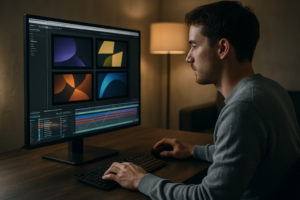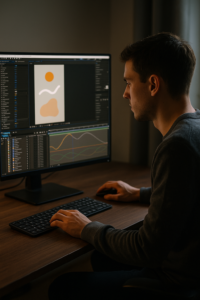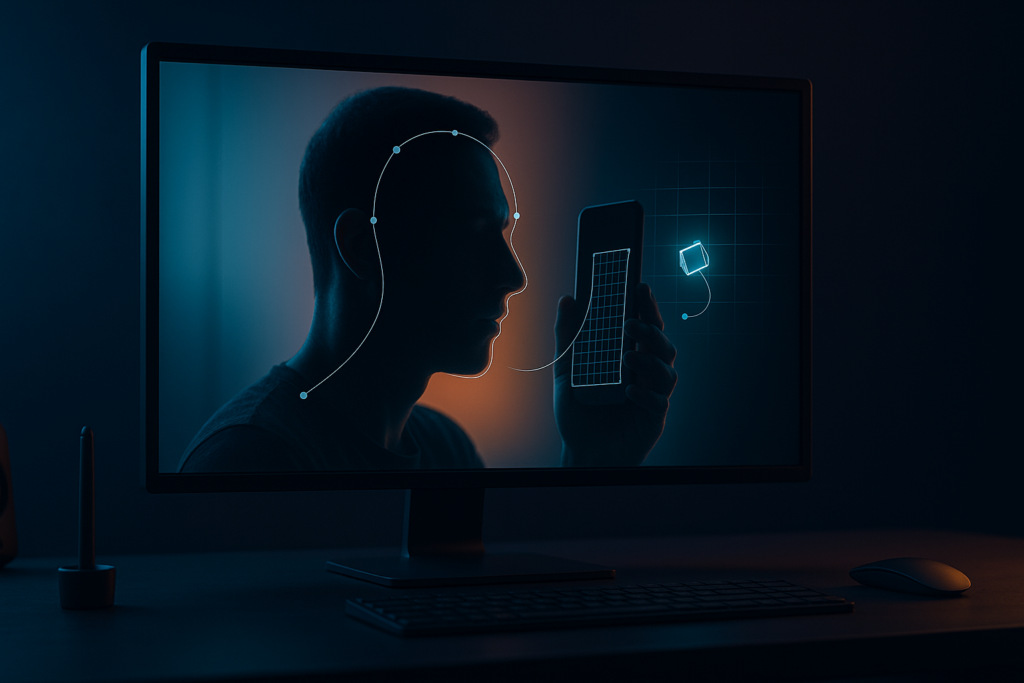
Mask tracking in After Effects means making a mask “stick” to moving footage so the masked area follows the subject over time-either automatically with tracking tools or manually with keyframes when the shot gets tricky. In practice, you’re using tracking data (or hand animation) to keep a mask aligned with a face, logo, screen, car, sky, or anything else that refuses to sit still long enough for a clean composite.
Because real-world footage is full of distractions-motion blur, occlusions, camera shake, changing light-mask tracking is less like drawing a perfect outline once and more like guiding a living shape through a scene. The good news: After Effects gives you multiple paths to the same destination, from quick keyframed Mask Path tweaks to robust planar tracking in Mocha AE. This tutorial walks through what mask tracking is, which tools to use when, and how to get results that look intentional rather than “close enough if you squint.”
Watch After Effects tracking examples
📋 Table of Contents
What does mask tracking mean in After Effects?
In After Effects, a mask is a shape (usually drawn with the Pen tool) that defines which parts of a layer are visible, hidden, or used as a matte. Tracking is the process of analyzing motion in footage and generating data you can apply to properties-like Position, Rotation, Scale, or even a mask’s shape-so that elements follow movement frame by frame.
Put together, mask tracking is the workflow of animating a mask so it stays aligned with something that moves. Sometimes you track motion and apply it to a layer, then parent the mask to that layer’s movement. Other times you directly animate the mask path. And when you want the mask to adhere to a surface (like a phone screen or a sign), you use planar tracking (hello, Mocha AE) so the mask behaves like it’s glued to the plane.
How does mask tracking work?
At a mechanical level, After Effects can’t “understand” objects the way a human does. It looks for patterns: contrast, edges, corners, texture-anything consistent enough to follow. When you track a feature, After Effects analyzes how that feature shifts across frames and produces keyframes (or a continuous stream of motion data) describing that change.
Mask tracking typically happens in one of three ways:
- Manual mask animation: You keyframe the Mask Path and adjust points over time. It’s slower, but it’s the most controllable and often the most reliable for complex motion.
- Point/feature tracking + linkage: You track a point (or two points) and apply that data to a Null, then use that Null to drive a layer that contains your mask, or to stabilize footage while you animate the mask more easily.
- Planar tracking: You track a textured plane (a surface) and use the result to drive masks, mattes, corner pins, or inserts. This is where Mocha AE shines.
In real projects, you’ll often combine them. For example: planar track to get 90% of the motion, then minor manual mask-path tweaks to handle occlusions or deformation. That hybrid approach is the difference between “it tracks” and “it tracks and looks professional.”
What are common uses of mask tracking?
Mask tracking shows up everywhere because it’s the foundation of compositing. If you’ve ever watched an actor walk behind a title, or seen a color grade applied only to the sky, you’ve seen tracked masks doing quiet, competent work.
Common, practical uses include:
- Rotoscoping: Isolating a subject (or part of them) from the background-hands, hair, a moving product, a person walking through frame.
- Selective color correction: Brighten faces, darken skies, shift hue on a car, fix a blown-out sign-without affecting the entire image.
- Object removal: Masking a clean plate or patch over an unwanted object, then tracking the patch so it stays aligned.
- Reveal/conceal effects: Text behind objects, “light sweep” reveals, wipes that follow a moving edge.
- Screen replacements: Using tracked masks as mattes to constrain an insert to a screen area, often combined with corner pinning.
And yes, sometimes it’s used for the oldest trick in the book: hiding something that shouldn’t be there. Mask tracking is a polite way of saying, “Let’s pretend this microphone shadow never happened.”
What tools are available in After Effects for mask tracking?
After Effects gives you several ways to get a mask to follow motion. The “best” tool depends on what’s moving (a point? a plane? a squishy organic shape?) and what you need the mask to do (act as a matte? isolate for color? drive a reveal?). Knowing the strengths of each option saves hours-and saves you from trying to force a screwdriver to behave like a hammer.
Using the Mask Path property
The most direct approach is also the most old-school: animate the mask itself. Every mask has a Mask Path property (under the layer’s Masks). Toggle its stopwatch, and you can keyframe the mask shape over time.
This method is ideal when:
- The subject changes shape (people, clothing, hair, fabric).
- Parts of the subject get occluded (walks behind a pole, hand crosses face).
- Tracking tools struggle because the footage lacks texture or contrast.
To make Mask Path animation less painful, you can:
- Use fewer points and let curves do the work.
- Animate on “problem frames” first (start, end, big changes), then fill in gaps.
- Temporarily stabilize the shot (via tracking) to simplify the mask animation, then re-apply motion.
Mask Path keyframing is also the secret sauce for polishing automated results. Even if you track in Mocha, you’ll often finish in After Effects with a handful of corrective keyframes.
Tracking with the Tracker Panel
The Tracker panel in After Effects is the home of classic point tracking: Track Motion (single point or two-point), Stabilize Motion, and (depending on version and workflow) perspective/corner pin assistance via tracking data.
Point tracking doesn’t directly “track a mask path,” but it’s incredibly useful for mask tracking workflows because it can drive:
- A Null object that you parent layers to (including precomps containing masks).
- Stabilization, so you can animate the mask in a steadier view.
- Attach points for effects, text, or patches that need to follow motion.
A practical pattern looks like this:
- Track a feature on the subject (high contrast, consistent detail).
- Apply tracking to a Null.
- Precompose your footage (or duplicate it) and draw your mask in that precomp.
- Parent the masked layer/precomp to the Null so the mask inherits motion.
- Refine the mask path only where needed.
This approach can turn a “200-frame nightmare” into “20 frames of touch-ups,” which is the kind of math your future self will appreciate.
Using Mocha AE for advanced tracking
If you’re doing anything that resembles professional rotoscoping, screen replacement, or surface tracking, Mocha AE is often the fastest route to clean results. It’s bundled with After Effects and built for planar tracking, meaning it tracks a flat surface’s movement (translation, rotation, scale, shear, perspective) based on texture within a region.
Mocha’s strengths for mask tracking include:
- Planar tracking is robust: It can handle partial occlusions and noisy footage better than simple point tracking.
- Roto tools: You can create shapes (splines) and track them, then refine with keyframes.
- Export options: You can send tracking data back to After Effects (corner pin, transform) or export shapes/mattes.
Mocha also encourages a more strategic mindset: instead of chasing a tiny point, you track an area with texture. That shift alone often fixes “my track keeps slipping” problems.
One note on real-world learning: sometimes you’ll search for a specific tutorial link and hit a dead end-literally. It’s not unusual to find a bookmarked resource that now returns “404. Page not found.” When that happens, your best fallback is the official ecosystem: Adobe’s Help and Community hubs, the Help Center, and structured learning portals like Adobe Learn and Adobe Experience League. The web changes; good workflows don’t.
What steps improve accuracy in mask tracking?
Accuracy comes less from a magical button and more from a disciplined setup. The goal is to make motion easier to interpret-both for After Effects’ trackers and for you when you’re nudging mask points at 200% zoom at 1:00 a.m.
Think of accuracy as a stack: good footage prep + smart mask design + sensible keyframing + periodic correction. If any layer is weak, the whole thing wobbles.
How to create an effective mask for tracking
An effective tracking mask isn’t necessarily a perfect outline. It’s a shape designed to survive motion. That means you often want a mask that’s simple, stable, and forgiving.
Key guidelines:
- Use fewer vertices: Every point is a chance for jitter. Start with the minimum points needed to describe the silhouette.
- Prefer smooth curves: Curves interpolate nicely; sharp angles tend to reveal tiny errors.
- Leave breathing room: For isolation masks used in color correction, a slightly larger mask with feathering can look better than a tight roto that chatters.
- Plan for occlusions: If a hand crosses a face, consider splitting into multiple masks (face base + hand) rather than forcing one mask to do gymnastics.
Feathering deserves special attention. A feather that’s too small makes edges look crunchy and reveals misalignment. Too large, and your correction “bleeds” into areas it shouldn’t. A good habit is to adjust feather while toggling the effect on/off and watching at 100% resolution-because that’s where viewers live.
If you’re tracking for a composite, consider whether you need a holdout matte (hard edge) or a blend-friendly matte (soft edge). The choice changes how tight your mask must be.
Importance of keyframes in mask tracking
Keyframes are your steering wheel. Even with automated tracking, you’ll use keyframes to correct drift, handle shape changes, and control timing. The trick is to place keyframes where they matter most, not everywhere.
A practical keyframing strategy:
- Block: Set keyframes at the start and end of the shot, plus any major change moments (turns, speed ramps, big perspective shifts).
- Break down: Add keyframes halfway between existing ones where the mask deviates most.
- Polish: Fix edge chatter by adjusting tangents, reducing points, or adding selective keyframes only where the error appears.
After Effects interpolates mask paths between keyframes. If your keyframes are too far apart during complex motion, interpolation can “invent” shapes you never intended. If your keyframes are too close together everywhere, you create unnecessary work and can introduce jitter because tiny differences get baked in.
Also: don’t forget that you can keyframe more than the path. Mask Feather, Mask Expansion, and even Mask Opacity can be animated. When motion blur increases mid-shot, animating feather slightly can keep the edge feeling consistent.
Tips for minimizing tracking errors
Tracking errors are usually predictable: low contrast, repetitive textures, fast motion, changing illumination, and occlusions. You can’t always fix the shot, but you can improve the conditions.
- Preprocess the footage: Apply a temporary effect (Levels/Curves) to increase contrast in the tracking area. Track on the enhanced layer, then disable the effect after tracking.
- Track at the right scale: If the feature is tiny, precompose and scale up (or use Detail-preserving Upscale) for tracking, then apply results back.
- Choose better features: Avoid specular highlights that change shape; prefer textured areas with consistent detail.
- Shorten the track: Track in segments. Reset when the subject changes direction or lighting shifts dramatically.
- Stabilize-first workflows: Stabilize the shot, animate the mask in the stabilized view, then reapply motion (or invert stabilization).
If you’re using Mocha AE, a classic win is to track a larger planar area than you think you need. Planar trackers like texture. Give them texture, and they behave like polite professionals. Starve them, and they improvise.
What are common challenges in After Effects mask tracking?
Mask tracking problems tend to cluster into a few recurring villains. Once you recognize them, you stop blaming yourself (or the software) and start applying the right fix. The goal isn’t to eliminate challenges; it’s to build a toolkit that makes them routine.
How to handle fast motion and occlusions
Fast motion compresses detail and increases blur, giving trackers less to hold onto. Occlusions (when the subject is partially hidden) break continuity and can cause tracks to jump or masks to collapse.
Solutions that work in practice:
- Track in chunks: Split the shot into sections around the occlusion. Start a new track after the object reappears.
- Use multiple masks: Separate foreground occluders from the subject. This is especially helpful in roto: one mask for the person, one for the passing object.
- Leverage Mocha’s occlusion handling: In Mocha, you can adjust track regions and use holdout shapes to help the tracker ignore occluding elements.
- Manual keyframes at the occlusion: Even the best automation often needs a few hand-placed keys during the “messy” frames.
Another underrated trick: if the camera move is the main source of motion, stabilize the shot first. When the background stops dancing, you can focus on the subject’s motion alone.
Dealing with motion blur
Motion blur is cinematic and beautiful-right up until you need a crisp mask edge. When blur increases, the “true” edge of an object becomes ambiguous. If you mask too tight, you’ll cut into the blur and create a harsh outline. If you mask too loose, you’ll include background and the composite looks smeary.
Practical approaches:
- Match the blur: If you’re compositing something in, add motion blur to the inserted element so it blends with the plate.
- Animate feather/expansion: Increase feather during blur-heavy sections; reduce it when the subject is sharper.
- Use matte refinement tools: After Effects’ matte tools (and third-party options) can help soften and choke edges intelligently, though they’re not magic.
- Roto with intent: For fast blur, aim for a matte that feels plausible rather than surgically exact. Viewers forgive softness; they notice crunchy edges.
If you’re tracking a surface for a screen replacement, consider tracking on frames where the screen is sharpest, then let the planar track interpolate through blur. Planar tracking often survives blur better than point tracking because it uses broader texture information.
Fixing drift and jitter in masks
Drift is when the mask slowly slides off target over time. Jitter is when the mask vibrates frame to frame, even if it’s roughly in the right place. Drift usually comes from imperfect tracking or accumulated interpolation error. Jitter often comes from too many points, noisy footage, or over-keyframing.
Fix drift by:
- Adding corrective keyframes at the moment drift becomes visible (don’t wait until it’s completely off).
- Re-tracking a better feature or a larger planar area (Mocha) and blending that motion with manual fixes.
- Breaking the track into segments and resetting the baseline.
Fix jitter by:
- Simplifying the mask (fewer points, smoother curves).
- Removing unnecessary keyframes and letting interpolation smooth motion.
- Smoothing tracking data (for point tracks) before applying it to your control Null.
- Using consistent viewing: Judge jitter at 100% and in motion. A single frame can look wrong but play perfectly fine.
When in doubt, remember: a mask that is slightly soft and stable often looks more “real” than a razor-sharp mask that chatters.
Which mask tracking techniques save time in After Effects?
Time-saving in mask tracking isn’t about rushing; it’s about not doing work twice. The fastest artists aren’t the ones who never keyframe-they’re the ones who keyframe only what matters, reuse data intelligently, and pick the tool that matches the motion.
Using automated tracking versus manual adjustment
Automated tracking (point tracking, planar tracking, AI-assisted roto where available) is best when motion is consistent and the footage has trackable detail. Manual adjustment is best when the subject deforms, when edges are ambiguous, or when the shot includes frequent occlusions.
A time-efficient decision rule:
- If it’s a plane (screen, sign, wall): start in Mocha AE.
- If it’s a rigid object with a clear feature (logo, corner, bolt): start with the Tracker panel and a Null.
- If it’s organic (person, hair, cloth): expect Mask Path keyframing, possibly assisted by stabilization or planar tracking for the broader motion.
The sweet spot is often: automated for the “big motion,” manual for the “edge truth.” That division of labor is how you keep quality high without turning your timeline into a hedgehog of keyframes.
How to use tracking data for multiple masks
If you have multiple masks that should follow the same motion-say, several color-correction regions on a face (cheeks, forehead, under-eye), or multiple holdout shapes on a moving object-don’t track each one separately.
Instead:
- Create a Null and apply your tracking data to it (from the Tracker panel or from Mocha via exported transform data).
- Put all related masked layers (or precomps) under that Null via parenting.
- Keep each mask’s job small: local adjustments, minor deformation, feather tweaks.
Another efficient approach is to precompose your roto/mask work. Do the detailed mask animation in the precomp, then use one set of tracking data in the main comp to move the entire precomp. This keeps your main timeline clean and makes revisions less terrifying.
If you’re in Mocha, you can also create multiple splines that share the same planar track, which is essentially “one track, many shapes.” Export once; benefit repeatedly.
How to apply tracked masks for visual effects?
Once a mask is tracked, it becomes a precision tool. It can isolate, protect, reveal, or reshape reality-subtly (beauty work) or loudly (sci-fi composites). The key is to treat the tracked mask not as an end, but as a control signal you can route into different effects.
Mask tracking for rotoscoping and object isolation
Rotoscoping is the classic application: isolate a subject so you can place them over a new background, add atmospheric effects behind them, or keep an effect from touching them.
To use tracked masks effectively in roto:
- Layer your roto: Break complex subjects into parts (torso, head, arms). This reduces point count per mask and makes occlusions easier.
- Use overlap intentionally: Slight overlaps between masks prevent gaps during motion.
- Mind edge treatment: Hair and semi-transparent edges often require additional techniques (edge refinement, separate hair mattes, or dedicated roto tools) beyond a single mask.
When you’re isolating an object for compositing, consider whether you need a garbage matte (quick, loose mask to remove irrelevant areas) plus a hero matte (detailed edge). Garbage mattes save processing and keep your detailed work focused where it matters.
And if you’re doing this for a client: always preview against a contrasting background. A mask edge that looks perfect on the original plate may reveal sins when placed over a bright sky or a dark studio wall.
Using tracked masks for color correction
Selective color correction is where tracked masks can feel like a superpower. You can guide the viewer’s eye, fix lighting inconsistencies, and make a shot feel expensive without anyone noticing why.
Common color workflows with tracked masks:
- Face enhancement: A subtle exposure lift and warmth on skin tones, tracked to the face.
- Sky control: Darken or shift hue of the sky while protecting buildings and trees.
- Product emphasis: Increase saturation/contrast on a product while keeping the environment natural.
Tips that keep it believable:
- Feather generously for grading masks; hard edges scream “effect.”
- Animate intensity: If lighting changes, keyframe effect strength so it follows the scene’s logic.
- Stack subtle corrections: Two gentle effects often look more natural than one aggressive push.
Also, remember that masks can be inverted. Sometimes it’s easier to protect the subject (invert a mask around them) while applying a global grade to everything else.
See a real-world masking project breakdown
Creating dynamic mattes with mask tracking
A tracked mask can become a dynamic matte for reveals, transitions, and stylized composites. Think text appearing from behind a moving object, or a glow that only wraps around a tracked silhouette.
Ideas you can build with tracked masks:
- Object-based reveals: Use a tracked mask as an alpha matte so text or graphics appear only where the object passes.
- Light wrap and glow control: Use the mask to constrain glows to edges or to generate a soft spill.
- Atmospherics: Keep fog, rain, or particles behind a subject by using their tracked matte as a holdout.
For dynamic mattes, precomposing helps. Build the matte cleanly in one precomp (with blurs, choke/expand, and animated feather), then use it as a matte source elsewhere. That modular approach makes experimentation fun instead of destructive.
What are best practices for exporting After Effects projects with mask tracking?
Mask tracking doesn’t end when the mask looks right in your comp. You still have to deliver: render passes, share projects, hand off to another compositor, or round-trip to an editor. Export best practices are about preserving intent-so the mask behaves the same tomorrow, on another machine, or in another pipeline.
How to prepare mask tracking data for compositing
If your tracked masks will be used outside your current comp (or by someone else), preparation matters.
- Precompose logically: Put roto/mask work into dedicated precomps with clear names (e.g., “SHOT_010_roto_person”).
- Use matte-friendly outputs: When exporting mattes, render a clean black-and-white alpha matte (or use alpha channel in a codec that supports it).
- Lock your frame rate and interpretation: Misinterpreted frame rates can make tracking drift when footage is relinked.
- Document dependencies: If you used Mocha AE, note whether the track lives in the embedded Mocha project or was baked into AE keyframes.
If you’re collaborating, consider rendering a matte pass alongside your beauty pass. A clean matte can be reused for additional grading, relighting, or effects without reopening the entire tracking setup.
And if you rely on third-party plugins for matte refinement, provide a fallback: either pre-render the result or share the plugin requirements. Nothing stalls a handoff like “it looks different on my machine.”
Optimizing mask tracking for render performance
Masks can be surprisingly expensive, especially with high-resolution footage, many vertices, heavy feathering, and multiple effects downstream. Render optimization is about reducing complexity where it doesn’t buy visible quality.
- Reduce mask point count: Simplify shapes once you’re happy with the edge. Many points + feather + motion blur can slow previews.
- Pre-render heavy comps: If a roto matte is final, render it to a lossless format with alpha and re-import as footage.
- Use proxies: Work with proxies for tracking and roto, then switch back to full-res for final checks.
- Trim layers: Set in/out points so After Effects isn’t processing masks on frames you don’t use.
- Be intentional with effects order: Some effects are faster before/after masks; test if performance is an issue.
Finally, keep an eye on your project organization. A clean structure isn’t just aesthetic-it reduces mistakes, speeds up troubleshooting, and makes it easier to revisit the work months later when someone asks for “a tiny tweak.”
Where to find resources and community support for After Effects mask tracking?
Mask tracking is one of those skills you learn by doing, then learn again by watching someone else do it differently. When you get stuck, the fastest solution is often a well-placed search term, a community thread, or an official doc that clarifies one hidden setting.
And yes: sometimes the internet betrays you. You click a promising link and get the blunt message: “404. Page not found.” When that happens, don’t treat it as a dead end-treat it as a nudge toward more durable sources and communities.
Recommended tutorials and courses
For structured learning, start with official and widely maintained resources. Adobe’s learning ecosystem is broad, and while it covers everything from video to PDFs, the infrastructure is stable and regularly updated-useful when random blog links vanish.
- Adobe Learn: A hub to develop creative skills across Adobe apps; useful for foundational After Effects lessons and workflows.
- Help Center / Troubleshooting and how-tos: Great when you need a specific answer about a panel, property, or workflow.
- Adobe Experience League: More enterprise/experience-cloud oriented, but it reflects Adobe’s broader emphasis on guided learning paths and documentation discipline.
Beyond official sources, look for courses that explicitly cover:
- Mocha AE planar tracking and shape export
- Rotoscoping workflows (including edge treatment)
- Real-world compositing (matching grain, blur, and light wrap)
A practical tip: when you find a good tutorial, save not only the link but also the creator name and video title. Links change; names are searchable.
Forums and user communities for troubleshooting
When you hit a problem that feels oddly specific-like a mask that jitters only after precomposing, or tracking data that looks correct but applies offset-community forums are where those edge cases get unpacked.
- Adobe Community: Active user-to-user support with lots of After Effects troubleshooting threads.
- Specialized motion design forums: Communities focused on compositing and VFX often have deep expertise and practical file-based advice.
- Mocha/planar tracking communities: Great for planar track nuance, occlusion strategies, and export settings.
When posting, include: a short screen recording, your comp settings, what you tracked (point vs plane), and what you expected to happen. The clearer your question, the faster the fix-and the less likely someone replies with the dreaded “works for me.”
Official Adobe support and documentation
Official documentation is not always glamorous, but it is precise. Adobe’s support ecosystem includes the Help and Community area, a Help Center, and account-level support options. It also sits inside a larger Adobe universe that spans “Creativity & Design” tools (like After Effects, Photoshop, Premiere) and newer AI-assisted workflows across products.
You’ll notice Adobe increasingly frames features in terms of AI and automation-language like “AI-powered content creation” and tools “enhanced with AI to answer questions and generate summaries.” While that messaging often shows up prominently across Adobe.com, the practical takeaway for After Effects artists is simple: keep an eye on evolving roto and tracking features, because Adobe’s roadmap is clearly invested in speed and assistance.
If you’re navigating Adobe’s sites, you may also see regional/language switching prompts (“Choose a region”), plan options for individuals, students, and businesses, and a wide product navigation. None of that directly helps your mask track-but knowing where the official docs live means you can bypass the marketing maze when you just need the answer to: “Why is my mask path not updating?”
Conclusion
Once you get comfortable with mask tracking, you start seeing it less as a single technique and more as a flexible mindset: analyze motion, decide what needs to be stable, and choose the simplest control that produces a believable result. That mindset scales-from quick social edits to long-form VFX-because it’s really about managing change over time.
To keep improving, build yourself a small “practice library” of shots: one with fast motion blur, one with occlusions, one with a screen replacement, one with a walking person. Revisit them every few months and try a different approach-Mask Path one time, Mocha AE the next, stabilization-first another. You’ll feel your instincts sharpen, and you’ll also learn something quietly important: there are many correct ways to solve the same tracking problem, and the best one is usually the one that stays editable when the inevitable note arrives.
Finally, treat your tracking work like craftsmanship. Name your layers, keep your precomps tidy, save versions, and don’t be afraid to render out a matte pass even if nobody asked. Today’s tracked mask might become tomorrow’s lifesaver-especially when a link goes 404, a plugin breaks, or a deadline decides to sprint. In compositing, stability is a creative tool.