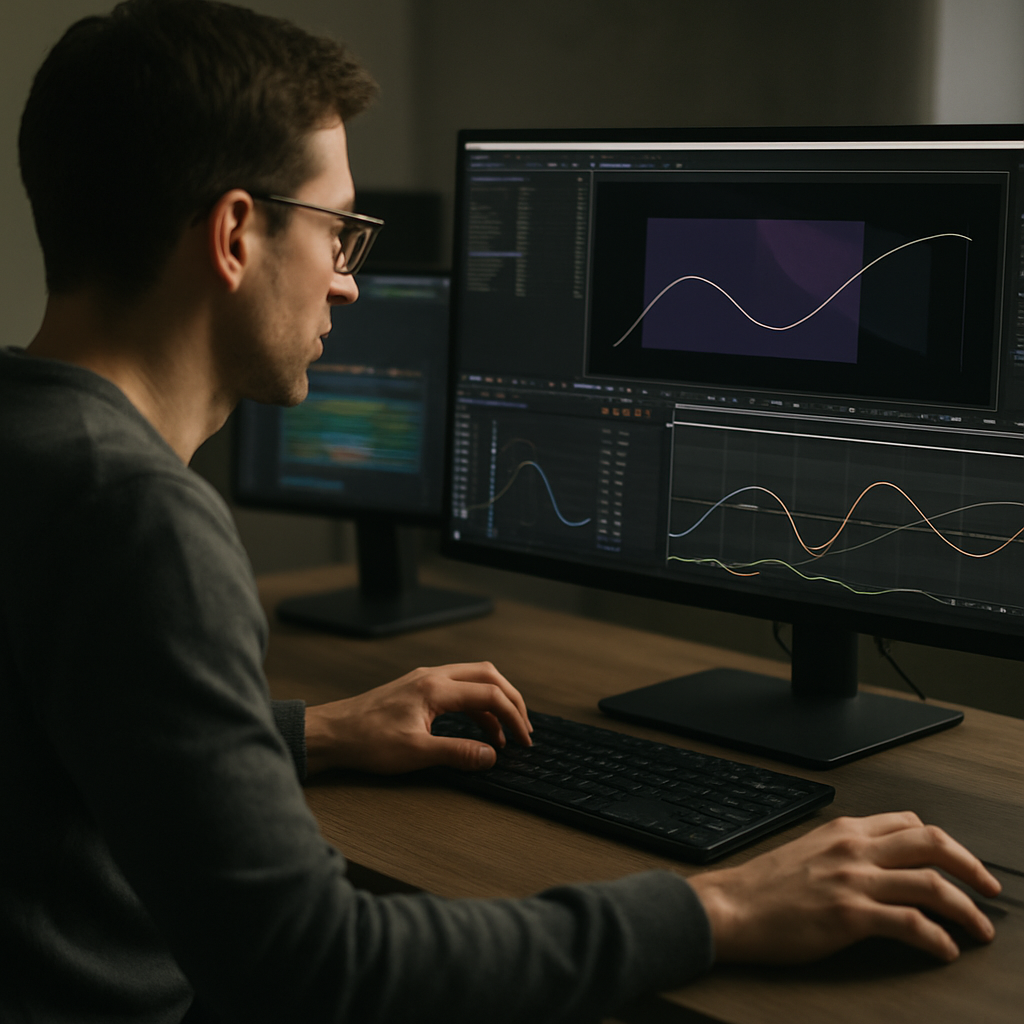
The Graph Editor in Adobe After Effects is where animation starts to feel truly polished. Learning how to read and shape curves gives you natural motion, clean timing, and pro-level control over every keyframe. This step-by-step guide walks through the essentials so you can confidently refine any animation, from social clips to client spots.Explore template access
📋 Table of Contents
Understanding the Graph Editor Basics
The Graph Editor in After Effects is a dedicated view inside the Timeline that lets you edit animation as curves instead of just numeric values. When you learn how to use graph editor in After Effects, you move from “guessing” keyframe timing to sculpting motion with precision.
What the Graph Editor actually shows
Every animated property in After Effects is driven by keyframes. The Graph Editor visualizes how values change between those keyframes over time. You can display two main types of graphs:
- Value Graph – shows the actual property value (position, scale, rotation, etc.) over time.
- Speed Graph – shows how fast the value changes, focusing on acceleration and deceleration.
Both graphs represent time on the horizontal axis. The vertical axis is either the property value (Value Graph) or pixels per second / degrees per second (Speed Graph).
Why it matters for motion design
Without the Graph Editor, your animations often look linear and robotic. With it, you can:
- Create smooth ease-in and ease-out motion for UI widgets, text, and logos.
- Match movement to beats, voiceover, or on-screen events.
- Control overshoot, bounce, and weight in a physically believable way.
- Align a whole design system around consistent curves for a brand.
Who should use the Graph Editor
The Graph Editor is essential for:
- Editors who want more polished transitions and titles without outsourcing animation.
- Motion designers building complex UI, lyric, or product animations.
- YouTube and social creators who need quick yet smooth moves across many videos.
Once you understand the basics, every template, preset, and custom rig becomes more useful, because you can read and adjust the underlying curves instead of just toggling switches.
Core Concepts in an After Effects Graph Editor Tutorial
To deepen your understanding, this after effects graph editor tutorial section focuses on what you actually click, drag, and look at while animating. Mastering these concepts will make every timeline more predictable.
Switching between Value and Speed Graph
The toggle at the bottom of the Graph Editor lets you choose which graph type you see. As a workflow tip:
- Use Value Graph when you care about the exact position or scale path.
- Use Speed Graph when you want to focus mainly on easing and acceleration.
Many motion designers animate with the Speed Graph for broad easing, then refine specific properties with the Value Graph.
Reading curves like a map
Think of curves as a map of how your animation feels:
- Flat line – no change; the property holds at a value.
- Straight diagonal line – linear, robotic move; constant speed.
- S-curve – smooth ease-in and ease-out; natural and polished.
- Sharp spike – sudden change of speed; snappy or jarring depending on context.
Handles, tangents, and Bezier control
Each keyframe in the Graph Editor can have Bezier handles. Dragging these lets you:
- Extend a handle to create longer ease and slower acceleration.
- Pull a handle closer to the keyframe to make the motion tighter and snappier.
- Break handle symmetry to create custom, asymmetrical ease-in vs ease-out.
This is where templates from collections like the UI and widget-style animations in dynamic YouTube interface projects become powerful: you can start with a prebuilt animation and then refine the handles to fit your brand rhythm.
Soloing and selecting properties
When multiple properties are animated at once (position, scale, opacity), the Graph Editor can quickly become crowded. Use the solo switches and property selection to focus on what you are adjusting right now, such as only the position of a button or just the opacity of a text layer.
Working with multiple layers
You can view curves from multiple layers together. This is useful for:
- Aligning elements in UI sequences, like a card list sliding in one by one.
- Staggering lyrics or captions in time, similar to complex lyric widget projects.
- Ensuring that background and foreground movements complement each other.
The more you practice, the more you will rely on the graph view over the default diamond keyframes, especially for client work where precise timing and feel are non-negotiable.
Common Graph Editor Problems and Mistakes
Even experienced users struggle with the Graph Editor when timelines get messy. Knowing the typical mistakes helps you avoid hours of trial and error.
1. Animating everything with linear keyframes
Leaving keyframes at their default linear setting makes motion feel stiff. Symptoms include:
- Elements stop abruptly instead of gliding to a rest.
- Camera moves feel like robot pans instead of organic moves.
- Text enters and exits so suddenly it becomes hard to read.
Fix: Convert keyframes to Easy Ease, then refine them in the Graph Editor with custom curves.
2. Confusing Value Graph vs Speed Graph
Beginners often do not realize they are looking at the wrong graph type. This leads to:
- Dragging handles but seeing no change in motion.
- Speed spikes that are invisible because you are in Value view.
- Misaligned position paths when only speed was adjusted.
Fix: Decide what you care about first (physical path or timing) and switch to the graph that represents it. Stay consistent during a task.
3. Overshooting unintentionally
Sometimes Bezier handles create unwanted overshoot or bounce. This can cause UI cards to slide beyond their bounds or text to wobble oddly.
- Curves that cross over target values.
- Unwanted reverse movement at the end of an animation.
Fix: Check the Value Graph and ensure curves approach the final value without crossing it, unless you want a bounce effect.
4. Ignoring motion blur and timing relationship
Even if your curves are perfect, motion blur settings and comp frame rate can undermine the look:
- Very short, snappy moves with strong blur may smear too much.
- Slow moves with heavy blur can feel muddy or out of focus.
Fix: Adjust blur amount and duration together. If you change timing in the Graph Editor, re-evaluate blur and shutter angle.
5. Messy comps and keyframe clutter
Large projects with many layers quickly become hard to manage:
- Keyframes for unrelated motions stacked on the same layer.
- No naming conventions for controls or precomps.
- Hard to find which layer drives a specific animation.
Fix: Precomp logically, group related animations, and give clear names to nulls and control layers before you start heavy Graph Editor work.
6. Overloading projects with heavy plugins
Using many third-party effects on animated layers can introduce lag, making Graph Editor adjustments painful because previews are slow.
Fix: Keep animation layers light. Pre-render heavy effects or use simpler stand-ins while you refine timing and curves.
By recognizing these issues early, you keep your timeline readable and your curves intentional, setting the stage for cleaner solutions in the next steps.
Choosing the Right Graph Approach for Each Project
Different kinds of edits call for different Graph Editor strategies. A cinematic brand film needs subtler curves than a snappy social reel. Choosing your approach upfront saves time.
Social reels and short-form content
For vertical reels, TikTok, or Shorts, viewers expect quick pacing and bold motion:
- Use sharper S-curves with short ease durations.
- Allow for slight overshoot for playful UI pops and icons.
- Align key curves to beats or transitions in the audio.
Templates built around fast UI and widget animations, like a compact map-style interface animation, are a good fit here because they start with robust curves that you can tweak, not reinvent.
YouTube intros, explainers, and corporate videos
These projects benefit from smoother, more deliberate motion:
- Favor longer ease-in and ease-out for readability.
- Keep speed changes gradual to avoid distracting the audience.
- Maintain consistent easing systems across lower-thirds, transitions, and charts.
Cinematic and product visuals
For more cinematic sequences or product animations:
- Use the Value Graph to control spatial arcs for cameras and 3D layers.
- Mimic real-world physics with slower acceleration and gentle deceleration.
- Introduce subtle offsets between elements for parallax and depth.
Using templates and an organized subscription workflow
When working across many edits each week, building every animation from scratch is inefficient. A well-organized library or an Unlimited After Effects Templates Subscription lets you:
- Start from proven animation systems with clean Graph Editor setups.
- Standardize easing curves across brands and clients.
- Reserve manual curve sculpting for the hero moments that truly need it.
Balancing manual animation and presets
It is helpful to understand After Effects fundamentals directly from the source; Adobe documents keyframes and interpolation clearly at their official animation basics guide. Once you are comfortable, combine that knowledge with curated templates so you are not reinventing every motion curve for each new project.
By matching your Graph Editor strategy to the project type, you get both speed and control, and you avoid over-animating just because the tools allow it.Get smoother motion now
Step by Step Graph Editor Workflow with Templates
This section turns theory into a practical checklist, especially useful if you regularly build projects from templates or reusable rigs.
Project setup and version compatibility
Before touching the Graph Editor, confirm:
- After Effects version: Open the project in a supported version for your template. If you are using complex lyric or widget packs like modern lyric animations, check version notes to avoid missing expressions or effects.
- Frame rate: Match template fps (often 23.976, 25, or 30). Changing fps later alters timing curves.
- Resolution: Confirm comp resolution (1080×1920, 1920×1080, 4K). Resolution does not affect curves, but affects performance and output.
Importing and organizing templates
When you import a template project or animation module:
- Keep template comps inside a dedicated folder.
- Duplicate master comps before editing, so you can revert if curves break.
- Create a separate folder for your client-ready versions.
Keyframe organization and naming
Clean naming makes the Graph Editor much easier to navigate:
- Name main controllers clearly, for example BTN_Main_CTRL, Camera_Rig_CTRL.
- Group related keyframes on control layers instead of scattering them.
- Use markers on the Timeline for key beats, voiceover points, and transitions.
Workflow: Editing curves from a template
Once your project is set up:
- Identify which layers actually drive visible motion (often labeled CTRL or MASTER).
- Select the animated properties and press the Graph Editor button.
- Choose Value or Speed Graph based on whether you are adjusting path or timing.
Then follow this workflow:
- Step 1: Play once without touching anything; note what feels too fast or slow.
- Step 2: Solo one property and adjust handles to fix that specific issue.
- Step 3: Preview short segments in a loop while tweaking curves.
- Step 4: Re-enable all layers to see how the system works together.
Performance tips while working in the Graph Editor
Complex templates and high resolutions can slow down previews. To keep your edits responsive:
- Lower preview resolution to Half or Quarter.
- Use Region of Interest to isolate part of the frame.
- Enable disk cache and purge if previews become sluggish.
- Temporarily disable heavy effects (glows, blurs, particle systems) on layers you are not evaluating.
Plugin dependencies and safe alternatives
Many advanced templates use third-party plugins. If a project requires a plugin you do not have:
- Check if there is a fallback version of the comp that uses only native effects.
- Keep heavy plugin-based looks in precomps and pre-render them if needed.
- Focus your Graph Editor work on layers that stay editable without plugins.
Customization workflow: colors, typography, and timing
After the curves feel right, customize the look:
- Use global controls for colors and fonts if the project provides them.
- Make sure font changes do not cause overlaps that alter the perceived timing.
- If you shorten or lengthen text lines, revisit curves to keep motion readable.
For example, in a UI-style promo sequence similar to an online payment widget animation, changing copy or buttons may shift where the eye travels. Slight Graph Editor tweaks help maintain focus and rhythm.
Use cases: reels, ads, promos, and cinematic edits
Apply this workflow differently depending on the content:
- Reels and shorts: Prioritize snappy curves and bold motion; keep durations short.
- Ads and product promos: Focus on clarity of features and stepwise reveals; keep curves smooth but punchy around key hooks.
- Cinematic edits: Use longer timelines, subtle curves, camera rigs, and parallax; treat the Graph Editor like a cinematography tool.
Final pre-delivery checks
Before rendering:
- Scrub through the Graph Editor and confirm there are no stray spikes or unwanted overshoots.
- Check that repeated elements use consistent curves across the whole timeline.
- Render a short test segment at final resolution to confirm motion feels right on the target platform.
A structured workflow like this turns templates from static layouts into flexible systems you can reuse across a large volume of work without sacrificing finesse in the Graph Editor.
Advanced Graph Editor Tips and Long Term Workflow
Once you are comfortable with basic curves and template customization, the Graph Editor becomes the backbone of a scalable motion system across many videos and clients.
Building reusable easing systems
Instead of designing curves from scratch for each comp, create a small library of easing styles:
- Soft UI ease for app and web interfaces.
- Bold snap ease for social edits and lyric hits.
- Cinematic ease for camera moves and product reveals.
Save these as presets or reference comps so you can paste keyframes and adapt them, rather than starting anew each time.
Consistency across a whole series
When you produce a series of tutorials, lyric videos, or widgets, consistent curves matter as much as typography:
- Use the same easing style for all main elements (titles, buttons, cards).
- Reserve special, more energetic curves for key moments like drops or transitions.
- Create master control layers where timing adjustments propagate through expressions.
In a widget-based series like a set of small animated UI cards, this approach results in a cohesive motion language across episodes.
Styleframes and motion tests
Before animating full timelines, build short motion tests:
- Animate just one button, one text line, and one background element.
- Refine curves until the motion matches the brand tone.
- Lock those curves as your reference before building out the full edit.
Modular transitions and systems
Use precomps and null controllers as modules:
- Create a few transition modules (wipe, slide, zoom) with tuned curves.
- Drive them from controllers so you can reuse them in many comps.
- Keep their Graph Editor curves clean and labeled with markers.
Quality control and client feedback
During reviews, clients rarely say “fix the Speed Graph,” but they will describe issues you can solve with curves:
- “That feels too jumpy” – soften curves, extend ease durations.
- “It feels slow” – compress spacing between keyframes or increase peak speed in the Speed Graph.
- “Make it more premium” – reduce harsh overshoot and use smoother S-curves.
Export and render considerations
Even perfect curves can look off if render settings are wrong:
- Check frame rate matches your comp and platform.
- Use appropriate motion blur; too much can hide the nuance of your curves.
- Test compressed exports (H.264 etc.) to ensure no stuttering from variable frame rate pipelines.
Avoiding heavy, fragile setups
Advanced rigs can become fragile if every property depends on expressions or plugins:
- Keep a balance between expression-driven rigs and direct keyframes.
- Pre-render especially complex segments once curves are final.
- Document your main controllers and curve logic in a text layer or notes.
Over time, this discipline lets you maintain fast, consistent After Effects projects that scale across campaigns, platforms, and an entire client roster without overwhelming your machine or your future self.
Motion Design Search Intents Around the Graph Editor
Many editors and motion designers search for very specific answers related to the Graph Editor and animation workflows. Here are common intents with quick responses.
- How do I make animations smoother in After Effects?
Use Easy Ease on keyframes, then open the Graph Editor and shape S-curves in the Speed or Value Graph instead of leaving linear motion. - Why does my Graph Editor not show curves?
Ensure the property is selected, keyframes exist, and you are viewing the correct graph type. Toggle between Edit Value Graph and Edit Speed Graph. - How can I copy easing from one layer to another?
Select the keyframes with desired curves, copy, then paste them on the target property. Align keyframe timing afterward to match the action. - How do I fix overshoot in my animations?
Switch to Value Graph, find where curves cross the final value unintentionally, and pull Bezier handles inward to remove extra bounce. - What is better: Speed Graph or Value Graph?
Neither is universally better. Use Speed Graph for timing and feel, Value Graph for spatial control and avoiding unwanted overshoot. - How can I match motion to music beats?
Set markers on beats in the timeline, then place or adjust keyframes so acceleration peaks or impacts land exactly on those markers. - Why is my animation choppy after export?
Check that your export frame rate matches the comp. Avoid low bitrate and variable frame rate sources; preview the final file at 100 percent size. - How do I speed up my Graph Editor workflow?
Use templates, preset easing systems, and organized control layers. Work at reduced preview resolution and mute heavy effects while adjusting curves.
Understanding these recurring questions helps you diagnose issues faster and refine your approach as projects and clients become more demanding.
Bringing It All Together with Confident Graph Editor Use
Learning how to use graph editor in After Effects shifts your work from basic keyframe moves to deliberate, controlled animation. You gain the ability to dial in weight, rhythm, and clarity for any project, whether it is a social reel, a widget sequence, or a full campaign.
An after effects graph editor tutorial is only the starting point. The real impact comes from pairing solid curve fundamentals with organized projects, reusable systems, and well-structured templates that you can adapt quickly for new briefs and platforms.
As you continue, keep refining a small set of trusted curves, test them across multiple edits, and review your work on real devices. With each project, the Graph Editor becomes less intimidating and more like a familiar instrument you can rely on for consistent, professional motion design results worldwide.
Access templates for faster work
Conclusions
Curves, not keyframe icons, are what truly shape motion in After Effects. By understanding the Graph Editor, refining templates thoughtfully, and building reusable easing systems, you gain smoother animation, faster workflows, and reliable results across every project and client.
FAQ
How do I open the Graph Editor in After Effects?
Select a layer with keyframes in the Timeline and click the Graph Editor button at the top of the Timeline panel to switch to curve view.
Should I use the Speed Graph or the Value Graph?
Use the Speed Graph for overall easing and timing feel, and the Value Graph when you need precise control of paths, overshoot, or specific property values.
How can I smooth out choppy animations quickly?
Convert keyframes to Easy Ease, then open the Graph Editor and create smooth S-curves by adjusting Bezier handles on the Speed or Value Graph.
Why are my keyframes not visible in the Graph Editor?
Make sure the property is selected, the layer is not shy or hidden, and that you are displaying the correct graph type for that property.
Can I reuse easing from one project in another?
Yes. Save keyframe setups as presets, or copy keyframes from a reference comp and paste them into new projects, then adjust timing as needed.
Does frame rate affect my Graph Editor curves?
Yes. Changing frame rate alters timing and spacing between frames, which can change how curves feel, so set fps before heavy Graph Editor work.